
Notion works best when you use it as a focused workspace, not a place to store everything at once.
This Notion beginner guide explains how students, freelancers, creators, remote workers, and small teams can organize notes, tasks, references, and projects without making the setup too heavy.
You will learn where Notion fits, who may benefit from it, and what to build first. The goal is a simple system that stays useful after the first few days, not a dashboard that looks good but becomes hard to maintain.
Understand What Notion Is Built to Organize
Notion brings writing, planning, databases, and collaboration into one flexible workspace. Instead of keeping notes in one app, tasks in another, and project details in scattered folders, you can place related information on connected pages.
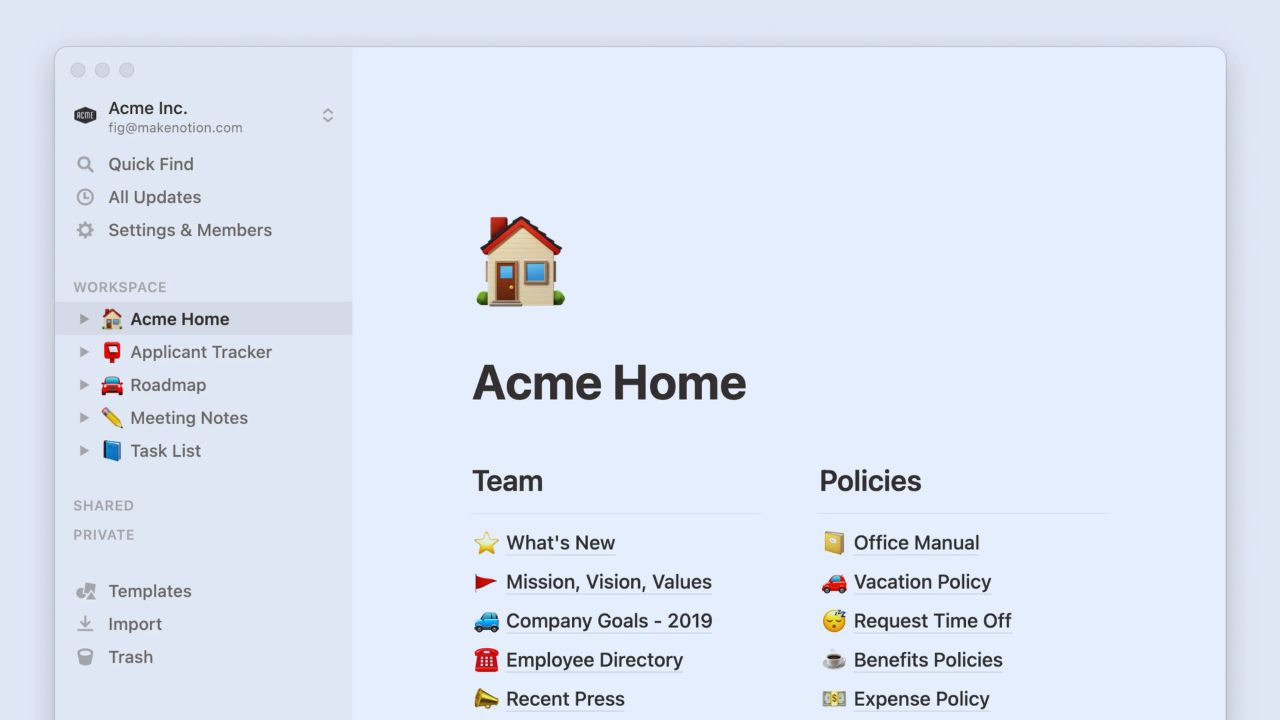
This connected workspace is useful when your work depends on context, not only quick reminders. A student might keep class notes beside deadlines.
A freelancer might connect client briefs, invoices, and content plans. The value comes from reducing the gap between information and action.
Pages and Blocks Need a Simple Start
Notion pages are containers, while blocks are the pieces inside them, such as text, headings, images, checklists, files, and databases.
This structure is flexible, but it can feel unfamiliar at first. A clean page structure should begin with only what you need today.
Add headings, short notes, and one small task area before exploring complex layouts. If every page starts as a dashboard, the setup becomes harder to use than the problem it was meant to solve.
Decide Whether It Fits Your Work Style
Notion suits people who like building their own structure. It can support study systems, project trackers, content calendars, knowledge bases, personal plans, and shared team notes.
This flexible setup works well for users who want notes and tasks to live close together. It is less suitable for people who want instant simplicity, fixed layouts, or a plain note tool with almost no setup. If you dislike adjusting systems, Notion may feel heavier than necessary.
Beginners Should Avoid Overbuilding
The biggest beginner mistake is trying to create a complete life dashboard before using the tool for real work.
That often leads to too many pages, confusing databases, and abandoned templates. A practical starter system should solve one problem first, such as tracking assignments, planning articles, managing client tasks, or storing meeting notes.
Use it for a week, then adjust what feels unclear. Real use teaches you more than copying an elaborate template.
Templates Should Stay Practical
Templates can shorten setup, but they should not decide how your workspace functions. A large template may look impressive while hiding features you do not need.
A useful Notion template should match one task, such as weekly planning, class notes, or content tracking. Remove sections you will not update. A smaller template that gets used daily is better than a polished system you avoid because it feels heavy.
Also Read: How to Get Started With This Software
Use Databases Only When They Add Control
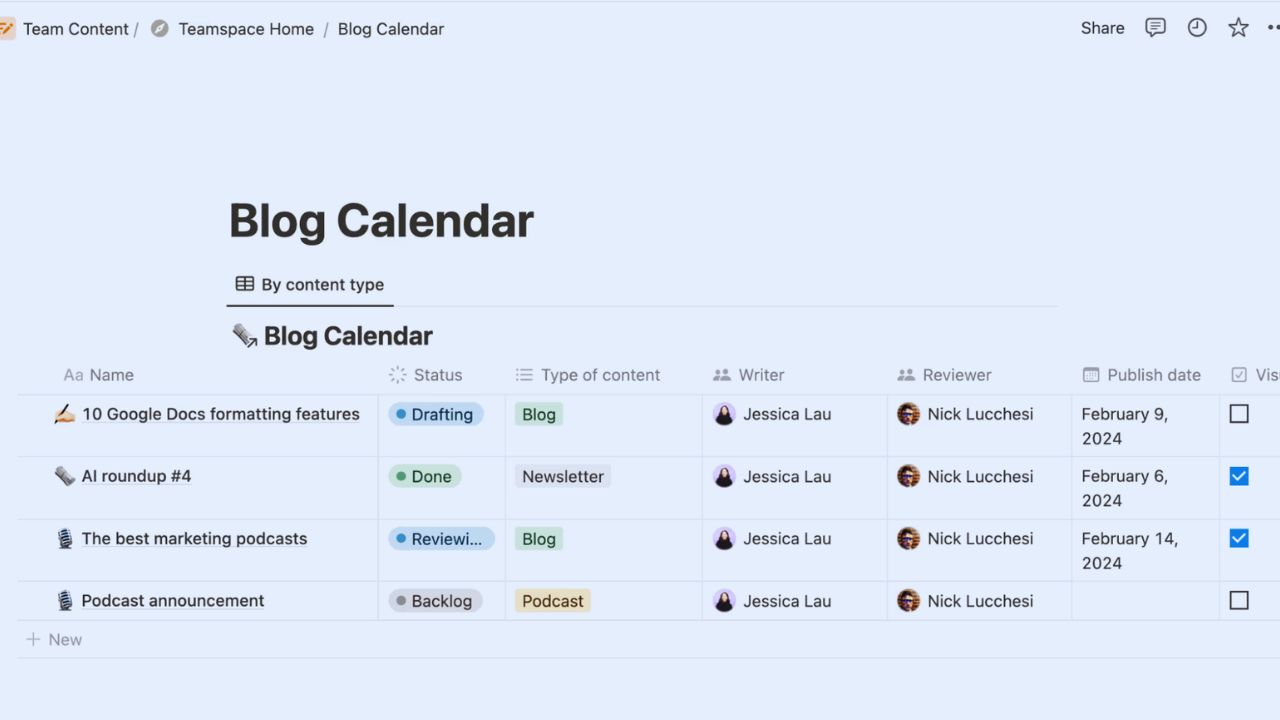
Databases are one of Notion’s strongest features, but they are not needed for every page. They work best when information must be sorted, filtered, grouped, or viewed in different ways.
A Notion database can track content ideas, deadlines, reading lists, contacts, projects, or habits. If the information is only a short one-time note, regular text may be enough. Use databases when structure helps you find, compare, or update information faster.
Views Should Match How You Think
The same database can appear as a table, board, calendar, list, or timeline, depending on how you want to review the information.
A content creator may prefer a calendar for publishing dates, while a team may prefer a board for progress stages.
This database view choice should match the decision you need to make. If you only change views because they look nice, the setup can become distracting. Keep the view that makes the next action clearer.
Keep Collaboration Controlled and Clear
Notion can work well for shared notes, team documentation, project planning, and client-facing pages. Collaboration becomes risky when permissions are too broad or nobody knows which page is the source of truth.
A careful sharing permission habit means checking whether someone can view, comment, or edit before sending a link.
Give full access only when people truly need it. For personal work, keep private pages separate from team spaces so sensitive notes do not land in the wrong place.
Comments Should Stay Near the Work
Comments are useful when feedback stays beside the page, task, or section being discussed. They reduce scattered messages and help teammates see what changed. A clear comment workflow should tell people where to leave updates and when to resolve old notes.
If decisions happen in chat, email, and Notion at the same time, confusion returns. Keep review conversations inside the relevant page whenever possible.
Review Privacy Before Storing Important Information
Notion is cloud-based, so users should think carefully about what they store and share. It can hold notes, files, plans, and records, but not every private document belongs in a general workspace.
A smart privacy review includes checking account security, page sharing, public links, guest access, and export options.
Use two-step verification when available, and avoid sharing pages publicly by accident. If a workspace includes client or school information, review access regularly.
Export Important Work Periodically
Digital work should not depend entirely on one account or workspace. Notion allows users to export content, which can be useful for backups, archives, or moving information elsewhere.
This export habit matters for long-term notes, research, client records, and project documentation.
Save important material in a format you can access outside the app. A backup is especially helpful before deleting pages, changing workspace structure, or leaving a team.
Make Notion Useful Through Small Routines
A good Notion setup should make daily work easier, not add another system to manage. Start with a few clear pages, use databases only when they help, and review sharing settings before inviting others.
A steady Notion routine should help you find information faster, track work more clearly, and avoid rebuilding the same notes in different places.
Keep what you use, remove what you ignore, and review the workspace weekly so old tasks, duplicate pages, and unused templates do not recreate the clutter you wanted to avoid.









