
Trello works best when the board stays clear enough to check every day. This Trello beginner tutorial explains how boards, lists, cards, labels, due dates, and simple automation help people manage schoolwork, client tasks, household plans, or small team projects.
You will learn what to set up first, what to avoid, and how to keep the tool useful. That keeps the first setup practical instead of overwhelming for new users who simply need clearer tasks today.
Start With What Trello Is Meant to Do
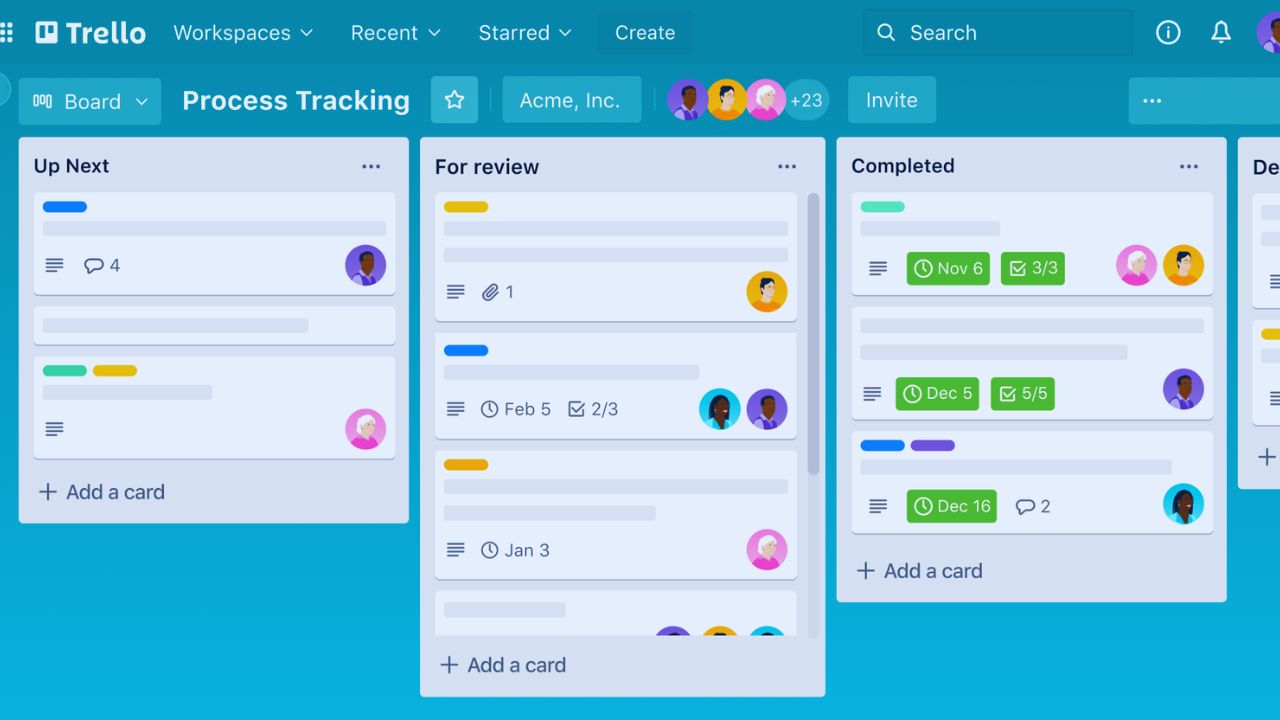
Trello is a visual task tool built around boards, lists, and cards. A board holds one project or area of responsibility, lists show stages of progress, and cards hold the actual tasks.
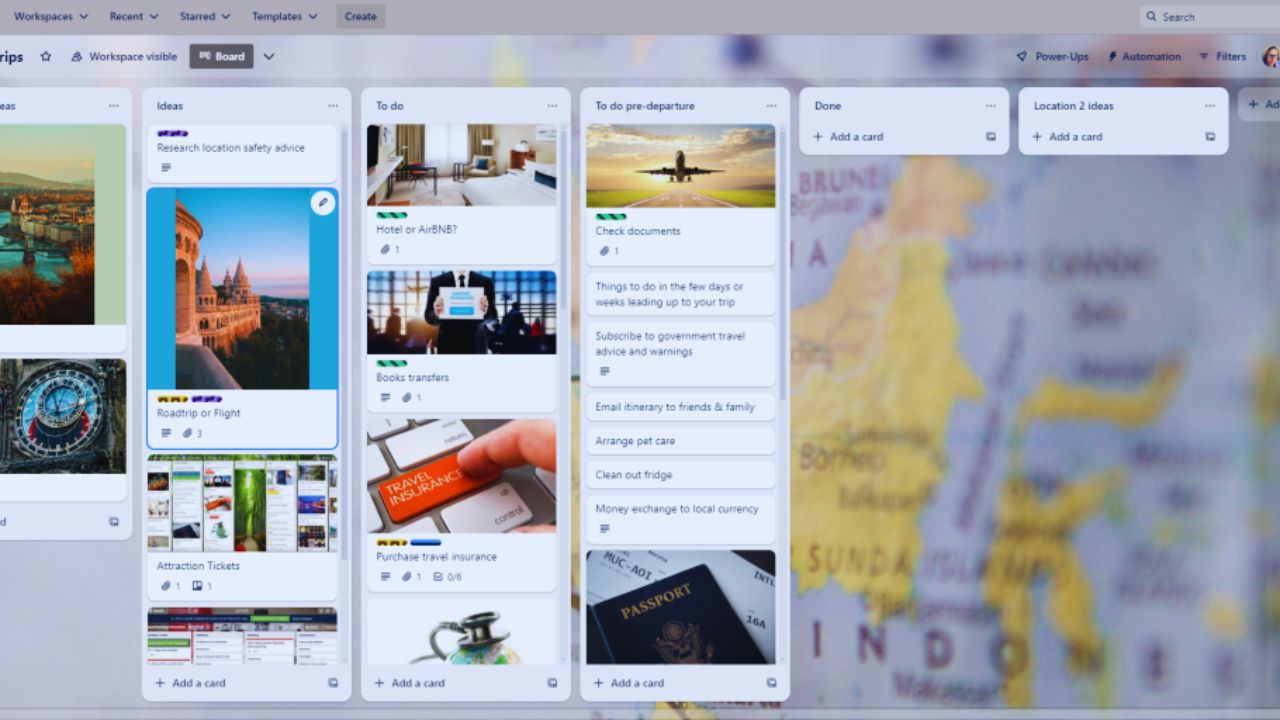
This visual system works well for people who think better when they can see work moving. Its strength is making current tasks visible, easy to move, and easier to discuss.
Know Who Will Benefit Most
Trello is useful for individuals, students, freelancers, content creators, families, and small teams that need simple coordination. It can track assignments, errands, client work, article drafts, chores, and event planning.
This simple workflow fits people who want a flexible board rather than a strict project management system. It may feel limited for large organizations that need detailed reporting, approval chains, complex dependencies.
Build One Board Before Adding More
A beginner should start with one board instead of creating several at once. One clear board lets you test how tasks move from planning to completion.
This first board should have a specific name, such as Weekly Tasks, Content Calendar, Study Plan, or Client Work. A vague name makes the board harder to use later. Add only active work at first so the setup feels manageable.
Lists Should Match Real Stages
Lists are most useful when they mirror how work actually happens. A basic board can use To Do, Doing, and Done. A content board may use Ideas, Drafting, Editing, Scheduled, and Published.
This list structure should stay short enough to scan quickly. Too many stages create hesitation. If two lists mean nearly the same thing, combine them before the board becomes crowded.
Also Read: How This Software Works Step-by-Step
Make Cards Actionable, Not Vague
Cards carry the real work inside Trello. A strong card title should name the next action, not just the topic. This card detail helps when you return later without rereading old messages.
“Write homepage intro” is clearer than “Website.” Use the description for instructions, links, notes. A card should hold enough context for someone else to understand the task.
Use Checklists When Tasks Have Parts
Checklists help when one card includes several smaller steps. A student project might include research, outline, draft, review, and submission. A content card might include keyword check, image request, editing, formatting, and final upload.
This checklist habit keeps a large task from sitting unfinished. Keep checklists short and practical. When a checklist becomes too long, split the work into separate cards.
Add Dates and Members Carefully
Due dates and members make Trello more accountable. A due date shows when attention is needed, while a member shows who should move the card forward. This task ownership prevents people from assuming someone else is handling the work.
Avoid assigning every person to every card. One clear owner usually creates more progress than several names attached.
Keep Labels Easy to Understand
Labels can show priority, content type, client, department, or task category. They become confusing when every color has a vague meaning. A clean label system should make filtering easier without needing a long explanation.
Start with only a few labels, then add more when you notice a real sorting problem. Delete labels that nobody uses. Visual organization should reduce friction, not decorate the board.
Notifications Should Not Control the Day
Trello notifications can help, but too many alerts make people ignore the tool. Beginners should review notification settings early and keep only updates they truly need.
This notification control is important for students, freelancers, and teams using email or chat apps. Use reminders for deadlines, mentions, and important card changes. Avoid letting every small board movement interrupt focused work.
Separate Personal and Work Boards
Personal and work tasks often need different levels of detail. A personal board may only need quick cards for chores, habits, errands, or goals. A work board usually needs owners, due dates, attachments, and clearer comments.
This board separation keeps private plans away from shared responsibilities. It also reduces confusion when switching contexts. Similar list names can help both boards feel familiar.
Collaboration Needs Clear Access
Shared boards work only when access and responsibility are clear. Invite people who actually need the board, then decide who can edit, comment, or view information. This team collaboration prevents accidental changes and duplicated work.
Comments should stay on the relevant card so decisions are not scattered across messages. When a task changes owner, update the card instead of relying on memory.
Add Power Ups Only When Needed
Power Ups can add calendars, recurring cards, integrations, and voting. They are useful, but beginners should not install several before the basic workflow works. A good Power Up solves a problem already visible on the board.
If deadlines are hard to see, a calendar view may help. If recurring tasks keep being forgotten, a repeating card feature may help. Add one improvement at a time.
Automation Should Stay Understandable
Automation can move cards, assign members, add checklists, or respond to due dates when certain conditions are met. This saves clicks, but it can confuse users if rules run unexpectedly.
A safe automation rule should be simple enough for everyone on the board to understand. Start with small actions, such as moving completed cards. Avoid building a hidden system nobody can explain.
Review and Clean the Board Weekly
Trello stays useful when the board reflects real work. Set a short weekly review to archive completed cards, rename vague tasks, adjust dates, remove unused labels. This weekly cleanup keeps the board from becoming a storage box.
A messy board makes people stop trusting the system. A clean board shows what matters now, what is waiting, and what is finished.
Use Trello as a Lightweight Planning Habit
Trello is strongest when it becomes a simple daily habit rather than a complex control center. Start with one board, practical lists, clear cards, careful labels, and realistic due dates.
A reliable Trello routine should help you see work, limit overload, and finish tasks. Do not overload the board with every idea or add on immediately. Build slowly, review often, and let the board match the way you actually work.









