
Managing PDFs should make work easier, not add another layer of confusion. This guide explains Adobe Acrobat file routines for people handling client packets, reports, school forms, HR documents, proposals, or research files.
You will learn how to organize, compress, protect, edit, combine, share, and review PDFs without turning every small change into a new messy version. The goal is a repeatable workflow that keeps files readable, searchable, secure, and ready to send.
Start With a Naming System People Can Follow
A PDF workflow usually fails when files are named casually. Names like “final,” “new final,” and “updated copy” create confusion during reviews.

A clear file naming pattern should include the project, date, document type, and status. For example, a proposal can show whether it is a draft, client review, or approved version.
Keep the format short enough that people will actually use it. Good names reduce searching before Acrobat even opens.
Metadata Helps Search Later
Acrobat file properties can hold the title, author, subject, and keywords. These details matter when teams archive many PDFs and need to find them months later. Useful PDF metadata should match the document’s real purpose, not random export defaults.
Fill these fields for important client files, manuals, reports, and policy documents. A few extra seconds during export can save long searches later.
Compress Files Without Damaging Readability
Large PDFs slow uploads, previews, email delivery, and shared drive syncing. Acrobat compression and optimization tools can reduce size by adjusting images, fonts, and unused elements.
Smart PDF compression means choosing settings based on use. A screen only report can usually tolerate lighter images, while a print packet needs stronger quality. Always open the compressed file before sending. If small text looks blurry, the file is too compressed.
Use Presets for Repeated Outputs
Teams often send the same types of PDFs every week. A preset for reports, invoices, manuals, or client proofs keeps quality consistent.
This optimization preset avoids guessing each time someone exports a file. Save different settings for web sharing and print delivery when both are common. Presets also help new teammates follow the same standard without asking for instructions on every document.
Protect Sensitive Documents Before Sharing
Not every PDF needs a password, but confidential files need deliberate controls. Acrobat can restrict opening, editing, printing, copying, and page changes depending on the protection settings used.
A strong PDF security habit starts by deciding who should view the file and what they should be allowed to do. Send passwords through a separate channel when possible. If recipients do not understand the rules, security becomes a lockout problem.
Redaction Is Safer Than Hiding Text
Covering information with a black box is not the same as removing it. Sensitive names, account numbers, addresses, or internal notes should be properly redacted before sharing.
This redaction step matters because hidden text may still be recoverable if the file was edited carelessly. Make a separate public copy when a wider audience needs the document. Keep the original protected and clearly labeled.
Also Read: How to Set Up Bitwarden Correctly the First Time
Edit Only What the PDF Can Safely Handle
Acrobat can fix small text errors, update images, adjust pages, and add marks during review. It is not always the best place for heavy redesign. Careful PDF editing means using Acrobat for corrections, comments, forms, signatures, and final packaging.
If the layout needs major changes, return to the source file instead. That prevents alignment problems, font issues, and awkward page breaks.
Comments Keep Reviews Cleaner
Comments are better than sending feedback through separate chats and emails. Highlights, notes, stamps, and text suggestions keep decisions beside the exact page being discussed.
A clear comment review process asks reviewers to reply inside existing threads instead of creating duplicate remarks. When managers need a quick overview, export or summarize comments. This keeps one file as the main review record.
Combine and Split PDFs With a Clear Purpose
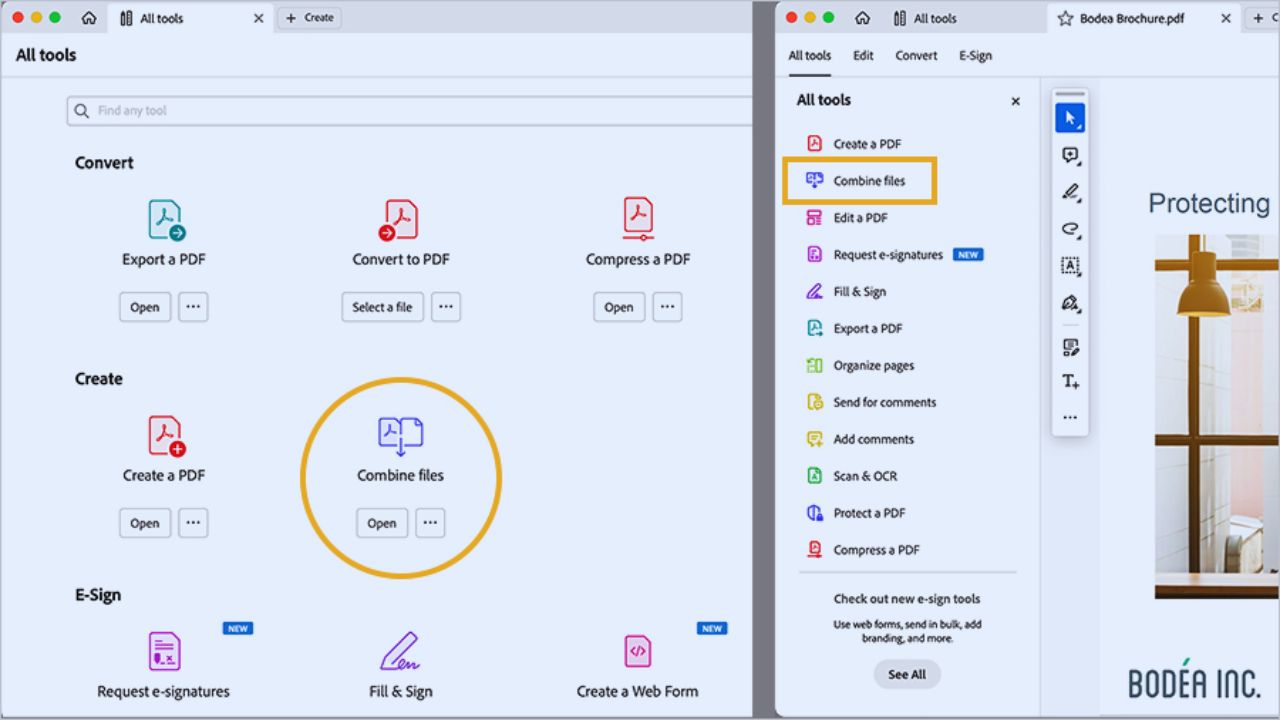
Combining files is useful when a reader needs one complete package. Proposals, onboarding packets, research binders, and tax documents often work better as organized PDFs than scattered attachments.
A strong document package should place pages in the order someone will read them. After combining, check page order, bookmarks, file size, and permissions. Split large files when different audiences only need specific sections.
Organize Pages Before Sending
Acrobat page tools can reorder, rotate, extract, delete, and replace pages. These actions are simple, but rushed page work creates embarrassing mistakes.
A good page order check confirms that cover sheets, forms, signatures, appendices, and pricing pages appear where expected. Review the final PDF from start to finish. Do not assume a merged file stayed correct just because the upload finished.
Share Files Without Losing Control
Email attachments can work for simple files, but they become messy when people forward old copies. Trackable sharing or a controlled cloud link helps teams know which version is current.
A safer file sharing routine limits access, uses clear permissions, and avoids sending sensitive files to more people than necessary. Before sharing externally, confirm the file name, size, protection, and visible comments. Small checks prevent awkward corrections.
Export and Print Need Separate Checks
A PDF exported to Word, Excel, or PowerPoint may not keep every layout detail perfectly. Print ready files also need checks for size, margins, images, and final page order. This export check prevents surprises when someone reuses or prints the file.
Open the converted file before sending it as editable content. For print jobs, confirm the vendor’s requirements before assuming the default PDF is enough.
Make Navigation Easier for Long Documents
Long PDFs should not make readers scroll endlessly. Bookmarks, clear page order, and descriptive section names help people move through reports, manuals, and packets quickly.
Strong PDF navigation is especially useful for clients, reviewers, students, and managers who only need certain sections. Add bookmarks for major sections and keep labels understandable. Navigation is not decoration; it helps readers use the file correctly.
Keep Acrobat Workflows Consistent
Managing files using Adobe Acrobat works best when the routine is simple enough to repeat. Name files clearly, add metadata, compress carefully, protect sensitive content, edit lightly, combine intentionally, and share with the right permissions.
A dependable Acrobat workflow prevents version sprawl, oversized files, weak security, and rushed review mistakes. The best habit is to check the final PDF like a recipient would. Open it, scan it, test navigation, confirm access, and only then send it.
This final check is especially important when the PDF goes to clients, schools, vendors, or managers who may not ask twice before acting on the file later at work.









