
Signing documents online can save time, but the process still needs care. This guide explains online document signing for students, freelancers, employees, tenants, and anyone handling routine paperwork without printing or scanning.
You will learn how to prepare a file, choose a signing tool, place fields, request signatures, and store the finished PDF properly. The goal is a repeatable process that looks professional and avoids missing dates, unreadable scans, or lost audit records.
It is especially useful when a deadline is close, but only if the file, signer details, and final copy are checked carefully before sending it today.
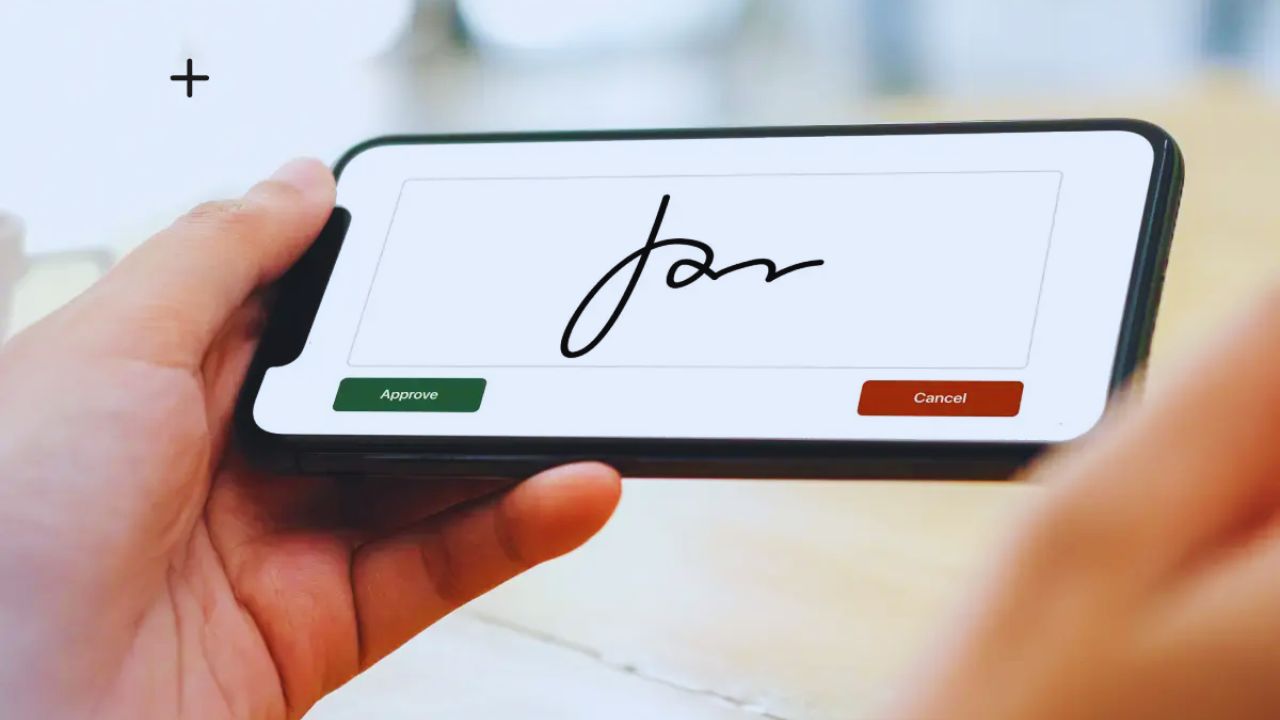
Know When an Online Signature Makes Sense
Electronic signatures are often accepted for routine agreements, approvals, forms, school documents, and business paperwork.

Still, acceptance depends on the recipient, document type, and local requirements. A clear signature process should show who signed, what was signed, and when the document was completed.
If the recipient asks for a specific format, follow that instruction instead of guessing. Online signing is convenient, but it should match the rules attached to the document.
Watch for Wet Signature Requirements
Some forms still require an original ink signature, especially notarized papers, certain government submissions, or documents with strict filing instructions.
If a form says “wet signature,” “original signature,” or “mail the signed copy,” do not replace that with an online version.
This wet signature warning can prevent rejected paperwork. When the wording is unclear, ask the office, employer, school, or client before signing. A quick confirmation is better than repeating the whole process.
Choose a Tool Based on the Document
Most signing tools follow the same pattern: upload, add fields, sign, send, and download. The right tool depends on whether you are signing once, collecting several signatures, or managing repeated paperwork.
A good signing tool should keep the PDF readable, place fields accurately, and provide a completion record when needed.
Occasional users may only need a simple PDF signing feature. Businesses or freelancers may need templates, reminders, status tracking, and stronger signer verification.
Check the Free Version Carefully
Free signing tools can work well for simple documents, but they may have limits. Some restrict file size, monthly sends, downloads, templates, or audit trails. This free version check matters before you upload a document with personal or business details.
Confirm whether the final PDF downloads cleanly and whether a watermark appears. If the file is sensitive, review the platform’s privacy and security information before using it.
Prepare the File Before Uploading
Most signing problems start before the document reaches the platform. A messy scan, wrong page order, missing attachment, or blurry image can make the final copy harder to use.
A clean PDF file is usually the safest format because signatures and fields stay anchored across devices. Open the document at normal zoom and confirm every page is readable. If several files belong together, merge them first so the signer sees one complete package.
Also Read: Managing Files: How to Do This Faster Using the Adobe Acrobat
Clean Scans Save Time Later
Phone photos can work, but they need extra attention. Straighten pages, remove shadows, improve contrast, and avoid cutting off corners or small print. A readable document scan prevents confusion when the signer checks names, dates, or terms.
If the scan looks fuzzy before upload, it will not become clearer after signing. Rescan in better lighting instead of trying to fix a weak file at the end.
Sign Your Own Document Step by Step
A single-signer document is usually the fastest workflow. Upload the PDF, open the fill and sign tool, create your signature, place it in the correct field, add any required date, then export the final copy.
This signed PDF should be downloaded immediately and opened locally for review. Check every page, not only the signature page. If the name, date, or layout looks wrong, fix it before sending.
Use a Laptop for Precise Placement
A phone is convenient for quick approval, but field placement is easier on a laptop. A larger screen helps you align signatures, initials, dates, and checkboxes without covering text. This field placement step matters when forms have narrow lines or multiple signature areas.
If you must use mobile, zoom in and rotate the screen when needed. Precision makes the finished document look cleaner and reduces follow-up questions.
Request Signatures From Other People
Multi-signer documents need more structure because each person must know exactly what to complete. Enter names and email addresses carefully, assign fields to the correct signer, and add a short message explaining the purpose.
This signature request reduces confusion and prevents people from filling the wrong area. If the document needs a specific signing order, set that order inside the tool. Reminders can help, but they should be spaced reasonably.
Save the Audit Trail With the Final Copy
Many platforms create a completion certificate or audit trail showing signing times, email addresses, and document activity. Store that record with the signed PDF, especially for agreements, approvals, rentals, payments, and client work.
This audit trail can help later if someone asks when the document was completed. Do not leave proof only inside the platform account. Download and file it while the document is still fresh.
Keep Signing Secure and Professional
Signed documents often contain private details, even when the paperwork seems ordinary. Use a strong password on your signing account, enable two-factor authentication when available, and avoid public Wi-Fi for sensitive forms.
This secure signing habit protects files from careless exposure. Share documents only with people who truly need access. If the file includes financial, legal, or personal information, choose a provider with clear security practices rather than the fastest random website.
Fix Problems Before Starting Over
Common issues include failed uploads, blurry files, shifted fields, browser errors, and mobile scaling problems. Before restarting, try another browser, refresh the page, disable strict blockers temporarily, or export the file again as a standard PDF.
This signing problem check can save time. If fields move on mobile, place them on desktop first and use the phone only to approve or sign. Test the final PDF on another device before sending.
Store the Final Document So You Can Find It
The signing process is not finished until the completed file is saved properly. Rename the document with the date, purpose, and signer name so it can be found later without opening several versions.
A clear file storage routine should keep the signed PDF and audit trail in the same folder. If you sign similar documents often, create a template or saved workflow. Good storage habits turn online signing from a one-time fix into a dependable paperwork system.









