
Most people think data entry errors come from carelessness. After watching clean spreadsheets get wrecked by one inconsistent naming convention, I think the problem starts earlier: nobody defines what “correct” looks like before entering a single row.
This guide covers invoices in Zoho Invoice, inventory in Sortly, and contacts in HubSpot CRM. Each section uses one tool, one system, one practical example.
If you have already tried to clean up messy records after the fact, you know how long that takes. This is about stopping the mess before it starts.
Speed and accuracy are not opposites. Set the rules once, and every entry after that gets faster.
Invoice Entry in Zoho Invoice: Set the Rules Before Row One
The most common invoice entry mistake has nothing to do with math. It is about inconsistency: dates formatted three different ways, tax fields left blank, customer names that appear as “Acme Corp” in one record and “Acme Corporation” in the next.
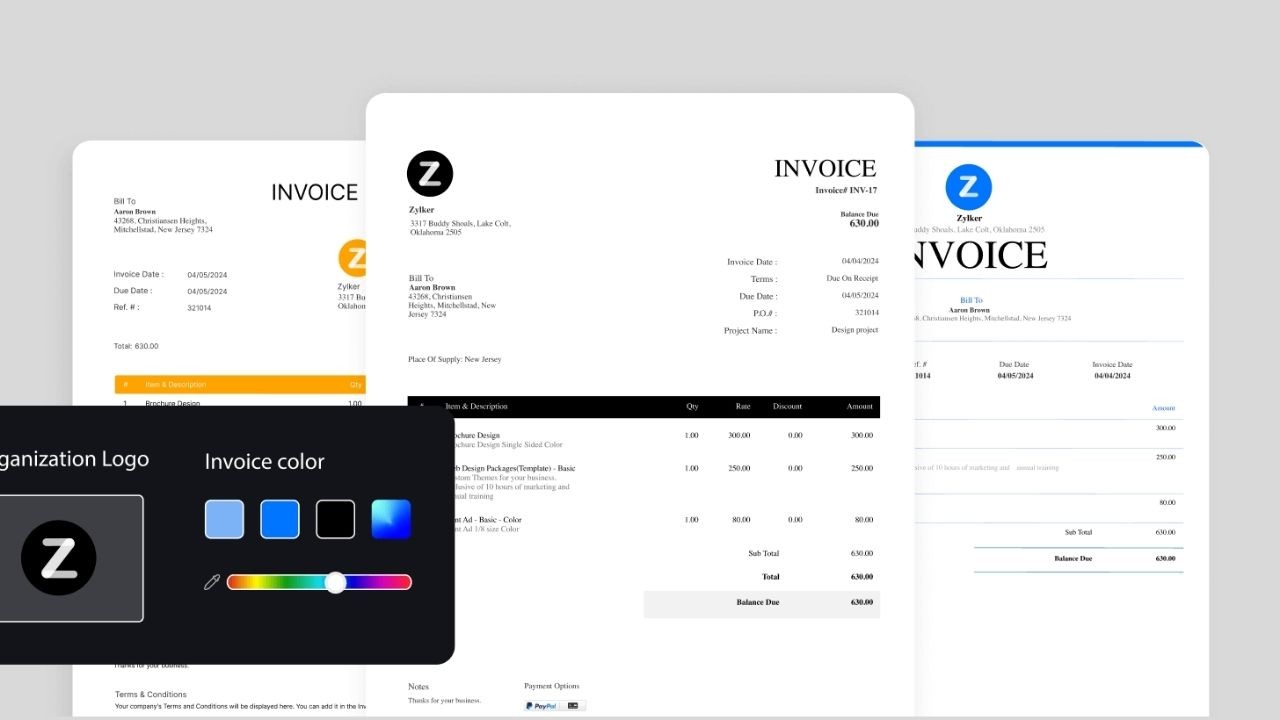
Define what a correct invoice looks like before you enter any data. In Zoho Invoice, that means deciding which fields are always required, which date and currency format applies across the board, and which fields you hide entirely because they create noise.

Build Customer Profiles With One Naming Convention
Customer profiles deserve more attention than most guides give them. Every naming inconsistency you allow now becomes a duplicate you chase down later.
Pick one format and enforce it from day one. A rule like “Company Name, Branch” works because it is specific enough to be consistent and flexible enough to handle most clients. Add billing email and phone in the same format every time.
If a client’s details change, update the existing profile instead of creating a new one. Split payment trails in your reports are usually a sign that someone created a second record when an update would have done the job.
Use Line Item Templates to Lock In Pricing
Repricing errors are quiet. They do not show up as obvious entry mistakes. They show up as small discrepancies across reports that take hours to trace back.
Set up line item templates for every service or product you bill regularly. Assign a standard description, a default rate, and a tax setting. When pricing changes, update the template once. Every invoice built from that template updates automatically.
This also keeps export labels consistent, which matters more than people realize. If item names drift across invoices, grouped report totals stop making sense.
Keep Payment Status Updated in Real Time
Status tracking is part of data entry. It is not an afterthought or an admin task for Fridays.
Update payment status in Zoho Invoice as soon as you have confirmation from the bank or payment platform. Add a reference note, like a transaction ID or payment date, in the same field every time. Review overdue items weekly and correct any incorrectly entered dates or amounts before they sit long enough to confuse your next report.
Inventory Entry in Sortly: The SKU Rule Saves You Later
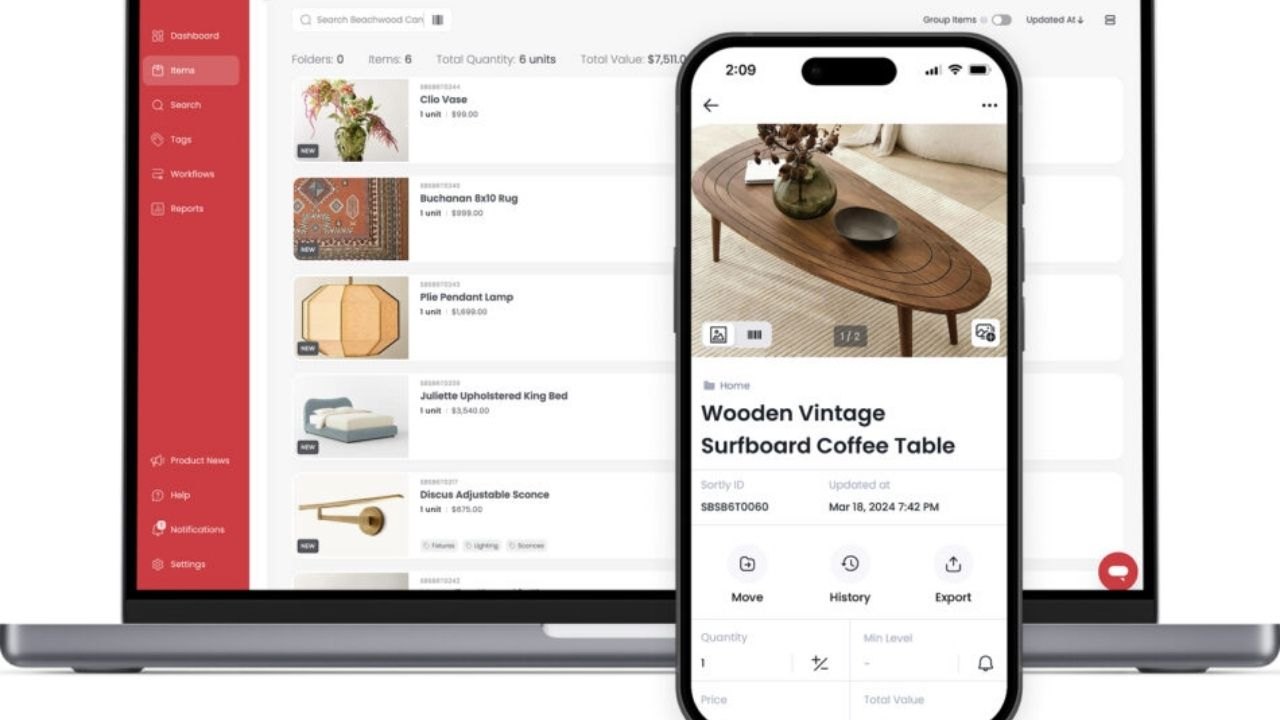
Inventory entry breaks in one specific way: the same physical item gets entered twice under slightly different names. “Blue Cap M” and “Cap Blue Medium” are the same product. Your system does not know that. Your totals will not know that either.
Sortly addresses this with categories, photos, and consistent identifiers. But the tool only works if your naming rules exist before you start adding items at scale.
Create a SKU Rule Before You Add Inventory
I would not start adding inventory to any system without a SKU structure defined first. Sortly lets you assign custom SKUs, and the format matters more than most tutorials admit.
A category code plus a short number sequence works well: “ELEC-001,” “FURN-012,” and so on. Keep the SKU visible during entry and search by SKU before adding anything new. If the SKU exists, update the quantity. Do not create a second record.
A SKU rule stops duplicates that hide behind slightly different item names. That sentence sounds obvious until you are staring at 400 inventory rows trying to figure out which “Blue Chair” entry is the accurate one.
Use QR Labels to Eliminate Manual Retyping
Manual typing during stock updates is where quantity errors happen. Someone is busy, the item arrives during peak hours, and a number gets entered wrong. Or skipped entirely.
If you manage physical stock, generate QR labels for each SKU in Sortly and place them on the items or storage bins. Scan the label when stock arrives and update the quantity immediately.
The habit forms fastest when the label is placed where you naturally look during receiving. This also speeds up cycle counts and makes audit discrepancies easier to trace.
Also read: Four Online Tools That Fix the Daily Chaos of Files, Logins, and PDFs
Standardize Units and Track Changes With Activity History
Units are a silent accuracy problem. Entering the same product as “pcs” in one record and “units” in another does not seem dangerous. But when you pull totals, the numbers stop being reliable.
Choose one unit style per item type and apply it universally. If a unit changes for a legitimate reason, note the reason in the item record so future reviewers do not flag it as an error.
Sortly’s activity history shows who updated an item and when. Review it before accepting unusual adjustments. When you correct a mistake, add a short explanation in the item notes.
Those notes are how your team learns the correct entry format without needing a separate training document.
Contact Entry in HubSpot CRM: Duplicates Are a Rule Problem, Not a People Problem
Contact lists degrade quietly. A record gets added twice because the email was missing the first time.
A company name gets entered in all caps in one record and title case in another. Suddenly, the same person appears three times in your export, and your outreach numbers are inflated.
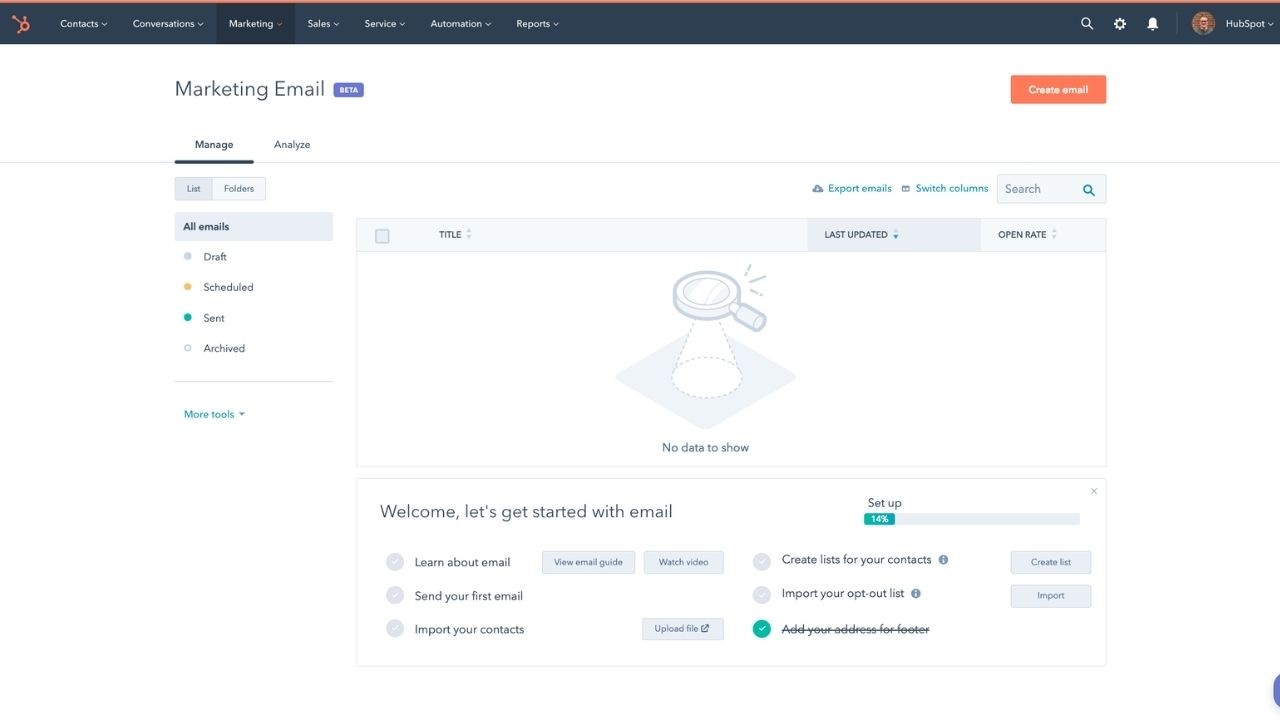
I think most teams treat deduplication as a cleanup task when it should be treated as an entry rule. HubSpot CRM Free gives you structured fields, import tools, and merge functionality. None of it helps if required fields are optional in practice.
Map Fields Correctly Before You Import
Imports are where field drift starts. A column labeled “Mobile” in your source file lands in the wrong field in HubSpot because nobody checked the mapping preview before confirming the upload.
Map every column before import. Preview the results. Fix broken phone numbers and empty email fields at the source, not after the upload. If the mapping is wrong, redo the import. Making hundreds of manual edits after a bad import takes longer than running a clean import once.
Merge Duplicates Without Losing Activity History
Duplicates happen. The question is whether you merge them correctly or lose notes and activity logs in the process.
Use HubSpot’s merge tools and treat email as the primary identifier. Phone and company name are supporting signals, not primary ones. Two people can share a phone number. They almost never share an exact email address.
Before merging, confirm you are not combining two different contacts who happen to have similar names. After merging, add a short note explaining what was combined and why. That note protects you when someone questions the record six months later.
Add Tags That Filter, Not Just Labels That Sit There
Tags in a CRM are only useful if they reflect something actionable. “Lead,” “Billing,” “Support” work because they filter cleanly. “Interesting prospect from Q3 event” does not filter at all.
Keep tags short and consistent. Use notes to capture context, but summarize decisions instead of pasting full conversation threads. A readable CRM is a used CRM. One nobody wants to open is worse than no CRM at all.
Quality Checks Before You Export: The Ten Percent Rule
Most data entry guides stop before the final step. That is a gap worth closing.
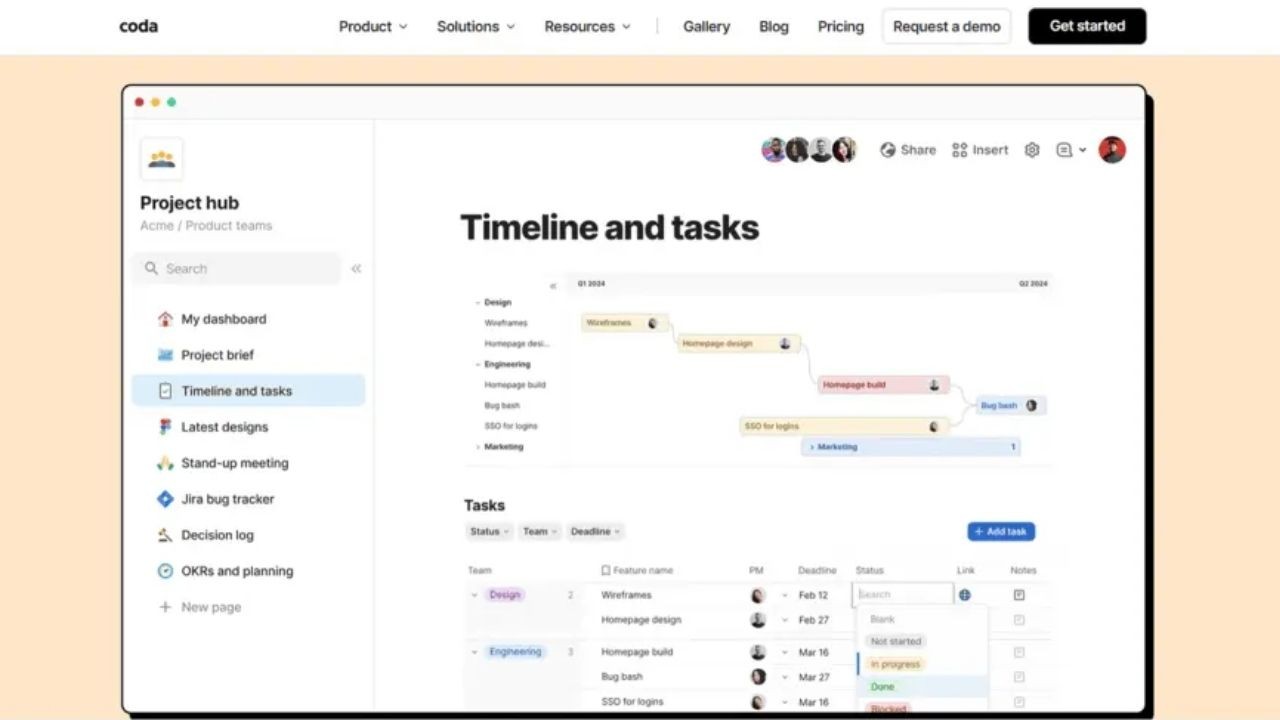
Before any export or submission, run the same quality checks every time. Coda works well as a single page where you track entry status, review steps, and sign off. A short checklist gets finished consistently. A long one gets skipped when you are busy.
Spot Check a Random Sample, Not Just the Top Rows
Spot checking the first ten rows of a dataset tells you almost nothing. Problems cluster in the middle and bottom because that is where attention drifts.
Review ten percent of rows per dataset, sampling from the top, middle, and bottom. Random sampling catches swapped columns, wrong dates, and missing source fields that a top-only review misses entirely. If errors appear, expand the sample until the pattern stabilizes.
Confirm Required Fields and Keep a Change Log
Required fields are where online data entry fails most often. A blank email field in a contact record breaks automation. A missing tax field in an invoice creates reconciliation work later.
List required fields per dataset, confirm none are blank before export, and check each off manually. Save exports with date-based names so versions are traceable.
Keep a change log in Coda: date, dataset, row count, and a short reason for any edits. “Merged duplicates,” “corrected units,” “updated tax field” are enough. A change log builds trust when someone questions a number, and you can point to the exact version.
Questions People Ask About Online Data Entry
Q: How do I stop duplicates from forming in the first place? Duplicates form when required fields like email are optional in practice. Make email mandatory before entry begins, and search for existing records before adding new ones. The SKU-first rule in inventory and the email-first rule in CRM both address this at the source.
Q: Is it worth setting up line item templates if I only bill a few clients? Yes, and the smaller your client list, the faster setup pays off. Consistent templates mean your reports group correctly from the first export, and pricing errors stop appearing in invoices that looked fine at entry time.
Q: How do I handle entries made by other team members who use different formats? Shared entry rules need to live somewhere visible, not just in one person’s head. A short reference page in Coda with naming conventions, required fields, and unit standards gives everyone the same baseline without a training session.
Q: What is the fastest way to catch a field mapping error after an import? Spot check five to ten records immediately after import. Compare the source file columns side by side with the imported records. If one field is off, the error is usually consistent across all rows, which means a reimport fixes it faster than row-by-row corrections.
Q: When should I update a template versus edit a single entry? Update the template when a change applies going forward, like a new standard rate or updated tax setting. Edit a single entry only when the change is retroactive and specific to that record. Editing individual records when the template needs updating is how label drift starts.
Conclusion
Data entry accuracy comes from rules set before the first row, not corrections made after the last one.
Every tool in this guide, Zoho Invoice, Sortly, and HubSpot CRM, works cleanly when your naming conventions, required fields, and unit standards exist before data entry begins.
A repeatable checklist and a ten-percent spot check routine catch the errors that consistent rules still miss. Keep your change log current and your export date-stamped so any question about a number has a traceable answer.
Run this workflow a few times, and the process stops feeling like discipline and starts feeling like muscle memory.









