
Someone offers to “just take a quick look” at your computer. You click a link, download a small app, and suddenly another person controls your screen in real time.
That sentence describes both legitimate tech support and the most common remote access scam running right now. The tool looks identical in both cases.
Remote access is genuinely useful. But it is also the only everyday digital task where one wrong click can hand a stranger real-time control over everything currently open on your device, including saved logins, open tabs, and files you forgot were there.
Most tutorials on this topic explain how to connect. This one explains how to stay in control the entire time.
Remote Access Is Riskier Than Anything Else You Do Online Daily
Let that sit for a second. Downloads carry risk. Password resets carry risk. Clicking unfamiliar links carries risk.
But remote control hands someone else live access to your screen, your files, and any account currently open, in real time, while the session is running.
A scam does not need your password when it can watch you type it.
The reason remote access is so frequently used in tech support scams is that it looks completely normal.
A code, a download, a connection request. Every step resembles legitimate support because it is legitimate support. The process is identical. Only the intent differs.
A safe session is short, attended, limited to one specific goal, and easy to stop the moment anything feels wrong.
Why Scammers Love This More Than Phishing
Phishing relies on you making a mistake. Remote access flips that. Once the session starts, the helper can make the mistakes for you, quietly, while you watch something that looks routine.
Permission creep is the term for how this unfolds. The session starts with something harmless, checking a printer error or looking at a startup log. Then a request comes in for a new install. Then a login. Then something involving payment or a “verification charge.” Each step feels like a continuation of the same fix.
A legitimate helper can explain every action in plain language. They will not get frustrated when you ask them to pause. If pausing the session creates pressure or urgency, that pressure is the red flag.
Pick the Right Tool Before the Session Starts
I think the single most overlooked part of remote access safety is tool selection, and most advice skips it entirely in favor of general warnings. The tool you use determines what permissions are even possible.
Built-in tools reduce one category of risk entirely: you cannot accidentally install a fake app if the software is already part of your operating system.
- Windows Quick Assist runs on a security code and includes a visible option to stop control at any time
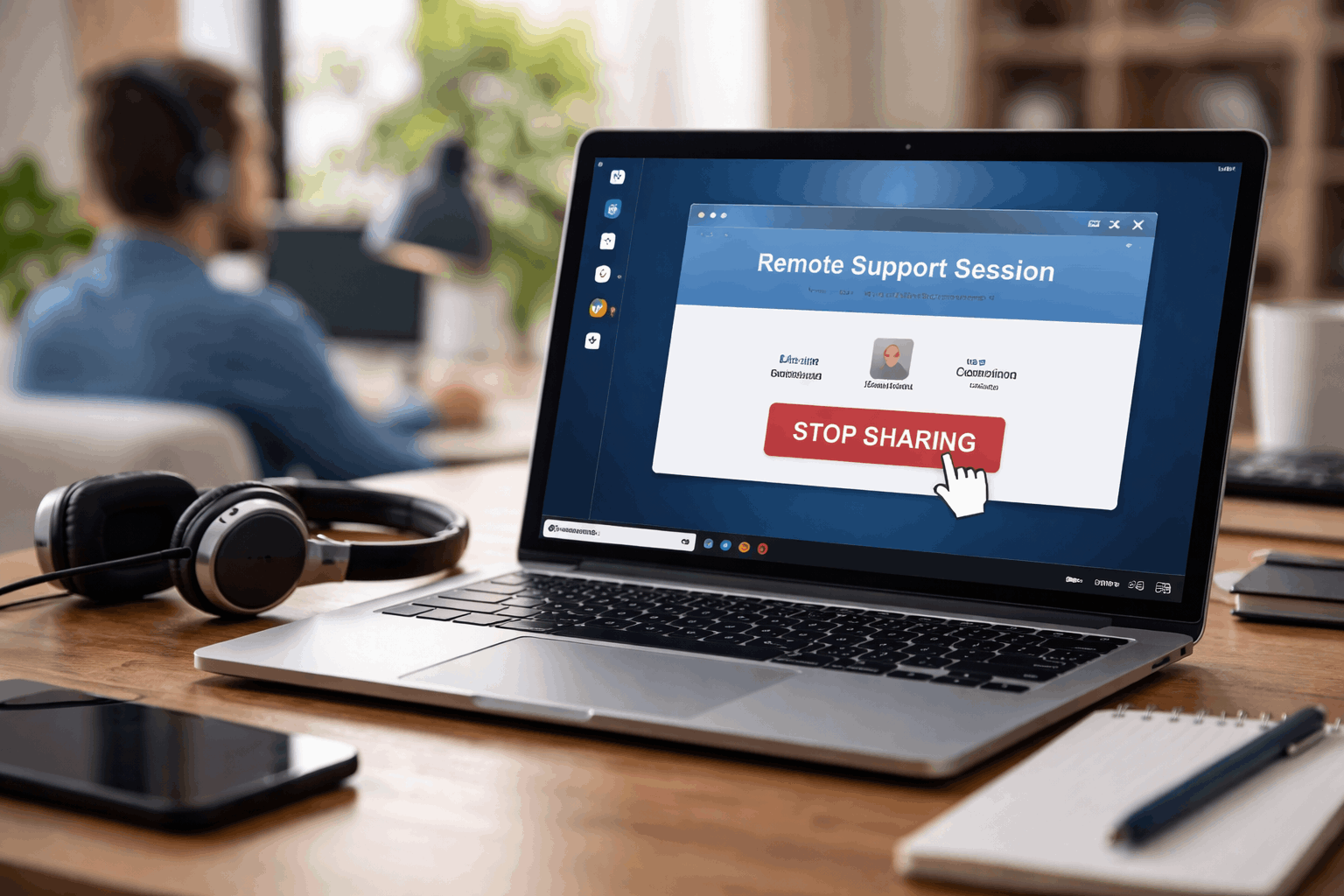
- Chrome Remote Desktop uses a one-time code through a “Get Support” flow with an explicit “Stop Sharing” button
- TeamViewer QuickSupport works for attended sessions when you accept each connection request manually
Third-party tools are not inherently unsafe. But they require more attention to settings and permissions, and they open a second vector: the download itself. If someone is pressuring you to install something quickly, switch to a built-in option or a one-time-code flow instead.
Also read: How to Fix “Website Won’t Load” Issue Step by Step
One-Time Codes vs. Persistent Access: This Distinction Matters
One-time codes expire the moment the session ends. The helper cannot quietly reconnect later. They need a fresh code every time, which means every session requires your active participation and approval.
Unattended access is the opposite. It saves a persistent connection that allows reconnection without your involvement. Tools like AnyDesk offer this as a feature. It has legitimate uses inside organizations with established IT teams.
If someone offering one-off support asks you to enable unattended access “for convenience,” that is a red flag worth stopping for. Convenience for whom?
Prepare Your Device Like Someone Is Actually Coming Over
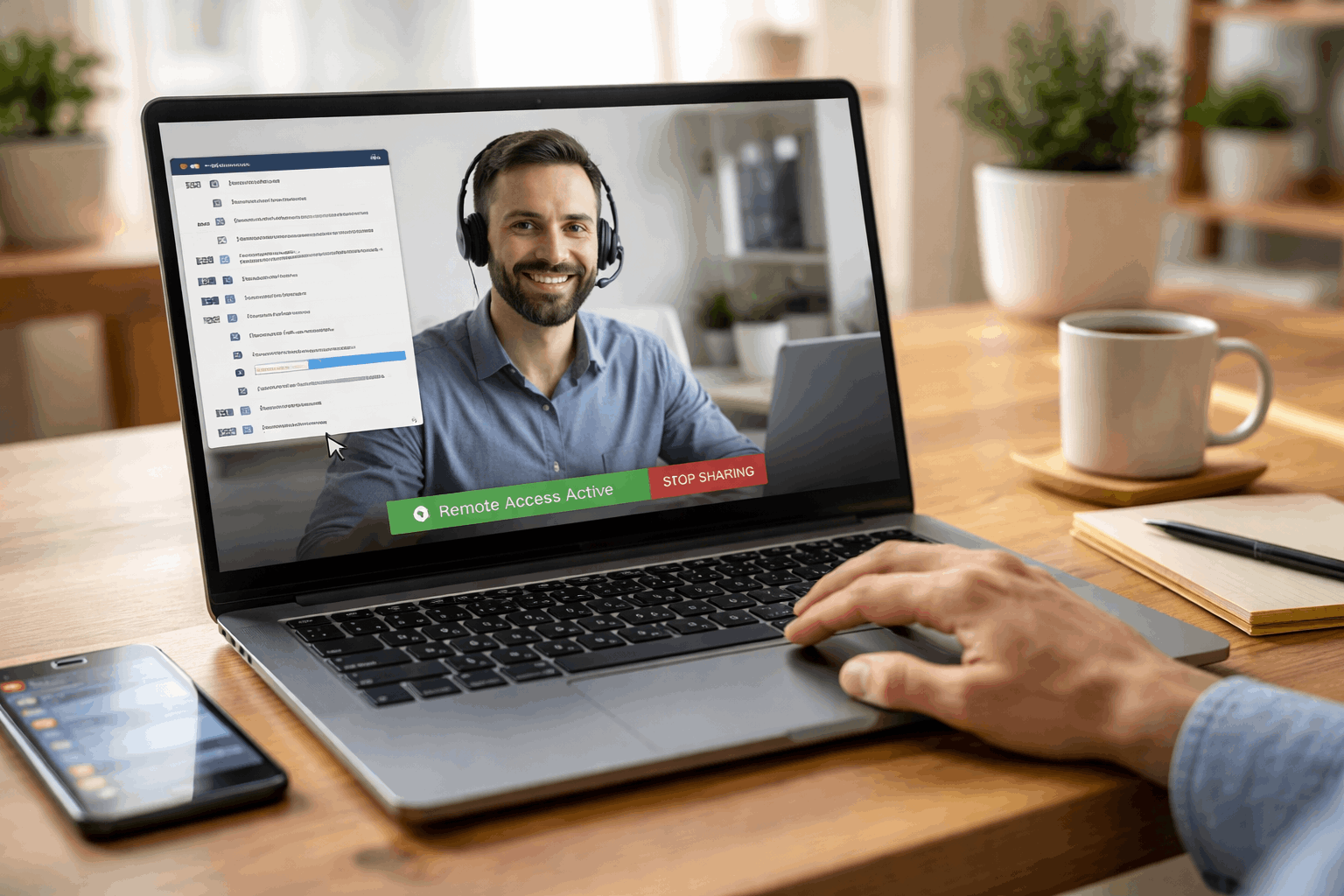
Most people treat a remote session like a phone call. They accept the connection and let it run.
Treat it more like letting a repair technician into your home. You would put away valuables. You would stay in the room. You would not leave your wallet on the kitchen table.
Before the session starts:
- Close email, banking tabs, password managers, and any cloud storage you are not using for this fix
- Turn off notifications so verification codes and personal messages do not appear as pop-ups during the session
- Move sensitive files into a folder you will not open during the call
- Restart the device so random background prompts do not interrupt or distract
Use a Standard User Account, Not Your Admin Account
This is the one preparation step almost nobody mentions in basic remote access guides.
A standard user account limits what changes a helper can make, even if you accidentally approve too much access.
Administrative accounts can install software, modify system settings, and change security configurations. Standard accounts cannot do those things without an additional password prompt.
If your daily driver account is an admin account and you are nervous about a session, consider switching accounts before connecting. One extra prompt between “I approve this” and “this is now installed” is worth more than most people realize.
Run the Session With Your Eyes Open the Entire Time
Stay present. This sounds obvious. Most people wander off because “they’re just fixing something in the background.”
Stay on the call and watch every action in real time. Read permission prompts before clicking anything. “I’ll just run a quick command” is not a reason to stop watching. It is a reason to move closer to the screen.
Set one specific goal before the session starts. “Fix the printer error on the HP DeskJet” is a goal. “Just look around and see what’s wrong” is not. A scoped goal gives you a clear endpoint and makes it obvious when a request falls outside what you agreed to.
End the session immediately if the helper asks you to:
- Install additional software not related to the original problem
- Log in to banking or financial accounts
- Buy gift cards or make any kind of payment
- Disable antivirus, firewall, or security settings
- Read out a verification code or two-factor prompt
A legitimate support person will never need your password. Full stop. And a legitimate session never involves payments or “verification charges.”
Keep Authentication Entirely to Yourself
If a fix requires you to sign into something, do it yourself while the helper is in view-only mode. Keep passwords physically off-screen. Do not type credentials while someone has full control of your keyboard and screen.
One-time login codes, two-factor prompts, and password reset links belong to you alone. Reading one aloud during a remote session is the digital equivalent of handing over your house key to confirm you live there.
How to End the Session and Actually Be Done With It
Closing the laptop lid is not the same as ending the session. Some remote tools continue running in the background until explicitly stopped.
Use the tool’s built-in “Disconnect,” “Leave,” or “Stop Sharing” button. Then restart the device. Restarting clears any temporary remote-control services that may still be running and returns the device to a normal private state.
After the session, run a quick check:
| What to Check | What You’re Looking For |
|---|---|
| Recent account logins | Any login you don’t recognize |
| Installed applications | Software added during or after the session |
| Browser extensions | New extensions you didn’t approve |
| Remote access tool settings | Any saved or unattended access that remains active |
If you enabled unattended access in AnyDesk or a similar tool, disable it immediately. Remove the device from the tool’s approved list. Tighten permission profiles so file transfer and deeper controls are off by default.
Change passwords only if something feels wrong. Start with the email account that controls your password resets, since that account can unlock everything else.
Questions People Ask About Remote Access Safety
Q: How do I know if someone is still connected to my computer after the session? Check your remote access tool’s activity log or connection history. If you used a one-time code tool like Chrome Remote Desktop, the session ends automatically when you stop sharing. For persistent tools like AnyDesk, check the approved devices list and revoke access manually.
Q: Is it safe to use remote access on public Wi-Fi? Avoid it if possible. Public networks make it harder to control who can observe traffic. If you have no alternative, focus only on the troubleshooting task and do not open any sensitive accounts during the session.
Q: What should I do if I think I was scammed during a remote session? Disconnect immediately, then restart the device. Change the password on your primary email account first, then any financial accounts. Contact your bank if any payment information was visible or if you made any transactions. Run a full security scan with a reputable antivirus tool.
Q: Can a helper access my files after the session ends? With one-time code tools, no. With unattended access enabled, potentially yes, which is exactly why disabling it immediately after the session is non-negotiable. Check your tool’s settings and remove saved access before doing anything else.
Q: Is Windows Quick Assist safer than TeamViewer for one-time support? For one-off sessions with someone you partially trust, Quick Assist has a meaningful advantage: it is built into Windows and requires no download. That eliminates the risk of accidentally installing a fake version of the software. TeamViewer QuickSupport is legitimate and widely used, but the download step adds one more thing to verify.
Conclusion
Remote access done right is a short, scoped, attended session that ends completely when the problem is solved.
Every session deserves the same shutdown routine: disconnect using the tool’s button, restart the device, and remove any saved access before walking away. The habits that protect you are not complicated. They are just consistent.









