
Google Calendar works best as a clear plan, not a crowded reminder list. This guide explains Google Calendar setup for students, remote workers, families, freelancers, and small teams needing one dependable place for events, tasks, and focus time.
You will see how to organize calendars, create events faster, protect work blocks, and avoid clutter. The goal is a calmer schedule you can maintain.
Start With Separate Calendars, Not One Messy View
A clean calendar begins with separating the main parts of your life. Work, personal routines, family logistics, school deadlines, and shared projects should not all look the same.
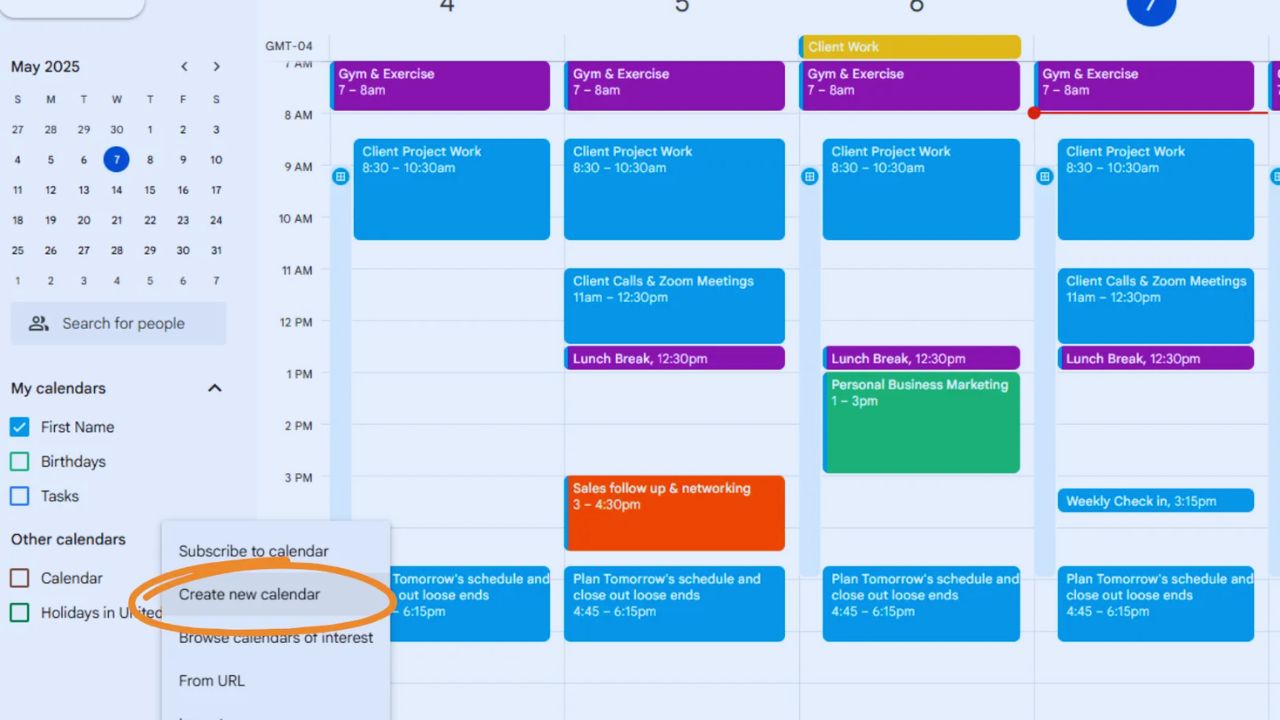
Separate calendar views hide distractions without deleting anything important. Use clear names so each calendar explains its purpose at a glance.
Colors can help, but names matter more when several people share the same schedule. Avoid creating too many calendars on day one because unused calendars clutter.
Use Ownership Carefully
Owned calendars and subscribed calendars behave differently. A calendar you own can be edited, shared, renamed, and controlled in detail. A subscribed shared calendar may only show availability, holidays, team schedules, or another person’s events.
This matters because accidental edits confuse families or teams. Keep calendars you control under your main list and place outside feeds separately. That habit makes collaboration safer.
Create Events With Enough Context
An event should explain more than the time and title. Add the location, video link, guests, notes, files, or agenda when those details help people prepare. These event details prevent last minute searching through messages.
For school, attach assignment instructions. For work, add the brief, deck, or meeting notes. For family plans, include addresses and pickup times. The extra minute spent during setup often saves stress that day.
Recurring Events Need Review Dates
Repeating events are useful for classes, check ins, bill reminders, and weekly planning. They can also become outdated if nobody reviews them. A recurring schedule should have a clear purpose and, when possible, an end date or review.
Do not let old meetings repeat for months after they stop being useful. During review, remove stale series and update times that no longer match real life.
Also Read: How to Complete Digitally Signing Online
Use Tasks for Smaller Commitments
Events reserve time; tasks track things to complete. Google Calendar can show dated tasks beside meetings, showing workload around your schedule. This task planning works well for homework, errands, follow ups, short admin work, or preparation steps.
Keep task titles specific enough. “Send invoice” is better than “Finance.” If a task needs an hour, place it into a real time block instead of leaving it floating all day.
Notes Keep Preparation Visible
Many missed deadlines come from weak preparation, not lack of time. Use descriptions, attachments, and task notes to keep next steps close to the calendar entry.
These planning notes are useful for interviews, client calls, travel days, school submissions, and appointments. If the event depends on a document, add it early. If someone else must bring something, write it clearly in the invite. Calendar entries should reduce memory load.
Protect Focus Time Before the Week Fills Up
Busy schedules usually fail because deep work gets leftover space. Add focus blocks before meetings consume the day. This focus time is useful for writing, studying, planning, coding, reviewing reports, or anything that requires concentration.
Keep blocks realistic rather than heroic. A ninety minute block with a clear purpose is easier to protect than an entire empty afternoon. If your account supports automatic declines, use that option carefully so others understand when you are unavailable.
Working Hours Reduce Bad Invitations
Working hours and location settings help other people choose better times. They are useful for hybrid teams, remote workers, and anyone splitting time between school, home, and office.
Clear working hours do not stop every bad invite, but they reduce avoidable scheduling friction. Update them when your routine changes. Incorrect hours can make suggested meeting times less useful for everyone.
Shortcuts Make Daily Planning Faster
Google Calendar becomes easier when you learn a few shortcuts instead of clicking through every menu. On desktop, shortcuts speed up event creation, returning to today, grid movement, and settings.
These calendar shortcuts are most useful during planning sessions when you add several events quickly. You do not need to memorize every command. Start with the few you repeat daily and let speed build naturally.
Mobile Use Should Stay Simple
Mobile calendar use is best for quick checks, small edits, reminders, and adding plans while away from your desk. It is less comfortable for rebuilding an entire system.
A good mobile routine means checking the day, adding urgent items, and moving small tasks without overworking the app.
Use desktop for heavier cleanup, sharing changes, and calendar restructuring. That split keeps the system easier to maintain.
Share Calendars With the Least Needed Access
Sharing is helpful, but too much access creates risk. Some people only need to see whether you are busy, while others may need full event details or editing rights. Careful calendar sharing protects privacy and prevents accidental changes.
For family schedules, limit edits to people who truly manage plans. For teams, give edit access only where coordination requires it. Review permissions occasionally, especially when a project ends or someone changes roles.
Public Calendars Need Extra Caution
Public calendars can be useful for events, classes, community programs, or booking information. They can also reveal more than intended if event details are too specific.
A public schedule should avoid private addresses, personal notes, internal meeting links, and sensitive guest details. Before sharing publicly, check what strangers can see. If the goal is simple availability, do not publish unnecessary information.
Keep the Calendar Calm With Weekly Cleanup
A calendar should reflect the week you are actually living, not an ideal version that collapses by Tuesday. Set a short weekly review to remove stale events, adjust reminders, confirm attachments, and rebalance heavy days.
This weekly cleanup keeps the system trustworthy. Move flexible tasks away from overloaded days. Add buffers around travel, important calls, and long meetings. When the calendar stays realistic, reminders feel helpful instead of noisy.
Make Google Calendar Support Real Life
Google Calendar in 2026 is most useful when it supports habits you can repeat. Keep calendars separated, events detailed, tasks visible, focus blocks protected, and sharing permissions controlled.
A strong calendar routine depends on small choices made before the week becomes crowded.
Do not overbuild the system with too many calendars, reminders, or integrations. Start clean, review weekly, adjust calmly, and let the calendar become a working plan instead of another place where commitments get lost.









