
Setting up Bitwarden is not only about moving passwords into a vault. The first setup decides how easy sign ins feel, how recovery works, and how safely devices handle autofill.
This guide explains Bitwarden setup for personal users, families, freelancers, and small teams. You will learn how to choose a plan, secure the vault, import passwords, and avoid common mistakes.
Start With the Plan You Actually Need
Bitwarden has options for individual users, households, and organizations, so the right setup begins with the account type.
A free personal vault can work for one person who needs passwords across devices. Premium adds extras for heavier use, such as vault reports, file attachments, authenticator support, and Emergency Access.
Families can help households manage shared logins. This plan choice should match how many people need access and recovery help.
Personal Use Should Stay Simple
A personal user should not build a complicated system on day one. Start with one vault, install the apps you use, and decide which items stay private. This personal vault works best when folders are clear and duplicate logins are removed early.
If you share only one or two accounts with someone trusted, review the sharing option before creating collections. Simplicity keeps the vault easy to search.
Teams Need Rules Before Imports
A team setup needs more planning because shared passwords affect more people. Decide who owns collections, who can edit items, and what approvals are required for new devices.
This team access prevents passwords from spreading through chat messages or old spreadsheets. Business users should check policies, single sign on options, event logs, and recovery needs. The goal is fewer surprises when staff change roles.
Secure the Vault Before Saving Everything
The master password is the key to the vault, so it deserves more thought than a normal website login. Use a long phrase that is unique, memorable, and not reused anywhere else.
A strong master password should be written down only in a secure offline place, not saved in email or notes. Before importing many items, make sure you can unlock the vault comfortably. Without a recovery path, access can become difficult.
Two Step Login Adds a Needed Barrier
Two step login should be enabled before the vault holds important accounts. Bitwarden supports several methods, including authenticator apps, security keys, and FIDO2 WebAuthn options.
This two step login helps protect the vault if someone learns your master password. Keep backup codes somewhere safe, because losing both the password and second factor can create a lockout problem. For stronger protection, add a hardware key later.
Auto Lock Should Match Your Devices
Vault timeout settings decide when Bitwarden locks or logs out on a browser, phone, or desktop. Short timeouts reduce risk on shared or portable devices, while biometric unlock can keep access convenient.
This auto lock setting should be different for a family laptop, personal phone, and work computer. Avoid weak PIN habits on shared devices. If the vault stays open too long, passwords can still be exposed.
Install the Apps in the Right Places
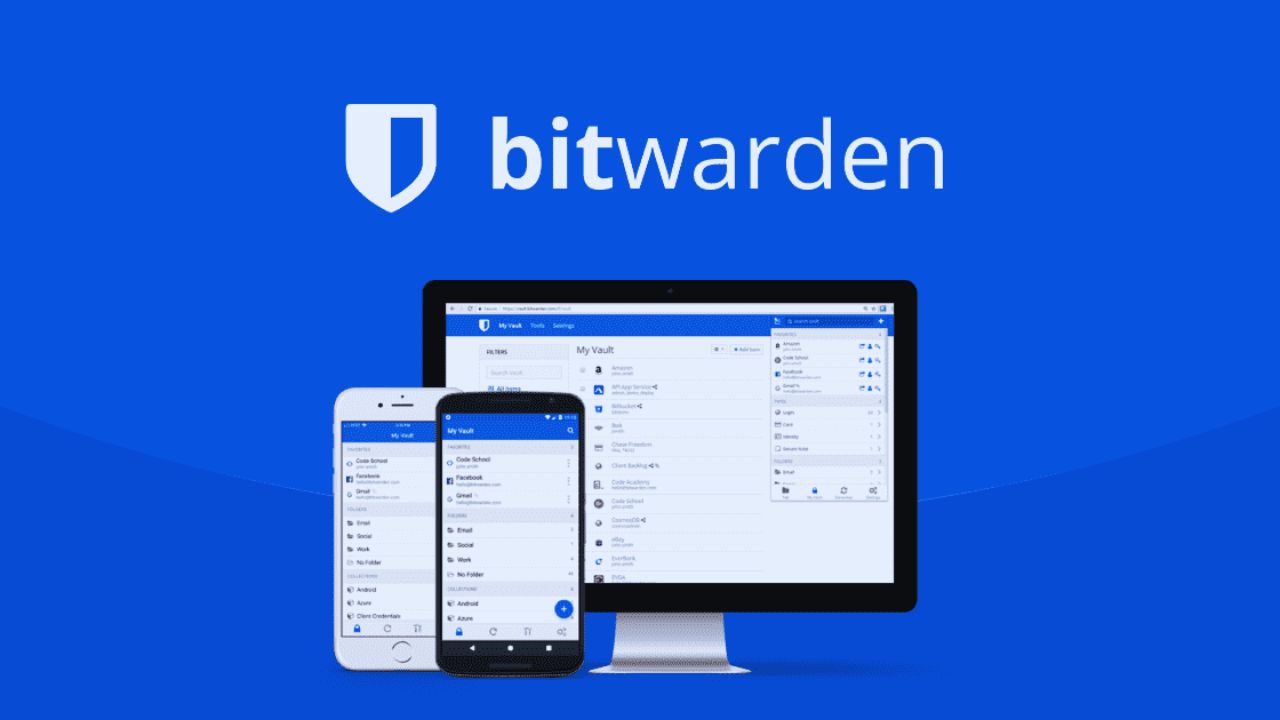
Bitwarden works best when the same vault is available where you actually sign in. Most users need the browser extension first, then the mobile app, and possibly the desktop app for imports.
This device coverage makes capture, autofill, and syncing more predictable. Install official apps and extensions, then pin the icon so you can see whether the vault is locked. A hidden extension often leads users back to unsafe browser password saving.
Browser Extension Handles Daily Logins
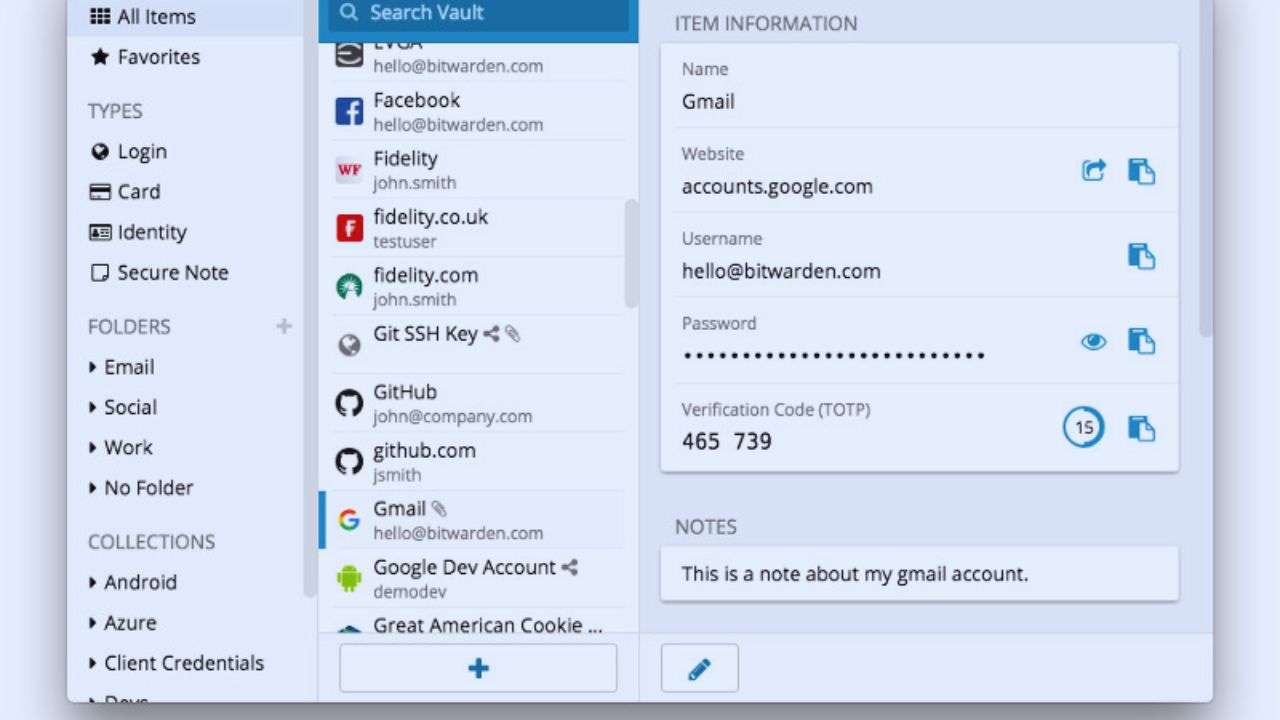
Many users interact with Bitwarden through the browser extension most often. It can save logins, generate stronger passwords, and fill matching sites without manual copying.
This browser extension is useful only when website addresses are saved correctly inside each item.
After import, open important logins and confirm their URIs match the real sites. Missing URIs create failed autofill and tempt users to paste passwords.
Mobile Setup Needs System Permission
Mobile autofill requires more than installing the app. On Android or iOS, Bitwarden must be enabled in system password and autofill settings before it appears reliably. This mobile autofill step is easy to miss during setup.
Enable biometrics if your device is private, and test common logins before travel. A quick test prevents stress when you need access away from your computer.
Import Passwords Without Importing Mess
Importing old passwords can save time, but it can also bring old mistakes into the new vault. Browser exports, CSV files, and manager imports should be handled carefully.
This password import stage is the time to remove duplicate entries, outdated accounts, and unclear names. If you use a CSV file, delete it securely after the import because it may contain plain password data. Do not upload messy data and hope cleanup happens later.
Clean Labels Make Search Faster
Folders, names, and notes should help you find items without guessing. Use names that match the service, not vague labels like “bank login” or “old account.” This vault organization keeps search results useful when your vault grows.
Organizations should use collections instead of mixing team credentials into personal folders. Clean structure also makes audits easier when someone leaves a household, team, or project.
Also Read: Trello: Beginner Tutorial for Best Use in 2026
Sharing Should Be Intentional
Sharing passwords is one of the easiest places to create future confusion. A shared streaming account, travel login, or business tool should have one trusted version in the right organization or collection.
This password sharing avoids multiple people saving different copies of the same login. For families, group shared items by person or category.
For teams, limit editing rights to people who truly manage the account. Review shared items regularly so old access does not stay active.
Recovery Planning Prevents Panic
Emergency Access can allow a trusted contact to request view or takeover access after a waiting period.
That feature can help families, sole proprietors, or small teams avoid permanent lockout. This recovery planning should be discussed before an emergency, not after one.
Choose someone reliable, explain the process, and store backup codes offline. Also confirm current plan details before depending on a paid feature.
Keep the Setup Easy to Maintain
A good Bitwarden setup should still feel understandable after several months. Review weak passwords, unused logins, shared items, device approvals, and timeout settings on a regular schedule.
This maintenance routine keeps the vault clean instead of letting it become another messy storage space.
Turn off built in browser password managers so new saves go to Bitwarden consistently. The safest setup is not the most complicated one; it is the one you can use correctly every day.









