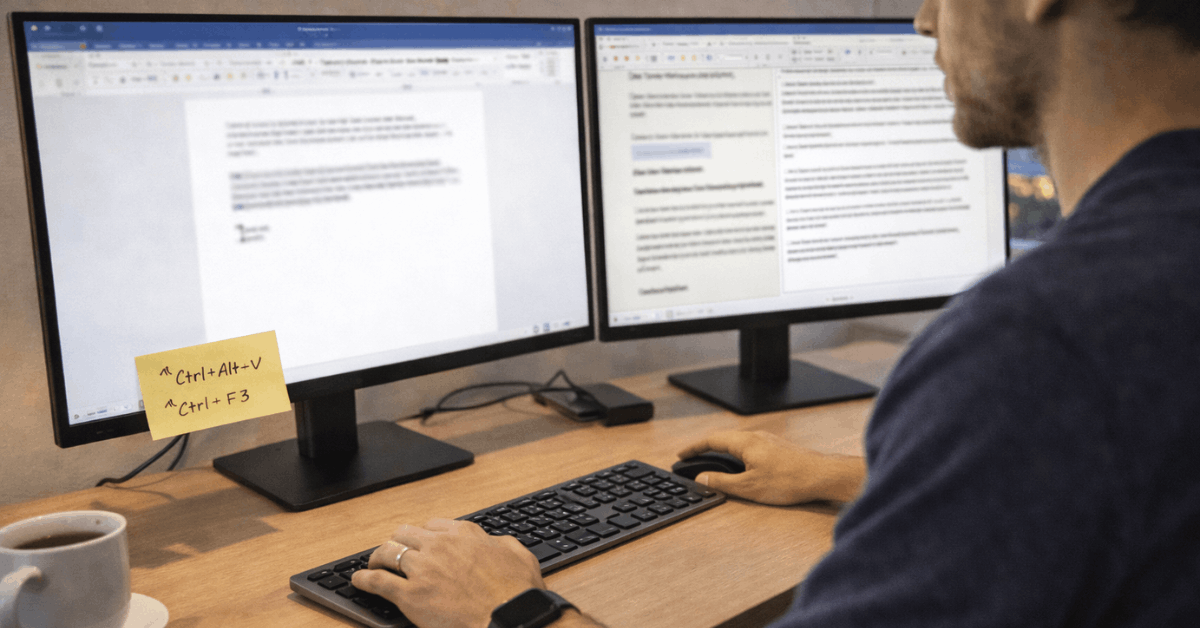
Use Shortcuts for Common Interruptions
Keyboard shortcuts help when you need to paste clean text, jump between edits, or remove unwanted formatting. Paste Special is helpful when copied content brings strange fonts, colors, and spacing into your document.
Shortcuts like Shift+F5 can return you to recent edit points, which is useful in long files. Learning a few reliable shortcuts is more practical than memorizing every command Word offers.
Use these only if they fit your routine:
- Use Paste Special for clean text.
- Use Styles for headings.
- Use Track Changes for reviews.
Turn Repeated Documents Into Templates
Templates protect you from starting over every time. They are especially helpful for recurring documents such as reports, proposals, SOPs, briefs, and academic drafts.
Build Templates Around Real Sections
A strong template should include the sections you actually use, not a bloated structure copied from another project.
Add placeholders for title pages, summaries, tables, references, approval notes, or recurring disclaimers.
Keep the template practical enough that you can open it and begin writing immediately. This helps prevent blank-page drift and keeps new documents aligned with your normal standards.
Save Approved Language for Reuse
Some wording should not be rewritten every time, especially disclaimers, signatures, policy notes, or standard introductions.
AutoText can store approved blocks so you can insert them quickly without searching through old files.
This reduces mistakes because the language stays consistent across documents. It also protects your writing time when the content is routine but still needs to be accurate.
Also read: Zoom in 2026: Explained Without Technical Language
Use Macros Only for Tasks You Repeat Often
Macros can be useful, but they should solve a real problem. They work best for repeatable actions that follow the same steps every time.
Automate Formatting That Wastes Time
If you clean pasted text, insert the same table, apply the same report style, or add standard sections every week, a macro may help. Recording a macro captures your steps and lets Word repeat them later with one command.
This is useful for teams that produce similar documents under the same formatting rules. The value comes from consistent execution, not from automating tasks you rarely do.
Keep Macros Easy to Understand
A macro should not become a hidden mystery inside your document process. Name it clearly, document what it does, and test it on a copy before using it on important files.
If several people share the same template, explain when the macro should be used. A simple macro can save time, but unclear automation can create editing confusion when something changes unexpectedly.
Collaborate Without Creating Version Sprawl
Team documents become messy when people send attachments back and forth without knowing which file is current. Cloud storage and review tools help when they keep edits, comments, and versions in one controlled place.
Use Shared Files Instead of Endless Attachments
OneDrive or SharePoint can help teams work from a shared version instead of collecting several file copies. This is useful when writers, reviewers, managers, or clients need access to the same draft.
Version history also gives you a recovery path if a major edit goes wrong. Shared files reduce document confusion because everyone is looking at the same source.
Make Track Changes Easier to Review
Track Changes is powerful, but it can become overwhelming when comments and edits pile up. Set markup preferences so the review view stays readable during multi-author editing.
Handle comments in batches, then accept or reject changes only after checking the surrounding context. This keeps document review focused on decisions instead of visual clutter.
Keep Large Documents Stable and Easy to Navigate
Long documents need a different workflow than short letters or one-page drafts. Reports, manuals, and academic papers become easier when structure and performance are handled early.
Use Navigation Instead of Endless Scrolling
The Navigation Pane works best when your document uses proper heading styles. It creates a live outline that lets you jump between sections without scrolling through dozens of pages.
This is especially useful when reorganizing chapters, reviewing feedback, or checking whether sections follow a logical order. Good headings improve document movement and also support cleaner exports later.
Reduce Performance Problems Before They Grow
Large files can slow down when they contain many images, tracked edits, comments, and heavy formatting. Draft view can help during text-heavy editing because Word does not need to render the full layout constantly.
Compressing images and avoiding unnecessary media can also keep the file easier to open and share. These habits protect editing speed before the document becomes frustrating.
Prepare Final Files With Care
The final stage deserves attention because small mistakes can affect how professional the document looks. Before sharing, review formatting, comments, metadata, and export settings.
Clean the File Before Sending
Before sending a final document, check for unresolved comments, tracked changes, personal information, and hidden details. Document Inspector can help find items that should not appear in a client-ready or public file.
This matters for proposals, manuals, academic submissions, and internal reports that may be forwarded. A clean file protects professional credibility and avoids awkward corrections later.
Export PDFs With Structure Intact
Exporting to PDF is not only about freezing the layout. Proper headings, readable spacing, and document properties can make the file easier to read and distribute.
If accessibility matters, keep heading levels consistent and avoid using manual bolding as a substitute for structure. A careful export supports reader experience after the Word file leaves your desk.
Conclusion: Make Word Work With Your Routine
Microsoft Word becomes easier when you rely on repeatable habits instead of fixing the same problems by hand. Use AI for starting points, Styles for structure, templates for recurring work, and review tools for cleaner collaboration.
Keep automation simple, protect shared files from version chaos, and clean final documents before sending them out.
A strong Word workflow should help you write, revise, and share with less friction, not make the software feel like another task.