
Windows 11 can feel familiar, but its default setup often adds extra noise before you even start working. This Windows 11 guide explains how to set up a cleaner desktop, improve privacy, remove distractions, and keep the system easier to maintain.
It is useful for students, remote workers, casual users, and anyone who wants a reliable laptop without learning advanced admin tricks.
The goal is not to tweak everything, but to make practical changes that help the computer feel stable, private, and less cluttered.
Prepare Before Installing or Resetting Windows 11
A smoother Windows 11 setup starts before the first login screen. A few early checks can prevent setup delays, missing drivers, and privacy choices you may regret later.
Check Basic Requirements Before You Begin
Before installing Windows 11, make sure your device can handle the system without forcing unsupported changes. A compatible 64-bit processor, enough storage, Secure Boot, and TPM support are part of the usual requirements.
If the computer is older, forcing installation may create future update issues or driver problems. It is better to confirm the basics early than troubleshoot a slow or unstable system after installation.
Create Installation Media Carefully
A bootable USB can help when you want a clean install or need to recover a problem device. Use a trusted installer source and an 8 GB or larger USB drive, then label it clearly so it is not mistaken for normal storage.
You can also keep offline installers for a browser, archive tool, and essential drivers on the same drive. This simple preparation saves setup time when internet access or driver detection becomes unreliable.
Make First-Run Privacy Choices Early
Windows 11 includes useful connected features, but not every setting needs to be active for everyday work. Reviewing privacy options early helps reduce background activity, recommendations, and unnecessary data sharing.
Turn Off Settings That Add Noise
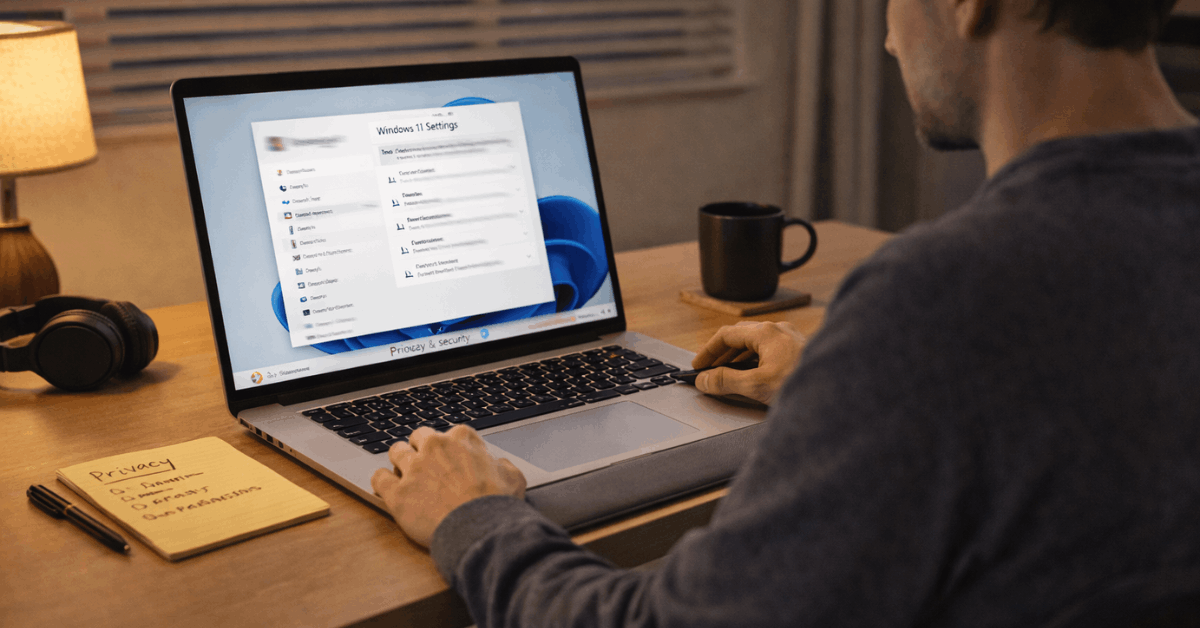
After setup, open Privacy & security and review advertising ID, tailored experiences, search highlights, and optional diagnostics.
These settings may not bother every user, but turning off what you do not need can make the system feel more focused.
App permissions also deserve attention because location, camera, microphone, and contacts should not be open by default. Grant access only when a trusted app actually needs it.
Choose the Account Style That Fits Your Use
A Microsoft account can make syncing, Store access, OneDrive, and device recovery more convenient. A local account may feel better for users who prefer fewer cloud-connected settings and more offline control.
Some setup paths make online sign-in more visible, so non-technical users may find it easier to finish setup first and adjust account preferences later. Whichever route you choose, keep recovery details updated so access remains safe.

Make the Interface Easier to Use Daily
A clean interface matters because small distractions become tiring after hours of work. Windows 11 feels better when the taskbar, Start menu, and defaults match your daily habits.
Adjust the Taskbar and Start Menu
The centered taskbar may look modern, but many users prefer left alignment because it feels closer to older Windows layouts.
Removing Widgets and hiding unused buttons can also reduce visual clutter. If the Start menu feels too busy, keep only the pinned apps you actually open often. A calmer layout helps you move faster because your main tools stay easier to find.
Set Default Apps Before Work Piles Up
Choose your preferred browser, email app, media player, and file-opening tools early. Setting defaults after you already have documents, links, and downloads everywhere can be more annoying.
Windows 11 usually allows default app changes in Settings, but some file types may still need manual review. Taking a few minutes here prevents repeated prompts and small interruptions later.
Remove Clutter Without Breaking the System
Many new Windows 11 installations include apps and shortcuts you may never use. Cleaning them up can help, but removal should be careful because some system components support important features.
Uninstall Only What You Recognize
Use Settings > Apps > Installed apps to remove consumer apps, games, or tools you clearly do not need. Avoid deleting drivers, frameworks, runtimes, WebView2, or anything you do not understand.
If an app does not offer a normal uninstall button, Windows Package Manager may help more advanced users remove it properly. The safer rule is to remove visible clutter, not core components.
Keep a Short Cleanup Routine
A small cleanup routine is better than aggressive changes that are hard to reverse. Review installed apps, startup items, and downloads once in a while instead of waiting until the system feels messy.
If you make several changes, reboot afterward so background tasks and services can refresh properly. This keeps maintenance simple and reduces the chance of creating new problems while trying to fix old ones.
Use this short cleanup check when Windows starts feeling crowded:
- Remove unused apps.
- Disable unneeded startup items.
- Keep system components untouched.
Keep Security and Updates Sensible
Security settings should protect your device without making daily work difficult. For most users, built-in protections and a steady update routine are enough to keep basic safety in place.
Leave Core Protection Turned On
Microsoft Defender and SmartScreen provide a useful baseline against suspicious downloads and common threats.
Turning protection off permanently is risky, especially if you download files, install apps, or use the computer for work. If a program needs special access, review the warning carefully instead of disabling everything.
Stronger habits around downloads, passwords, and backups matter more than chasing random security tweaks.
Also read: Using Microsoft Word in 2026 More Efficiently
Control Updates Without Ignoring Them
Windows updates can be annoying when they interrupt work, but ignoring them for too long can create security and stability issues.
Schedule restarts outside working hours and pause updates only when you truly need temporary control. After major updates, check that drivers, audio, video calls, and daily apps still work as expected.
A predictable update habit helps your Windows 11 system stay safer without turning maintenance into a constant task.
Use Optional Tweaks Only When They Solve a Real Problem
Power-user tools can help, but they are not required for a clean Windows 11 experience. The best changes are the ones you can explain, reverse, and repeat when needed.
Be Careful With Tweaker Apps
Tools like interface tweakers can place many hidden settings in one dashboard. That convenience is useful only if you understand what each switch changes.
Before applying tweaks, write down what you changed so you can undo it later. A clean setup should make Windows easier to use, not create mystery settings you cannot trace.
Keep Troubleshooting Steps Simple
When something breaks, start with basic fixes before using registry edits or risky commands. Repair or reset misbehaving apps, check startup items, restart the device, and review recent installations.
For deeper system repair, commands like SFC and DISM should be used carefully and only when needed. A calm process protects system stability better than guessing under pressure.
Conclusion: Build a Windows 11 Setup You Can Maintain
A good Windows 11 setup should feel clean, private, and predictable during everyday use. Start with safe installation habits, review privacy settings, simplify the interface, and remove only clutter you recognize.
Keep security protections on, schedule updates sensibly, and avoid tweaks that you cannot reverse. The best setup is not the most customized one, but the one that keeps your daily workflow stable without constant maintenance.









