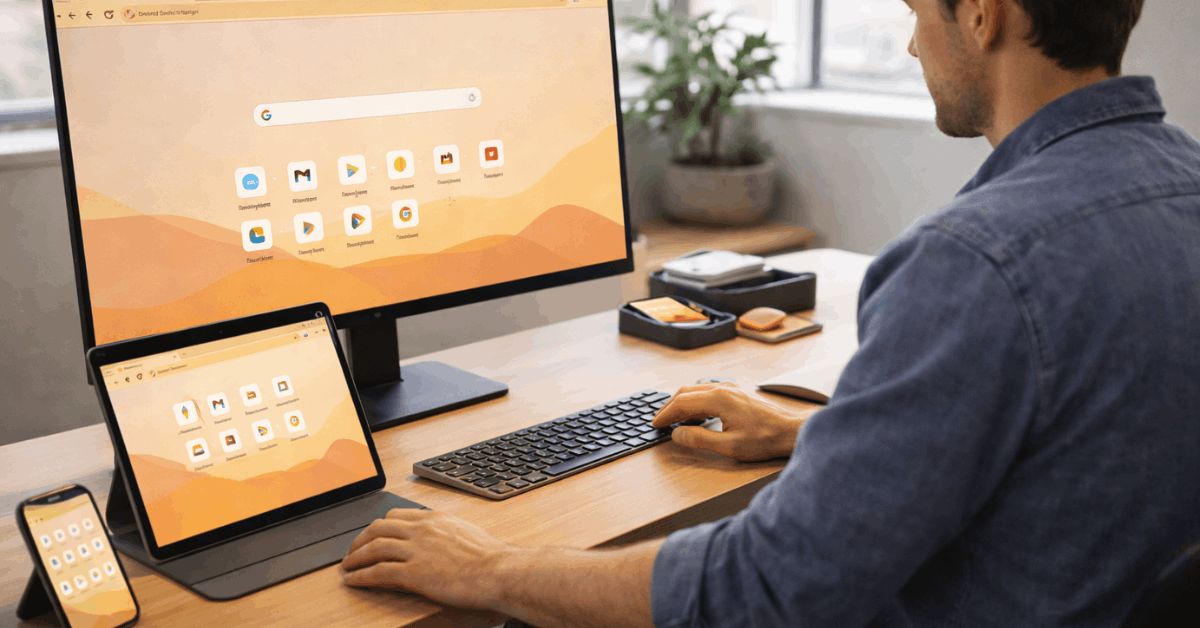
Shape the New Tab Page Around Your Routine
The New Tab page works best when it acts like a launchpad, not a wall of distractions. Shortcuts and cards should help you reach frequent destinations faster, not remind you of everything online.
Keep Shortcuts Limited to High-Use Sites
Chrome can show most-visited sites or custom shortcuts, but a curated set is usually cleaner. Add only the websites you open often, such as email, cloud storage, school portals, work dashboards, or publishing tools.
Too many shortcuts can slow you down because you start scanning instead of clicking with clear intent. A focused New Tab page keeps your browser routine faster and less cluttered.
Turn Cards On Only When They Help
Cards can surface recent files, calendar items, or other useful Google activity. They can be helpful if you regularly return to Drive documents or upcoming meetings from a new tab.
However, they can also make the page feel crowded when you already have strong shortcuts. Turn off card types you ignore so the page supports daily focus instead of becoming another feed.
Use this quick New Tab check before adding more:
- Keep eight shortcuts or fewer.
- Use one calm background.
- Disable unused cards.
Tidy the Toolbar and Bookmarks Bar
The toolbar and bookmarks bar sit in front of you every day, so small cleanup choices can make Chrome feel lighter. A cleaner top area gives more space to pages and reduces unnecessary clicking.
Keep Only Toolbar Buttons You Use Often
Chrome lets you adjust toolbar buttons such as Home, Reading List, History, and Password Manager. Keep the buttons you use weekly and remove anything that only adds visual noise.
A lighter toolbar is easier to scan, especially on smaller laptop screens. If you later miss a button, you can restore it without changing your whole setup.
Use the Bookmarks Bar Strategically
The bookmarks bar can be useful during research, but distracting during writing, design, or focused reading. Show it when you need quick access to folders, then hide it when you want more screen space.
Rename folders with short labels so they stay readable at a glance. A clean bookmarks bar helps you find saved pages without turning the top of Chrome into a crowded shelf.
Make Reading Easier With Fonts and Zoom
Browser comfort is not only about colors and themes. Font size, page zoom, and per-site adjustments can make a major difference during long reading sessions.
Adjust Font Size Before Changing Everything Else
Chrome’s font controls can help if pages feel too small, too dense, or uncomfortable to read. Start with a moderate font size before changing advanced font families or minimum size settings.
Large changes can break page layouts, especially on websites with tight design. A small adjustment often improves reading comfort without creating unexpected display issues.
Use Page Zoom for Sites That Feel Crowded
Page zoom is useful when dashboards, tutorials, learning platforms, or documentation pages feel too cramped. Chrome can remember zoom levels for specific sites, which helps when one website needs different display settings than the rest.
Use keyboard shortcuts to zoom in, zoom out, or reset quickly. This gives you better control without changing the entire browser for one difficult site.
Separate Work and Personal Browsing With Profiles
Profiles are helpful when one browser serves more than one part of your life. They can keep work accounts, personal bookmarks, client tools, school platforms, and extensions from mixing together.
Create Profiles With Clear Names and Colors
A profile should be easy to recognize before you open the wrong account. Use a clear name, simple avatar, and distinct window color for work, personal, school, or client browsing.
This reduces mistakes when switching between email accounts, cloud drives, or project tools. Clear profile separation protects daily organization and lowers the chance of sending something from the wrong account.
Avoid Filling Every Profile With Extensions
Extensions can be useful, but too many can slow Chrome or create privacy concerns. Add only the tools each profile truly needs, such as a password manager for work or a writing tool for content tasks.
Remove extensions you no longer recognize or use regularly. A lighter profile keeps browser performance steadier and makes troubleshooting easier when something breaks.
Keep Customization Easy to Reverse
Personalization should not make Chrome harder to maintain. The safest setup is one where every change can be understood, adjusted, or undone without stress.
Reset When Personalization Causes Problems
Themes, extensions, and layout changes can sometimes cause lag, glitches, or visual confusion. If Chrome starts feeling unstable, first remove the most recent theme or extension you added.
Then check updates and reset only when smaller fixes do not work. This calm process protects saved data while helping you return to a reliable browser.
Review Chrome Every Few Months
A short review helps keep Chrome fast after months of browsing, testing, and saving links. Remove unused themes, trim extensions, clean old shortcuts, and check whether your profiles still match your current routine.
You do not need a deep cleanup every week. A light maintenance habit keeps Chrome settings useful without turning browser care into another task.
Conclusion: Keep Chrome Personal but Practical
Customizing Google Chrome settings works best when the browser becomes easier to use, not just more decorated.
Start with themes, shortcuts, toolbar controls, fonts, zoom, and profiles because those settings affect everyday browsing most.
Keep changes simple, test them during real work, and reverse anything that adds clutter or slows you down. A practical Chrome setup should feel comfortable, organized, and steady without needing constant adjustment.