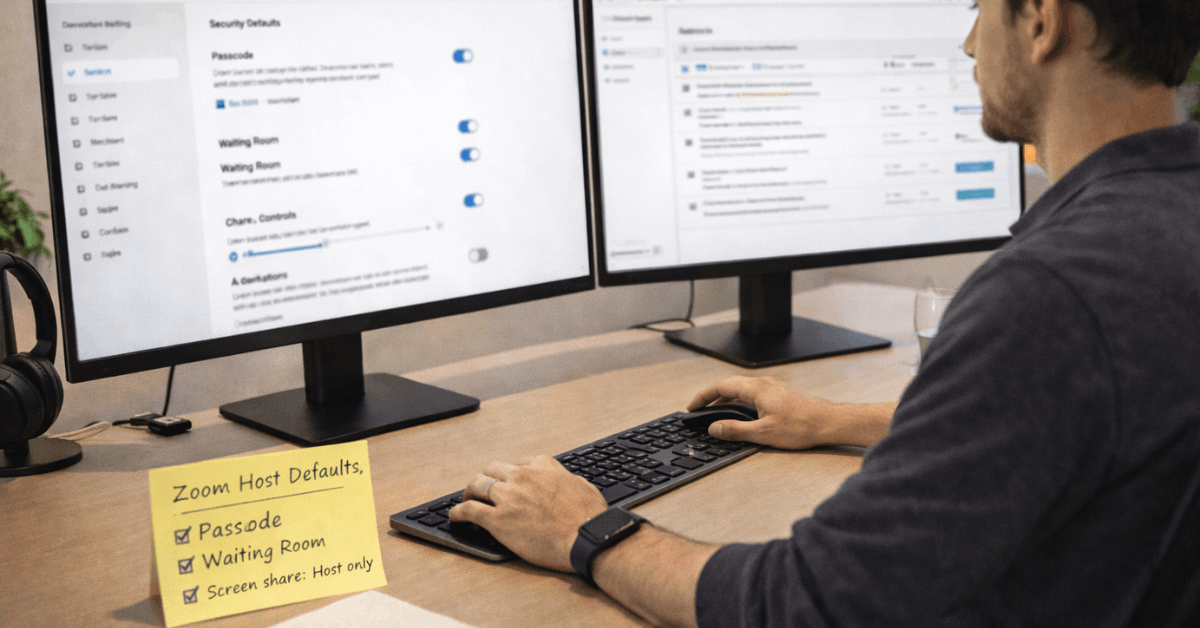
Manage Chat and File Sharing Carefully
Chat can help with questions, links, and quick clarifications, but it can also split attention. For large events, private chat may be limited so side conversations do not distract from the speaker.
File transfer should be handled carefully because attachments inside meetings are harder to monitor than files shared through approved storage. A cleaner rule is to keep important files in trusted drives and use chat mainly for short context.
Improve Audio and Video Without Overcomplicating Setup
Good audio and video settings make meetings easier to follow, even when people join from different rooms and devices.
Small adjustments to sound, lighting, and camera behavior often matter more than expensive equipment.
Test Audio Before Important Calls
Audio problems can waste the first few minutes of a meeting and make the host look unprepared. Before important calls, test your microphone, speaker, and selected input device, especially after updates or headset changes.
Noise suppression can help reduce keyboard clicks, fans, and background sound during normal meetings. If you are presenting music, audio clips, or detailed sound, review the settings so voice quality is not distorted.
Use Video Settings That Match the Room
HD video can improve clarity, but it still depends on lighting, bandwidth, and camera placement. A dim room may look worse in higher resolution because the camera tries to brighten weak details.
Low-light adjustment and a simple lamp near eye level can make the image more natural. Keep appearance filters modest so the video stays clear and professional instead of overly processed.
Make Hosting Easier With Practical Defaults
Hosting becomes less stressful when repeated tasks are handled by settings you trust. The best defaults reduce last-minute fixes without making participants feel restricted.
Start Meetings Muted When Needed
Mute-on-entry is useful for larger calls, webinars, classrooms, and team updates where background noise can build quickly.
It prevents accidental conversations, microphone feedback, and noisy arrivals from disturbing the speaker.
The host can explain in chat when people should unmute or use reactions for quick responses. This keeps the meeting orderly and respectful without stopping participation.
Connect Calendar and Updates
Calendar integration helps meeting links, time changes, and reminders stay easier to manage. It is useful when you schedule recurring calls, client sessions, interviews, or training events.
Auto updates are also worth enabling because outdated versions can cause feature problems or security gaps. These settings support meeting reliability quietly in the background.
Use this quick host check before recurring meetings:
- Confirm waiting room settings.
- Test audio and video.
- Review sharing permissions.
Share Screens and Recordings With More Care
Screen sharing and recording can expose more information than intended. A careful setup protects private details while still allowing people to follow the meeting clearly.
Share One Window Instead of the Whole Screen
Sharing a single window is usually safer than sharing your full desktop. It keeps personal messages, browser tabs, files, and notifications out of view.
If you need to switch between apps, pause sharing while you prepare the next screen. This makes the presentation cleaner and reduces the chance of exposing unrelated information.
Set Recording Rules Before the Meeting Starts
Recording settings should be decided before people join, not during the call. Check whether recordings are saved locally or in the cloud, who can record, and whether shared screens are included.
For public events or sensitive meetings, tell participants when recording is active and how the file will be used. Clear recording rules protect participant trust and reduce confusion after the session.
Make Meetings Easier for More Participants
Accessibility settings are not only for formal events. They help people follow meetings when they are in noisy spaces, using small screens, or processing information in a second language.
Turn On Captions When They Add Clarity
Automated captions can help participants follow the discussion when audio is unclear or the speaker has a different accent. They are also useful for webinars, lessons, and meetings where details need to be reviewed later.
Caption size and display settings can be adjusted so they do not block important content. This small change can improve meeting comprehension without changing the entire format.
Keep the View Comfortable During Long Calls
Long meetings can feel tiring when the screen is crowded. Dark mode, hidden non-video participants, and cleaner gallery settings can reduce visual strain.
These changes are helpful for people who spend hours in calls or need to focus on one speaker at a time. A comfortable layout supports better attention during discussions that require decisions.
Review Settings Before They Become Outdated
Zoom settings should not be changed once and forgotten forever. Teams, classes, and recurring meetings change over time, so the setup should be reviewed with real meeting habits in mind.
Check What Still Fits Your Calls
A setting that works for a public webinar may feel too strict for a small internal check-in. Review waiting rooms, passcodes, chat, sharing, recording, and captions every few months.
Keep the rules that reduce risk and remove the ones that create unnecessary friction. A good setup should protect the call while still feeling easy to join for the right people.
Avoid Adding Apps Without a Clear Benefit
Zoom apps and integrations can help with notes, whiteboards, timers, and follow-ups. However, too many add-ons can create clutter, permissions concerns, or extra steps for participants.
Add only tools that reduce repeated work or improve the meeting experience in a visible way. If an app does not support clear outcomes, remove it from the meeting flow.
Conclusion: Make Zoom Settings Work Quietly in the Background
Strong Zoom settings should make meetings safer, clearer, and easier to manage without making the host feel busy the whole time.
Start with security, then adjust audio, video, sharing, recording, and accessibility based on how your calls actually run. Keep defaults simple enough to reuse, especially for recurring meetings and team sessions.
When the setup is reviewed regularly, Zoom becomes a reliable meeting space instead of another source of stress.