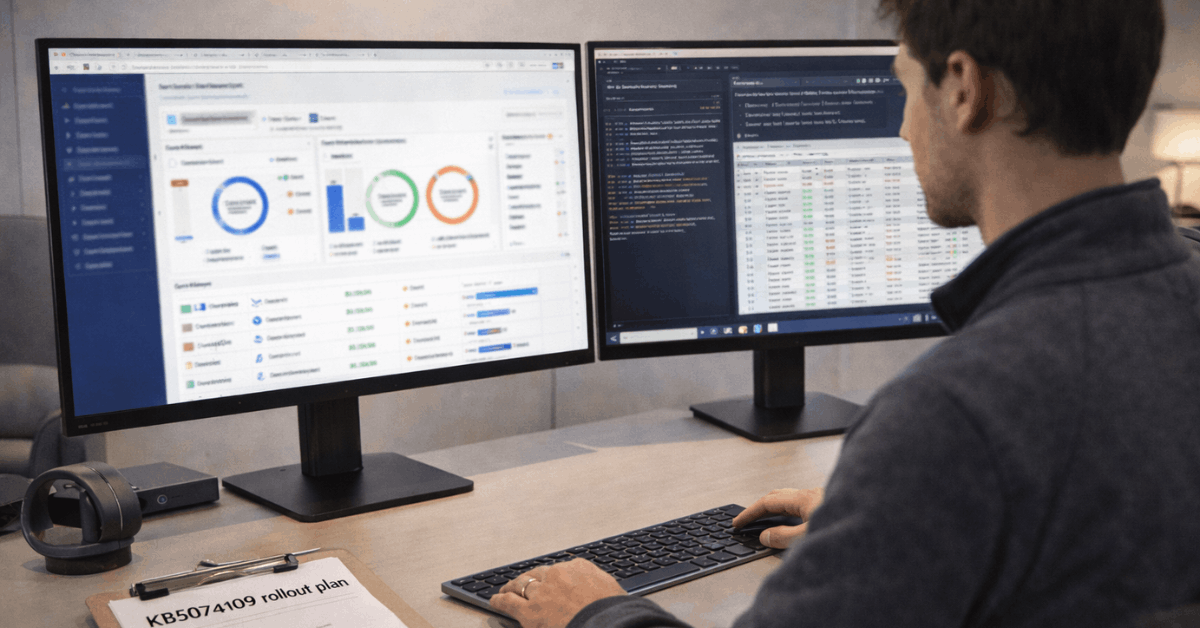
Windows 11 updates can feel confusing when security fixes, feature changes, restarts, and driver checks all arrive through the same system.
This guide explains how Windows 11 handles updates in a clearer way, especially for people who use their PC for work, school, gaming, or everyday browsing.
The main idea is simple: updates now rely more on phased rollouts, device readiness, and safeguards instead of pushing every change to every machine at once.
You will understand what to watch after major releases, how to reduce restart problems, and why some devices receive changes later than others.
Why Windows 11 Updates Do Not Arrive Everywhere at Once?
Windows 11 updates are not only about downloading a file and restarting the computer. Microsoft also checks device stability, hardware signals, known issues, and previous update behavior before offering certain changes.
Phased Rollouts Help Reduce Bigger Problems
A phased rollout means an update reaches devices in waves instead of landing everywhere on the same day. This approach gives Microsoft time to pause a release if early devices show crashes, driver conflicts, or installation failures.
It also protects users with older hardware, unusual drivers, or machines that already show update problems. For everyday users, this means a delayed update is not always a bad sign; it may be part of a controlled release.
How Windows 11 Handles Updates
Device Signals Decide When Updates Appear
Windows Update looks at signals such as hardware compatibility, successful update history, driver status, and known issue safeguards. If a PC has outdated drivers or repeated failures, it may receive some changes later than a more stable device.
This can feel inconsistent when two computers show different options, but it often reflects risk control rather than random timing. Keeping your device healthy helps Windows trust that it can handle new updates with fewer problems.
What the 2026 Update Focus Means for Users?
The early 2026 Windows 11 update direction is less about dramatic visual changes and more about reliability, security, and smoother servicing. That matters because most users care more about stable performance than a long list of new features.
Security Fixes Still Come First
Monthly Windows updates continue to focus heavily on security. These releases help close vulnerabilities, strengthen system components, and reduce exposure to common risks.
Even when an update does not look exciting, it may still protect system safety in ways users do not see directly. This is why skipping updates for too long can create more problems than the restart itself.
Some updates also fix practical issues that affect battery life, networking, remote access, or app stability. The attached draft mentions improvements tied to power behavior, WSL mirrored networking, Azure Virtual Desktop access, and platform components.
These may sound technical, but they matter when a laptop drains faster, a remote connection fails, or a work tool stops behaving normally. A quiet quality fix can protect daily productivity more than a visible feature.
How Version 24H2 and 25H2 Fit Into the Update System?
Windows 11 versions can make updates feel more complicated than they are. In many cases, a newer version builds on earlier changes instead of replacing the whole experience overnight.
Feature Changes May Arrive Gradually
Two devices can run similar Windows 11 builds but show slightly different features for a while. This happens because feature enablement may depend on configuration switches, eligibility checks, or staged release controls.
Users may notice changes in File Explorer, Task Manager, privacy controls, or AI-related features at different times. This gradual approach helps Microsoft test feature readiness before expanding availability.
How Windows 11 Handles Updates
Not Every Update Is a Major Upgrade
A version bump does not always mean a big redesign. Sometimes it consolidates earlier improvements, strengthens the baseline, and makes servicing more predictable.
For regular users, the most practical question is not whether the version number changed, but whether drivers, apps, security, and backups still behave correctly.
That mindset makes updates easier to manage because you focus on stability instead of chasing every label.
Reduce Update Problems Before They Start
Most update frustration comes from avoidable issues like low storage, outdated drivers, bad timing, or restarting during important work. A few simple habits can make Windows Update feel less disruptive.
Set Active Hours Around Your Real Schedule
Active Hours tells Windows when you usually use the device. Setting this correctly helps reduce the chance of a restart during class, meetings, editing work, or presentations.
It is especially useful for people with fixed work blocks or travel days where interruptions are expensive. A realistic schedule keeps restart timing closer to your routine instead of leaving it to default assumptions.
Keep Storage and Drivers in Better Shape
Low disk space can slow updates, increase rollback risk, or make installation fail. Outdated graphics, Wi-Fi, storage, and chipset drivers can also cause problems after major updates.
Before larger releases, make sure there is enough free space and check important drivers through trusted vendor tools when needed. These steps protect system stability before Windows tries to install heavier packages.
Use this short check before larger updates:
Keep 10–20% storage free.
Update key drivers carefully.
Confirm backup access first.
Be Careful With Optional Preview Updates
Optional previews can be useful, but they are not always necessary for every device. They often include early fixes or non-security improvements that will reach broader users later.
Avoid Previews on Mission-Critical Machines
If you rely on a PC for work deadlines, client calls, school submissions, or business tasks, optional previews should be handled carefully.
They can solve specific problems, but they may also introduce new issues before wider testing is complete.
A safer approach is to wait for the regular monthly security release unless a preview fixes something you personally need. This keeps important devices closer to the stable path.
Test Early Updates on a Secondary Device
People who manage multiple PCs should avoid pushing previews everywhere at once. A secondary device can act as a small test machine before updates reach laptops used for daily work.
This is especially helpful for small offices, freelancers, and teams that depend on shared software. Testing first reduces update surprises when the main device needs to stay reliable.
What Administrators Should Watch More Closely?
Business and school environments need more control than a personal laptop. Update policies, deployment rings, and rollback plans help protect larger fleets from one bad update affecting everyone.
Use Rings Instead of Updating Everyone Together
A ring-based approach sends updates to a smaller group first, then expands after results look stable. This helps IT teams catch driver conflicts, app issues, or login problems before the update reaches all users.
It also gives administrators time to document fixes and decide whether a delay is necessary. For organizations, staged deployment supports controlled maintenance instead of reactive troubleshooting.
Review Legacy Hardware and Deployment Changes
The draft notes changes involving legacy modem drivers, Windows Deployment Services behavior, and Secure Boot certificate targeting.
These details matter most to administrators managing older hardware, automated provisioning, or stricter security environments.
Before applying broad updates, teams should check whether any old devices, deployment scripts, or special drivers still depend on removed or changed components. Careful review protects business continuity when updates touch deeper system layers.
Conclusion: Treat Windows Updates as Maintenance, Not a Surprise
Windows 11 handles updates through a mix of security releases, staged rollouts, device signals, and user controls.
For everyday users, the best approach is to keep drivers current, leave enough storage, set Active Hours properly, and avoid optional previews on devices that cannot afford problems.
For teams, update rings and clear rollback plans make the process safer than pushing changes all at once. When updates are treated as regular maintenance, Windows 11 becomes easier to manage and less likely to interrupt important work.
Freelancers and solopreneurs bleed money on software they grabbed in a rush. Learning to compare software before buying stops that cycle cold.Every SaaS company...
Trello can be useful when work is hiding across email threads, spreadsheets, chat messages, and meeting notes.
Instead of asking people to remember every update,...
Customizing Google Chrome settings can make daily browsing feel calmer, faster, and easier to control.
Small changes to themes, shortcuts, fonts, profiles, and toolbars can...
A practical software guide should help you finish everyday digital tasks without building a system that feels heavier than the work itself.
The most useful...
Zoom meetings can become messy when small defaults are left unchecked before the call starts. The right Zoom settings help protect meeting access, improve...
Microsoft Word in 2026 still matters because many reports, proposals, manuals, academic papers, and client documents depend on clean writing and consistent formatting.
The problem...