Useful Online Tools for Everyday Use

Useful online tools can make daily work easier, but only when you choose them with a clear purpose. This online tools guide explains how storage apps, writing platforms, design tools, task managers, communication apps, and quick editors can support everyday routines.

Instead of collecting every popular app, the goal is to build a smaller toolkit that handles real tasks well. You will learn where each tool category fits, what to check before signing up, without clutter.

Image Source: Researcher.Life

Start With the Tasks You Repeat Most

The best tool choices usually come from ordinary habits, not long recommendation lists. Think about the digital tasks you repeat every week, such as storing files, writing drafts, scheduling calls, editing PDFs, or tracking deadlines.

Image Source: Rise Vision

A practical daily workflow starts with those tasks and then matches each one with a tool that removes friction.

If you rarely make presentations, a complex slide tool may not deserve space in your routine. If you share files daily, cloud storage matters more than another note app.

Avoid Building a Toolbox You Will Not Use

Many people sign up for several tools that solve the same problem. That creates more passwords, notifications, and places to search later. A clean tool selection should keep one main app for each job whenever possible.

Choose one storage space, one writing space, one task tracker, and one scheduler before adding extras. The simpler the setup, the easier it is to maintain.

Use Cloud Storage for Files That Move Often

Cloud storage is useful when you work across devices or share files. Google Drive, Dropbox, and OneDrive all help store, sync, and send documents without relying on one device.

A good cloud storage choice depends on where you already work. Google Drive fits users who rely on Docs and Gmail, while OneDrive makes sense for people using Microsoft apps. Dropbox may suit users who want straightforward syncing and shared folders.

Check Access Before Sharing Folders

Sharing a folder is convenient, but it can expose more files than intended. Before sending a link, check whether others can view, comment, edit, or download.

This sharing access review is important for school projects, client files, resumes, invoices, or private documents. Keep sensitive folders separate from general files so a quick share does not become a privacy mistake. Review old links occasionally, especially after projects end.

Also Read: Tools That Simplify Common Digital Tasks

Keep Writing and Notes in One Reliable Place

Writing tools help when ideas, drafts, and references need structure. Google Docs works well for collaborative drafts, while Notion can organize notes, tasks, and databases in one workspace.

Evernote may suit users who collect research, clips, and personal notes. A dependable writing workspace should make it easy to find old notes and continue unfinished work. If a tool makes simple writing feel heavy, use it only for projects that need more structure.

Choose Structure Based on the Material

A quick note does not need the same system as a research folder or content plan. Simple drafts can live in a document, while recurring projects may benefit from pages, folders, tags, or databases.

This note organization choice should follow the material, not the other way around. Students may separate notes by subject, while freelancers may organize by client. The right system is one you can understand without rereading instructions.

Use Design Tools for Fast Visual Tasks

Design platforms are helpful when you need clean visuals without advanced software.

Canva, Adobe Express, and Figma can support social posts, flyers, presentations, thumbnails, layouts, and simple brand materials. A practical design tool should match the level of precision you need.

Canva and Adobe Express are easier for quick content, while Figma is better for layouts that require more control. Before exporting, open the final file and check text, spacing, and image quality.

Templates Should Not Replace Judgment

Templates can speed up design, but they often include extra shapes, icons, and text blocks. Beginners should remove anything that does not support the message. This template cleanup makes visuals clearer and less generic.

A school poster, business flyer, or social graphic should look like it was adjusted for its real audience. Keeping a template untouched can make the work feel rushed, even when the information is correct.

Manage Tasks Where Deadlines Are Visible

Task tools help when reminders, progress, and responsibilities are easy to see. Trello works well with boards and cards, Todoist supports clean to-do lists, and ClickUp can handle more detailed workflows.

A useful task manager should show what needs attention today without hiding work under too many menus. If you work alone, keep the setup simple. If you work with others, make ownership and deadlines clear on each task.

Do Not Track More Than You Can Maintain

A task app becomes stressful when every small idea becomes a deadline. Use it for commitments, recurring work, school dates, client tasks, or personal projects that truly need follow-up.

This deadline tracking habit keeps the system useful. Archive finished items, delete duplicates, and review overdue tasks instead of letting them pile up. A task manager should reduce mental load, not become another inbox.

Choose Communication Tools With Boundaries

Communication and scheduling tools can save time when used carefully. Zoom supports calls and classes, Google Calendar keeps events visible, and Calendly can reduce back-and-forth when booking meetings.

A stable scheduling tool is useful for freelancers, students, remote workers, and small teams. Set clear availability instead of leaving your calendar open all day. Also check meeting links, time zones, reminders, and permissions before sending invitations.

Use Quick Editors for Small One-Time Jobs

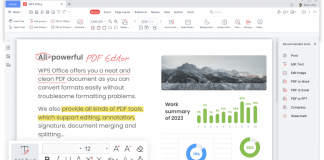
Some tools are best for fast fixes rather than daily workspaces. Smallpdf can handle PDF changes, TinyPNG can compress images, Remove.bg can clean simple image backgrounds, and DocHub can help with basic PDF signing or annotations.

A smart quick editor choice depends on the file type and sensitivity of the task. Avoid uploading private IDs, contracts, or confidential files to random browser tools unless you trust the service and understand its privacy terms.

Build a Smaller Toolkit You Trust

Useful online tools should support your routine without scattering work across too many accounts. Start with the tasks you repeat, choose one strong tool for each category, check sharing settings, test exports, and remove apps you no longer use.

A reliable digital toolkit may include storage, writing, design, tasks, communication, and a few quick editors, but it should not include every popular platform.

Keep the setup light enough to review. The best tools are the ones you understand, trust, and return to when real daily work needs to be finished.

Previous articleTools That Simplify Common Digital Tasks
Next articleWhat This Software Does and Who It’s For
Evan Carlisle
Evan Carlisle is the lead editor at LoadLeap, a site focused on useful online tools for everyday tasks. He writes clear guides on digital organization, practical productivity, light automation, and simple routines that reduce friction. With a background in Information Systems and years in digital content, Evan turns technical features into steps readers can apply fast. His goal is to help you pick the right tool, set it up correctly, and keep your workflow calm and reliable.