Digital work becomes easier when your tools reduce repeated actions instead of adding more places to check.
This online tools guide shows how Notion, Google Workspace, Trello, Zapier, Canva, and password managers can support common tasks without creating a crowded app collection.
It is for students, freelancers, remote workers, small teams, and creators managing files, schedules, writing, and planning online. You will learn which tool categories matter, where each one fits, and how to choose only what your workflow can maintain.
Start With the Problem You Need to Fix
A tool should enter your routine because it solves a specific problem. Maybe your files are scattered, meetings take too long to schedule, passwords are reused, or project updates disappear in chat threads.

A practical workflow problem gives you a clear reason to test an app. Write down the task that feels slow or messy before comparing tools.
Avoid Collecting Tools for the Same Job
Many people create clutter by signing up for several apps that overlap. One note app, one storage tool, one scheduler, and one task manager may be enough for daily work. A clear tool stack should reduce switching, not increase it.
If two apps do nearly the same thing, keep the one that connects better with your files, calendar, team, or device. A smaller setup is easier to secure and remember.
Use Organization Platforms for Work That Needs Structure
Organization tools are useful when information must stay connected. Notion can hold notes, databases, wikis, and project plans, while Trello turns tasks into visual cards that move through stages.
Todoist works better for quick personal lists, recurring reminders, and focused daily priorities. A good organization system should match how you review work. Students may need subject pages, freelancers may need client trackers, and teams may need shared boards.
Keep the Setup Smaller Than the Work
The setup should never become harder than the task itself. Notion dashboards, Trello boards, and Todoist filters can help, but only when they remain easy to update. A simple task structure might include active work, waiting items, and finished tasks.
Add labels or databases only when they solve a real sorting problem. If you stop using the system after two days, simplify it.
Choose Communication Tools With Clear Boundaries
Google Workspace supports shared documents, email, calendars, video calls, and file storage in one ecosystem. Slack can keep team conversations searchable by topic, while Calendly helps people book meetings without several scheduling messages.
A reliable communication flow should make expectations clearer. Set channels, calendar rules, meeting links, and notification habits before conversations become scattered again.
Scheduling Should Respect Focus Time
Calendars and booking tools are helpful only when they protect your day. Calendly can show available time slots, while Google Calendar can display meetings, reminders, deadlines, and shared schedules.
A careful calendar setup includes buffers, time zones, working hours, and reminders that are useful but not excessive. Avoid leaving every open hour available for meetings. A good schedule gives access without breaking focus.
Also Read: How Online Tools Improve Productivity
Automate Repeated Steps Carefully
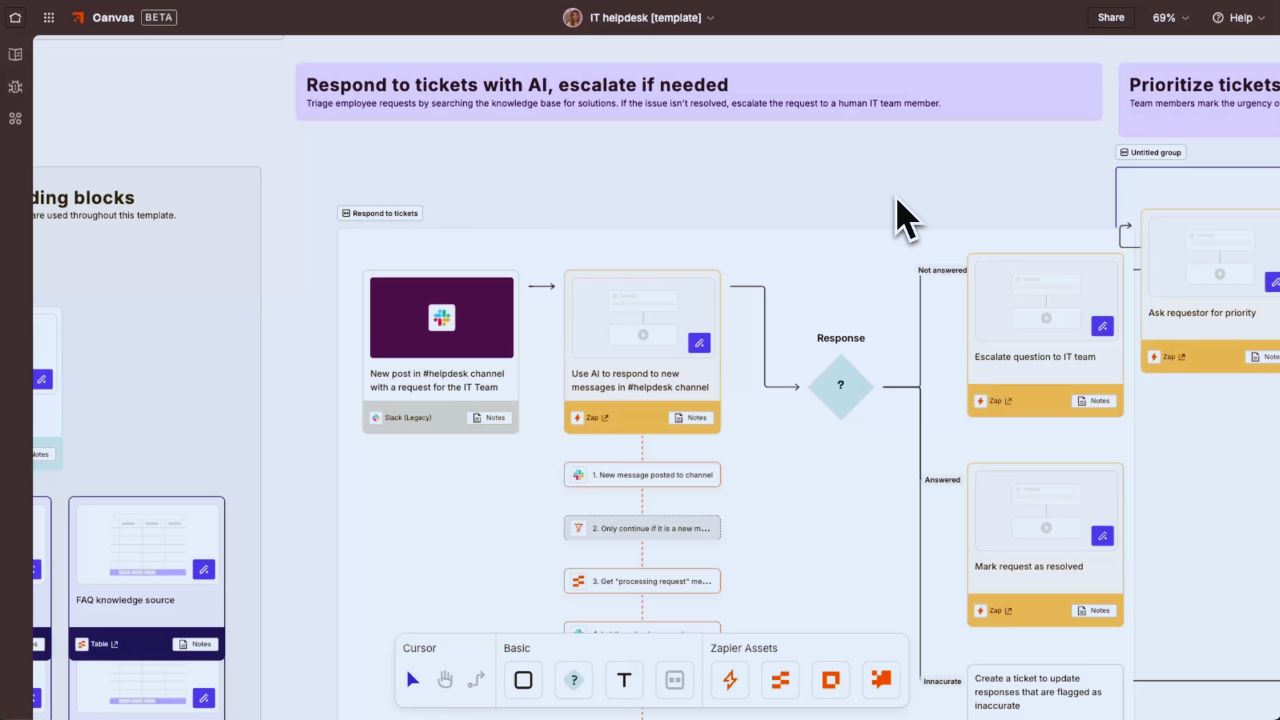
Automation is useful when a task happens the same way many times. Zapier can connect apps through triggers and actions, while IFTTT can handle simple personal automations across services and devices.
A smart automation rule might save form responses to a spreadsheet, copy attachments to storage, or send a reminder when a task changes. Automate one repeated step first. If the manual process is unclear, automation can spread confusion faster.
Check Automations Before Relying on Them
Automations should be visible, understandable, and easy to edit. Test them with low-risk tasks before connecting files, payments, or client records.
A safe automation check includes reviewing triggers, permissions, connected accounts, and failure alerts. If an automation stops working quietly, you need to know where to look. Keep a short note explaining what each automation does so future troubleshooting is easier.
Keep Files in Tools Built for Sharing
File tools matter when documents move between people, devices, and projects. Google Drive works well with Docs, Sheets, and Slides, while Dropbox is useful for syncing folders and handling large shared files.
WeTransfer can help with one-time file transfers when you do not need a long-term shared folder. A practical file management habit starts with knowing whether a file should be stored, shared, archived, or simply sent once.
Review Permissions Before Sending Links
File sharing becomes risky when links are too open. Before sending a folder, check whether recipients can view, comment, edit, download, or reshare.
A careful access review protects client work, school files, business documents, and personal information. Keep sensitive materials separate from general folders. When a project ends, remove old collaborators and close links that no longer need to stay active.
Use Creative Tools for Fast Content Work
Creative tools help when you need visuals, writing support, or quick explanations. Canva can create social posts, presentations, flyers, and simple graphics, while Grammarly can help review grammar, clarity, and tone.
Loom is useful for recording short walkthroughs instead of writing long instructions. A practical content tool should speed up the task without replacing your judgment. Always review design, wording, privacy, and accuracy before sharing the final output.
Templates Still Need Human Editing
Templates can save time, but they rarely fit perfectly. A Canva design may need fewer icons, clearer spacing, and text that matches the audience.
A Grammarly suggestion may help, but it can change meaning if accepted too quickly. A careful editing pass keeps the final content from feeling generic. Use these tools as support, then make the last decisions yourself.
Protect Accounts With Better Access Tools
Password managers and security tools are not optional for busy digital routines. LastPass and Bitwarden can store unique passwords, generate stronger logins, and reduce risky reuse across accounts.
A secure password manager helps when you handle work tools, school portals, client platforms, or shared accounts.
Turn on two-factor authentication where possible, especially for email, storage, finance, and admin tools. Review shared credentials regularly so access does not outlive the project.
Build a Toolkit You Can Maintain
The best tools that simplify common digital tasks are the ones you understand and use consistently. Start with one problem, choose one tool for that category, test it with real work, and remove anything that adds more confusion than value.
A dependable digital routine may include organization, communication, automation, file sharing, content creation, and account security, but it should not include every app people recommend.
Review your setup monthly. Keep what saves time, fix what causes friction, and delete tools that no longer support your work.