Google Keep is useful when you need a quick note, a simple checklist, or a reminder that follows you across devices.
This guide explains how beginners can use it for everyday notes, errands, ideas, and shared plans without turning a light tool into a complicated system.
What Google Keep Is Best Used For?
Google Keep works best for short information that should be captured quickly and found again later. It is not meant to replace a full writing app, project manager, or detailed database, but it is strong for fast capture, mobile notes, and reminders.
If you often forget grocery items, call details, class reminders, or small ideas, Keep gives you a place to save them before they disappear.
The app matches how people actually remember things. Some notes begin as a sentence, others as a photo, voice memo, or checklist.
Instead of asking you to build folders first, Keep lets you save the thought, then improve it later with labels, colors, or reminders.
Start With Notes You Can Reopen Quickly
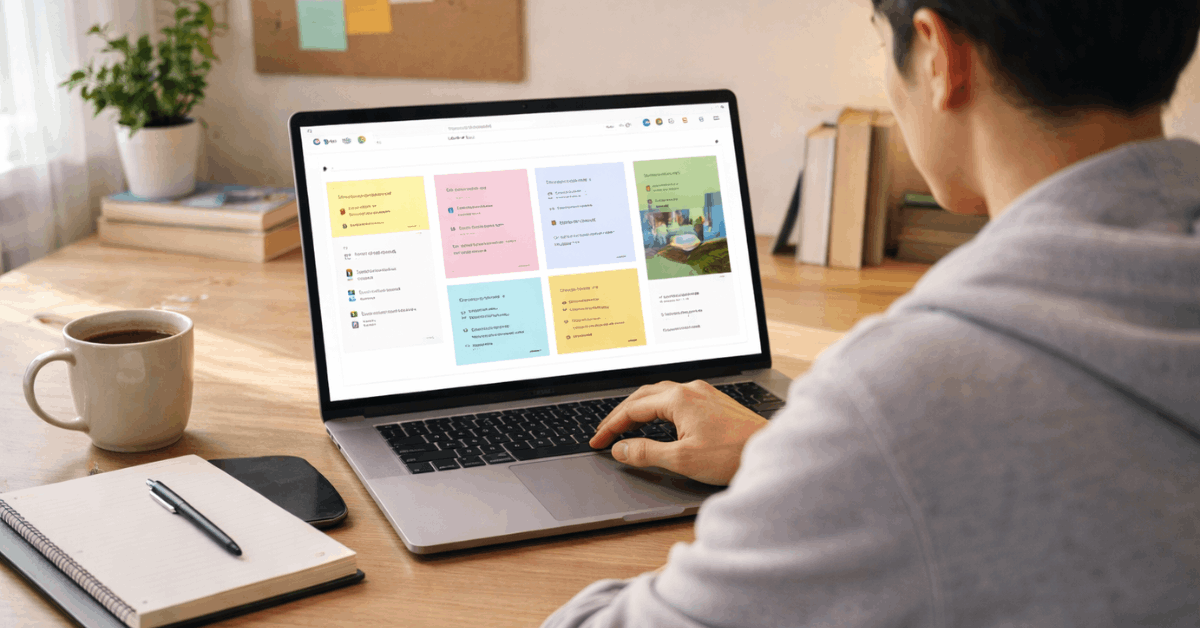
The main board shows notes as cards, which makes Keep feel less formal than a document tool. Beginners can see recent notes, pinned items, and reminders without opening several menus.

Capture First, Then Clean Up Later
A note can start with text, a title, an image, or a checklist. The safest habit is to capture the idea first and clean it up later, because overthinking the format can slow you down.
A note called “Pharmacy,” “Client update,” or “Trip packing” is easier to scan than one with no title. Clear titles make mobile searching faster once the board fills with older notes.
Pinned notes are useful for items you need to see often, such as a weekly grocery list, a school reminder, or a short work checklist.
Use pins for active notes only, because pinning everything makes nothing feel important. Unpin them when they no longer need daily attention.
Checklists are one of the easiest ways to make Keep useful on the first day. They work well for groceries, packing, errands, class materials, or small steps before a meeting.
Checked items move out of the way, so the note stays readable while you work through it. This keeps simple tasks visible without needing a separate planner.
Also read: How To Use Online Tools Without Overcomplication: Ranked Picks For Common Digital Tasks
Organize Notes Without Building a Heavy System
A note-taking tool becomes frustrating when saving is easy but finding is hard. Google Keep stays manageable when you use light organization, not a complicated folder system.
Use Labels, Colors, and Search With Restraint
Labels work like simple categories, and beginners should keep them limited. Use names you would naturally search for, such as Work, Home, Travel, Receipts, Ideas, or School.
Too many labels can make the board feel just as cluttered as no labels at all. A small label system keeps related notes together while still letting search do most of the work.
Colors are better for quick visual signals than detailed organization. You might use one color for urgent reminders and another for work items, but avoid assigning a different color to every topic. The goal is quick recognition, not decoration.
Keep’s search bar is one of its most practical features. You can search text, labels, images, links, and shared notes, which means a clear title or phrase can save time later.
If you captured a receipt, meeting note, or recipe, a few exact words may bring it back faster than browsing the board. This is why specific wording matters when creating notes.
Beginners should archive notes instead of deleting them too quickly. Archive removes a note from the main board without losing it, which is useful for finished errands, old lists, or paused ideas. This habit protects useful information from disappearing by accident.
Use Reminders and Sharing Only Where They Help
Google Keep becomes more useful when notes are tied to timing or shared responsibility. A reminder or collaborator can turn a note from stored information into daily support.
Keep Shared Notes Clear and Practical
Keep reminders are helpful for prompts that do not need a full calendar event. You can use them for returning a call, bringing a document, buying something after work, or checking a bill before its due date.
Reserve reminders for notes that truly need attention, because too many alerts weaken notification value.
Shared notes are useful for family groceries, event preparation, travel packing, or simple team updates. Everyone added to the note can edit it, which keeps the list current without repeated messages.
Shared notes still need clear wording because several people may change them quickly. A short title and clean checklist protect shared context.
Use this simple setup for shared notes:
- Add a clear title.
- Use short checklist items.
- Archive after completion.
Know When Keep Is Not the Right Place
Google Keep is strongest when the note is short, flexible, and easy to revisit. It may not be the right place for long documents, complex projects, or tasks that need detailed scheduling.
Move Longer Work Somewhere Better
If a note becomes several paragraphs, needs formatting, or must be shared as a formal document, move it to Google Docs or another writing tool. Keep can capture the first idea, photo, or outline, but long editing feels better somewhere else.
This boundary keeps Keep light and prevents the board from becoming crowded. A good workflow lets quick capture happen in Keep and longer work happen where it belongs.
The same rule applies to task management. Keep is useful for simple checklists, but recurring responsibilities, team deadlines, or calendar-heavy work may need Google Tasks, Calendar, Trello, or another tool. The goal is not to force every habit into one app. It is to give each type of work a sensible home.
Conclusion: Keep the System Light So You Actually Use It
Google Keep works well for beginners because it does not ask for a complicated setup before becoming useful. Start with clear titles, a few labels, simple reminders, and checklists that match your real day.
The best habit is to review the board regularly and archive what no longer needs attention. When Keep stays clean, it becomes a reliable place for quick ideas, practical notes, and small reminders that should not get lost between your phone and computer.