How to use online tools without overcomplicating starts with choosing apps that remove daily friction, not add more steps.
The best tools help with passwords, file conversion, image edits, meetings, and notes without forcing a full productivity system.
This guide explains how to build a simple toolkit that supports common tasks without filling your browser with unused accounts. You will learn how to test tools quickly, keep workflows short, and remove anything that does not save time.
Build a Simple Rule Before Choosing Any Tool
Most tool overload begins when one app is expected to handle too many unrelated jobs. A better approach is to choose one tool for one clear task and test it with real work before trusting it.
Use a Fast Setup Test First
Before moving files, passwords, or notes into a new tool, test it with one small task. Create an account only if needed, run the main workflow, and check whether the result is easy to export.
If the tool feels confusing in the first few minutes, it may become a daily problem later. Early friction is useful feedback because it shows whether the tool fits your normal working style.
Keep One Main Use for Each Tool
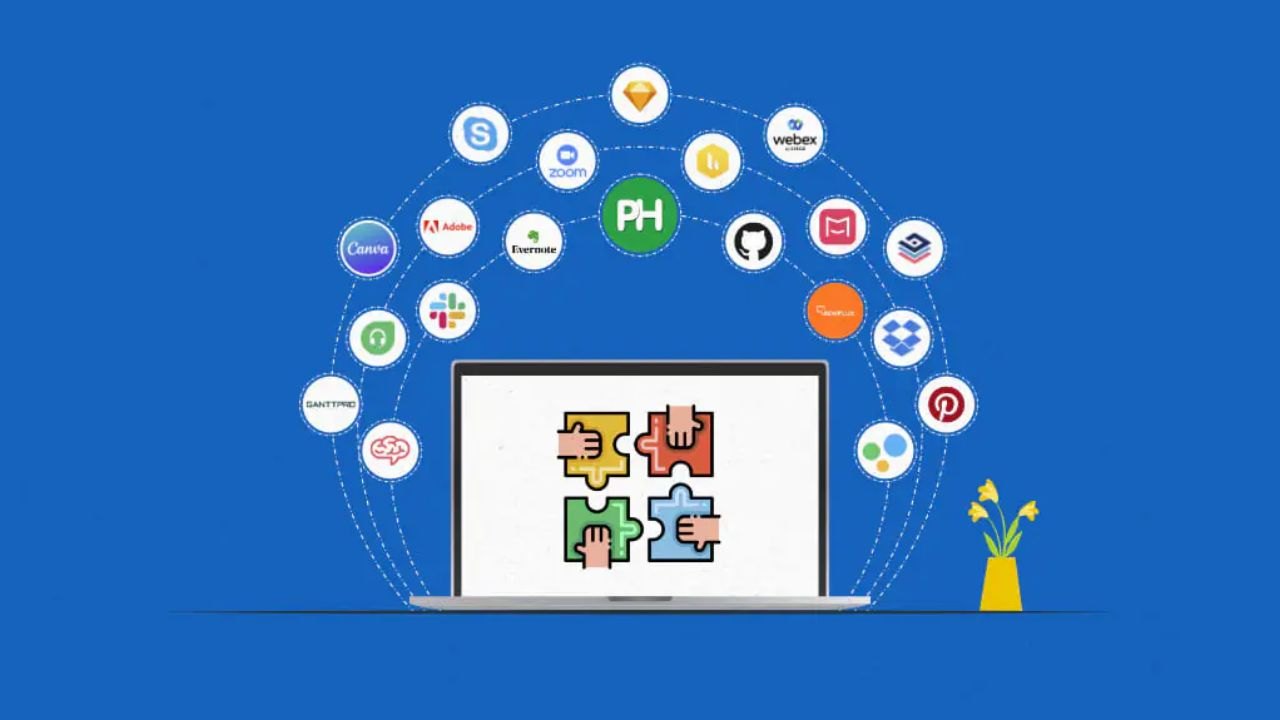
A tool becomes harder to manage when it handles too many jobs at once. Choose one primary role, such as password storage, file conversion, meeting calls, or note capture.
This keeps your digital system easier to remember and easier to clean up. If a tool starts replacing three others, review whether it is truly saving time or just moving clutter into one place.
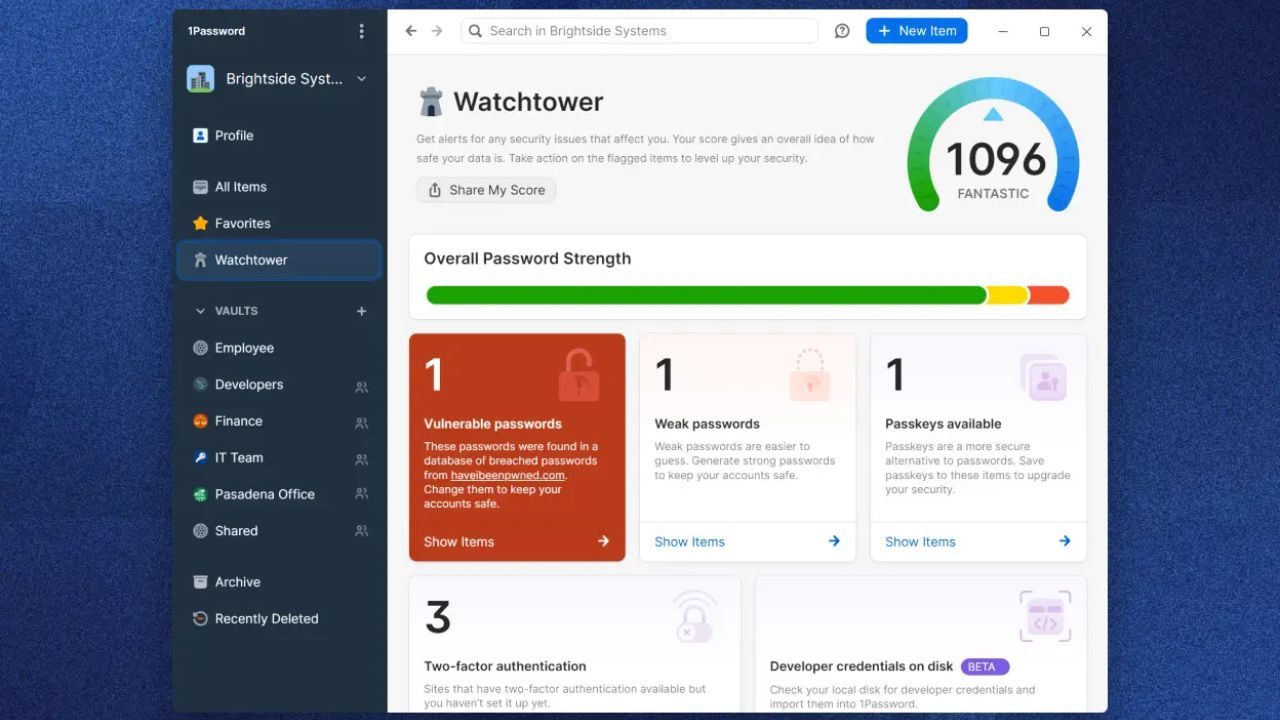
Use 1Password When Logins Waste Too Much Time
Password problems slow people down because forgotten logins create delays across work, school, shopping, and personal accounts.
A password manager can help when it reduces login errors while also encouraging stronger account habits.
Also read: Solve Everyday Digital Headaches: The Best Online Tools and How to Use Them
Start With Your Most Important Accounts
Do not try to organize every password on the first day. Start with your email, work account, banking login, and the sites you open most often.
Saving a small first batch makes the tool feel useful without turning setup into a long project. Once the main accounts are working, you can add older or less-used logins slowly.
Keep Names Clear Inside the Vault
A password vault is only helpful if you can find items quickly. Use plain names that match the service, website, or account purpose.
Avoid vague labels because they become harder to search when your saved logins increase. If accounts are shared with a team or family member, use shared vaults instead of sending passwords through chat.
Convert Files Without Turning It Into Tool Hopping
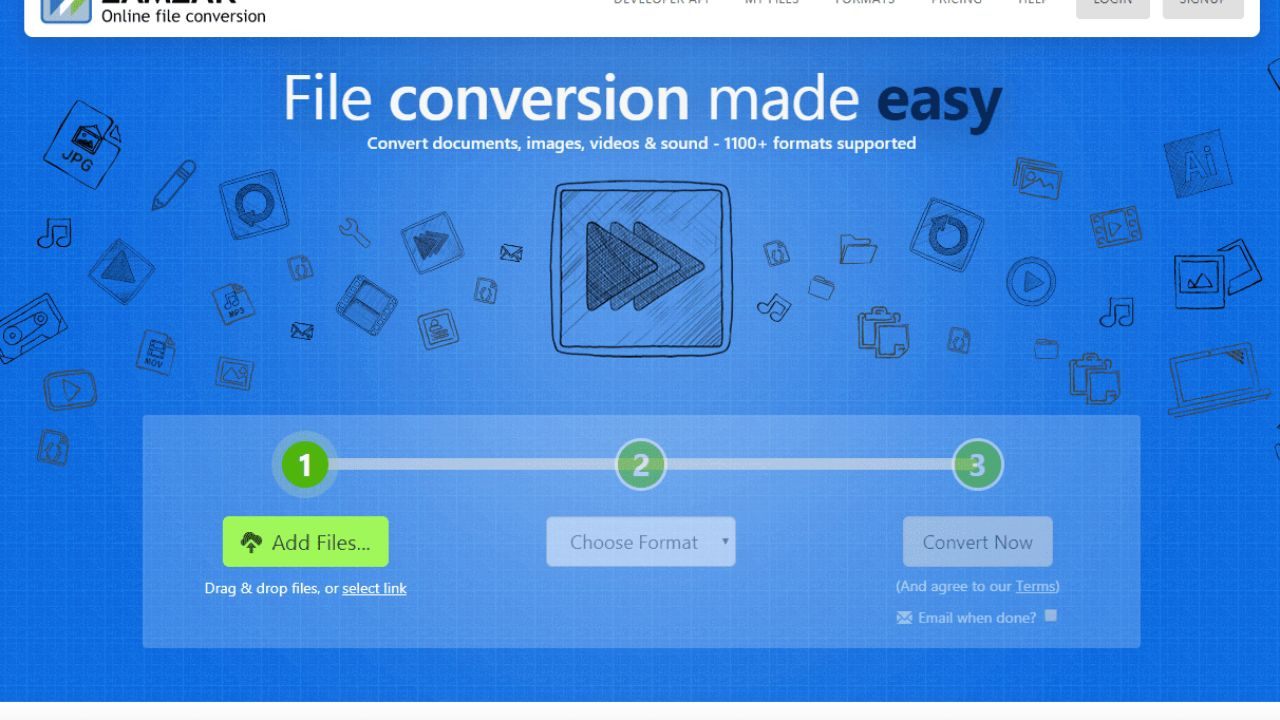
File conversion should be quick because the task usually has one simple goal. A converter like Zamzar may be useful when you need a fast format change without installing software.
Confirm the Output Before Uploading
The easiest way to waste time is choosing the wrong output format. Before uploading, check whether you need PDF, DOCX, PNG, JPG, MP4, MP3, or another format.
This protects the final file from being unusable after the conversion finishes. If the file matters for school, work, or a client, test with a small version before processing the main one.
Name Converted Files Immediately
Version confusion often happens after the download, not during the conversion. Rename the file as soon as it is saved, using a clear date, topic, and format when needed.
Store the original and converted version in the same project folder so the file history stays easy to follow. This small habit prevents repeat conversions when you cannot remember which file is final.
Use this short file rule before sending anything:
- Check the final format.
- Rename the downloaded file.
- Keep the original copy.
Edit Images Only as Much as the Task Requires
Image editing becomes complicated when simple changes turn into unnecessary design work. A lightweight editor like Pixlr can help with basic edits such as cropping, resizing, brightness adjustments, and quick exports.
Set the Final Size First
Start by deciding where the image will be used. A blog header, social post, thumbnail, or presentation slide may need different dimensions.
Setting the size first prevents repeated cropping and resizing later. This keeps the edit focused on the real output instead of random visual adjustments.
Avoid Overediting Simple Images
Most everyday images do not need heavy filters or detailed design changes. Crop the image cleanly, adjust brightness only if needed, and export in a format that matches the use.
JPG usually works for photos, while PNG is often better for simple graphics. The goal is a clean final image, not a perfect design project that takes more time than the task deserves.
Keep Meetings Clear With Fewer Settings
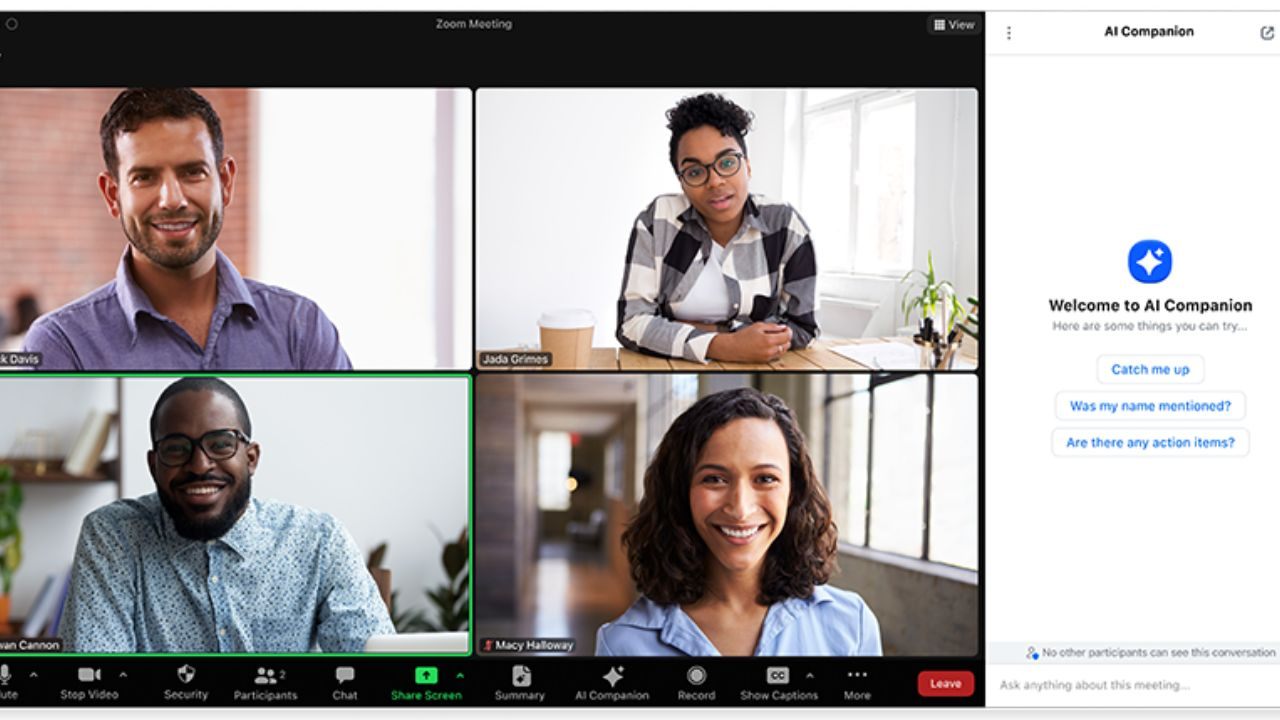
Meeting tools are useful when people can join quickly, hear clearly, and understand the next step. Zoom can support quick calls, training sessions, and screen sharing when the setup stays simple.
Prepare the Call Before People Join
A few small checks can prevent meeting delays. Keep your display name clear, test your microphone, and open the document or screen you plan to share.
If the call is recurring, using the same meeting link can reduce confusion for regular attendees. Joining a little early also gives you time to check audio and screen sharing before the discussion starts.
Share Only What People Need to See
Screen sharing works better when it is focused. Share one window instead of your full desktop when possible, and close unrelated tabs or notifications.
This keeps attention on the work instead of private messages, browser clutter, or extra files. After the call, give a short recap so everyone knows the next action.