Online tools for simple productivity should remove daily friction, not create another setup you need to maintain. The best tools help you plan focus time, capture ideas, finish tasks, and review work with fewer decisions.
This guide explains how tools like Morgen, Milanote, Microsoft To Do, and RescueTime can support a normal workday when used with clear limits. You will also learn how to keep your stack small, practical, and easy to adjust.
Protect Focus Time Before the Day Gets Crowded
A productive day usually starts with protecting time before tasks and meetings spread everywhere. A calendar tool can help when it shows real capacity instead of encouraging an unrealistic schedule.
Use Morgen for Practical Calendar Planning
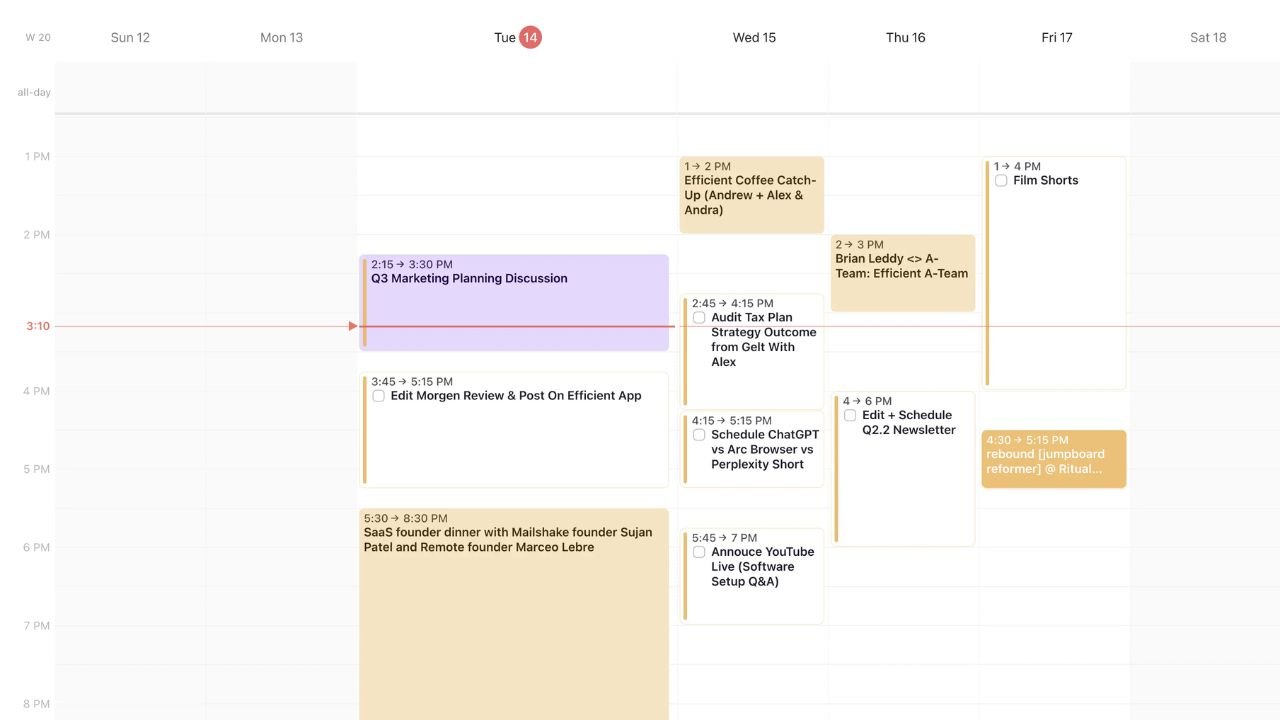
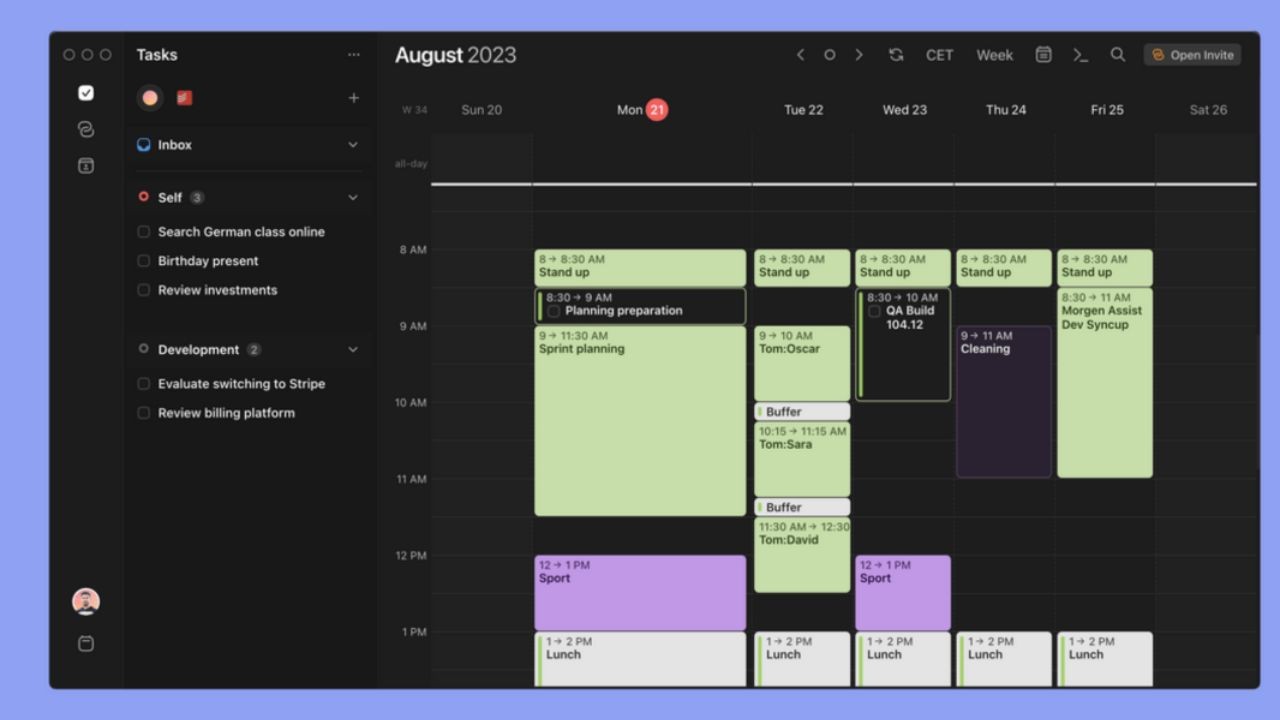
Morgen can be useful when meetings, focus blocks, and task windows need to sit in one place. Its value appears when you manage multiple calendars, changing time zones, or weeks that fill up quickly.
Instead of planning from a loose to-do list, you can place work into actual time blocks and see what no longer fits. That makes the schedule more realistic because tasks are tied to hours, not just intentions.
Image Source: Efficient App
Keep Meetings From Taking Over
Focus blocks work best when they are treated like appointments, not empty spaces anyone can take. You can reserve one block for deep work and another for admin, then label each with a specific result.
Short buffers before and after meetings also help because switching from calls to focused work is rarely instant. If calls keep taking over your strongest hours, your calendar needs clearer boundaries, not more features.
Capture Ideas Without Turning Notes Into Clutter
Ideas, links, screenshots, and rough plans become messy when they land in too many places. A visual tool can help if it turns scattered inputs into usable structure without forcing heavy organization.
Image Source: Morgen Planner
Use Milanote for Visual Planning
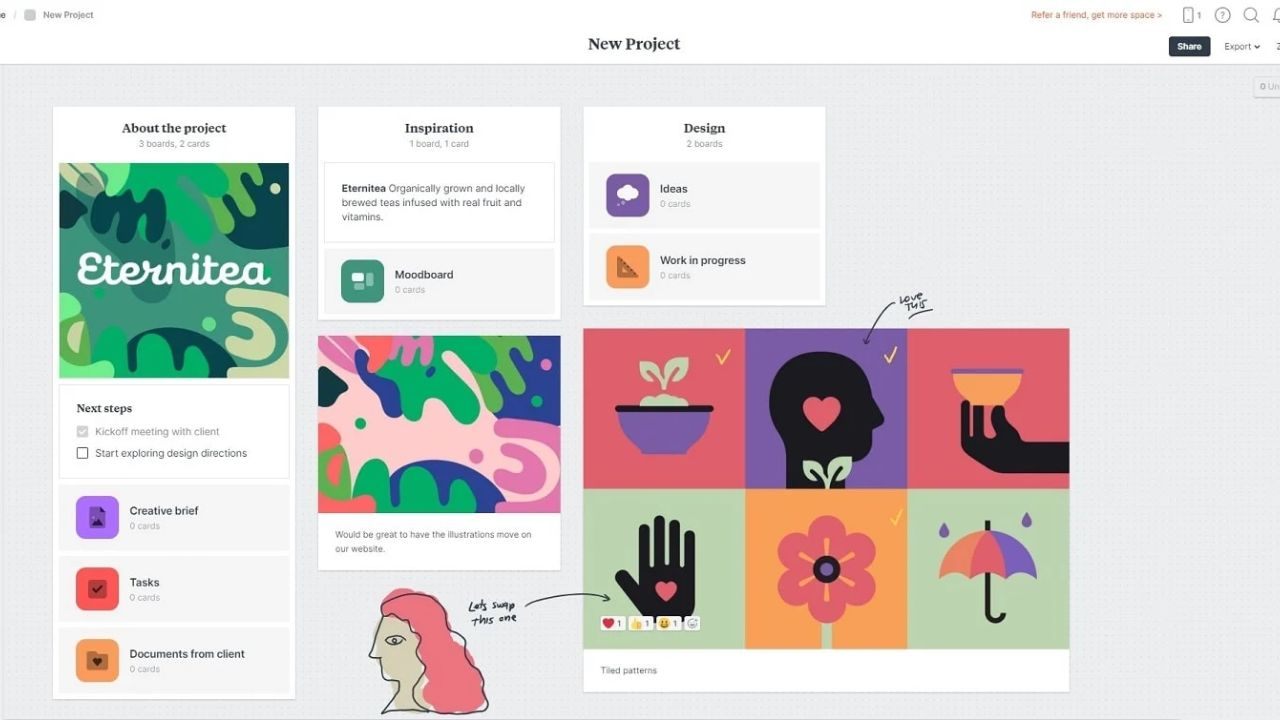
Milanote can work well for content planning, research, and simple creative projects. It lets you group notes, images, links, and checklists on one board while ideas are still unfinished.
One board per outcome keeps the setup cleaner than one board for every small thought. Used with limits, it gives messy inputs a clear holding place without becoming a full project system.
A simple board can start with three columns: Inputs, Draft, and Ready. New material can sit in Inputs until you decide whether it is useful, while Draft holds active items.
Ready should stay small because it represents work that can move forward soon. If a card has not moved in two weeks, archiving it may protect your mental space better than keeping it visible.
Image Source: Skillshare
Execute Daily Tasks From One Short List
Task execution becomes harder when reminders live across notebooks, apps, emails, and chat messages. A simple task tool works best when it gives you one trusted list for the day.
Use Microsoft To Do for Lightweight Follow-Through
Microsoft To Do can be useful because it keeps tasks, reminders, and recurring items simple. It works best when you need a short daily list rather than a complex board with too many views.
Write tasks as actions, such as Send Quote or Review Draft, so the next step is clear. This keeps your daily execution focused on doing the work instead of managing the list.
Limit the List to Real Priorities
A daily list becomes unreliable when it contains every possible task. Pull three main priorities from your backlog and add smaller items only if they truly need attention today.
Attach a link or short note only when it prevents searching later. The list should show what deserves action now, not everything you may handle someday.
Use this quick rule before adding more tasks:
Pick three priorities.
Add only urgent extras.
Remove unclear tasks.
Review Time Without Turning Data Into Pressure
Time tracking can help when it shows patterns without making every minute feel like a score. A review tool should create useful awareness, not guilt or another dashboard to manage.
Use RescueTime to Spot Repeated Distractions
RescueTime can help you see where work hours are going without asking you to track everything by hand.
It is useful when you want to notice distraction patterns, compare focused days, or understand why some days feel scattered.
Keeping default categories for the first week is usually better than adjusting every detail too early. After a pattern appears, change one habit at a time instead of rebuilding the whole day.
Review One Metric at a Time
A time dashboard can become stressful if you check it too often. Looking once a day or once a week is usually enough to find one practical change, such as closing your inbox during deep work.
Trends matter more than exact minutes because productivity changes with meetings, energy, and deadlines. If the data makes you tense, reduce the reports and focus only on the largest time leak.
Keep the Productivity Stack Small Enough to Trust
A simple productivity stack works when each tool has one clear job. Before adding another app, check whether it removes a daily delay or only adds another place to maintain.
Give Each Tool One Clear Role
Morgen can protect focus time, Milanote can organize ideas, Microsoft To Do can manage tasks, and RescueTime can show time patterns.
Each tool has a different role, so they should not compete for the same information. If two tools both become your main task list, confusion will return quickly. One clear home for each function keeps the setup lighter and easier to trust.
Remove Tools That Do Not Save Time
A tool should prove its place through repeated use, not promises. If it does not save time, reduce confusion, or improve follow-through, remove it from the stack.
This keeps your workflow from becoming a collection of apps you feel guilty about not using. The best productivity setup often feels almost invisible during actual work.
Conclusion: Make Productivity Tools Serve the Work
Online tools for simple productivity work best when they support a clear daily loop: plan, capture, execute, and review. The setup should stay small enough that you can use it even on busy days.
Choose the tool that removes your biggest delay first, then add another only when the need is obvious. A simple stack that protects focus and follow-through will usually last longer than a system that needs constant cleanup.
The idea of digital clutter might not seem urgent until the effects materialize. Anyone using smartphones, cloud storage, and endless apps knows how quickly...
Digital organization becomes easier when each platform has a clear purpose instead of becoming another place to check.
This guide explains how Notion, Trello, and...
Switching from a phone to a laptop should make your daily workflow easier, not leave you searching for missing files or repeated settings.
This guide...
Choosing software becomes easier when reviews support your real requirements, not when badges replace judgment.
This guide explains how to use G2 as a practical...