
This guide explains how to get started with Trello in a clear and practical way.
You will learn what the tool is used for, how it works at a basic level, and what to set up first to keep it easy to manage.
By the end, you will know whether Trello fits your workflow and how to use it for everyday tasks without overcomplicating things.
What Trello Is and What It Helps You Do
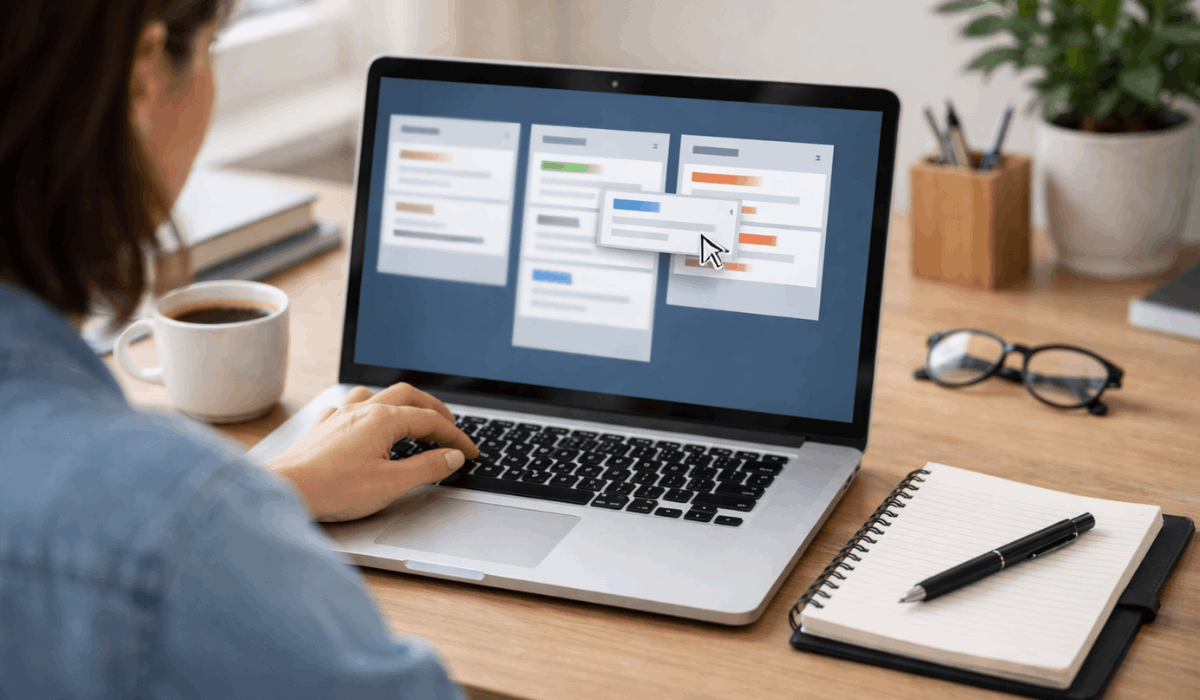
Trello is a visual tool for organizing tasks and projects using boards, lists, and cards.
You use it to track progress, manage responsibilities, and keep work structured in one place.
What It Helps You Do
The list below highlights the main functions of Trello and how each one helps you stay organized:
- Organize — Group tasks into boards and lists so work is easy to follow
- Track — See task progress clearly from start to finish
- Plan — Lay out projects step by step without confusion
- Prioritize — Focus on important tasks using due dates and labels
- Break down work — Turn large projects into manageable cards
- Collaborate — Assign tasks and share boards with others
Who Trello Is Best For
Trello works well for users who prefer clear visuals and simple task organization without complex setup.
It is especially useful for the following types of users:
- Individuals — People who want a simple way to track daily tasks and goals
- Students — Those managing assignments, deadlines, and study schedules
- Small teams — Groups that need basic task sharing without complex systems
- Freelancers — Independent workers handling multiple clients or projects
- Content creators — Users organizing ideas, workflows, and publishing steps
- Beginners — Anyone new to task management tools who prefers visual layouts
Who Should Not Use Trello
Trello may not be the right choice for users who need advanced control, detailed reporting, or complex workflows.
It is less suitable for the following situations:
- Large enterprises — Teams that require strict permissions, audit logs, and advanced governance
- Complex project managers — Users who rely on dependencies, Gantt charts, or timeline-based planning
- Data-heavy teams — Groups that need detailed analytics and built-in reporting
- Highly regulated industries — Workflows that require formal approvals and compliance tracking
- Users seeking automation-first tools — Those who expect deep automation without add-ons
What You Need Before Getting Started
Getting started with Trello requires only a few basic items to ensure a smooth setup and daily use:
- Email address — Needed to create and access your account
- Internet connection — Required for syncing boards and updates
- Device — A laptop, desktop, tablet, or smartphone
- Web browser or app — Access Trello through a browser or the official app
- Basic task list — A rough idea of what you want to organize
- Time for setup — About 20 to 30 minutes for first-time configuration

How Trello Works at a Basic Level
This tool uses a visual layout to clearly display tasks and keep work organized. Each part plays a specific role in moving work from start to completion:
- Boards — Represent projects or main areas of work
- Lists — Show stages such as to do, in progress, and done
- Cards — Hold individual tasks or items
- Movement — Tasks are moved between lists as work progresses
- Details — Each task can include due dates, checklists, and notes
- Updates — All changes sync automatically across devices
First-Time Setup: What to Do in the First 30 Minutes
A simple setup at the beginning helps you avoid clutter and confusion later. These steps focus on creating a clean structure you can build on over time:
- Create an account — Sign up using an email address or existing login
- Choose a basic board — Start with one board for a main project or goal
- Set up core lists — Use simple stages like to do, in progress, and done
- Add a few tasks — Enter only current or active items to keep it manageable
- Adjust notifications — Turn off unnecessary alerts to stay focused
- Review the layout — Make sure the board feels clear and easy to use
Understanding Labels, Due Dates, and Checklists
These features help you add structure without making your boards harder to manage. When used correctly, they improve clarity and keep tasks moving forward:
- Labels — Use colors to group tasks by type, priority, or category
- Due dates — Set clear deadlines so important tasks are not forgotten
- Reminders — Receive alerts before deadlines to stay on track
- Checklists — Break a task into smaller, actionable steps
- Progress visibility — See completion status at a glance
- Consistency — Apply the same system across tasks to avoid confusion
Common Ways People Use Trello
This tool is often used for everyday organization, where clarity and simplicity matter most. These are some of the most practical and common use cases:
- Task management — Tracking daily to-dos and priorities in one place
- Project planning — Organizing projects into clear stages from start to finish
- Study organization — Managing assignments, deadlines, and exam preparation
- Content planning — Laying out ideas, drafts, and publishing schedules
- Work collaboration — Sharing tasks and responsibilities with a small team
- Personal planning — Organizing goals, habits, and personal projects
Using Trello for Personal vs Work Projects
The way you set things up should change depending on whether tasks are personal or work-related.
Keeping these uses separate helps maintain clarity and reduces confusion:
- Personal projects — Focus on simple boards for habits, goals, or daily tasks
- Work projects — Use clearer stages and deadlines to track progress
- Board separation — Keep personal and work boards separate to stay organized
- Detail level — Personal tasks need fewer details than work-related ones
- Collaboration — Personal boards are usually private, while work boards are shared
- Consistency — Use similar structures so switching between boards feels easy
Collaboration Basics: Sharing Boards and Assigning Tasks
Collaboration works best when access and responsibilities are clear from the start. These basic features help multiple people work together without confusion:
- Board sharing — Invite others using their email address
- Member roles — Control who can view or edit tasks
- Task assignment — Assign tasks to specific people to avoid overlap
- Comments — Use task comments to keep discussions in one place
- Notifications — Get updates when tasks change or are completed
- Visibility — See who is responsible for each task at a glance
Power-Ups and Automations: What Beginners Should Know
These features add extra functionality and should be used gradually to keep your setup simple.
- Power-Ups — Optional add-ons that extend basic features
- Automation — Rules that move or update tasks automatically
- Triggers — Actions that start an automated rule
- Limits — Free plans allow only a small number of add-ons
- Use cases — Best for repetitive tasks, not everyday basics
- Timing — Add these features only after your workflow is stable
Common Beginner Mistakes to Avoid
Small setup choices can cause confusion later if not handled early. Avoiding these common issues helps keep your boards clear and usable:
- Overloading boards — Adding too many tasks at once makes tracking difficult
- Too many lists — Creating excessive stages complicates simple workflows
- Ignoring cleanup — Leaving completed tasks unarchived causes clutter
- Inconsistent labels — Using colors without meaning reduces clarity
- Mixing projects — Combining unrelated tasks on one board creates confusion
- Overusing add-ons — Adding advanced features before mastering the basics
Final Takeaway
Understanding what Trello does and who it is for helps you decide whether it fits your workflow and daily digital needs.
It offers a flexible way to organize tasks and projects, but it works best when you are comfortable shaping and adjusting your own system.
Try creating a simple workspace today and test how it supports your routine before fully committing.








