
Online tasks pile up fast when your tools feel scattered. This software guide for everyday use shows you what to open first each day. You will build a routine for tasks, notes, files, and PDFs.
A small daily stack helps you move faster without complexity. Each section gives one tool, one setup, and one habit. You will learn checks that prevent lost work and messy versions. Follow the order here, and your workflow feels stable.
Build A Clear Daily Task System
Todoist works best when you treat it as your intake for tasks. Open it first and dump every obligation in one place, even small ones.
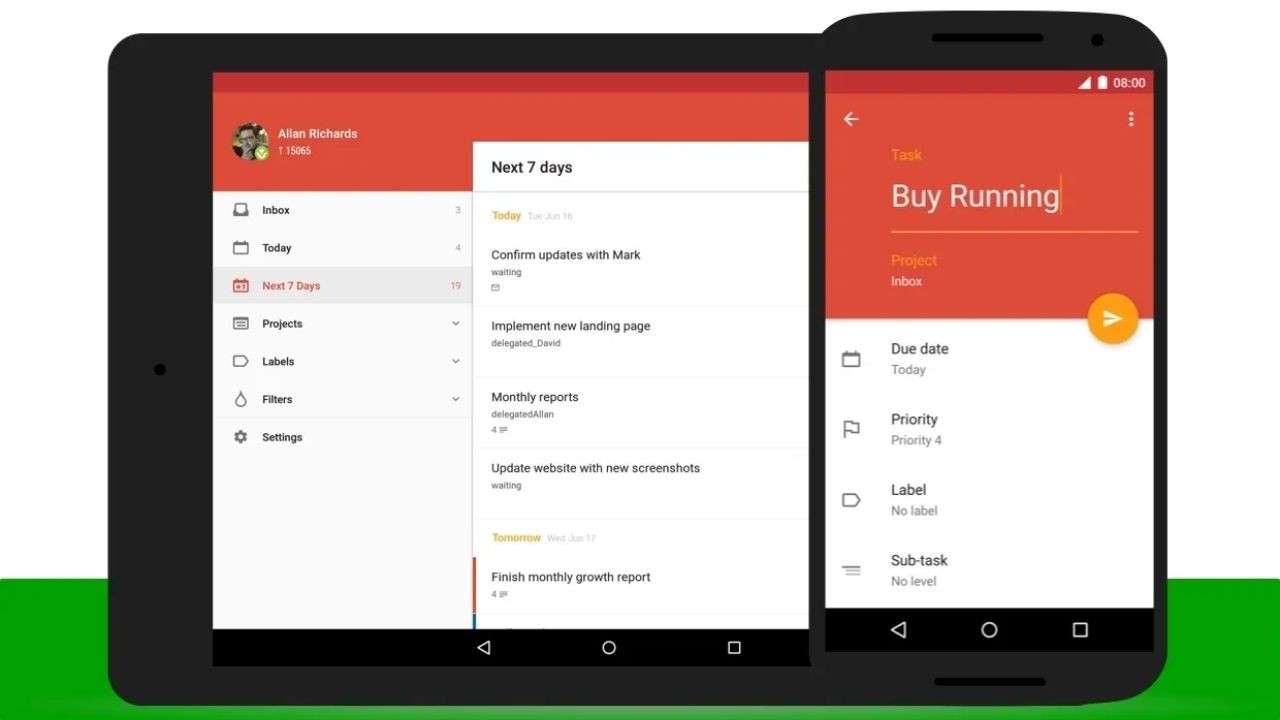
One trusted inbox stops you from writing tasks in five apps. Keep projects simple so you do not waste time organizing. Use priority levels only when the deadline is real. When you capture work consistently, you stop forgetting small actions.
Capture Tasks The Moment They Appear
Start with one capture rule: if it takes time, it becomes a task. In Todoist, add tasks the moment they appear in email or chat. Write the next action, not the full plan, so it stays doable.
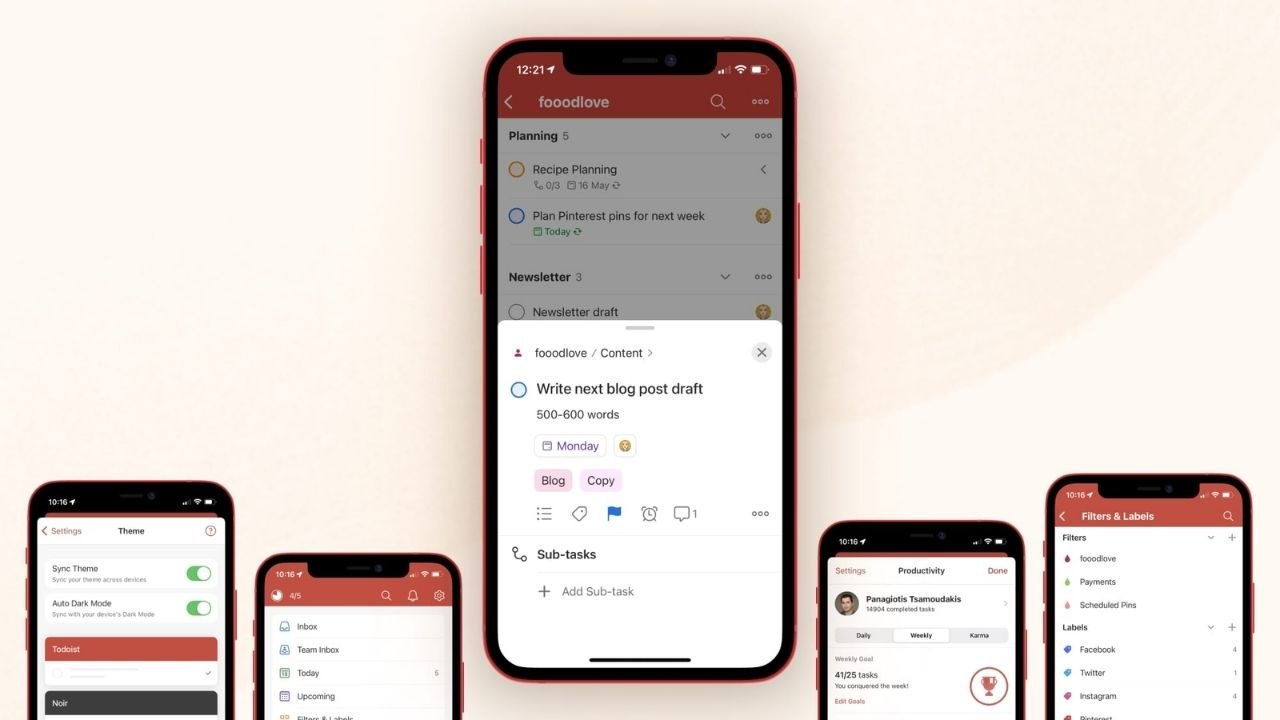
Next action wording makes tasks clear when you review later. Add a due date only when you will act. If a task feels vague, rewrite it before you leave the screen.
Sort Your Day With Three Simple Views
Create three lists that match how you work: Today, This Week, and Waiting. Today is for actions you will complete, not hopes or maybe items. This Week holds tasks that matter but are not urgent yet.
Waiting status tracking keeps you from chasing replies blindly. Waiting holds tasks blocked by someone else or a delivery. Review all three lists each morning so nothing slips through.
Use Labels And Filters Without Overcomplicating
Use labels to separate contexts like Admin, Calls, and Deep Work. Keep labels few so you can remember them without checking. In Todoist, filters can show only what fits your energy and time.
If you have ten minutes, pull a filter for quick tasks only. Filters reduce noise when your list grows past one screen. This makes it easier to start work instead of scrolling.
Add Recurring Routines That Do Not Break
Set recurring reminders for chores you forget, like backups or weekly reports. Create a recurring task, then add a checklist in the description. Use the two-minute rule as a filter, not pressure.
If it is truly fast, do it now and check it off. Recurring tasks build rhythm by preventing you from having to renegotiate routines. Over time, your list becomes a reliable schedule, not a guilt pile.
Keep Notes Useful, Not Just Collected
Obsidian helps when your notes stay searchable and linked to work. Use it for ideas, references, and short how-to reminders you reuse.
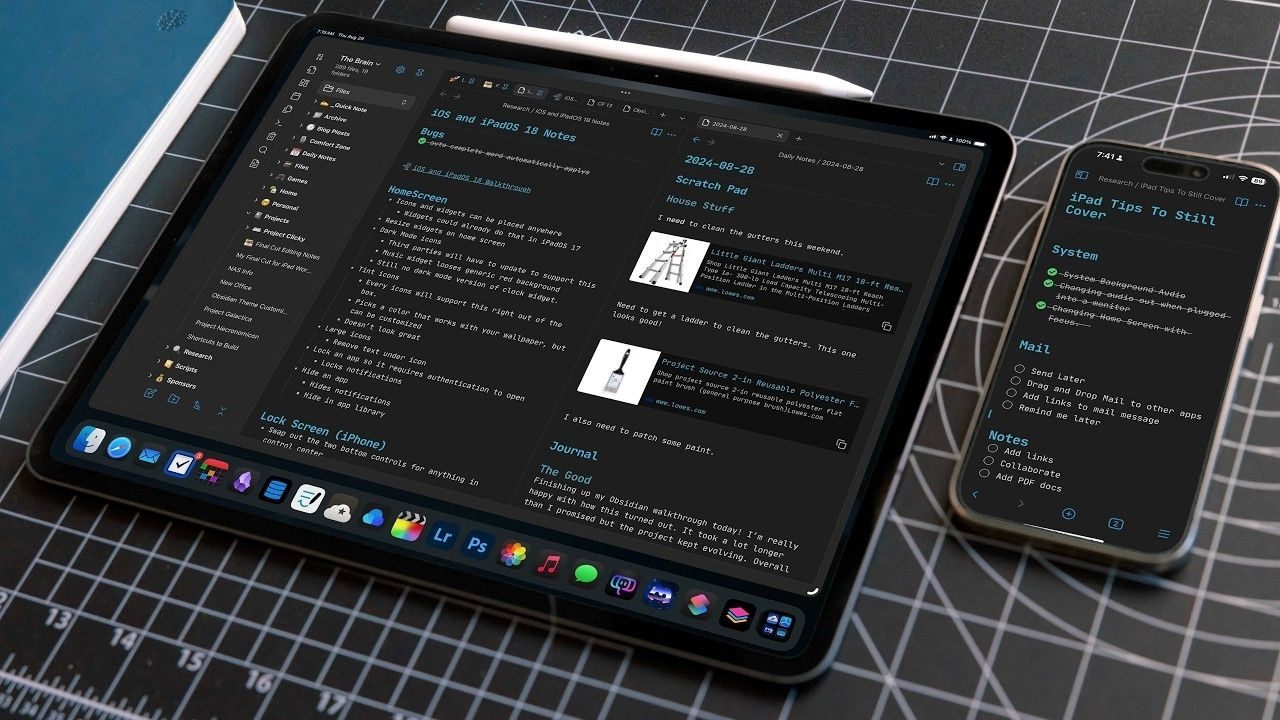
Do not chase perfect organization on day one, because it slows you. Searchable notes win because you can find them under pressure.
Keep one vault and store only notes you might revisit later. When notes connect to tasks, you stop rewriting the same instructions.
Start With One Template You Can Reuse
Create a note template that fits most situations you face. Use headings for Goal, Steps, Links, and Follow Up, then keep them stable. In Obsidian, save the template and duplicate it for new notes.
Title notes with a date plus topic, like 2026 01 16 Password Reset. Consistent note titles make search results easy to scan. This reduces time spent hunting for the right reference later.
Connect Notes To Tasks For Instant Context
Link notes to tasks so you can act without context switching. Paste the Obsidian note link into the related Todoist task. Keep the note focused on instructions, not long story text.
When you finish a task, add a short outcome line in the note. Task linked notes create a clean trail of what you tried. That trail helps you fix issues faster the next time.
Tag Lightly So Search Stays Fast
Use tags only for broad categories you will search often. Examples include receipts, logins, troubleshooting, tutorials, and templates. Avoid tags for every project name because they grow into clutter fast.
Instead, rely on a search with two keywords and one tag for narrowing. Light tagging stays usable when you have hundreds of notes over time. This keeps your system fast even as it grows and changes.
Do A Short End Of Day Note Cleanup
End the day with a short note review. Open the notes you created and add missing steps or links. Move any notes you will reuse into a Reference folder you trust. If a note is temporary, archive it so it stops showing up in search.
A short daily review prevents messy knowledge buildup in your vault. Your next morning starts with cleaner guidance and fewer surprises.
Make Your Files Easy To Find Anywhere
Sync is useful when you want simple, secure cloud storage with clear control. Use it as the home for files you need across devices.

Decide what belongs there and keep personal clutter out on purpose. One shared file home prevents wrong attachments and missing versions.
Start with a small set of folders and expand slowly. When your structure stays stable, uploads become automatic and calmer.
Use A Three Folder Structure That Scales
Create three top folders: Active, Reference, and Archive inside Sync today. Active holds the current work you are editing this week, with clear filenames. Reference holds templates, receipts, and guides you reuse often.
An archive stores completed files you might need later for proof or history. Three folders are enough for most daily workflows. If you add more folders, do it only after you feel real pain.
Name Files So Sorting Works Automatically
Name files with a date first format so sorting works everywhere. Use YYYY MM DD plus a clear label, like 2026 01 16 Client Intake. Keep labels short and avoid vague words like final or latest.
If you need versions, add v1, v2, or v3 at the end. Date first naming makes the newest file obvious on mobile. This lowers the risk of uploading the wrong document.
Share Files With Clear Permissions
When you share files, set permissions before you send a link. Use the view only for most cases so the content does not change. If editing is required, set a deadline and confirm who can edit.
Send a message that states the file name and the action you want. Clear sharing rules reduce back and forth and approvals. After completion, move the file to the Archive to lock the version.
Plan Offline Access And Avoid Conflicts
Use offline access for files you need during travel or when there is weak internet. Mark only a few files offline so your device stays light. Sync will update changes when you reconnect, but verify conflicts.
If two versions appear, keep the newer one and archive the older copy. Offline access planning helps you avoid last-minute emergencies. It also keeps your workflow steady even when connections fail.
Handle PDFs Cleanly From Start To Finish
Sejda PDF is a practical tool for handling documents in daily admin. Use it for combining pages, compressing files, and quick edits when needed.
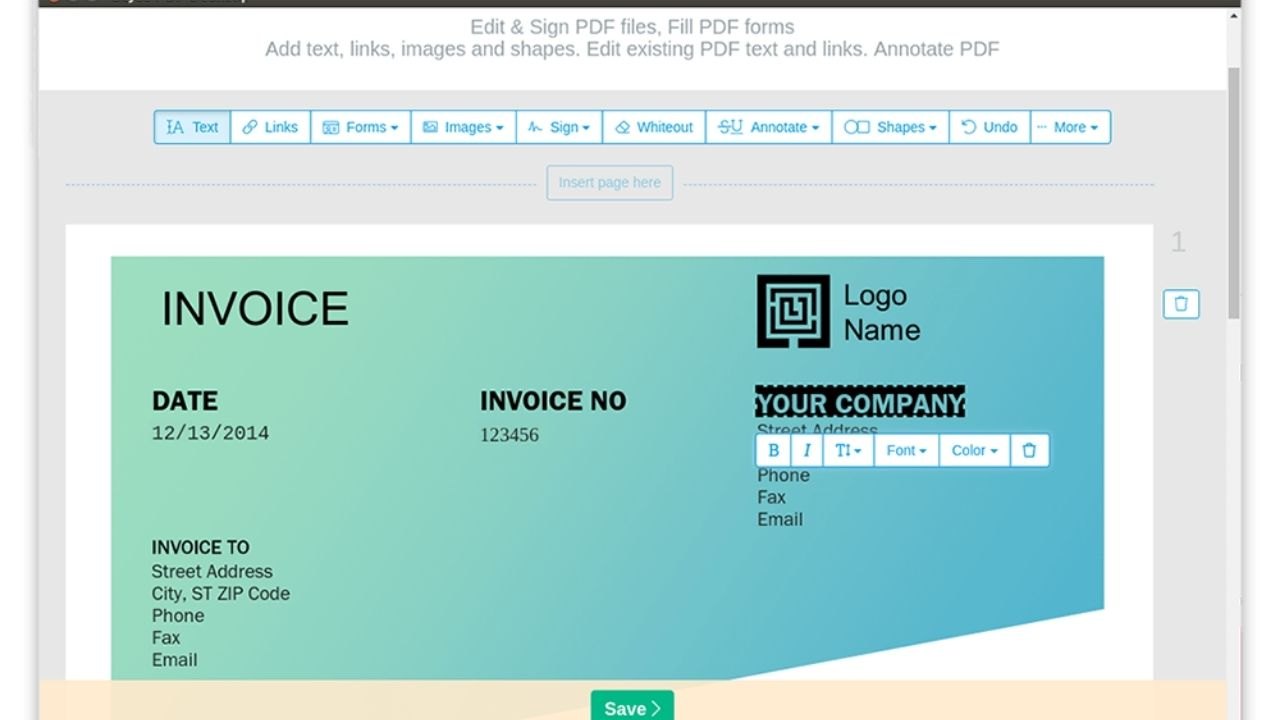
Decide the final purpose first, like printing, emailing, or uploading. PDF readiness matters because portals reject messy files fast.
Make one change at a time and check the result immediately. When you follow one PDF routine, submissions become predictable and clean.
Merge And Reorder Pages Before Sending
Combine related pages into one PDF before you share or submit. In Sejda PDF, merge files and then reorder pages in a logical flow. Put the signed page or summary first so reviewers see it quickly.
Remove blank pages and rotate anything that is sideways. One clean merged file is easier to track than multiple attachments. Save it with a date-based name in your Active folder.
Compress Without Making Text Unreadable
Compress PDFs only after the content is correct and in the right order. Choose a compression level that keeps text readable at zoom. Open the compressed version and scan every page for artifacts or blur.
If a page looks soft, use a lighter compression setting and retry. Readable compression choices prevent rejections from upload portals. Keep the original in the archive in case you need a higher-quality copy.
Lock A Final Version And Store It Properly
Create a final version rule, so you stop editing the same file repeatedly. After you export from Sejda PDF, name the file with the date and purpose. Store the final copy in Reference if you will reuse it.
If the document is one-time, move it to the Archive after sending. A final version rule protects you from sending drafts by accident. It speeds up searches because outcomes are clear.
Conclusion
When your daily tools are consistent, your work stops feeling scattered. Todoist keeps your tasks visible, so priorities stay clear each morning.
A repeatable routine reduces mistakes and speeds up common digital tasks. Review this stack weekly, remove friction, and keep the workflow simple.








