
Most people pick software the same way they pick a restaurant on a Friday night: they go with what they already know and hope it works out. The problem is that familiarity is not the same as fit. And unlike a bad dinner, a bad tool choice costs you weeks.
This is a comparison of six tools across three common work situations: team communication, project tracking, and interface design. Not a feature list. A practical breakdown of where each tool earns its place and where it quietly creates friction.
So if you are deciding between Discord and Teams, ClickUp and monday.com, or Figma and Adobe XD, this is the fast read that saves you the month-long trial-and-error loop.
How to Compare Software Without Falling Into the Feature Trap
The instinct when comparing tools is to open the pricing page and count features. I think that instinct is exactly backward. Features tell you what a tool can do. Daily use tells you what it will do for your specific workflow.
A more useful approach: run one real task in each tool, from start to finish. Create a workspace, add a teammate, and complete one small deliverable. Count the clicks. Notice where you hesitate.
The Five-Category Scorecard
Score each tool across five areas after a short test run:
- Speed: How fast can you start doing real work?
- Ease: How often do you hesitate or backtrack?
- Collaboration: How cleanly does it handle multiple people?
- Control: Who manages access, versions, and permissions?
- Total cost: What does it actually cost at your team size?
Give each a score from one to five. Add one note for what worked and one for what slowed you down. Do not chase perfect scores. Every tool makes trade-offs. Pick the one that wins on your top two priorities and move on.
What “Similar” Means
Two tools can share a category on a comparison chart and still solve completely different problems. Discord and Microsoft Teams both do chat and video. But one was built for online communities and the other was built for workplace compliance. Treating them as interchangeable is where the confusion starts.
Define similarity by your task, not by how the marketing teams describe their products.
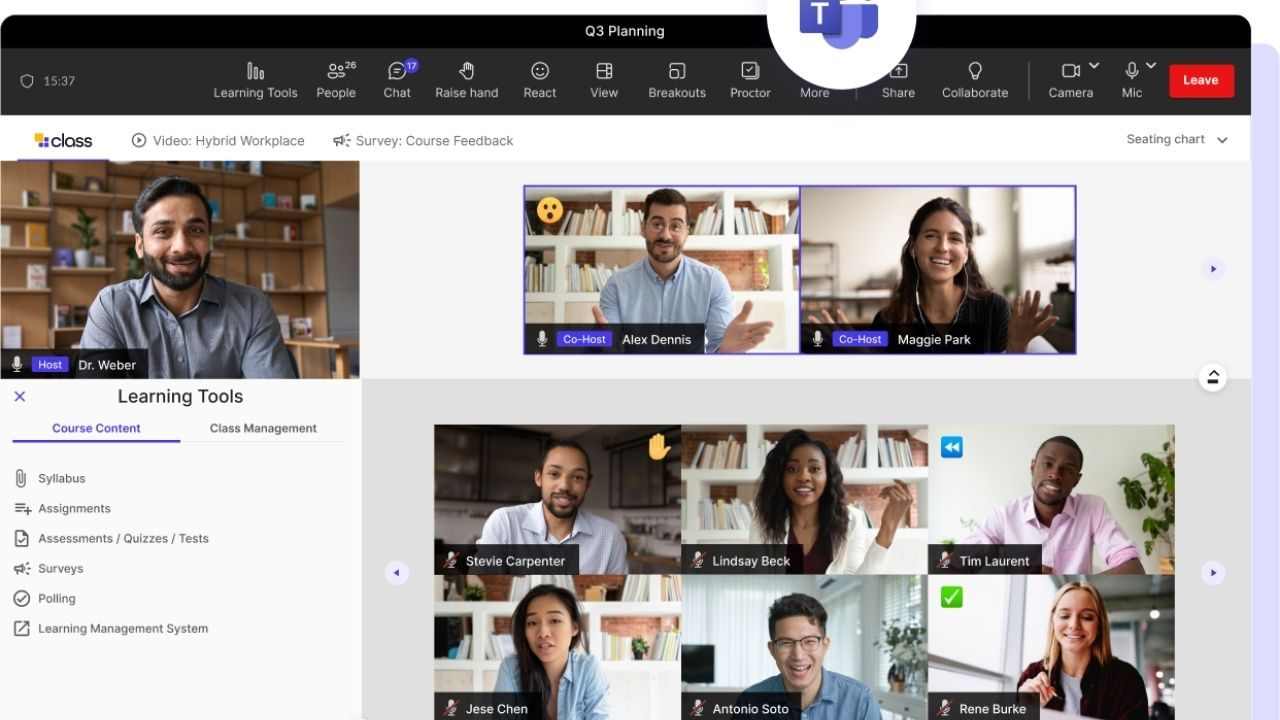
Discord vs Microsoft Teams: Same Features, Different Worlds
Both handle messaging, voice, and video. The key differences between similar software like these two show up the moment you try to run a real meeting or share a file with someone outside your immediate group.

Call Speed and Daily Reliability
Discord is fast to join. If your group already uses a server, voice channels are one click and you are in. No scheduled link, no waiting room, no “your host has not started the meeting yet.”
Teams is heavier to enter but tighter on the back end. It integrates directly with calendar invites, meeting links, and organizational directories.
For client calls or scheduled recurring meetings, that structure matters. For a quick internal check-in, it can feel like arriving in a suit to a coffee chat.
Also read: Is Notion Worth the Setup Time? An Honest Look for People Who Hate Wasted Effort
Files, Channels, and Workflow Structure
Discord organizes work around servers and channels, which is great for ongoing topic threads but limited when your work involves documents and approvals. File organization in Discord is functional but not work-centric. You can share a file. You cannot easily manage versions, permissions, or collaborative editing from within the platform.
Teams connects directly to SharePoint and Microsoft 365 files. If your team already lives in Word, Excel, and OneDrive, Teams keeps everything inside one managed environment.
That connection either saves you enormous friction or adds it, depending on whether your organization runs on Microsoft infrastructure.
Admin Control and Workplace Fit
| Feature | Discord | Microsoft Teams |
|---|---|---|
| User management | Server roles, basic moderation | Full admin console, IT integration |
| Compliance tools | Limited | Available in business/enterprise plans |
| File storage | External links or basic upload | Integrated with SharePoint and OneDrive |
| Best fit | Communities, creative teams, informal work | Structured businesses, client-facing work |
| Joining a call | Instant via voice channel | Via scheduled link or calendar invite |
Teams is the safer default if your work involves regulated data, managed onboarding, or policy enforcement. Discord wins when speed, flexibility, and a lighter atmosphere matter more than governance.
My take: I would not use Discord for anything involving external clients or sensitive documents. The admin controls are not built for that level of accountability. For an internal creative team running daily standups? Discord is faster and less exhausting to maintain.
ClickUp vs monday.com: Power vs Clarity
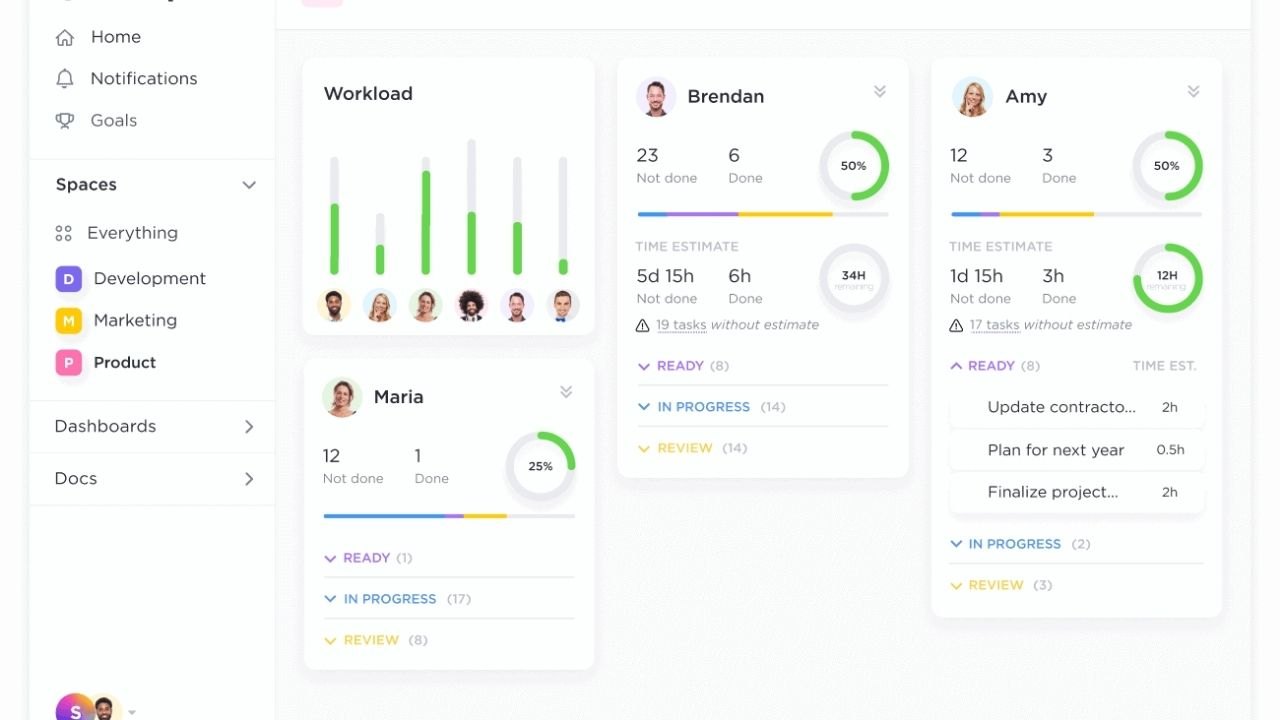
Both tools replace spreadsheets. Both handle tasks, timelines, and team visibility. But they operate on fundamentally different mental models, and choosing the wrong one based on a demo is one of the most common productivity mistakes I see solo operators and small teams make.
Setup Speed and First-Week Navigation
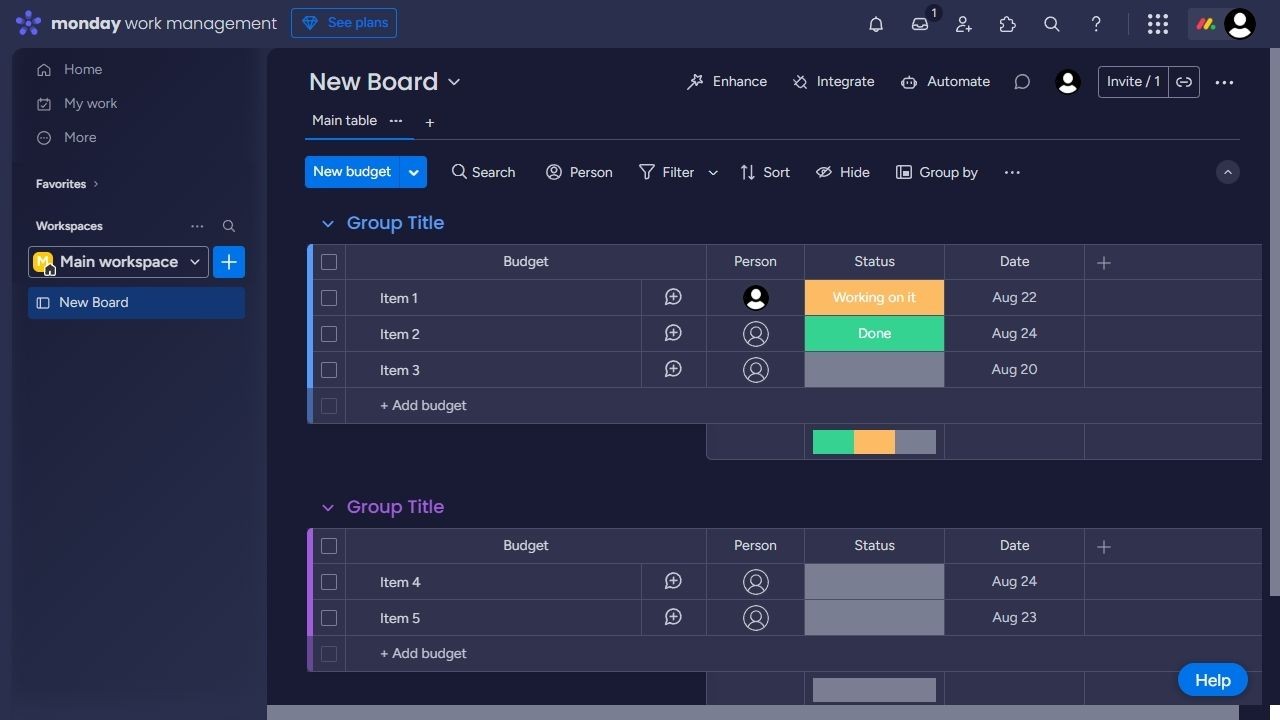
monday.com is easier to understand on day one. Boards, columns, and status labels feel intuitive within an hour. You can hand it to a teammate with no training and have them updating tasks the same afternoon.
ClickUp offers significantly more flexibility, but that flexibility has a price. The number of views, settings, and configuration options means the first week often gets spent building the system instead of using it.
That is not a flaw if you need the depth. But if your project shapes are consistent and repeatable, ClickUp’s range can become overhead.
Automations, Reporting, and Scale
ClickUp’s automation builder supports complex conditional logic. If you are managing layered workflows across multiple departments with different triggers and dependencies, ClickUp can handle it. The reporting features are deep enough to replace a standalone dashboard tool for many small operations.
monday.com’s automations are cleaner to read and maintain. They are less powerful in edge cases but far less likely to break quietly when someone on your team changes a column name. Monday.com’s automation documentation shows how quickly you can set up recurring workflow rules without needing a dedicated admin.
Best Fit by Team Type
- Solo operators or small teams with varied work: ClickUp, kept minimal
- Teams running repeated workflows like content calendars or ops checklists: monday.com
- Multiple departments with different processes: ClickUp with enforced templates
- Teams with mixed technical skill levels: monday.com, lower onboarding friction
I think the advice to “just pick ClickUp because it does everything” is genuinely bad guidance for teams under ten people.
The maintenance burden of an over-configured ClickUp workspace is real, and it shows up three months in when half your automations are broken and nobody remembers setting them up.
Figma vs Adobe XD: Collaboration Changed the Game
Adobe XD is a capable design tool. But the honest reality of where the design industry landed is that Figma became the default for most collaborative UI and product design work, and that shift happened for specific, practical reasons.
Browser Access and Real-Time Collaboration
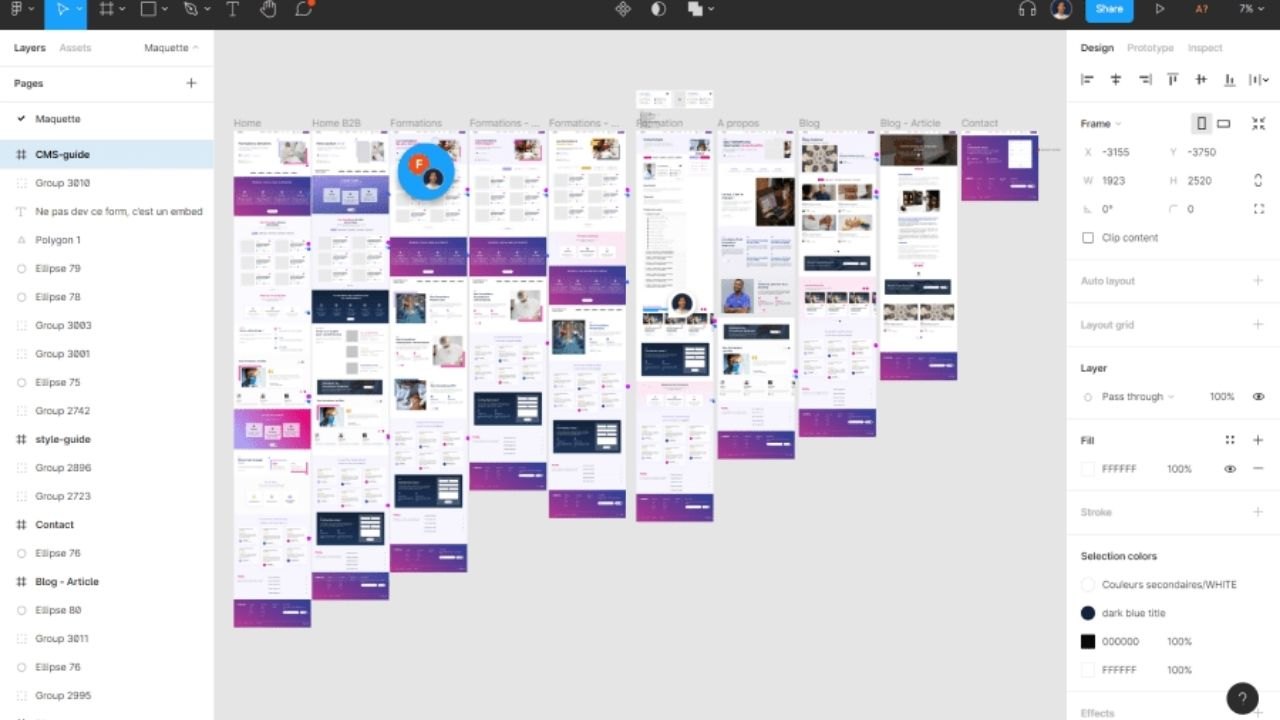
Figma runs in the browser. No installation required for reviewers, clients, or developers giving feedback. You share a link and they open it. That accessibility removes a consistent friction point in feedback cycles.
Adobe XD requires the application to be installed for full editing. Reviewers can access shared links through a browser, but the experience is more limited. When feedback cycles happen daily and involve people who are not designers, the barrier to participation matters.
Components, Design Systems, and Consistency
Both tools support components and shared libraries. Figma’s component propagation across multi-file projects is where it pulls ahead for teams maintaining a design system. Update a button component in your library, and it reflects across every screen that uses it.
Figma’s component and library documentation covers how shared libraries work across team files, which becomes critical once your design system grows past twenty components.
Adobe XD’s repeat grids and component tools are genuinely useful for certain layout patterns.
If your team is already deep in Adobe Creative Cloud with shared asset libraries across Photoshop, Illustrator, and Premiere, XD’s integration with that pipeline has real value. Switching to Figma means exiting that ecosystem for design work specifically.
Developer Handoff and Final Delivery
Figma’s inspect panel gives developers access to spacing, colors, type styles, and exported assets without requiring a designer in the room. Most development teams working with product designers have already adopted Figma as the default handoff tool.
XD’s handoff through Adobe’s sharing tools works, but it requires more setup and often generates more developer questions about edge cases and states.
Questions People Ask About Comparing Similar Software
Q: How long should I actually test a tool before deciding? One week of real work is enough for most tools. Run your most common task type daily and track where you hesitate. If friction is not decreasing by day five, it is not decreasing at all.
Q: Can I use Discord and Microsoft Teams at the same time? Plenty of teams do. Discord for internal casual communication and Teams for client-facing or compliance-required work. The cost is notification management. Two chat platforms mean two places to check, which creates its own friction.
Q: Is ClickUp actually free to use long-term? ClickUp has a free tier with real functionality, but storage limits and guest access restrictions push growing teams toward paid plans faster than the pricing page suggests. Check the specific limits at your expected team size before committing.
Q: Why does everyone recommend Figma now when Adobe XD still exists? Figma’s browser-based collaboration model shifted industry expectations from 2020 to 2022. Adobe XD has not been deprecated, but Figma’s adoption across product and design teams became so dominant that it changed what developers and stakeholders expect to receive.
Q: Should I pick the tool my team already knows or the better tool for the job? Start with the tool your team already knows and identify the specific friction it creates. Switch only when that friction has a clear, named cost, like a specific number of hours lost weekly or a recurring failure point. Switching tools for abstract improvement reasons usually just moves the pain around.
Conclusion
Choosing software comes down to one honest question: what does your workflow actually demand on a Tuesday at 3pm when you are tired and behind schedule? Discord will get your team into a voice call in under ten seconds.
Teams will keep your compliance officer from panicking. ClickUp will handle every edge case your project throws at it, if someone maintains the system. Monday.com will stay clean enough that anyone on your team can use it without a guide.
Figma will let your developer inspect that button component without messaging you at noon. Pick the tool that solves the problem you have, not the one that solves the most problems in theory.









