
Most people pick tools based on familiarity, then wonder why work feels harder. This guide on key differences between similar software helps you compare options with less guesswork. You will review three common tasks that show up in real life.
Each section explains what changes in daily use, not just feature lists. You will see where setup gets faster, where collaboration improves, and where costs can rise quietly.
The goal is simple decisions you can repeat. Use this as a quick reference before you commit.
How To Compare Similar Software Without Overthinking
Choosing between similar apps gets easier when you judge the same things every time. Focus on what you do daily, not what looks impressive on a pricing page.
A consistent framework prevents tool fatigue because you stop restarting your decision from zero.
You will compare how fast you can start, how well it fits your workflow, and how it scales. Keep your criteria short so it stays usable. Then you can pick tools with confidence and move on.
The Daily Use Test That Exposes Real Winners
Start by running one real task in each tool, from start to finish. Try creating a new space, adding teammates, and completing one deliverable. Daily friction shows up quickly when menus hide key actions or when flows feel slow.
Track how many clicks it takes to do the same thing. Notice where you hesitate, because hesitation becomes time loss later. If a tool feels confusing on day one, it rarely becomes effortless without training.
What “Similar” Actually Means In Software Comparisons
Two tools can look similar yet solve different problems in practice. One might prioritize quick communication, while the other prioritizes structured work management.
Similarity should be defined by your task, not by marketing terms like “all-in-one.” Ask whether they target the same user type and the same workflow stage.
Then compare them on outcomes you care about, like turnaround time and clarity. When you define similarity well, the right choice becomes clearer.
A Quick Scorecard You Can Reuse Every Time
Use a simple scorecard with five categories: speed, ease, collaboration, control, and total cost. Give each category a score from one to five after a short test run. Short scoring keeps you honest by forcing trade-offs rather than endless research.
Add one note for what you liked and one for what slowed you down. Do not chase perfect scores, because every tool has compromises. Pick the best fit for your top two priorities.
Messaging And Team Calls: Discord vs Microsoft Teams
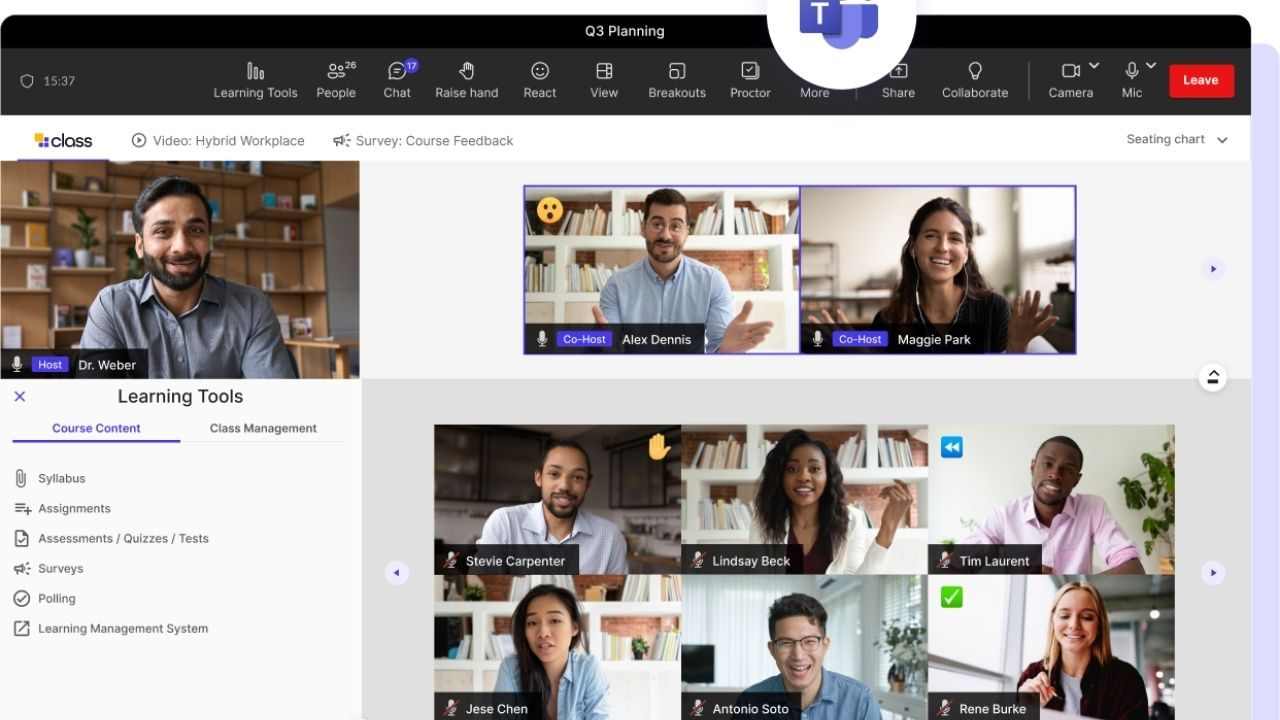
Both Discord and Microsoft Teams can handle chat, voice, and video, but they feel different in daily work.

Key differences between similar software show up in how you join calls, share files, and keep conversations organized. Discord tends to feel fast and casual, while Teams leans toward structured workplace coordination.
Your best choice depends on whether you need community-style channels or business-grade collaboration. Test them with your real team size and meeting style. Then decide based on friction, not hype.
Calls, Joining Speed, And Everyday Reliability
Discord is quick to join, especially if your group already uses servers and channels. Teams can feel heavier, but it integrates tightly with calendars and meeting links in many workplaces.
Joining the flow matters more than features because delays waste time and reduce participation. Discord handles informal voice rooms well, while Teams is built for scheduled meetings and recurring calls.
If you run client calls, Teams often feels more formal and consistent. If you run internal quick check-ins, Discord can feel lighter and faster.
Channels, Files, And Collaboration Structure
Discord organizes conversations around servers with channels that work well for ongoing topics. Teams organizes chats around teams and channels, and it often connects directly to shared files and company spaces.
File access can define your workflow because you either find what you need or you ask again. Discord is better for community discussions and fast back-and-forth, but file organization is less work-centric.
Teams supports structured work chats, shared resources, and clear ownership. If your work involves documents and approvals, Teams usually fits better.
Admin Control, Privacy, And Workplace Fit
Teams is designed with business administration in mind, including user management and compliance options in many setups. Discord also has moderation tools, but it is commonly used for public or semi-public communities and casual groups.
Control needs change with responsibility because workplace data brings higher stakes. If you need policy enforcement, onboarding, and managed accounts, Teams is the safer default.
If you need flexible communities, casual groups, or creator spaces, Discord often feels more natural. Choose based on the risk level of what you share daily.
Project And Task Tracking: ClickUp vs monday.com
ClickUp and monday.com both manage tasks, projects, and team visibility, but their strengths differ.
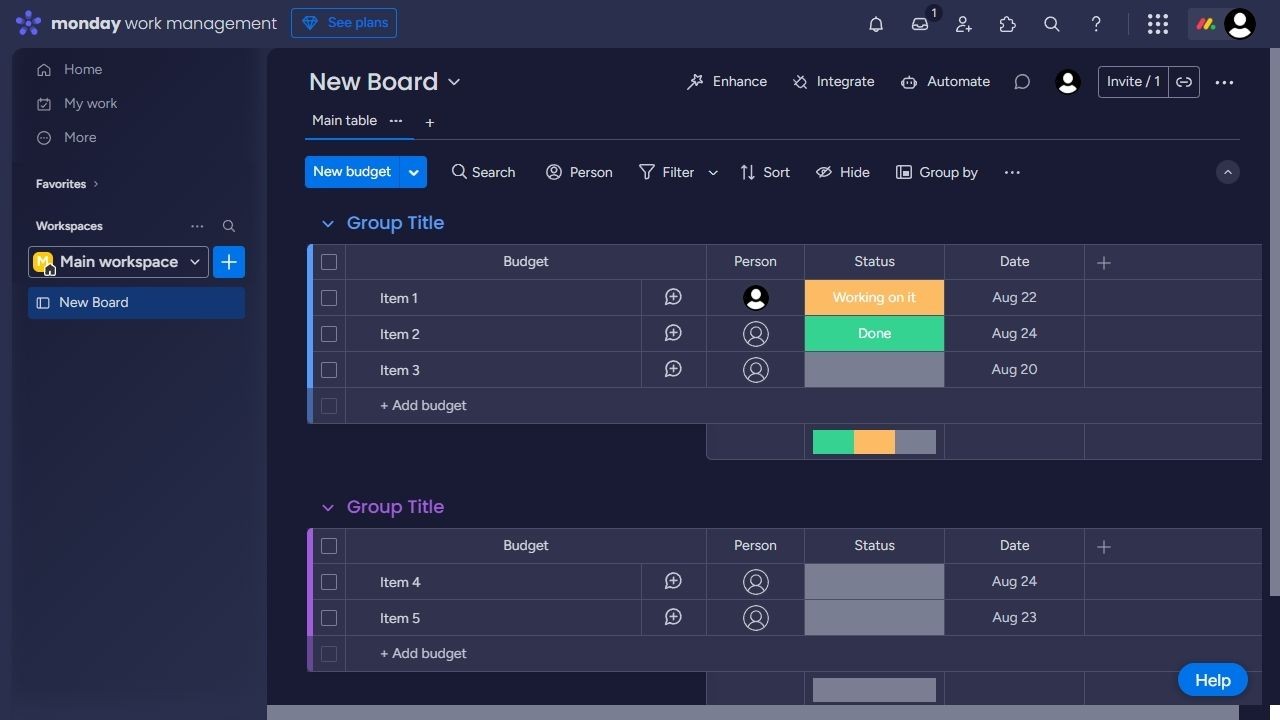
The best choice depends on whether you want an all-in-one workspace or a clean, guided system. The workflow you repeat decides the winner because daily use is where value appears.
Both can replace spreadsheets, but they do it with different mental models. You should compare setup speed, clarity, and reporting effort. Start with one real project and see which tool stays easier after a week.
Set up Speed, Views, And Everyday Navigation
ClickUp offers many views and options, which can be powerful but also overwhelming at first. Monday.com is often easier to understand quickly because boards and status columns feel intuitive.
Navigation friction is a daily tax because small confusion repeats across every task. ClickUp shines if you want flexibility across lists, docs, and dashboards in one place.
monday.com shines when you want structured boards that teams can follow without training. If your team has mixed skill levels, monday.com can reduce onboarding time.
Automations, Reporting, And Scaling Up
ClickUp includes deep automation options and reporting features that can support complex workflows. Monday.com also supports automations, and many teams find it easier to keep them clean and visible.
Scaling is about clarity, not complexity, because more features can create more maintenance. ClickUp can handle layered project needs, but it requires rules so your workspace does not sprawl.
Monday.com can scale well when you standardize board templates and status logic. Choose based on whether your team can maintain a system for months.
Best Fit By Team Size And Task Complexity
For solo work or small teams, ClickUp can be a strong hub if you keep the setup minimal. For teams that need clear visibility fast, monday.com often keeps workflows easier to follow.
Complexity should match your reality because overbuilt systems slow execution. If you run multiple departments with different processes, ClickUp can adapt better.
If you manage repeated workflows like content pipelines or operations checklists, monday.com can stay cleaner. Decide based on how often your projects change shape.
Interface And Prototype Design: Figma vs Adobe XD
Figma and Adobe XD both support UI design and prototyping, but their ecosystems and collaboration models differ.
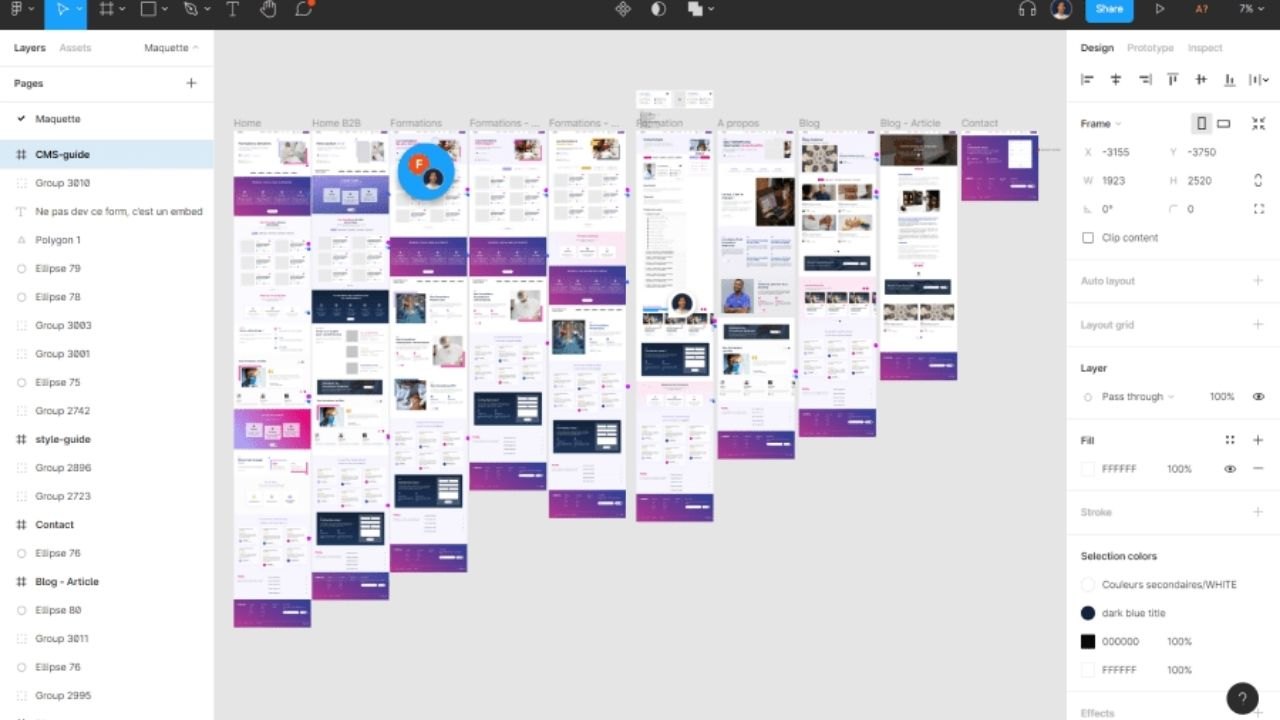
Your choice depends on how often you collaborate and how you deliver assets to others. Collaboration speed changes everything when feedback cycles happen daily.
Both tools can produce professional outputs, but their workflows can feel different. Consider team access, component systems, and handoff details. Test one small prototype and a component update before you commit.
Collaboration, Browser Access, And Performance
Figma is widely known for smooth collaboration, including browser access that lowers setup barriers for teams. Adobe XD is more app-based, which can feel stable for some users but less flexible for quick sharing.
Access determines who can review because clients and teammates may not install software. Figma makes it easy to share a link for feedback and version review.
XD can work well when your team is already deep in Adobe workflows. Pick the tool that fits how feedback arrives in your day.
Components, Design Systems, And Consistency
Daily design work becomes easier when components update cleanly across files. Figma supports strong component workflows and shared libraries, which help teams stay consistent.
Adobe XD also supports components and repeat grids, which can speed up certain layouts. Consistency saves time later by avoiding rework and mismatched screens.
If your team maintains a design system, test how updates propagate across a multi-screen file. The better system is the one that prevents small visual drift.
Developer Handoff, Exports, And Final Delivery
Design tools matter most at handoff, where decisions turn into builds. Figma offers handoff features that many teams use for specs, assets, and inspection.
Adobe XD also provides sharing and export options, and it can work well when paired with Adobe asset pipelines.
Handoff clarity reduces back-and-forth because developers should not guess spacing and states. Test exporting icons, images, and a style guide snapshot. Choose the tool that produces fewer questions in real delivery.
Conclusion
Similar tools can feel interchangeable until you use them under time pressure. This guide on key differences between similar software works best when you run short tests with real tasks. The right tool is the one you will use consistently.








