
Trello is useful when your digital tasks keep getting lost in chats, notes, screenshots, and memory. This guide explains how to use Trello for everyday digital tasks without turning it into a complicated project management system.
It is a good fit for content planning, request tracking, delivery updates, client work, school projects, and small team workflows.
The goal is to build a simple board that shows what is pending, what is moving, and what is already done.
Understand What Trello Does Best
Trello works best when a task needs to move through clear stages. Instead of keeping updates in separate messages, the board shows task status at a glance.
Think of the Board as the Work Area
A Trello board is the main space where one workflow lives. For example, you might create one board for content production, one for client requests, or one for personal admin tasks.
The board should not hold every idea in your life because that makes it harder to read. A focused board gives you better visibility and helps you understand what needs attention first.
Use Lists as Real Work Stages
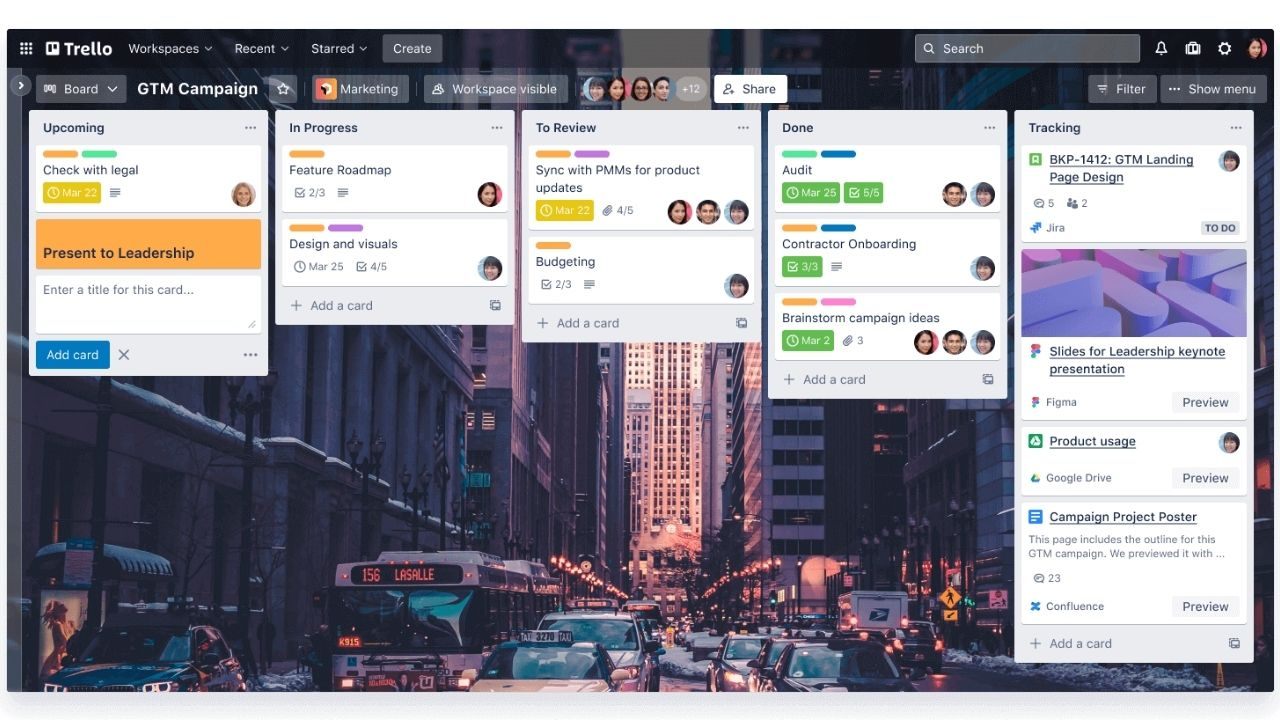
Lists are the columns that show where each task stands. A simple setup can start with To Do, Doing, Review, and Done.
These stages work because they match how many tasks naturally move from planning to action to checking. If your lists describe real progress, you will not waste time deciding where a task belongs.
Build Cards That Explain the Next Step
Cards are the individual tasks inside Trello. A card can hold a title, description, due date, checklist, files, links, comments, and assigned members.
Write Card Titles Like Actions
A weak card title like “Website” does not tell you what to do next. A stronger title, such as “Update homepage banner” or “Check landing page links,” gives the task a clear direction.
This matters when you return to the board after a busy day and need to continue quickly. Action-based titles keep task movement clear without opening every card.
Keep Details Inside the Card
Use the card description for the main instruction, not a long essay. Add the link, screenshot, document, or brief that helps the person complete the work.
Comments should hold updates and decisions, especially when several people are involved. This keeps work context attached to the task instead of scattered across chat threads.
Keep the First Setup Small
The easiest way to ruin Trello is to overbuild the board before using it. A clean setup should support the work, not become another task.
Start With One Board and a Few Labels
Begin with one board for one workflow. Use only a few labels that actually change how you work, such as Urgent, Waiting, Needs Review, or Client Update.
Too many labels make the board look colorful but harder to understand. A small label system keeps priority signals useful instead of decorative.
Add Due Dates Only When They Matter
Due dates should be used for real deadlines, not every small task. If every card has a date, notifications become noise and people stop paying attention.
Use dates for publishing schedules, client delivery, approvals, school deadlines, or anything that affects timing. This keeps deadline tracking meaningful and easier to trust.
Use this basic setup before adding advanced features:
- Create four clear lists.
- Add three useful labels.
- Review cards weekly.
Use Trello Where Chat and Notes Fall Short
Notes are good for storing information, and chat is good for quick conversation. Trello becomes more useful when work needs ownership, movement, and a visible trail.
Track Requests From Start to Finish
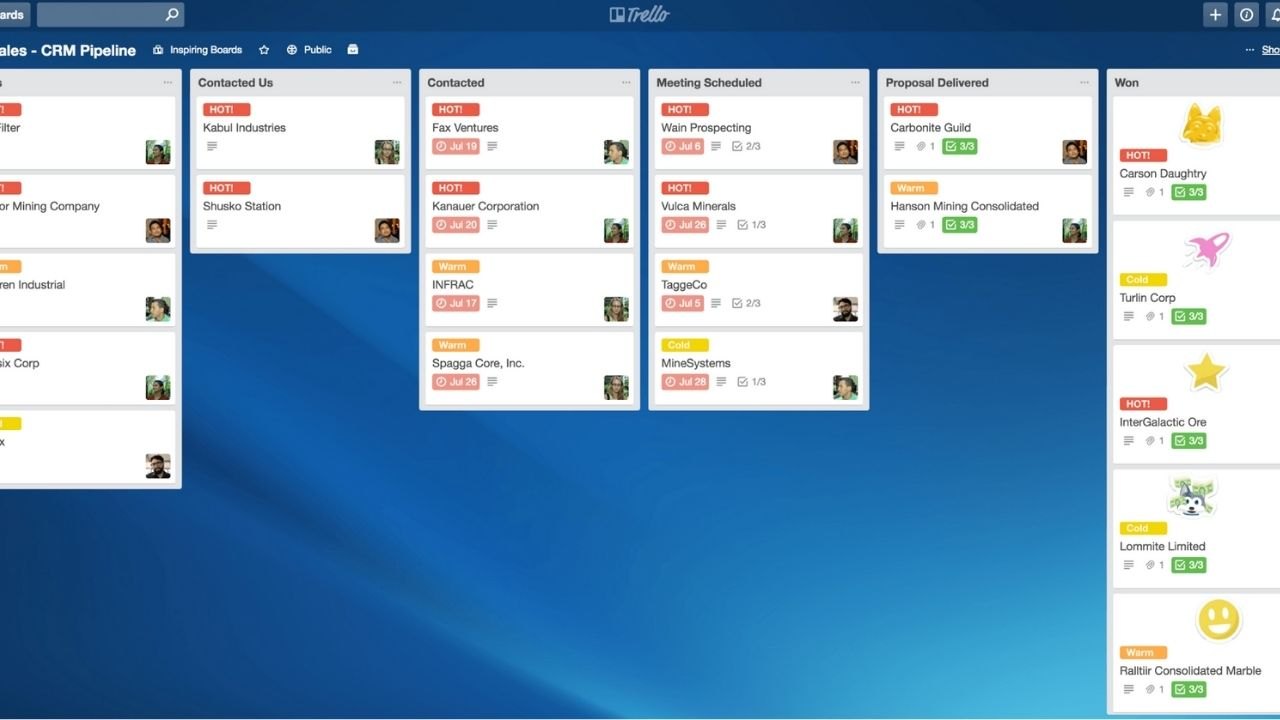
For request tracking, create one card per request. Add the request details, owner, deadline, references, and final confirmation inside the card.
As the request moves from To Do to Review to Done, everyone can see the status without asking for updates. This is where Trello gives clear accountability without long message threads.
Keep Content Planning More Organized
Trello can work well for content calendars because each card can represent one article, post, email, or creative asset.
The card can include the draft link, keywords, image notes, review comments, and publishing checklist.
Lists can show stages like Idea, Drafting, Editing, Scheduled, and Published. This gives content teams a simple workflow that is easier to scan than a crowded spreadsheet.
Also read: How Windows 11 Handles Updates: What’s New in 2026
Compare Trello With Other Tools Practically
Trello is not the best tool for every type of work. It is strongest when you need simple visual tracking, but other tools may fit better for deep documentation, complex reporting, or structured databases.
Trello Versus Notion
Notion is stronger when you need long pages, databases, notes, and knowledge bases. Trello is lighter when you only need to move tasks through stages and keep updates visible.
For a content wiki or detailed documentation library, Notion may feel more complete. For daily task flow, Trello often feels faster and clearer.
Trello Versus Asana and Sheets
Asana is better for complex projects with dependencies, reporting, and larger team planning. Google Sheets works well for tables, budgets, lists, and structured data.
Trello sits between them when you need status, comments, attachments, and simple ownership in one place. The right choice depends on workflow complexity, not which tool has the longest feature list.
Add Features Only When They Solve a Real Problem
Trello has many useful features, but beginners do not need all of them on day one. Add tools only when the board starts showing a clear need.
Use Checklists for Repeatable Work
Checklists are helpful for tasks that follow the same steps each time. A publishing card might include draft, proofread, optimize image, add links, review formatting, and confirm live page.
This prevents small steps from being forgotten when work gets busy. Checklists support quality control without forcing you to create a separate process document.
Use Calendar View for Time-Sensitive Work
Calendar view is useful when your tasks depend on dates. It helps with publishing schedules, campaign timelines, event preparation, and delivery deadlines.
Still, it only works well if due dates are realistic and not added to every card by habit. A clean calendar view gives planning clarity without creating pressure from fake deadlines.
Keep the Board Useful After the First Month
Many Trello boards start strong and then become messy because nobody maintains them. A board needs simple rules so it stays readable after the first few weeks.
Review the Board Once a Week
A weekly review keeps old cards from hiding in active lists. Move completed cards, update due dates, check owners, and archive work that no longer needs attention.
For each active card, ask what the next step is and who is responsible for it. This habit keeps work momentum visible and prevents the board from becoming a storage pile.
Archive Finished Work Regularly
Archiving is not deleting. It removes completed cards from the active view while keeping history available if you need it later.
This is useful for finished requests, published content, delivered assets, and closed tasks. A smaller board protects daily focus because unfinished work is easier to see.
Conclusion: Use Trello as a Workflow, Not a Dumping Ground
Trello works best when every board has a clear purpose, simple stages, and cards that show the next action. It can replace scattered updates when you need visible progress, clean handoffs, and a shared place for task details.
Keep labels limited, dates meaningful, checklists practical, and reviews consistent. When Trello stays small and maintained, it becomes a reliable workspace for everyday digital tasks instead of another tool you forget to update.









