
Online work gets messy when tasks live in chats and memory. This final guide to understanding this software explains Trello for everyday digital tasks.
You will learn boards, lists, cards, and features that keep work moving. You will see where Trello beats similar tools and where it feels limited. Examples cover request tracking, content planning, and delivery.
Setups stay practical and fast to copy. By the end, you can build a clean board, share it, and maintain it weekly.
What Trello Is Really Built To Do
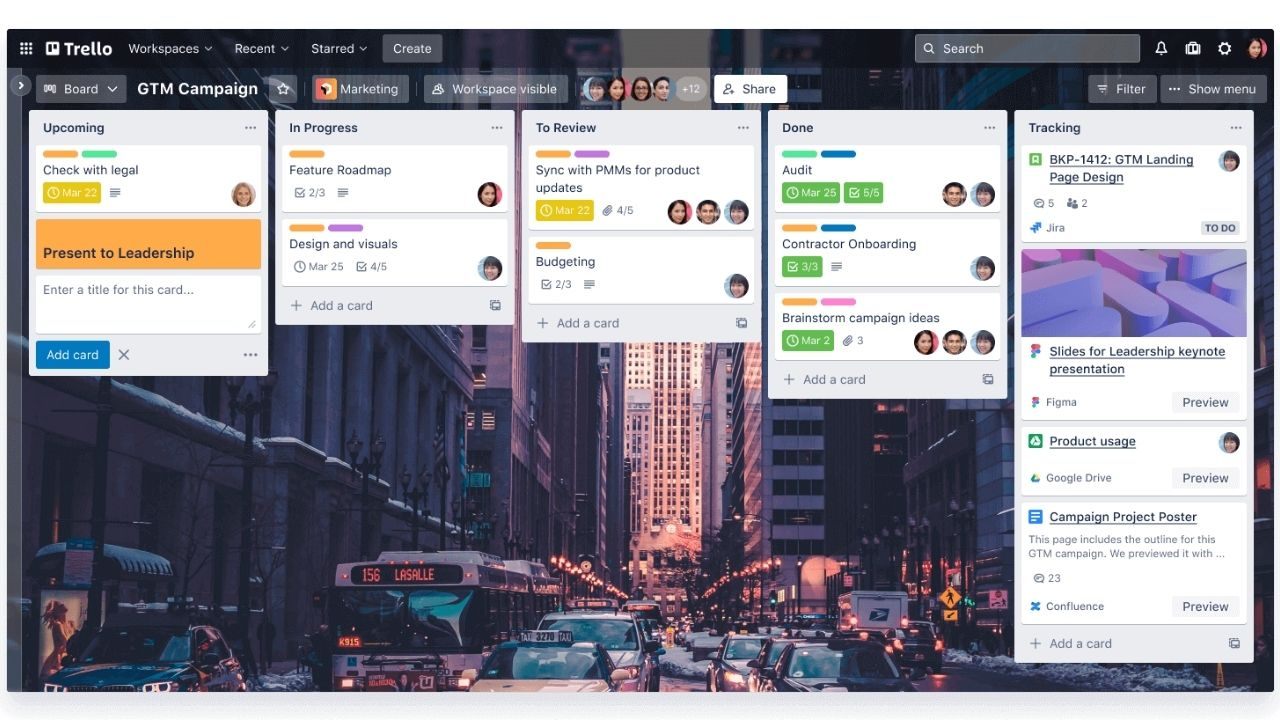
Trello is a visual work tool built around boards that show progress quickly. You organize work into lists, then move cards as tasks advance.
The board becomes your shared truth, so everyone sees what is pending and done. Trello works best when work changes status over time.
If you only need reminders, it can feel like extra steps. For online tasks with stages, the structure pays off fast.
Boards, Lists, And Cards In Plain Terms
A board is the workspace, lists are stages, and cards are the items you track. Start with three lists like To Do, Doing, and Done, then adjust later. Simple stages reduce confusion by stopping the debate over where work belongs.
Inside a card, add a description and a checklist. Add a due date only when the deadline matters. Keep titles action-based, so you know the next move without opening cards.
When Trello Beats Notes And Chat Threads
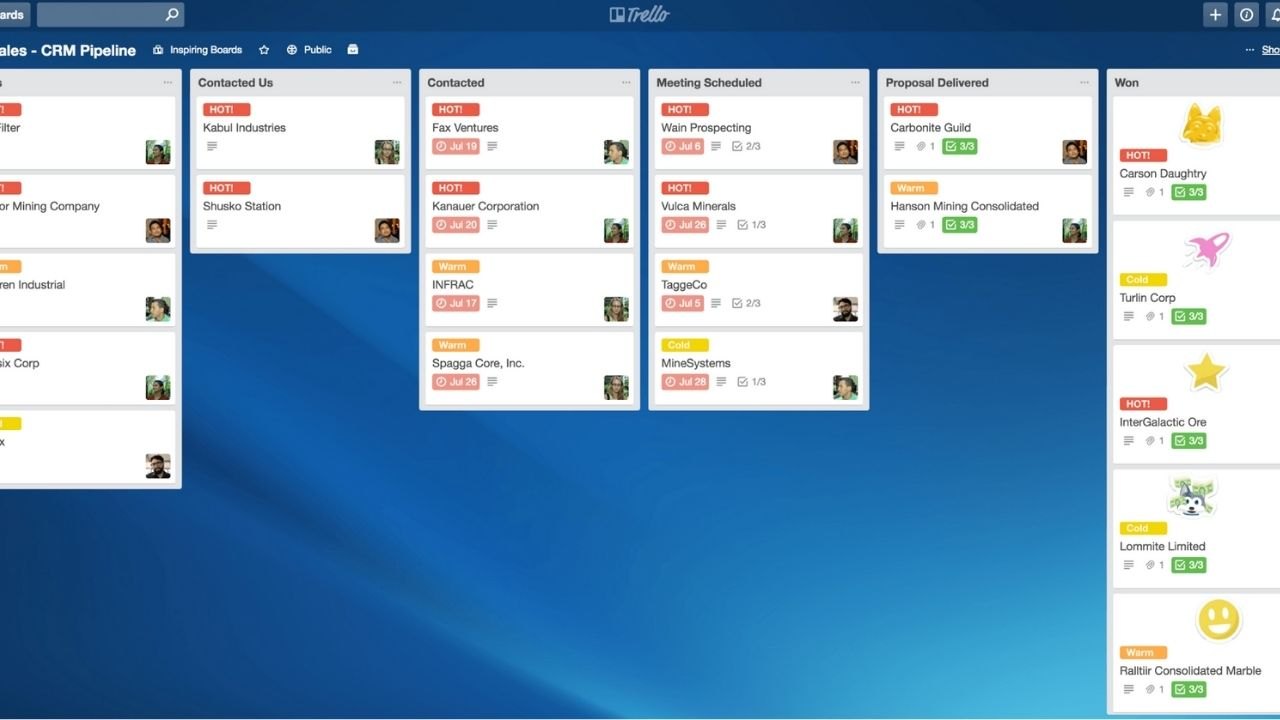
Trello is stronger than notes when you need visibility and handoffs, not just storage. Track website update requests from intake to publish to verification. Use one card per request and attach the reference link or screenshot.
Movement replaces long explanations, because the list position shows status instantly. Comments keep decisions tied to the task instead of scattered in messages. Later, the board also serves as an audit trail for the work.
The Minimum Setup That Keeps You Moving
The most common Trello mistake is overbuilding on day one. Limit yourself to one board and a few labels like Urgent, Waiting, and Review. Minimum setup keeps momentum because you do work, not design the system.
Use due dates only for real deadlines, so notifications stay meaningful. Add one checklist template for repeatable tasks, such as publishing steps and QA. After it feels useful, expand carefully with new lists or views.
How Trello Compares To Similar Tools
Choosing Trello is easier when you compare what each tool optimizes for. Trello shows flow, while other tools focus on docs, databases, or reports.
Your daily friction points should guide the choice, not a feature checklist. If you need deep structure and long notes, another tool may fit better.
If you need clear status and quick updates, Trello fits well. The comparisons below stay practical for common digital tasks.
Trello Versus Notion For Structure And Speed
Notion is flexible for pages and databases, but it can feel heavy to maintain. Trello is lighter because tasks move as cards through stages. Trello wins for quick execution, while Notion often wins for documentation.
For a content calendar, Trello tracks drafts and approvals clearly. For a wiki with long pages, Notion can be stronger. Some teams use both, but Trello can stand alone for task flow.
Trello Versus Asana For Complexity And Reporting
Asana is built for structured projects, dependencies, and cross-team reporting. Trello stays simpler and often feels faster for small groups.
Asana is stronger for complex portfolios, while Trello is stronger for visual movement. If you need workload views and reports, Asana may save time later.
If you need to see what is next and who owns it, Trello is enough. Choose based on complexity, not the feature count.
Trello Versus Google Sheets For Tracking
Spreadsheets are great for tables, but they do not show task flow well. Trello adds status, conversation, and attachments in one place. Sheets break down when status changes often, because rows hide what is happening.
If you track budgets or inventory, a sheet is still right. If you track requests and approvals, Trello is clearer. You can export data later, but the board stays your daily workspace.
Trello Versus Microsoft Planner For Teams
Planner is an option inside Microsoft 365, especially if you live in Teams. Trello can feel flexible with templates and views. Planner is easiest in Microsoft ecosystems, while Trello is easier across mixed tools and clients.
If your work stays in Teams channels, Planner reduces switching. If you work with external partners, Trello sharing can be simpler. Test both with one workflow and keep the one you update most.
Features That Matter For Everyday Digital Tasks
Once the basics click, Trello features reduce repeats and prevent missed details. Do not use everything; just pick features that match your workflow.
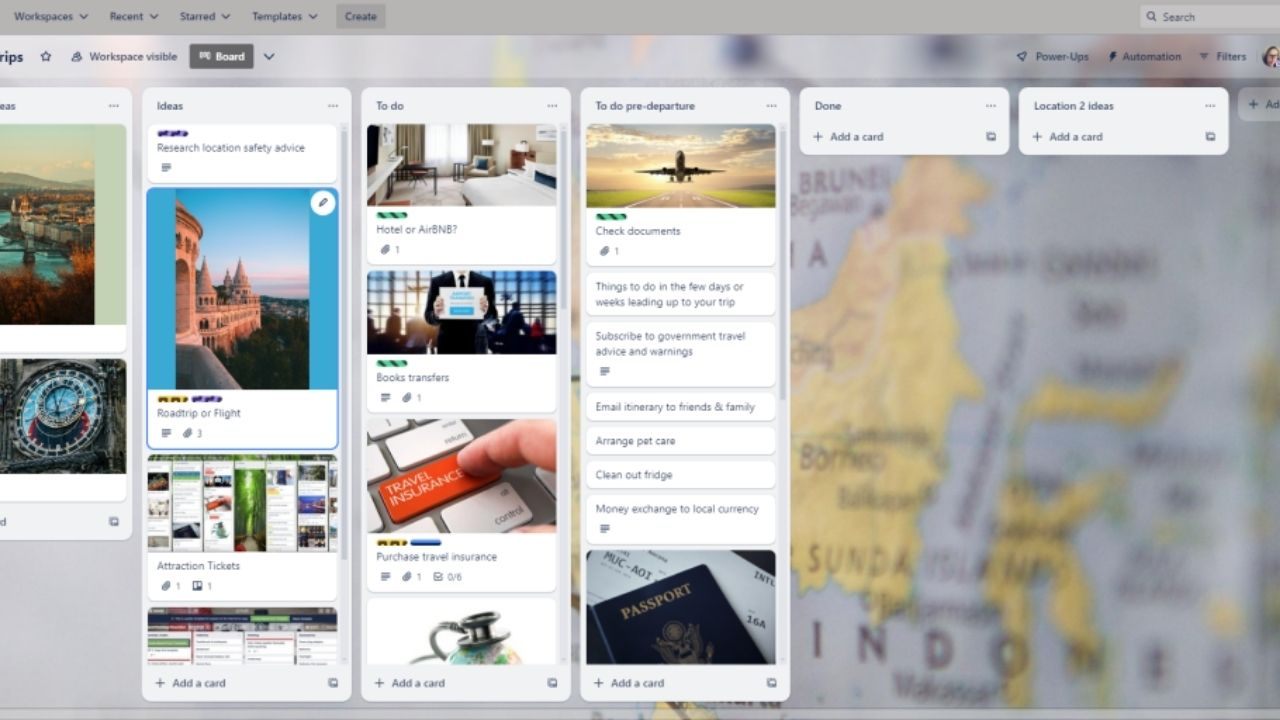
A few features create most of the value for everyday digital tasks. Focus on context, scheduling, and light automation before advanced add-ons.
Keep the board readable so people actually update it. Below are the features most beginners benefit from after week one.
Checklists, Templates, And Attachments
Checklists turn a card into a repeatable process, like publishing a post or handling requests.
Create steps such as draft, proofread, optimize images, and confirm links. Attachments add proof and context so you do not hunt through folders or messages.
Add the source URL, a screenshot, or a file to review. Use card templates for recurring work, so new cards start consistently. This structure improves speed and reduces quality slips.
Calendar And Timeline Views For Planning
Calendar view helps when deadlines matter, and you want the week in one view. Add due dates only to cards with real-time pressure, then review daily.
Scheduling becomes visible when cards sit on dates, not vague plans. Timeline view can map phases for a small launch or campaign.
Even with simple lists, these views add planning without extra tools. Keep dates realistic, or the calendar becomes noise.
Labels, Filters, And Search For Fast Retrieval
Labels work best when they mean something specific, like Waiting on Client or Needs Review. Limit labels to a small set, so people apply them consistently.
Filtering saves time when the board grows, and you need one work type. Use search to find cards by keyword, attachment name, or member.
Pair filters with a weekly review, so old cards do not pile up unseen. This keeps the board useful for months.
Butler Automation Without Overcomplication
Butler automation helps when you repeat actions, like moving cards or setting due dates. Start with rules, such as adding a checklist when a card enters Doing. Automation should remove busywork, not add surprise behavior later.
Create one rule at a time and test it on a few cards. Use automation to assign owners, add labels, or post a reminder comment. When rules stay predictable, people trust the board more.
How To Keep A Trello Board Useful After One Month
Abandoned Trello boards fail due to unclear rules, too many lists, and no review habit. To keep Trello, you need governance that fits your schedule.
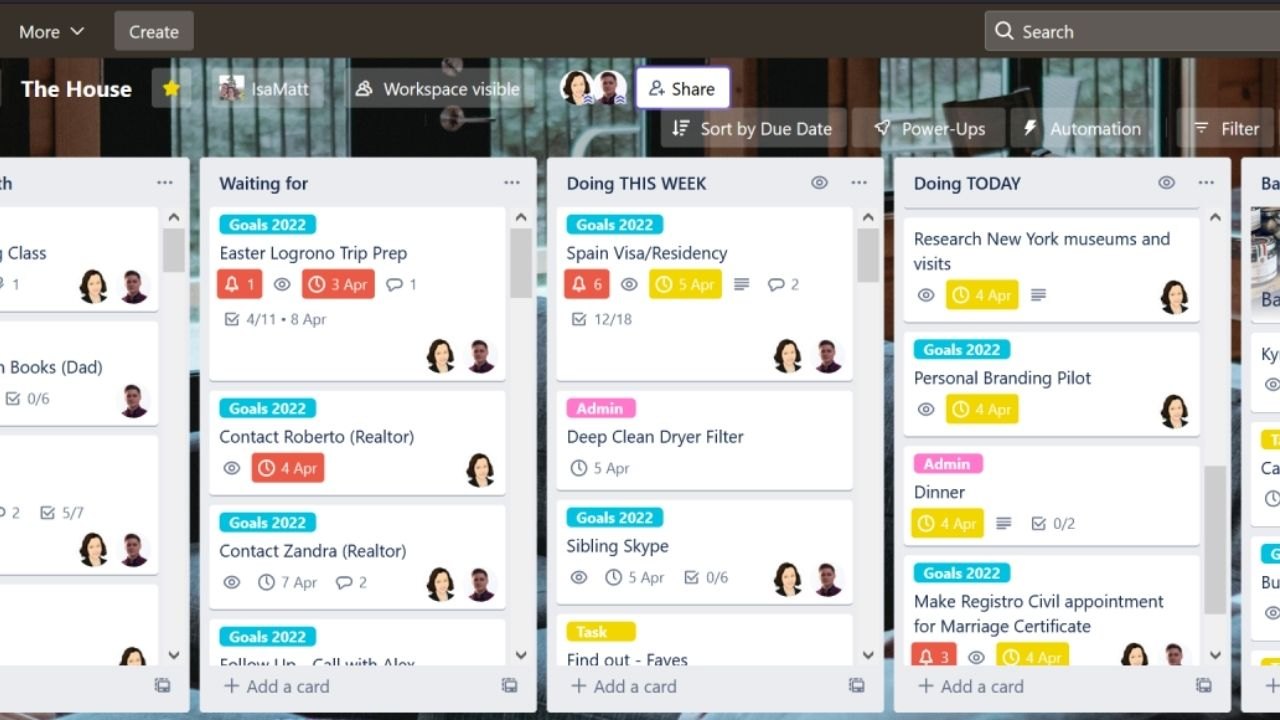
Maintenance is a weekly routine, not a cleanup every few months. Decide who owns the board and who updates cards when work changes.
Keep the board focused on active work, not every idea you capture. Use these practices to keep the system clean after a month.
Weekly Review Rules That Keep Cards Moving
Set a weekly review time and treat it as part of your workflow. Move cards, update due dates, and close completed tasks. Weekly review prevents backlog creep because old cards do not hide in lists.
Ask for each card: next action and owner. If a card has no next action, split it or archive it. This habit keeps momentum and reduces stress in busy weeks.
Naming And Labeling Rules That Stay Consistent
Naming rules keep boards readable, especially when multiple people add cards. Use action titles like Send Proposal, Verify Payment, or Publish Landing Page. Consistent naming improves search, so you find past work in seconds.
Apply labels only when they change how you prioritize, not as decoration. Keep descriptions short and put long details in attachments or linked docs. When text stays tight, the board remains scannable on mobile.
Archiving And Limits That Protect Clarity
Archiving keeps focus without losing history. Archive cards when they are done, and archive lists that no longer match real stages. A smaller board is easier to use because it highlights what still needs attention.
Set a soft limit for active cards per list, so overload becomes obvious. If ideas are not ready, store them in a separate Backlog board. This separation protects clarity and keeps daily work moving.
Conclusion
Trello works when you treat it as a workflow, not a parking lot. This final guide to understanding this software showed how boards, lists, and cards create clear status.
Do a weekly review and archive aggressively. With these habits, Trello stays reliable for everyday digital tasks.








