
Most people open Google Keep, dump notes into it for two weeks, and then abandon it because it feels like a cluttered junk drawer.
Google Keep is built for one thing: capturing a thought fast and finding it again without friction. Use it inside that boundary, and it works brilliantly. Push it outside that boundary, and you will fight it every single day.
This is the setup guide for people who want to really stick with it.
Google Keep Is Not a Notes App. It Is a Capture App.
That distinction matters more than it sounds. A notes app implies storage and organization. A capture app implies speed and retrieval.
Google Keep was built for quick capture and quick retrieval, not for long documents, complex formatting, or deep folder structures. The moment you try to use it as a second brain or a project management system, it starts fighting back.

What Keep Is Actually Good At
Keep it in its lane, and it becomes genuinely useful for daily life:
- Short text notes for ideas, addresses, and quick instructions you need on hand
- Checklists for groceries, packing, errands, and repeating routines
- Time-based reminders for bills, messages, or appointments
- Cross-device syncing so the same note appears on your phone and computer within seconds
What Keep Is Not Built For
I think the biggest mistake beginners make is treating Google Keep like a lighter version of Notion or Evernote. It is a completely different category of tool.
Skip Keep if you need any of these:
- Long documents with page structure and advanced formatting
- Nested folders and a strict hierarchy for organizing work
- Team collaboration with permission controls
- Secure storage for passwords or sensitive personal data
Knowing this upfront saves you from building a system that collapses in week three.
Setting Up Keep in 5 Minutes Without Overthinking It
The only things you need to start: a Google account, internet access during setup, and one or two real problems you want to solve. Grocery lists, study notes, and bill reminders are all good starting points.
The Sync Check Most Beginners Skip
Sign in to Google Keep using the same Google account on every device you plan to use. Then run one quick test: create a note on your phone, wait sixty seconds, and open Keep on your computer to confirm the change appeared.
If syncing breaks, verify that you are signed in to the same account on each device. That is the cause of 90% of sync problems people blame on the app.
Also confirm your device’s time zone is set correctly. A wrong time zone will push your reminders to the wrong hour, which is a small setup mistake that quietly ruins an otherwise solid system.
Decide on Two Devices Maximum to Start
Trying to sync Keep across five devices before you have a working habit is backward. Pick the two devices you actually use every day and build your routine around those. Add more later if the habit sticks.
The Only Four Features You Need in the First Month
Google Keep has colors, labels, reminders, images, drawings, and audio notes. Ignore most of that for now.
My take on Keep is that beginners consistently overload it within the first week by trying every feature at once. Carrd Pich one workflow, one label system, and a weekly review instead.
Labels Are Your Only Real Organization Tool
Labels in Keep function like loose categories. Good starting labels for most people: “Home,” “Work,” “Errands,” and “Admin.” Keep it to four or five total.
Assign one label per note immediately after creating it. If a note sits unlabeled for more than a day, you will lose it inside your growing pile.
Also read: What Freelance Writers Should Know Before Trusting Grammarly With Their Work
Use Colors Only for Urgency, Not Decoration
Color coding is useful only if you keep it to one rule. Pick one color for urgent or time-sensitive notes. Leave everything else the default. More than two colors in rotation and your color system will start to feel random within a week.
Set Reminders for Anything Time-Sensitive
For anything with a deadline, use a reminder instead of hoping you will remember to check. Keep will send a notification to whichever devices you have connected.
Check that notification permissions are enabled on each device. A reminder that fires silently do nothing.
Search Is Faster Than Browsing
Once you have more than twenty notes, the search will find things faster than scrolling. The trick is to write your note titles with retrieval in mind. Start titles with an action word or category: “Buy,” “Call,” “Draft,” or “Send.”
A note titled “Call dentist to reschedule Thursday appointment” is findable in two seconds. A note titled “Dentist” takes twenty seconds and three guesses.
A Daily Workflow That Takes Less Than Two Minutes
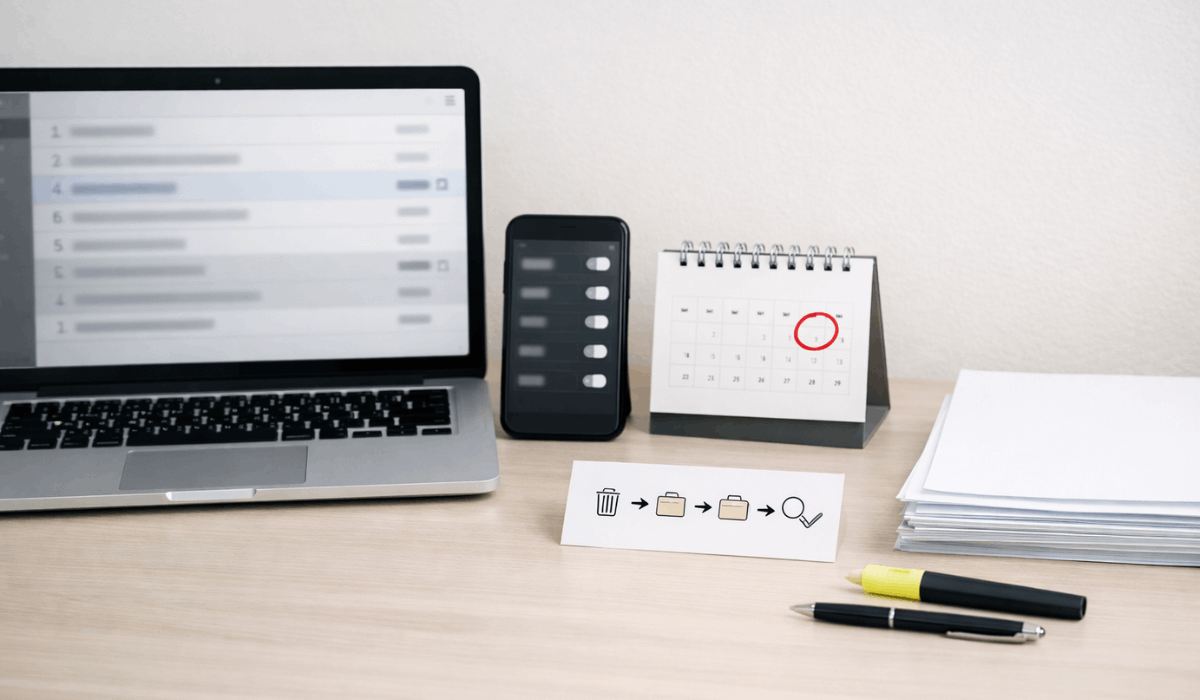
A repeatable workflow matters more than perfect categories. Structure your daily Keep habit around four steps:
- Capture: Write the note the moment you think of it. Incomplete and messy is fine. Done is better than polished.
- Label: Add one label before you close the note. This step takes three seconds and prevents pile-up.
- Find: Use search before you create a new note. Duplicate notes are the fastest way to make Keep feel cluttered.
- Archive: When a note is done and has no future value, archive it. Archiving is not the same as deleting. The note still exists in search but disappears from your main screen.
The One Habit That Keeps Your Notes Usable Long-Term
Weekly review, not daily maintenance, is what actually keeps it clean. Once a week, spend five minutes running through:
- Archive notes you completed or no longer need on your active screen
- Delete one-time reminders that have already fired
- Check for duplicates and merge or delete the extra copy
That five-minute pass prevents the “I have 200 notes, and I use none of them” situation that kills most people’s Keep habit.
When Keep Starts Feeling Broken, Check These First
Most problems come from three sources: sync issues, reminder settings, or overstuffed note lists.
| Problem | Most Likely Cause | Quick Fix |
|---|---|---|
| Notes not syncing | Different Google accounts on each device | Sign out and sign in with the same account everywhere |
| Reminder not alerting | Notifications blocked or Do Not Disturb active | Check notification permissions per device |
| Search returns wrong results | Weak titles with no keywords | Add action words to titles |
| Home screen feels overwhelming | Too many active notes | Archive anything not needed this week |
| Duplicate notes everywhere | Not searching before creating | Search first, create only if no match exists |
Fix the account sync issue first if anything feels broken. Every other problem is downstream of that.
Questions People Ask About Google Keep
Q: Does Google Keep work offline? Keep saves notes locally on your device when you are offline and syncs them automatically once you reconnect. You can capture and read notes without internet access. Just do not expect edits to appear on other devices until the connection restores.
Q: How many labels should I use in Google Keep? Start with four or five maximum. More than that and labeling becomes a decision instead of a reflex, which means you stop doing it consistently. Add a new label only when an existing one clearly does not cover your need.
Q: Is Google Keep private and secure? Keep notes are tied to your Google account and protected by your account login. That is solid for everyday notes. For passwords, financial details, or sensitive personal data, use a dedicated password manager instead. Keep is not designed for high-sensitivity storage.
Q: Can I use Google Keep for work projects with a team? You can share individual notes and collaborate in real time, but Keep has no permission controls, no task dependencies, and no project view. For lightweight task sharing it works. For structured team workflows, a tool like Asana or Notion will serve you far better.
Q: What is the difference between archiving and deleting in Keep? Archiving removes a note from your main screen but keeps it searchable and recoverable. Deleting moves it to trash, where it stays for seven days before permanent removal. Archive anything you might need again. Delete only what you are certain you are done with.
Conclusion
Set up your labels today, run the sync test once, and build the daily four-step habit before you touch any other feature.
Google Keep earns its place in your routine only when the habit is simple enough to do without thinking. Start there, review weekly, and the system will quietly hold together across every device you use.









