
Google Keep is a simple note app that helps you capture ideas fast and keep them easy to find.
In this beginner’s guide, you will learn how to use it for daily lists, quick reminders, short drafts, and lightweight organization.
You will also set up a simple routine so your notes stay straightforward to search across devices.
What Google Keep Is (And What It Isn’t)
Google Keep is built for quick capture and quick retrieval. It is not meant to replace a full document editor or a complex project system.
- Use it to write short notes when you need to save a thought before you forget it.
- Use it to create checklists for errands, chores, packing, or repeat routines.
- Use it to save links, addresses, or short instructions you want on hand.
- Treat it as a “fast notes” tool, not a long-form writing workspace.
- Avoid using it as your only storage for sensitive information, such as passwords or IDs.
- Expect simple organization tools, not deep folders, advanced formatting, or reporting.

Who It’s For (Quick Fit Check)
Google Keep works best when you need speed and simplicity. It is a good match if your goal is to reduce friction in daily note-taking.
- Choose Google Keep when you want to capture quick ideas without building a system first.
- Pick it when lists and reminders help you stay on track each day.
- It fits well when your notes are short, practical, and action-focused.
- It also works well when you move between devices and need the same notes everywhere.
- Look elsewhere for long documents that need heavy formatting and layout control.
- Skip it if you need advanced collaboration controls and structured team workflows.
What You Need Before You Start
You only need a basic setup to use Google Keep effectively. A few small choices early on will make your notes more straightforward to manage later.
- Make sure you have a Google account you can consistently sign in to.
- Decide which devices you will use most, like your phone, tablet, or computer.
- Enable internet access during setup, so syncing works correctly.
- Prepare one or two real use cases you want to solve first, like grocery lists or study notes.
- Pick a simple naming habit, like starting titles with a category word.
- Plan a basic review routine, such as checking your notes once in the morning and once at night.
First Setup in 5 Minutes (Account + Sync Basics)
A clean start helps you avoid scattered notes and missed reminders. You can set up the basics quickly, then improve your system as you use it.
- Sign in to the same Google account on each device you plan to use.
- Open Google Keep and confirm your notes appear across devices after a minute or two.
- Enable notifications if you plan to use reminders and want alerts to show up on time.
- Check that your device’s time and time zone are correct to avoid confusion with reminders.
- Create a test note, edit it on another device, and confirm the change syncs.
- Decide where you will access it most, so your daily routine stays consistent.
Core Features You’ll Use Every Day (notes, checklists, labels, colors, reminders, search)
Google Keep stays useful when you stick to the features that make notes easy to find. The goal is not to use everything, but to use a few tools consistently.
- Create notes for quick text like ideas, short drafts, and essential details you need later.
- Create checklists for tasks you complete step by step, such as grocery shopping or packing for travel.
- Use labels as your primary organization tool, such as “Home,” “Work,” “School,” or “Admin.”
- Use colors only if they help you scan faster, like one color for urgent items and another for personal items.
- Set reminders for time-based tasks, like paying a bill, sending a message, or leaving for an appointment.
- Use search as your default way to find notes, and include keywords you can remember in the title or first line.
A Simple Daily Workflow (Capture → Organize → Find → Share)
A repeatable workflow is more important than perfect categories. If you follow the same steps each day, your notes stay useful instead of turning into clutter.
- Capture: Write the note the moment you think of it, even if it is messy or incomplete.
- Capture: Start with the outcome you want, like “Call,” “Buy,” “Send,” or “Draft.”
- Organize: Add one label right away so the note has a home from the start.
- Organize: Use a checklist when the note is a set of actions, not a single idea.
- Find: Use search before you create a duplicate note, especially for repeating tasks.
- Share: Share only when needed, and include context in the note so the other person knows what to do.
Best Practices That Keep Your Notes Clean
Google Keep gets messy when you keep everything forever without reviewing it.
A small cleanup routine prevents your notes from becoming a pile you avoid opening.
- Keep titles short and clear, and use the exact few opening words for similar notes.
- Use one label per note when possible to keep sorting consistent and straightforward.
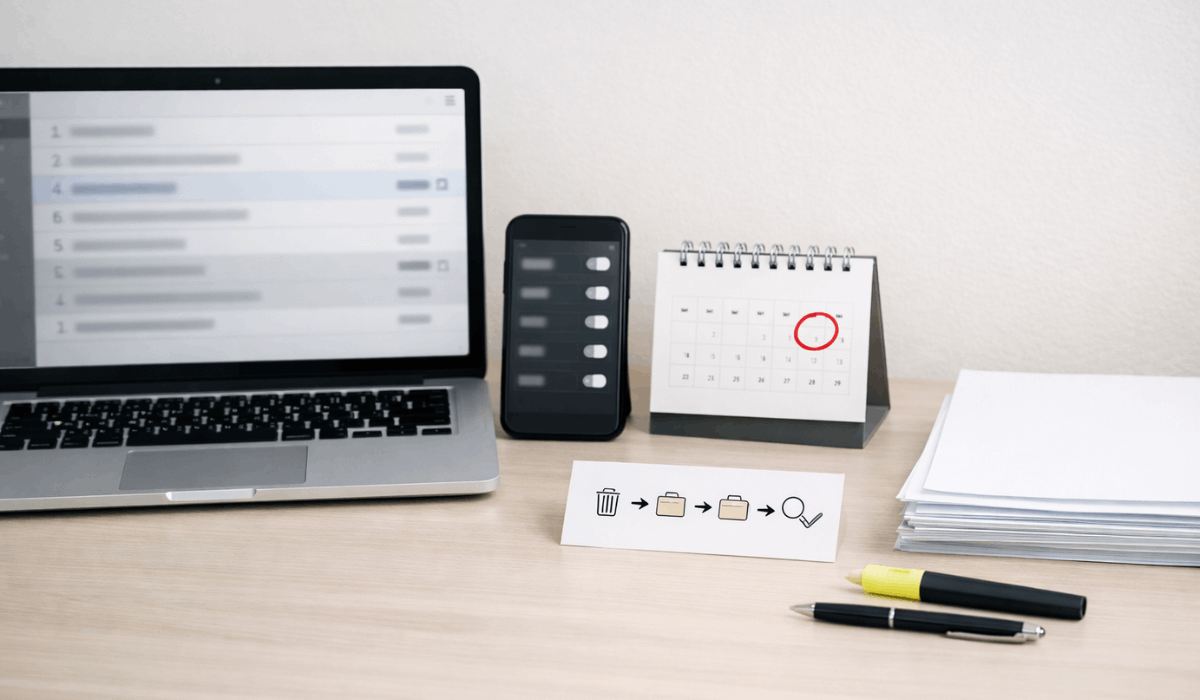
- Archive notes you may need later, but do not need on your active screen right now.
- Delete notes that are done and have no future value, especially one-time reminders.
- Convert long “mixed” notes into separate notes, one per topic, so search works better.
- Review your notes on a schedule, such as weekly, and remove anything you wouldn’t reuse.
Common Problems and Quick Fixes
Most issues come from sync confusion, reminder settings, or messy note habits. You can fix problems with a short checklist and a consistent routine.
- If notes do not sync, confirm that you are signed in to the same Google account on each device.
- If a reminder does not alert you, check notification permissions and make sure “Do Not Disturb” is not blocking it.
- If search results feel weak, add a keyword to the title or first line that matches how you think.
- If you see duplicates, pick the better note, merge details, then archive or delete the extra copy.
- If your home screen is overwhelming, archive anything that is not for today or this week.
- If you forget to use labels, set a rule: no note stays unlabeled after the first day.
When to Use Something Else (Limits to Know)
Google Keep has clear limits, and knowing them helps you avoid frustration.
You will get better results if you use it for fast notes and use a different approach for heavy work.
- Use something else if you need long documents with advanced formatting and page structure.
- Use something else if you need a strict folder system with nested organization and deep hierarchy.
- Use something else if you need complex project tracking with dependencies, timelines, and reports.
- Use something else if you need strict permission control for large teams and formal workflows.
- Use something else if your work requires heavy file management beyond quick attachments and notes.
- Use something else if you need a single tool to securely store highly sensitive information.
To Wrap Up
This beginner’s guide shows how Google Keep works best for quick capture, simple lists, and reminders you can act on.
You get the most value when you label early, archive often, and rely on search to find what you need.
Start with one daily workflow today, then adjust your labels and habits after a week of real use.








