
Canva is often the first tool people open when they need fast, clean visuals online. This software explained step-by-step guide shows you how Canva works for everyday tasks, not just design projects.
You will learn how to start, choose templates, edit layouts, and export correctly. You will also see which features save the most time for beginners. Expect practical steps you can repeat without overthinking.
You will build a document, a social graphic, and a short presentation flow. By the end, you can finish outputs that look polished and consistent. You will waste less time fixing formatting later.

What Canva Really Does For Everyday Work
Canva is a browser-based editor built around templates and drag-and-drop design. It helps you turn ideas into usable files without learning advanced software first.
The biggest value is speed with structure, because layouts are already organized for common tasks. To support writing quality, pair Canva with Grammarly for quick text cleanup before you export.
Start by choosing one goal, like a flyer, a checklist, or a slide. When you keep the goal clear, Canva feels simple instead of overwhelming.
Your First Two Minutes Inside The Editor
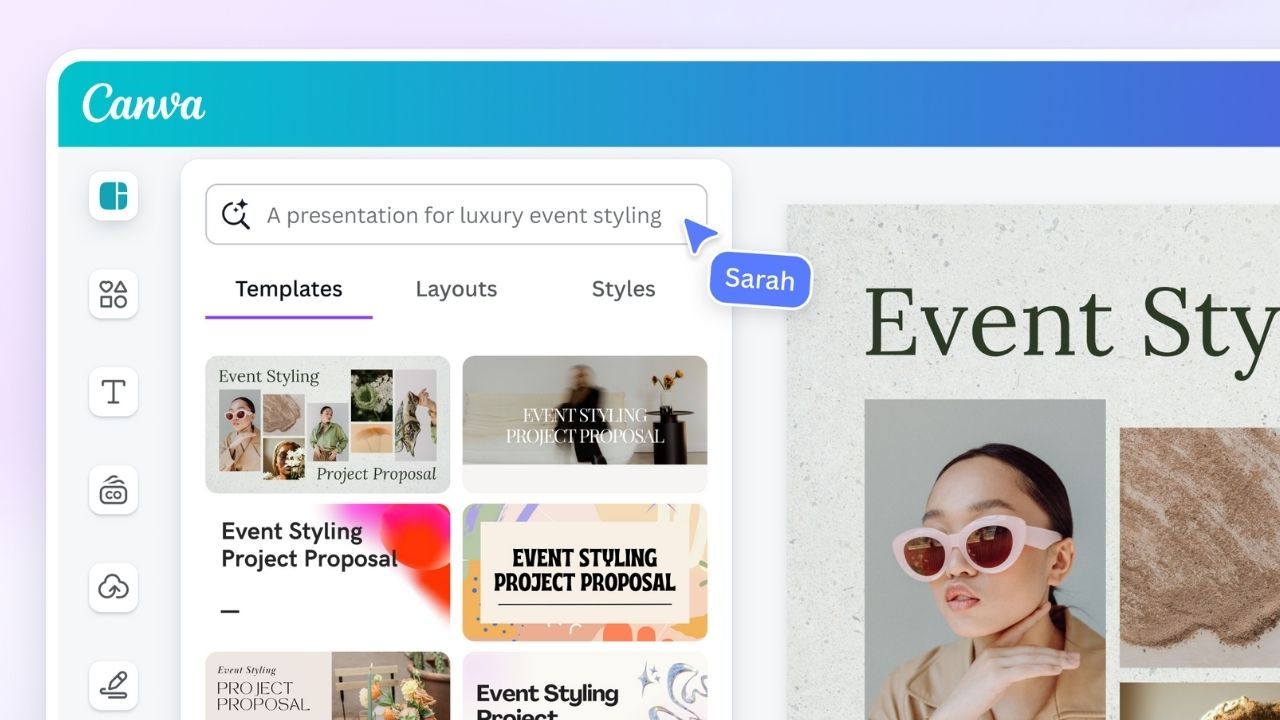
Open Canva and create a new design based on your goal, not your mood. Use the left panel for templates, elements, and uploads, then ignore extra tabs at first.
Focus on the top toolbar, because that is where font, spacing, and position controls live. Click any object once to edit it, then use undo freely as you test changes.
Rename the file immediately so you can find it later. Save it in a folder before you build anything serious.
The Fastest Way To Pick The Right Template
Search templates using the final output type, like “event flyer” or “price list,” not vague keywords. Filter by style, color, or theme so you can reduce choices quickly.
A good template is readable at a glance, so avoid layouts that look crowded in preview.
Check how many pages it has and whether sections match your content. Choose a template with consistent spacing and clear headings. If you are unsure, pick the simplest option and improve it later.
A Folder And Brand Setup That Prevents Messy Projects
Before you design daily, set folders for Documents, Social, Presentations, and Exports. Upload your logo, then save two brand colors and one font pairing you will reuse.
A basic Brand Kit reduces random styling, even if you are not a designer. Keep file names consistent with date and topic so sorting stays automatic.
Store drafts in the project folder, then store finished files in Exports. This small setup prevents lost versions and repeated searching.
Create A Document That Looks Clean Without Design Skills
Canva documents work best when you keep the structure simple and spacing consistent. You can create flyers, one-page guides, and checklists that are easy to share and print.
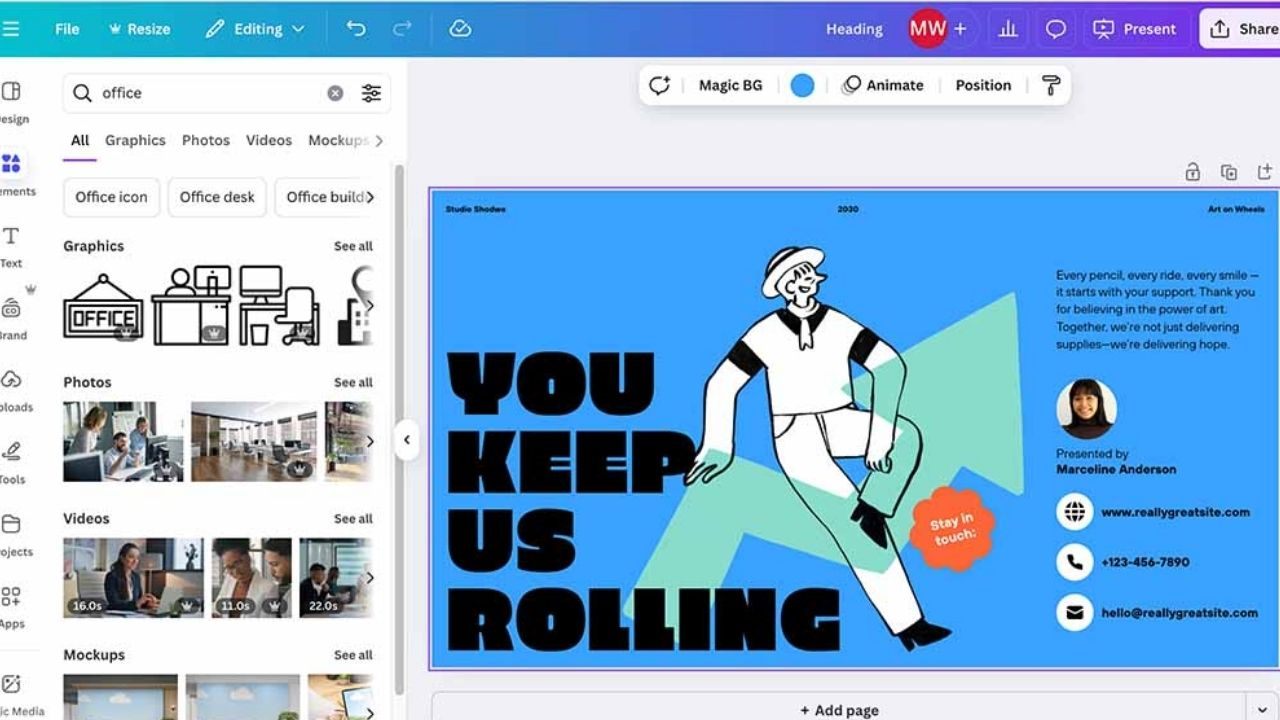
Documents succeed when the layout stays calm, so limit fonts and avoid heavy decoration. For supporting research images, use Pexels to find clean visuals that match your topic.
Start with the right page size and build sections before you add graphics. When the structure is solid, the document feels professional fast.
Choose The Right Page Size Before You Touch Anything
Pick the design type that matches your destination, like A4 for print or US Letter for forms. Confirm orientation first, because flipping later can break spacing and alignment. Page size controls everything, including margins, readability, and export quality.
If you will email the file, choose a size that prints cleanly on common paper. Save the design with a clear name that includes the size. This prevents duplicate versions when you create revisions.
Build Clear Sections That Readers Can Scan Quickly
Write your headline and subheads first, then set one body font and one heading font. Use consistent spacing, like the same gap between sections and the same line height in text blocks.
Scanning should feel effortless, so keep each section short and avoid long paragraphs on the page. Add subtle dividers or background blocks to separate ideas cleanly.
Zoom out to check the balance, then zoom in to check the readability. If something looks crowded, remove content before adding new elements.
Add Images And Icons Without Breaking Your Layout
Add visuals only after your text structure is stable, so graphics support content instead of fighting it. Use frames for images so cropping stays clean and consistent across pages.
Alignment is the difference between messy and polished, so snap elements to guides and use the Position menu.
Keep icons from one style set so the page looks unified. If you use photos, choose similar lighting and tone to avoid a mixed look. Keep a safe margin around text so nothing feels squeezed.
Export Settings That Keep Text Sharp And Files Small
Choose the export format based on how the document will be used and shared. For printing, use PDF Print; for email or uploads, use PDF Standard for a smaller size.
Always preview before sending, because cut-off text and low-quality images show up here. If the file is too large, reduce image quality slightly and export again.
Save the export with a date and purpose so you can track versions. Store the final in your Exports folder, not beside drafts.
Build Social Graphics That Stay Consistent Across Platforms
Canva social templates are useful because they match common platform sizes and safe areas.
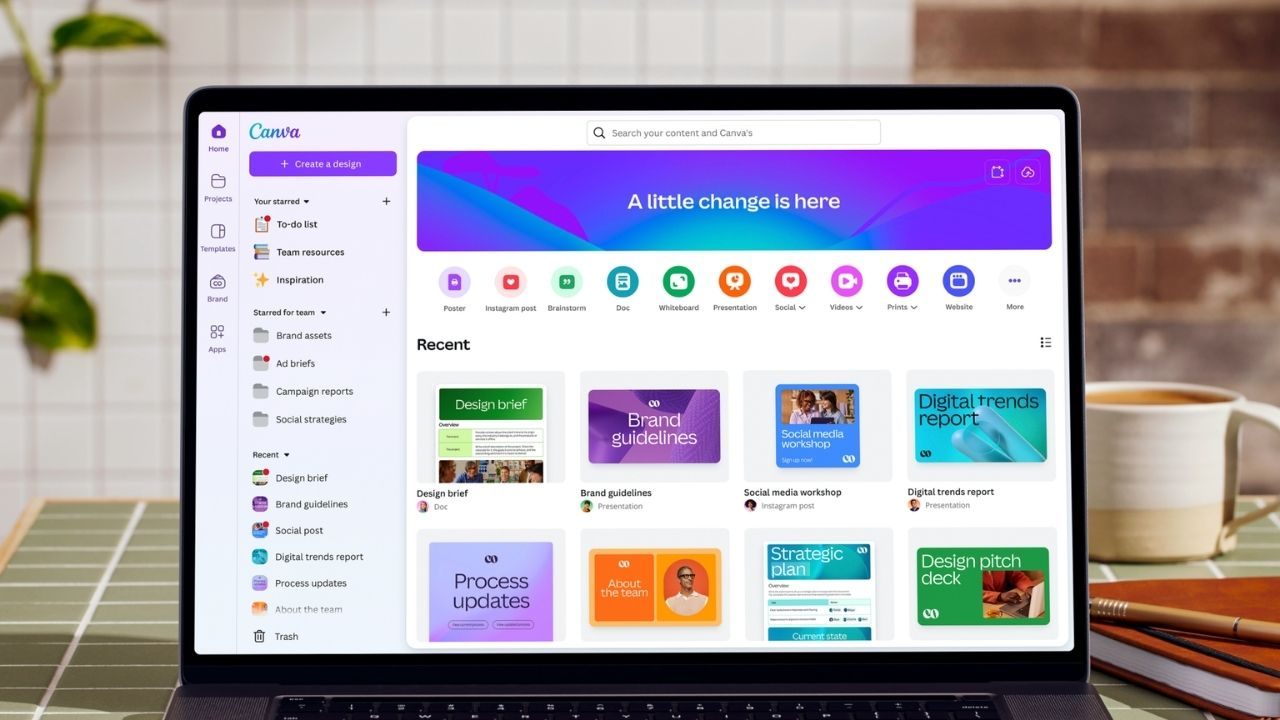
The goal is to create visuals that look consistent even when you publish often. Consistency matters more than complexity, so use a repeatable style and clear text hierarchy.
To plan posting, pair Canva with Buffer so your content schedules stay organized. Start with a format, lock your colors and fonts, then duplicate designs for variations. This approach avoids random design choices and saves time.
Pick A Format With Safe Margins Built In
Choose a design type like Instagram Post, Story, or YouTube Thumbnail based on your target platform. Keep text away from edges so it does not get cropped by app interfaces.
Safe margins protect your message, especially on mobile screens where overlays hide corners. Use one focal point, such as a headline or a product photo, not both competing.
Check the layout at 100 percent zoom to confirm readability. Rename the file with platform and date for clean tracking.
Use Style Sets To Avoid Random Colors And Fonts
Open the Styles panel and apply a preset that matches your brand or a neutral look. If you saved brand colors, apply them to accents first, then backgrounds last.
Two fonts are usually enough, one for headings and one for body, with consistent weights. Avoid mixing many text effects, because they reduce clarity on small screens.
Use the color picker only when matching a logo or a key image. Once your style is set, reuse it across posts without redesigning.
Keep Text Readable Even On Small Screens
Use short lines of text and strong contrast between text and background. If a photo is busy, add a semi-transparent overlay behind text for legibility.
Readability is your main success metric because people scroll fast and decide quickly. Keep important words near the center so they stay visible in previews.
Check your design in mobile view or by zooming out to simulate a small screen. If you need to shrink text, rewrite the message instead.
Resize And Recheck So Nothing Gets Cropped
Duplicate the page before resizing so you keep a master version untouched. If you resize, review text wrapping, spacing, and margins because they change with the format.
Resizing is not automatic perfection, so do a quick scan for cropped elements and awkward line breaks. Adjust the layout using Position and alignment guides, not random dragging.
Export as PNG for crisp graphics or JPG for smaller files when quality is still acceptable. Keep a master folder so future edits stay fast.
Presentations That Feel Polished And Easy To Share
Canva presentations are designed for speed, with templates that keep slides consistent. The goal is clear communication, not decoration, so focus on structure and readability.
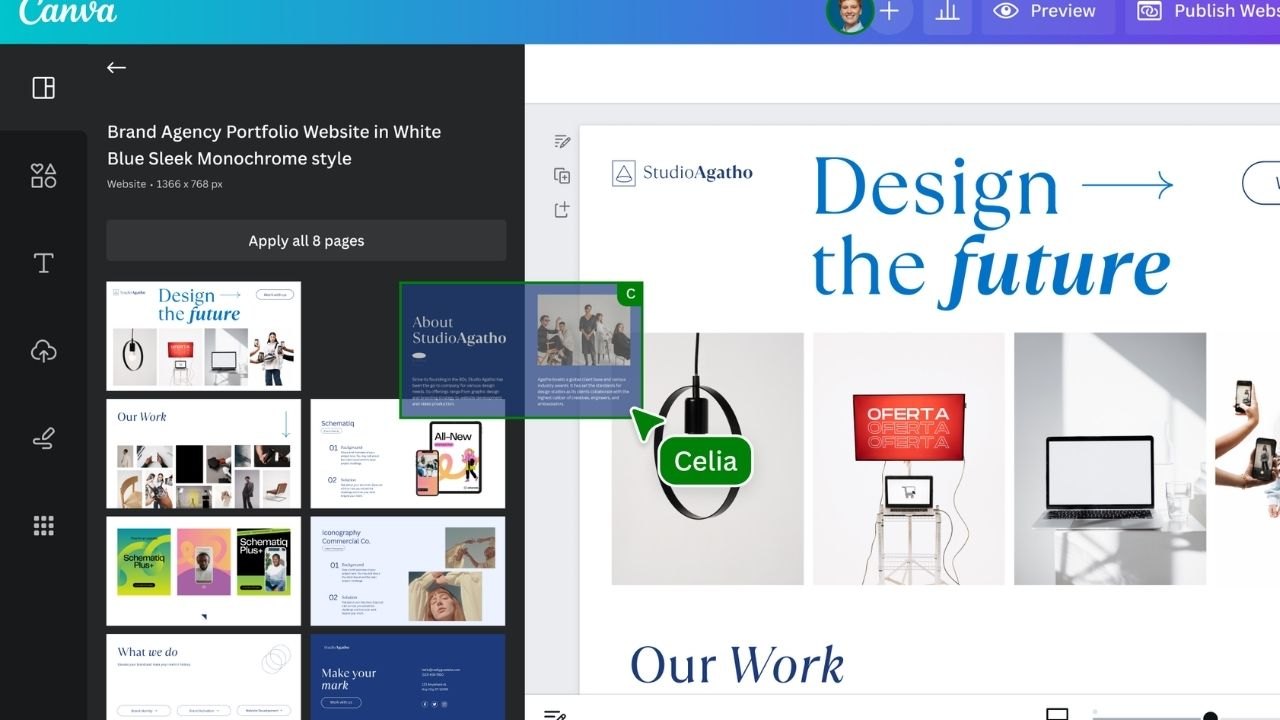
Slides work best when each one has one job, like explaining a point or showing a visual. For quick narration and sharing, pair Canva with Loom to record short walkthroughs.
Build a slide pattern you can repeat, then use comments for feedback. Export with the right format so the deck stays stable.
Slide Patterns That Make Your Message Clear
Pick a presentation theme, then set one title style and one body style for the whole deck. Use repeating slide patterns, like title, content, and summary, to keep pacing consistent.
Whitespace keeps slides readable, so avoid filling every corner with text. Limit each slide to one idea and one supporting visual or short list.
Use alignment guides so text blocks line up across slides. Run through the deck and remove repeated phrases that add no value.
Feedback That Stays Organized With Comments And Links
Share the deck with a link and set permissions to comment or edit based on who should change content. Ask for feedback with specific questions so reviewers do not rewrite everything at once.
Comments create a clean review trail, so you can see what changed and why. Resolve comments after you apply changes to keep the workspace tidy.
Use version history if a layout breaks during edits, then restore a better version. Before presenting, do a final pass to confirm consistency.
Export Formats That Match Your Delivery Method
Choose export format based on how the deck will be used and where it will live. If you present live, use Canva Present so you avoid file conversion issues.
Export choices affect layout stability, especially with fonts and images on different devices. Download as PDF when you want a fixed view that cannot shift.
Download as PPTX only if someone must edit in PowerPoint later. Always preview the exported file and confirm spacing, fonts, and image clarity before sharing.
Conclusion
Canva becomes easier when you treat it as a daily workflow, not a one-time experiment. This software’s step-by-step approach helps you start fast and produce clean outputs. With repetition, your results look more polished, and your process feels predictable.








