
Software basics help you use apps and online tools without wasting time or taking unnecessary risks.
You will learn how software works at a practical level, how to install and update it safely, and how to fix common issues fast.
Use this guide as your simple checklist every time you try a new program, website, or tool.
What Software Is (In Plain Terms)
Software is the set of instructions your device follows to perform tasks, such as browsing the web, editing files, or sending messages.
It runs on your hardware through an operating system, and it can be a desktop program, a mobile app, or a tool you use in a browser.
Types of Software You’ll Use Most
You use a few software types every day, even if you don’t think about them.
Once you know these categories, you can pick the right tool faster and avoid installing apps you don’t need.
- Productivity — Create and edit docs, spreadsheets, notes, and presentations.
- Browsers — Access websites and run most web-based tools.
- Communication — Email, chat, and video calls for personal or work use.
- Cloud Storage — Save, sync, back up, and share files across devices.
- Security — Protect accounts and devices with passwords, 2FA, and scanning.
- Media — Play, organize, and do basic edits to photos, video, and audio.
- Utilities — Handle files like PDFs, ZIPs, and conversions, plus system cleanup.
- Collaboration — Work with others using shared files, boards, and team spaces.
Where Software Comes From (Safe Sources Only)
Where you download software matters because fake installers and bundled extras are common. Use these sources first so you lower your risk and get clean updates.
- Official publisher website — Best choice for desktop apps and direct installers.
- Official app stores — Use the Apple App Store, Google Play, or Microsoft Store for common apps.
- Trusted package managers — Use built-in managers like Windows Store, macOS App Store, or well-known developer tools when you understand them.
- Verified enterprise portals — Use your school or company portal if they provide approved software.
- Open-source official pages — Use the project’s official site or official repository links, not random mirrors.

Install, Update, Uninstall: The Basics
Installing, updating, and uninstalling are the three actions you will do most with software.
If you do them the right way, you reduce bugs, security risks, and leftover clutter.
- Install from a safe source — Use the official site or a trusted store, and check the publisher.
- Choose clean install options — Pick “custom/advanced” to skip bundled extras and unwanted changes.
- Keep updates on — Enable automatic updates to fix security issues and bugs.
- Update in the right place — Update inside the app or its store, not through pop-ups.
- Uninstall the official way — Remove apps in system settings to avoid broken leftovers.
- Clear leftovers when needed — Delete leftover folders only when you’re sure, and keep your files.
Accounts, Logins, and Two-Factor Authentication
Most apps and online tools use accounts so your data can sync and your access can be controlled.
If you handle logins and two-factor authentication well, you reduce the chance of losing your account.
- Know what an account does — It saves your settings, files, and history across devices.
- Use strong, unique passwords — One password per account prevents one leak from spreading.
- Use a password manager — It stores logins safely and fills them for you.
- Turn on two-factor authentication (2FA) — It adds a second step, even if your password leaks.
- Choose the safest 2FA option — Prefer an authenticator app or security key over SMS when possible.
- Keep backup access — Save recovery codes and update your email/phone so you can regain access.
Files and Formats You Must Recognize
File formats tell you what a file is and which app can open it. If you recognize the common ones, you avoid confusion, broken uploads, and unsafe downloads.
- PDF — Read-only documents used for forms, manuals, and sharing.
- DOC/DOCX — Word-processing documents for letters and reports.
- XLS/XLSX — Spreadsheets for budgets, lists, and calculations.
- PPT/PPTX — Slide decks for presentations and lessons.
- TXT — Plain text with no special formatting.
- JPG/JPEG — Compressed photos for sharing and web use.
- PNG — Images with sharper edges and transparency support.
- MP4 — Common video format for phones, web, and sharing.
- MP3 — Common audio format for music and voice files.
- ZIP — Compressed folder used to bundle files together.
- EXE / DMG — Installers for Windows (EXE) and macOS (DMG).
- APK — Android app installer file, best avoided unless you trust the source.
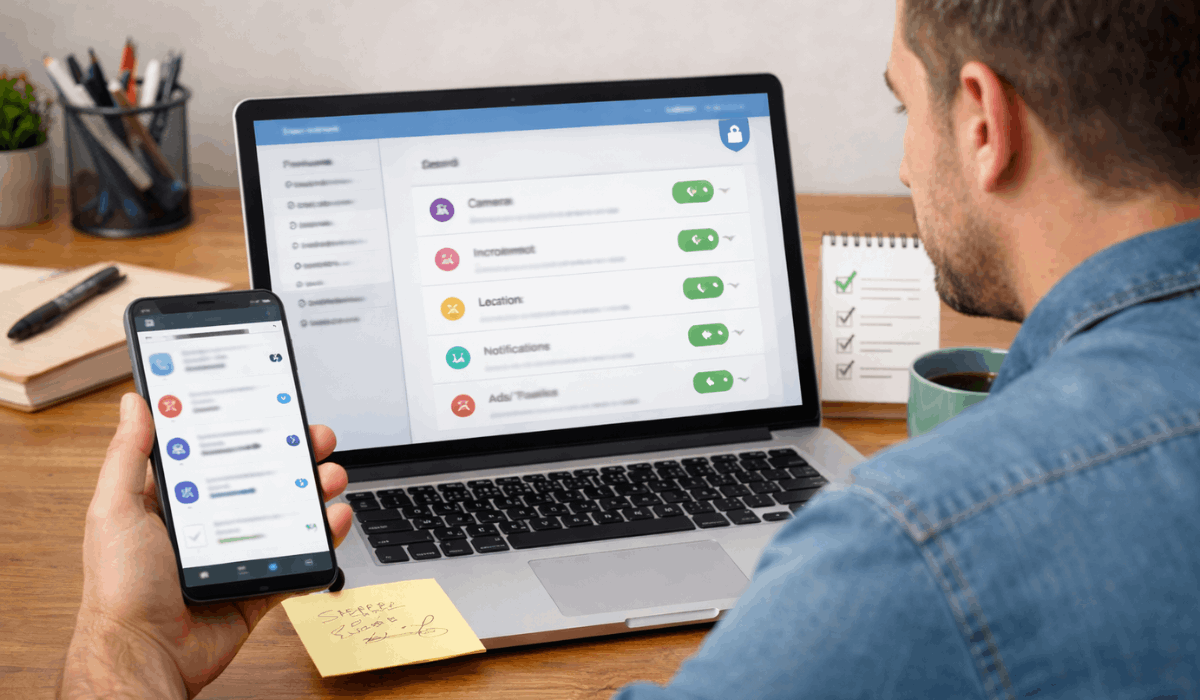
Permissions and Privacy Settings
Permissions control what an app can access on your device and accounts.
Privacy settings control what gets collected, stored, and shared, so you should check them early.
- Camera access — Allow only for apps that truly need photos or video calls.
- Microphone access — Allow only for calls, voice notes, or recording apps you trust.
- Location access — Use “while using” when possible, and turn off background tracking.
- Files and photos access — Give access to specific folders, not “all files,” when you can.
- Contacts access — Skip unless the app must sync contacts for messaging or calling.
- Notifications — Disable spammy alerts and keep only what matters.
- Tracking/ads settings — Turn off ad personalization when available.
- Browser privacy controls — Review cookies, site permissions, and saved passwords regularly.
- Data sharing options — Opt out of “share with partners” and similar settings when offered
Performance Basics (Why Things Feel Slow)
Apps feel slow for a few common reasons, and most fixes are simple.
If you know what causes lag, you can decide fast whether to clean up, change settings, or switch tools.
- Low storage — When your disk is almost full, installing, updating, and saving files slow down.
- Not enough RAM — Too many tabs and apps open at once make switching and loading laggy.
- Heavy background apps — Sync tools, startup apps, and updaters can quietly use resources.
- Slow internet — Web apps, cloud files, and video calls depend on a stable connection.
- Too many browser add-ons — Extensions can slow pages and cause crashes.
- Old versions — Outdated apps and systems can be less efficient and more buggy.
- Overheating — Heat can force devices to slow down to protect hardware.
- Quick fixes — Restart, close unused apps, free storage, update, and reduce browser tabs.
Troubleshooting Checklist (Fast, Repeatable)
A repeatable checklist saves you time by eliminating guesswork. Use the same order every time so you find the cause faster and avoid making it worse.
- Define the problem — State what’s broken and what you expected to happen.
- Note what changed — New update, new app, new setting, or new device?
- Restart first — Reboot the app, then the device if needed.
- Check basics — Internet, storage space, battery saver, and permissions.
- Update safely — Update the app and your operating system from official sources.
- Try a simple test — Different file, different browser, different network, or another account.
- Clear cache or reset settings — Do this only when the issue matches cache/settings problems.
- Reinstall if needed — Uninstall and reinstall from the official source if problems continue.
- Get help with details — When you ask for support, include the device, OS version, app version, and the exact error.
To Wrap Up
You now understand the software basics that help you choose tools, stay safe, and fix common problems faster.
Use these checks each time you install an app, sign in, manage files, or adjust permissions so your setup stays clean and secure.
Now pick one tool you use every week and apply this checklist today.








