
In password management, early decisions either lock in calm or create friction. Set Up Bitwarden correctly by aligning plans, security settings, and device behavior on day one.
Strong defaults, fast autofill, and predictable recovery steps turn a new vault into a dependable daily tool.
What “Correct” Setup Looks Like
Strong encryption alone doesn’t save time or prevent lockouts. Correct setup means a memorable Bitwarden master password, reliable autofill across devices, airtight two-step defenses, and clean imports that keep duplicates under control.
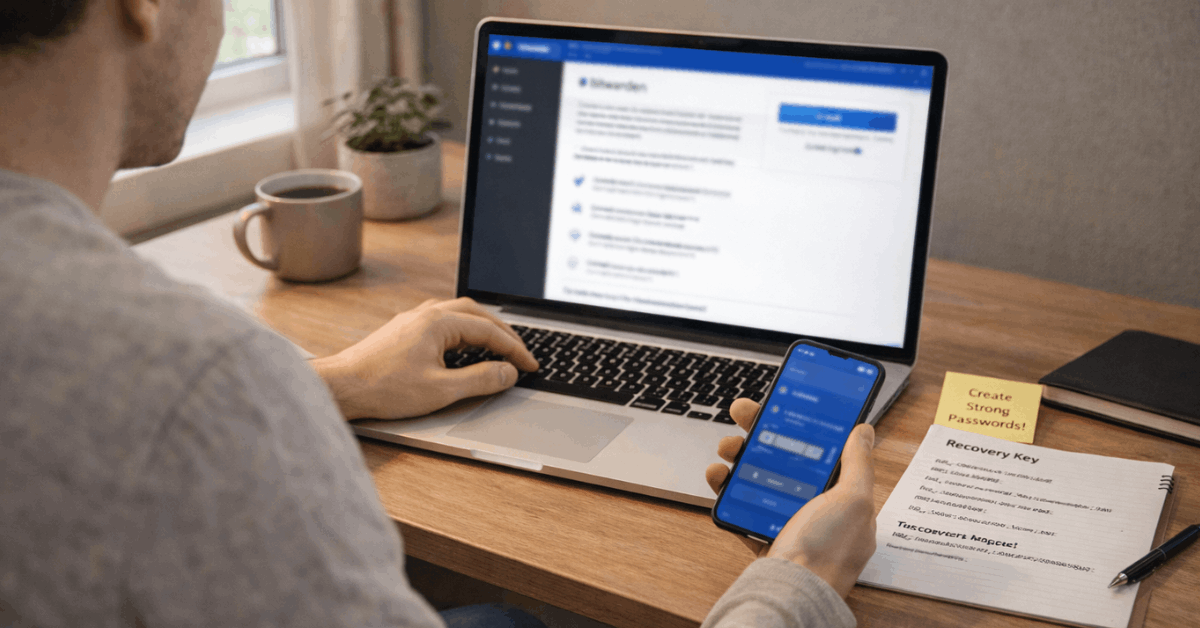
Clear sharing rules and a lightweight approval flow for new devices finish the picture so habits stick quickly.
Choose A Plan And Create Your Account
Picking the right plan keeps sharing, recovery, and admin controls aligned with real needs. Personal users typically start free, then upgrade for extras like integrated authenticator and Emergency Access. Teams and larger organizations lean on collections, policies, and SSO.
Personal Plans
Free accounts include unlimited passwords on unlimited devices and allow sharing vault items with one other user through a Free organization. Premium adds integrated TOTP codes, file attachments, Emergency Access, and vault health reports at a low annual cost.
Families provides six premium accounts and unlimited collections under a shared organization for household management.
Business Plans
Teams Starter fits small groups that need shared collections, event logs, and basic controls. Enterprise adds options like single sign-on, directory sync, and advanced policies for larger deployments. Self-hosted and cloud hosting remain available, which helps regulated environments standardize controls.
Install The Apps and Bitwarden Browser Extension
Smooth daily use depends on having the same secure vault everywhere. Installing the Bitwarden desktop app, Bitwarden mobile app, and Bitwarden browser extension ensures quick capture, reliable autofill, and identical data on each device. Sync ties changes together within seconds once the vault is unlocked.
Bitwarden Desktop App
Desktop simplifies imports and bulk edits, and it supports direct imports from Chromium-based browsers. After signing in, open File, choose Import data, then pick Import directly from browser to pull saved credentials without juggling CSV files. System prompts may request device approval.
Bitwarden Mobile App
Mobile brings the vault into everyday sign-ins, travel, and two-step prompts. Install on iOS or Android, sign in, and enable biometrics for quick unlocks. On iOS, enabling Passwords and Passkeys plus Bitwarden under Password Options improves passkey flows in apps and Safari.
Bitwarden Browser Extension
The extension captures new logins, generates strong passwords, and autofills forms quickly. After installing the official add-on for the primary browser, sign in and pin the icon for visibility. Keyboard shortcuts and the inline menu cut down on clicks when adding or filling items.
Secure Your Vault On Day One
A few choices protect the only key that matters while keeping sign-ins efficient. Treat master credentials, second factors, and timeout rules as non-negotiable. Extra minutes now prevent resets, lockouts, and weak passwords later.
Create A Strong Bitwarden Master Password
Choose a long, unique phrase that isn’t reused anywhere else. Passphrases built from random words balance security and memorability, and length matters more than exotic symbols.
Security standards and vendor guidance align around longer, unique secrets rather than frequent changes or complexity for complexity’s sake.
Enable Bitwarden Two-Step Login
Turn on Bitwarden two-step login before storing sensitive items. Bitwarden supports multiple methods and prioritizes them in a secure order, including FIDO2 WebAuthn, hardware keys such as YubiKey, authenticator apps, and backup email codes.
Organizations can require Duo, while individuals typically start with an authenticator app plus a hardware key later.
Configure Auto-Lock and Unlock Options
Timeout controls decide when the vault locks or logs out on desktop, browser, and phone. Short timeouts plus biometric unlocks minimize risk without slowing work. Enable PIN unlock only on devices under full control, and avoid storing the PIN in browsers or notes.
Import and Organize Credentials
Clean imports remove friction during the first real week of use. Good structure now prevents duplicates, mismatched URIs, and messy folders that slow autofill.
Bitwarden Import Passwords Options
Direct import from Chrome, Edge, and other Chromium browsers is supported through the desktop app, which skips manual CSV handling.
iOS 16 and later adds CXP-based migration from compatible apps, which speeds Apple-centric setups. When exporting CSVs from other managers, audit the file locally, then import through the web app or desktop to the right vault location.
Organize Items For Fast Retrieval
Group logins into folders for personal vaults and collections for organizations. Add website URIs to each login so autofill knows where to act. Use item types beyond logins, including identities, credit cards, and secure notes, to keep related data available at fill time.
Autofill On Every Device
Fast, accurate autofill keeps security habits sustainable. Consistent behavior across browsers, Android, and iOS prevents weak workarounds and reduces copy-paste exposure.
Bitwarden Browser Extension Autofill
Autofill triggers through the inline menu icon in fields, the extension’s fill button, right-click context menu, or keyboard shortcuts. The same panel also generates strong passwords when creating accounts, then saves the item to the Bitwarden vault without leaving the page.
Autofill On Android
Android supports Inline suggestions above the keyboard and the pop-up menu overlay near fields.
Enable Bitwarden under the system Autofill service, then pick Inline or Popup in the Bitwarden app settings. For Chrome or Brave, toggle the specific integration switches to improve reliability.
Autofill on iOS
iOS supports keyboard autofill across apps and browsers, and a browser app extension flow via the Share sheet.
Turn on AutoFill Passwords and Passkeys, then enable Bitwarden as a provider to streamline both passwords and passkeys. Assign website URIs to items so iOS recognizes where to offer fills.
Sharing and Families Basics
Households run smoothly when shared streaming, banking, and travel accounts live in a Families organization with collections for each person or category.
Free sharing for two exists for straightforward pairs, while Families scales to six people and unlimited collections. Treat shared items as the single source of truth to avoid drift.
SSO and Trusted Devices For Organizations
Enterprise rollouts often pair SSO with device approvals to reduce phishing risk. After the first SSO sign-in, approve the new login from the web app’s Devices screen and mark it trusted.
Repeat for the Bitwarden browser extension and the Bitwarden mobile app so the team can self-approve future logins efficiently under policy.
Quick Preferences That Prevent Headaches
Short prep inside settings locks in smooth, consistent behavior.
- Pin the Bitwarden browser extension and verify the icon state before testing autofill.
- Shorten the vault timeout and enable biometric unlock on phone and laptop.
- Turn off built-in browser password managers to avoid dueling prompts and mismatched saves.
- Set a default template in the Bitwarden password generator that fits site limits.
- Enable notifications or email for device approvals if organizational policies require them.
Safeguards and Recovery
Emergency planning belongs in the first-day checklist. Emergency Access lets trusted contacts request view or takeover access after a configured wait time, which protects families and sole proprietors against lockout events.
Current pricing places Emergency Access in paid personal tiers, while Families includes premium features for all six accounts; confirm plan details before relying on this feature. Storing printed recovery info in a secure place and teaching one trusted person the approval flow closes the loop.
Mini Checklist: Set Up Bitwarden Correctly
- Create a memorable Bitwarden master password and store recovery notes offline.
- Enable Bitwarden two-step login and record backup codes or device keys securely.
- Install the desktop, mobile, and extension, then approve each device once.
- Import clean data, tag items, and add URIs so autofill stays accurate.
- Review timeout and unlock settings, then disable browser password managers.
Last Thoughts
In practice, correct Bitwarden setup trades anxiety for predictable, fast sign-ins across devices. Lock in a memorable master password, strong two-step login, and short timeouts with biometrics.
Install desktop, mobile, and the browser extension, approve each device once, then keep imports clean and labeled. Finish by enabling Emergency Access and storing recovery details offline so future problems become minor, not catastrophic.








