
In busy workflows, slow file handling burns time that should go to actual work. Managing Files Using Adobe Acrobat centers on six repeatable actions: organize, optimize, secure, edit, combine, and share.
Clear menu paths and a few pro settings turn scattered PDFs into reliable, lightweight packages that move smoothly through teams and clients. In practical terms, a faster routine starts with structure, then leans on presets and permissions to keep outputs consistent.
Most delays trace to oversized files, missing metadata, weak access control, and ad hoc edits that break layouts. Solve those at the source, then layer collaboration features and shortcuts to keep momentum high.

Build A Logical Folder and Metadata Structure
Clean structure shortens searches and prevents version sprawl. Create folders and subfolders that mirror projects, then lock names to a simple pattern that includes date and status. Add labels that reflect audience or sensitivity, such as “client_review” or “internal_reference.”
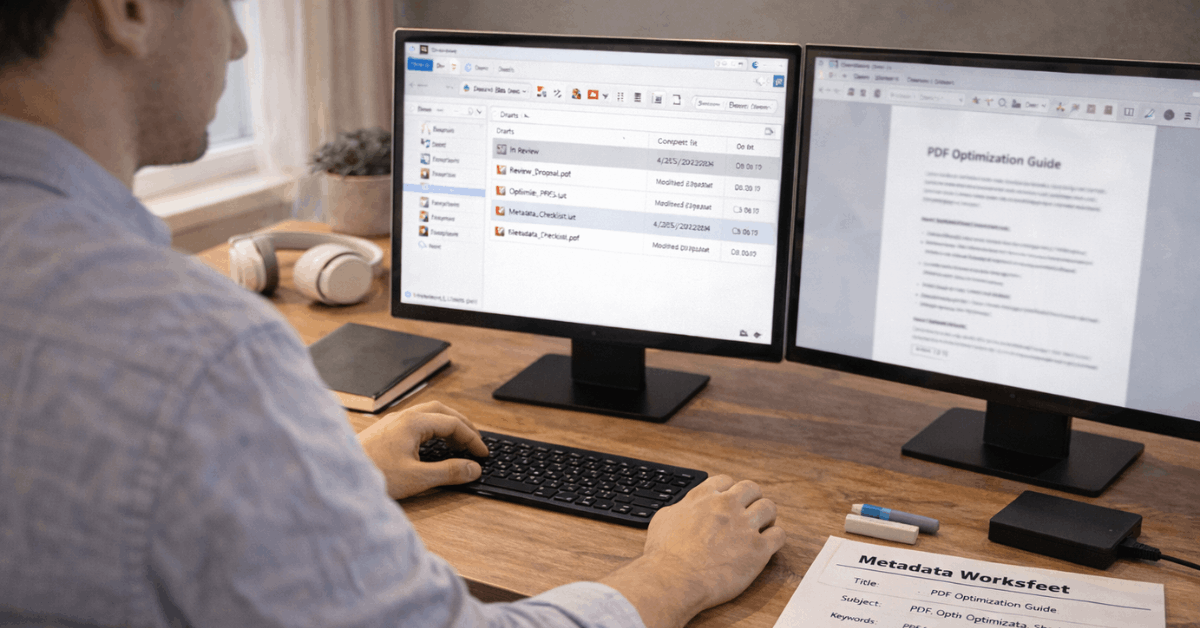
Open File > Properties > Description and fill Title, Author, Subject, and Keywords for each important PDF. Accurate metadata surfaces files in system search and Acrobat search, which helps when archives grow.
Standardize these fields in a checklist so every exported PDF ships with the same identifiers. Teams that adopt Adobe Acrobat file organization practices see fewer misfiles and faster handoffs.
Optimize PDFs To Cut Size Without Breaking Quality
Large PDFs slow previews, uploads, and email delivery. Use File > Save As > Optimized PDF to tune images, flatten transparency where appropriate, and subset or embed fonts. Save a named preset for recurring deliverables such as reports or manuals.
For quick compression, use File > Reduce File Size to hit acceptable size targets when settings do not need to change. Image downsampling should match how the file will be viewed or printed.
Screen-only PDFs tolerate lower resolution, while print deliverables should preserve higher values. Where accessibility matters, keep tagged PDF structure intact while optimizing. This is the heart of PDF optimization in Acrobat, and it removes wait time without sacrificing readability.
Secure PDFs Before Sharing Externally
Confidential files require predictable protection. Use File > Protect Using Password to set an open password for sensitive documents, or a permissions password to restrict editing, printing, extraction, and page changes. Open File > Properties > Security to set granular controls for commenting, form filling, and signing. For stronger defense, Tools > Protect > Encrypt applies encryption that resists casual attempts to access content.
Clear communication avoids lockouts. Add a small cover note that states what is allowed, who holds the password, and the password delivery method. When distributing to mixed audiences, prepare a “public” copy with redactions applied and a “restricted” copy with permissions. Teams that standardize password protect PDF in Acrobat steps reduce accidental exposure.
Edit and Annotate Without Breaking Layout
Tools > Edit PDF lets you add, remove, and reposition text, images, and objects while keeping layout intact. Use the side panel to manage fonts and sizes, and the alignment options to keep headings on the grid. Tools > Content Editing handles headers, footers, watermarks, and backgrounds for consistent branding.
Tools > Comment supports highlights, sticky notes, text edits, and stamps that record decisions without altering the base document. When long review cycles are expected, keep comments consolidated in one iteration rather than splitting across multiple near-identical versions.
Export comments as a summary when stakeholders need an overview. Many teams rely on Acrobat edit PDF tools to finish work without reopening the source design file.
Combine, Reorder, and Split For Clean Packages
Tools > Combine Files merges Word, Excel, PowerPoint, images, and existing PDFs into a single container. Drag to reorder items before combining to match narrative flow. Tools > Organize Pages handles rearranging, rotating, extracting, and deleting pages after the merge.
Tools > Split breaks an oversized PDF into logical chunks based on the number of pages, file size, or top-level bookmarks. Set predictable output names, for example, “proposal_01_overview.pdf,” “proposal_02_technical.pdf,” and “proposal_03_pricing.pdf,” to keep readers oriented.
Consistent packaging reduces back-and-forth and late edits. The Combine files in Acrobat feature remains the simplest way to produce tidy, navigable bundles from mixed sources.
Share, Export, and Print With Confidence
File > Share sends files directly without attaching to an email thread, which helps track who received what. When working across devices, place outputs in Adobe Document Cloud or a preferred drive so teams can view the current version.
File > Export converts PDFs to Word, Excel, PowerPoint, or HTML for reuse, while preserving most structure. File > Print supports standards such as PDF/X when a print-ready artifact is required.
For forms, use Fill & Sign to complete waivers, school forms, or HR packets, then apply an e-signature. Access controls should mirror the rules set earlier. Groups that adopt Acrobat share and track behaviors spend less time asking for status and more time moving work forward.
Speed Boosters: Bookmarks, Comments, Toolbars, and Shortcuts
Fast navigation and tool access compound daily time savings. Strengthen navigation with bookmarks, centralize feedback in the comments pane, and pin your top actions to a custom toolbar. Finish the setup by learning a small set of shortcuts that deliver outsized value across editing, review, and navigation.
Use Bookmarks To Jump Instantly
Bookmarks act as a table of contents that lands readers on the right page or section in one click. Add bookmarks for introductions, methods, results, and appendices in long reports, then nest child bookmarks under parent topics for clarity. Teams that rely on Acrobat bookmarks and comments avoid aimless scrolling and missed references in review meetings.
Collaborate Through Comments and Annotations
Sticky notes, highlights, underlines, and text edits give reviewers precise tools that preserve context. Request that colleagues reply to existing comments rather than creating new threads, reducing duplication. Export a comment summary when managers need a quick digest of open issues.
Customize The Toolbar To Surface Daily Actions
View > Show/Hide > Toolbar Items allows custom toolbars tailored to recurring work. Place Edit PDF, Organize Pages, Protect, and Optimize side by side so common actions sit within one or two clicks. This personalized strip removes hunting and reduces context switching across panels.
Learn High-Impact Keyboard Shortcuts
Shortcuts accelerate navigation and markup, especially on long documents. Common examples include showing the bookmarks panel, toggling the comments pane, zooming, and switching tools.
Power users who commit a handful of Acrobat keyboard shortcuts report faster reviews and fewer mouse-driven detours.
Mini Workflows That Save An Hour A Week
Repeatable micro-processes remove friction across departments and roles. Standardize a few patterns so every teammate follows the same steps and naming conventions, which keeps files searchable and shareable without extra coordination.
Client Packet Assembly
Open Combine Files, drop the proposal, scope, schedule, and legal page, then reorder to match the sales narrative.
Add a brief cover sheet, set bookmarks for each section, optimize for sharing, and apply permissions that allow commenting but block editing.
Research Binder For Study
Merge articles, datasets, and notes, then insert a contents page that maps to bookmarks.
Use comments to capture insights next to paragraphs, and color-code highlights for claims, counterpoints, and data checks. Export select pages to PowerPoint when slides are required.
Tax Documents Preparation
Split large scans by category, such as income, deductions, and receipts, and apply clear names. Redact sensitive identifiers, apply an open password, and share the package through a controlled link rather than email. Keep a second, fully redacted version ready for broader audiences.
Common Mistakes and How To Avoid Them
Skipping metadata and consistent names leads to lost files and duplicate work, so commit to a short naming standard and fill core properties.
- Sending heavy PDFs creates delays and sync errors, optimize or reduce file size before distributing widely.
- Applying passwords without instructions frustrates recipients, so provide a brief note on allowed actions and how the password will be shared.
- Editing layout in a rush invites alignment drift, so use guides and alignment tools to keep headings and captions consistent.
- Ignoring review hygiene multiplies noise, so centralize feedback in one comment thread and export summaries for leadership.
What To Add As Skills Mature
Advanced teams fold in preflight checks, PDF/A for archiving, and structured tagging for accessibility and search.
Consistent use of trackable sharing, standardized permissions, and well-tuned optimization presets turns file handling into a quiet strength. Reviews move faster, print vendors receive clean assets, and archives stay searchable for years.
Last Thoughts
In fast-moving teams, disciplined Acrobat routines convert scattered PDFs into dependable, lightweight deliverables. Keep structure tight, standardize metadata, and apply presets so size, clarity, and access stay consistent.
Protect sensitive material using permissions and encryption, then communicate expectations to prevent avoidable lockouts.
Lean on comments, bookmarks, and custom toolbars to speed reviews without risking layout drift. After these foundations hold, combine, split, and export confidently, turning file handling into quiet operational efficiency.








