
Zoom is easier to use when you treat it as a meeting tool, not another complicated workspace.
This Zoom beginner guide explains how to join calls, host simple sessions, adjust audio and video, share screens, manage security, and fix common problems without overloading the setup.
It is useful for students, tutors, freelancers, remote workers, families, and small teams who need reliable online conversations. The goal is to help you feel prepared before the call starts, instead of learning every button while people are already waiting.
Start With the Way You Usually Join Calls
Your Zoom setup should match how you actually attend meetings. Some users join from a laptop, others use a phone, and some open the meeting through a browser when they cannot install the app.
A practical meeting setup starts by deciding which device you will use most often. If you attend classes or work calls regularly, the app can make audio, video, and screen sharing smoother. If you only join occasionally, browser access may be enough for simple calls.
Check the Invite Before the Meeting Starts
Most problems begin with rushed joining. Open the meeting invite early and confirm the date, time, link, meeting ID, passcode, and host name.
A careful invite check helps you avoid clicking old links or entering the wrong session. If the meeting uses a waiting room, join a few minutes early so the host has time to admit you. This small habit prevents last-minute confusion.
Set Up Audio and Video Before People Arrive
Audio matters more than a perfect camera. If others cannot hear you clearly, the meeting becomes frustrating even when the video looks fine.
A reliable audio setup includes choosing the right microphone, testing your speaker, and using headphones when there is echo or background noise.
Check your camera too, but focus first on sound. Good lighting and a clean background help, but clear voice quality keeps the conversation moving.
Use Preview Settings to Avoid Awkward Starts
Zoom lets you check how you look and sound before joining or speaking. Use that moment to mute yourself, adjust the camera angle, and close anything private on your screen.
A simple video preview habit is useful for classes, interviews, client calls, tutoring sessions, and team meetings. It also gives you time to notice if another app is already using your camera. Fixing that before the call is easier than troubleshooting while everyone waits.
Also Read: How to Use This Tool Step by Step
Join Meetings Without Making the Process Harder
Joining through a link is usually the fastest path. The link may open the Zoom app or offer a browser option, depending on your device and settings.
A smooth joining process means following the invite, allowing microphone and camera permissions when needed, and entering the name people should recognize.
If the link fails, use the meeting ID and passcode from the invitation. Avoid asking for a new link until you have checked those details.
Know When the Browser Is Enough
The browser version can help when you are using a shared computer, school device, or temporary setup. It is useful when installing software is not allowed or when you only need to attend briefly.
A practical browser option works best for basic participation, such as listening, speaking, watching, and using chat. For frequent hosting, screen sharing, and smoother controls, the desktop or mobile app may feel more dependable.
Host Meetings With Simple Rules
Hosting is easier when the meeting has a clear purpose. Before sending an invite, decide the topic, expected length, attendees, and whether people need to speak, watch, or collaborate.
A focused hosting plan helps you choose the right settings. Use a passcode, waiting room, or authenticated access when appropriate, and avoid posting meeting links in public spaces. Security settings are not just technical options; they shape who can enter and participate.
Send Invitations People Can Understand
A good invitation should reduce questions. Include the meeting title, date, time zone, link, passcode if needed, and any material participants should open beforehand.
A clear meeting invite is especially helpful for tutoring, school projects, interviews, family calls, and remote work sessions. If the call has a purpose, mention the expected outcome. People join with more confidence when they know why they are there.
Use In-Call Features Only When They Help
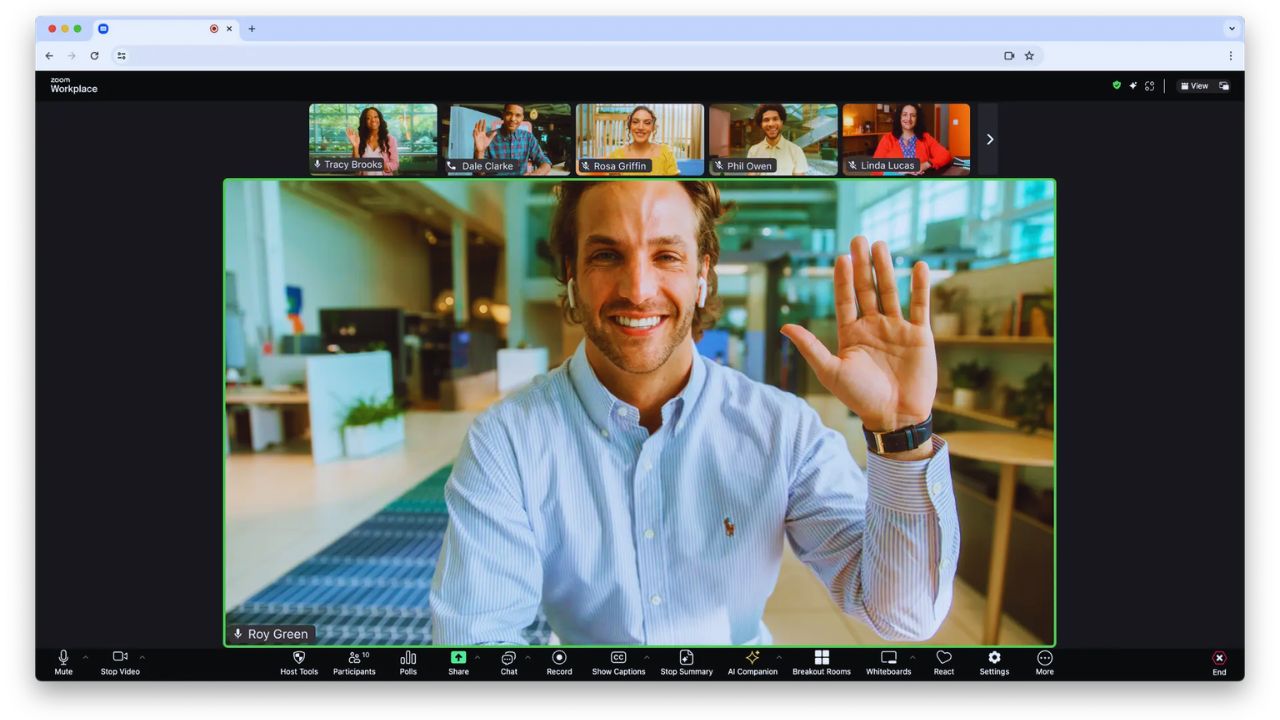
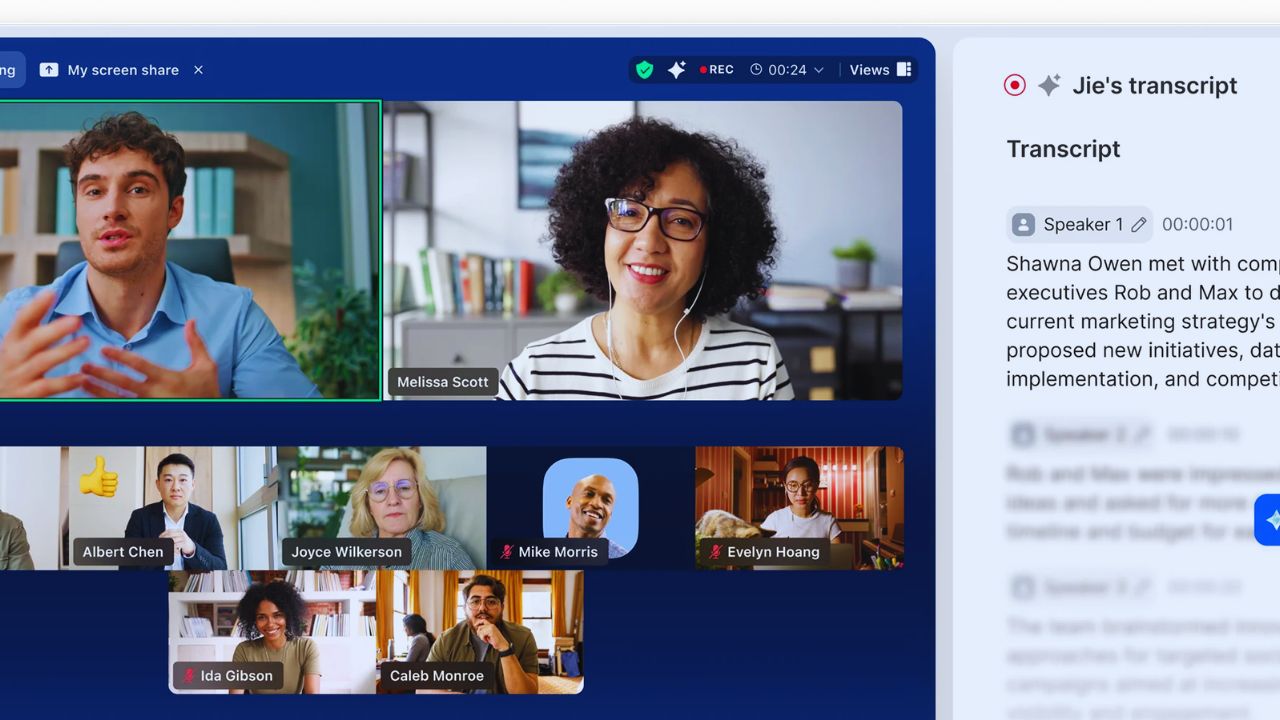
Zoom includes chat, reactions, screen sharing, recording options, backgrounds, and participant controls. You do not need to use everything in one meeting. A practical call control habit is choosing features based on the conversation.
Use chat for links or quiet questions, reactions for quick feedback, and screen sharing when visual context is necessary. Too many features can distract from the actual discussion.
Share Your Screen With Care
Screen sharing can make explanations clearer, but it can also reveal tabs, notifications, files, or private messages. Before sharing, close unrelated windows and choose whether to show the full screen or only one app.
A careful screen sharing routine protects privacy and keeps the audience focused. If you are playing audio or video, test the sharing settings first. Stop sharing as soon as the visual part is finished.
Fix Common Zoom Problems Calmly
Most Zoom issues come from device settings, permissions, internet connection, or the wrong meeting details. If audio fails, check mute, microphone selection, headset connection, and system permissions.
If video does not appear, close other apps that may be using the camera. A steady troubleshooting routine starts with the simplest checks before restarting everything. When a link fails, compare the date and meeting ID before assuming the invitation is broken.
Keep the App and Settings Current
Updates can improve stability, security, and device compatibility. Review Zoom settings occasionally instead of waiting until a call goes wrong. A basic settings review should include audio, video, background, notifications, and security preferences.
Hosts should also review participant permissions, waiting room behavior, and screen sharing rules. Small checks before important meetings are easier than rushed fixes during them.
Make Zoom Feel Normal Through Practice
Zoom becomes easier when you practice before important calls. Test your microphone, try screen sharing, and learn where mute, chat, and participant controls appear.
A simple Zoom routine helps you join classes, work meetings, tutoring sessions, interviews, and family calls with fewer mistakes. Keep the setup practical, protect meeting links, check your sound early, and use only the features that support the conversation.









