
Bitwarden helps turn password security into a routine you can actually maintain. This password manager guide explains how to set up a vault, create stronger logins, use autofill, share access carefully, and avoid common mistakes.
It is useful for students, families, freelancers, remote workers, and anyone managing accounts across a phone and computer. The goal is not to memorize more passwords, but to keep each account separate, searchable, and easier to protect.
Start With One Strong Master Password
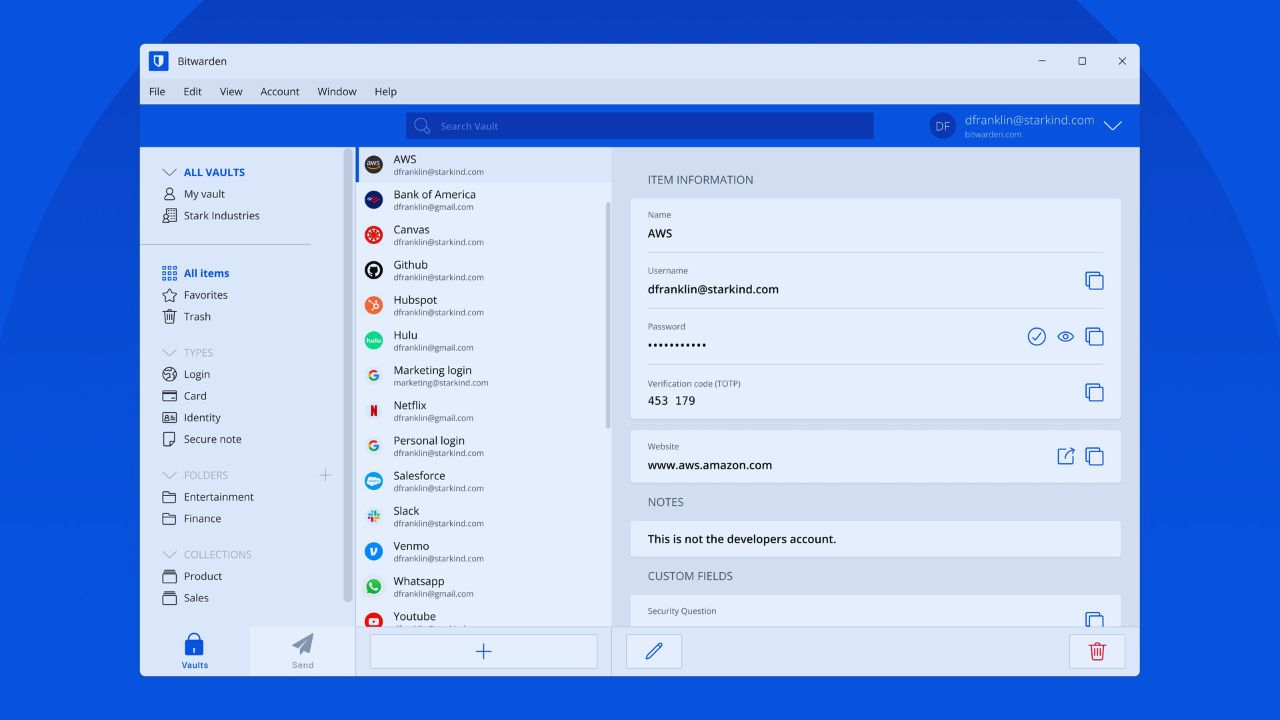
Bitwarden stores your logins inside an encrypted vault that opens with one master password. That password becomes the main key to your account, so it should be long, memorable, and not reused anywhere else.
A secure master password works better when it is something you can remember without saving it in a random note or screenshot. Write it down offline during setup, then store that paper somewhere private and safe.
Treat the Vault Like Your Digital Keys
A password vault is convenient, but it should be treated with the same care as house keys or banking access. If someone gets into it, they may reach many connected accounts.
A careful vault setup includes two-step login, updated recovery options, and a clear understanding that Bitwarden cannot help you remember a forgotten master password in the usual way. Do not rush this step just to start using autofill faster.
Install Bitwarden Where You Actually Log In
Bitwarden is most useful when it works on the devices you use every day. Install the browser extension on your main computer and the mobile app on your phone, then confirm both show the same vault.
A practical device sync check should happen before adding dozens of passwords. Add one test login, search for it, and open it on the other device. If syncing works, the rest of the setup becomes easier.
Keep the First Setup Simple
Beginners often try to organize everything perfectly on the first day. That can turn password cleanup into a stressful project. A clean first setup should focus on getting the extension, mobile app, master password, and two-step login working first.
Folders, naming rules, and imported passwords can come later. Once the basics feel reliable, cleanup becomes less intimidating and easier to continue over time.
Also Read: Digital Tutorial Explained Simply
Save New Logins With Clear Names
The easiest habit is saving logins as you create or use them. When Bitwarden offers to save a username and password, check that the website address is correct before accepting.
A clear login entry should use a name you will recognize later, such as “School Portal,” “Work Email,” or “Streaming Account.” If one website has several accounts, add a short note so you do not autofill the wrong one.
Generate Passwords Instead of Inventing Them
Strong passwords are hard to create manually because people usually reuse patterns. Bitwarden’s generator can create long, unique passwords that you do not need to memorize.
A safer password generator habit means saving the new password directly in the vault, not copying it into a note, message, or spreadsheet.
If a website rejects certain symbols, adjust the generator settings and create another version rather than weakening the password too much.
Make Autofill Useful Without Getting Careless
Autofill saves time, especially when you log in often on both computer and phone. On desktop, use the extension on the correct website and choose the matching entry. On mobile, set Bitwarden as the autofill provider in your device settings.
A smooth autofill routine reduces typing mistakes, but it still requires attention. If a login appears on an unfamiliar page, stop and check the address before filling anything.
Fix Autofill Before Blaming the App
Autofill problems usually come from small setup issues. The browser extension may be disabled, the vault entry may have the wrong website URL, or mobile autofill permissions may need to be reset.
A quick autofill check should start with those details before deleting entries or changing passwords. Testing one common login after each fix is better than changing several settings at once and forgetting what worked.
Share Passwords Only Through Controlled Access
Some accounts need to be shared, especially for families, clubs, small teams, or shared subscriptions. Sending passwords through chat or email is risky because the copy can stay visible long after access should end.
A safer password sharing method keeps shared logins inside the vault system. Share only the entries people truly need, keep personal accounts separate, and remove access when someone leaves the group or no longer needs the login.
Limit Who Can Change Shared Logins
Shared access becomes confusing when too many people can edit the same password. One person should usually handle updates, while others use the login with the right permission level.
A controlled shared collection helps prevent lockouts, duplicate entries, and outdated copies. If a password changes, update the shared entry rather than sending a new password outside the system. That keeps everyone using the same current login.
Clean Imported Passwords Gradually
Imported passwords can look messy because browsers often save duplicates, old usernames, and unclear site names.
Do not try to fix everything in one sitting. A steady password cleanup process should start with accounts you use most, then move to older or less important logins.
Search by website, keep the newest working entry, rename it clearly, and delete duplicates only after confirming the correct password works.
Replace Reused Passwords First
The highest-risk logins are accounts that share the same password across several sites. If one site is breached, reused passwords can put other accounts at risk. A practical security upgrade starts with email, banking, school, work, cloud storage, and social accounts.
Change those passwords first, then continue with shopping, forums, and older accounts. Small steady progress is better than an overwhelming one-day reset you abandon halfway.
Build a Monthly Vault Review Habit
Bitwarden works best when your vault stays clean enough to trust. Once a month, review new logins, remove duplicates, check shared access, and confirm two-step login on important accounts.
A simple vault review keeps password security from becoming another forgotten digital chore. Start with three accounts you use daily, improve the rest gradually, and keep the system simple enough to maintain.









