
In fast-paced teams and households, schedules collapse when tools stay vague and scattered. Google Calendar in 2026 anchors appointments, tasks, and focus blocks in one reliable hub that travels cleanly across desktop and phone.
Strong defaults, quick shortcuts, and smarter event types now make daily planning faster than paper while keeping advanced options one click away. Careful setup plus steady routines turns Calendar into a calm, always-on planner rather than a noisy notification feed.
Getting Started and Core Setup
Early clarity pays dividends across busy weeks. Expect a lighter learning curve if each part of the interface has a clear job and naming stays consistent.

Access and Accounts
Open calendar.google.com and sign in, then confirm the primary Google account tied to your events. Create extra calendars for separate roles and life areas to keep views clean. Keep “My calendars” for what you own, and place colleague, family, or regional holiday feeds under “Other calendars” to avoid accidental edits.
Sidebar Basics
Add a new calendar using the plus button next to “Other calendars,” then give each calendar a distinct color and label that matches its purpose.
Use consistent names such as “Work Projects,” “Personal Health,” or “Family Logistics.” When the view gets crowded, toggle calendars off to isolate a single context without deleting anything.
Create, Edit, and Recur Events
Event creation should feel instant. The goal here is speed, richer details, and dependable reminders that match how far ahead the meeting sits on your timeline. These steps keep inputs quick while reducing day-of scrambling.
Quick Ways To Create
Press C to create, click a time slot, or tap the Create button. Press Shift plus question mark to view every supported shortcut when needed. Google lists C for create, T for today, J and K for navigation, and more on desktop.
Rich Event Details
Attach Drive files so everyone arrives prepared. Add decks, briefs, or notes inside the event editor using the attachment control; guests get access prompts when sharing is required. Meeting notes can also be generated and pinned to the invite.
Recurring and Notifications
Turn repeating meetings into rules that recur daily, weekly, or on a custom cadence. Adjust default reminders under Settings for each calendar, then stack multiple alerts for far-future sessions so the date never slips. Use email or pop-up notifications based on the event’s importance and your working style.
Use Google Calendar As A Planner
Treat Calendar like a planboard, not only a meeting ledger. This section shows how to protect deep work, combine tasks and notes, and run quick weekly resets that keep busy weeks predictable.
Time Blocking
Block dedicated time for focus work, email triage, and weekly planning. Google Calendar Focus Time is a first-class event type that reserves a slot and can automatically decline meetings during that window. Keep blocks small and repeatable so they survive real weeks rather than ideal ones.
Tasks and Notes
Turn the Tasks feed on under “My calendars,” then add due-dated tasks so they appear on the grid alongside events.
Tasks support descriptions and subtasks, which help break greater efforts into visible steps. Google’s product page confirms tasks show on the calendar when a date and time are set.
Weekly and Monthly Routines
Use Week view for tactical sequencing and Month view for pattern detection.
Schedule a recurring half hour each weekend to preflight the next seven days, rebalance preparation time, and pre-add materials as attachments to key events. Treat the routine like any client meeting to keep it from slipping.
Collaboration and Work Features
Shared calendars, rooms, and conferencing links eliminate endless back-and-forth. The short intros below help you connect common workflows in minutes without adding new apps.
Sharing and Permissions
Open Settings and sharing for a specific calendar, then choose whether others can only see availability or can create and edit events. Publish read-only views when broadcasting schedules is the job, and grant edit rights when teammates actually manage sessions.
Rooms and Resources
Organizations can expose rooms and shared resources as bookable calendars. Add a room to an event to see capacity, availability, and auto-accept behavior based on permissions. Workspace documentation confirms resources accept or decline based on free time and access rights.
Meetings and Email
Gmail detects dates and suggests adding events, which speeds up flight, hotel, and appointment entry. Recent Workspace updates also use Gemini to propose times directly from email threads for one-to-one scheduling, inserting the chosen slot and creating the invite cleanly.
Keyboard Shortcuts
Keep both hands on the keyboard during heavy days. Press C to create, T to jump to today, S for settings, and J or K to move across the grid. Google’s help center lists the full shortcut set and supports a Shift plus question mark overlay for quick recall.
Productivity Boosters and Shortcuts
Small upgrades compound across a year. Use working hours, smart OOO, agenda emails, and the little-known address bar trick that opens a fresh event instantly.
Working Hours and Availability
Set working hours and working location so colleagues schedule inside realistic bounds, and so appointment pages avoid non-working times by default. The “Working hours & location” setting allows split days and location labels for in-office or remote.
Out Of Office Automation
Create an Out of Office entry to auto-decline meeting requests for a chosen span while leaving an optional note. This feature prevents silent conflicts and clarifies return dates on shared calendars and booking pages.
Daily Agenda and cal.new
Enable the Daily agenda email for a morning digest of commitments and preparation notes. When a new idea or invite arrives, type cal.new in the browser address bar to open a blank event instantly, confirmed in Google’s public shortcut rollout.
Time Management Best Practices
Plan buffers between important sessions so decisions and notes get captured rather than lost between calls. Reserve travel time for in-person days and a short tech check for virtual meetings to avoid late starts.
Protect peak-energy windows with repeating focus blocks, and shuffle noncritical meetings to the afternoon when possible. Keep white space for unplanned issues so the day can flex without breaking.
Common Mistakes To Avoid
Over-scheduling turns the calendar into a wish list rather than a plan. Piling events back to back without preparation time guarantees rushed starts and missed follow-ups.
Ignoring recurring maintenance causes clutter, so keep a short weekly cleanup to retire stale series, confirm owners, and reattach materials where agendas changed. Treat shared calendars like shared documents and apply least-necessary permissions to reduce accidental edits.
Search, Views, and Switching Away From Paper
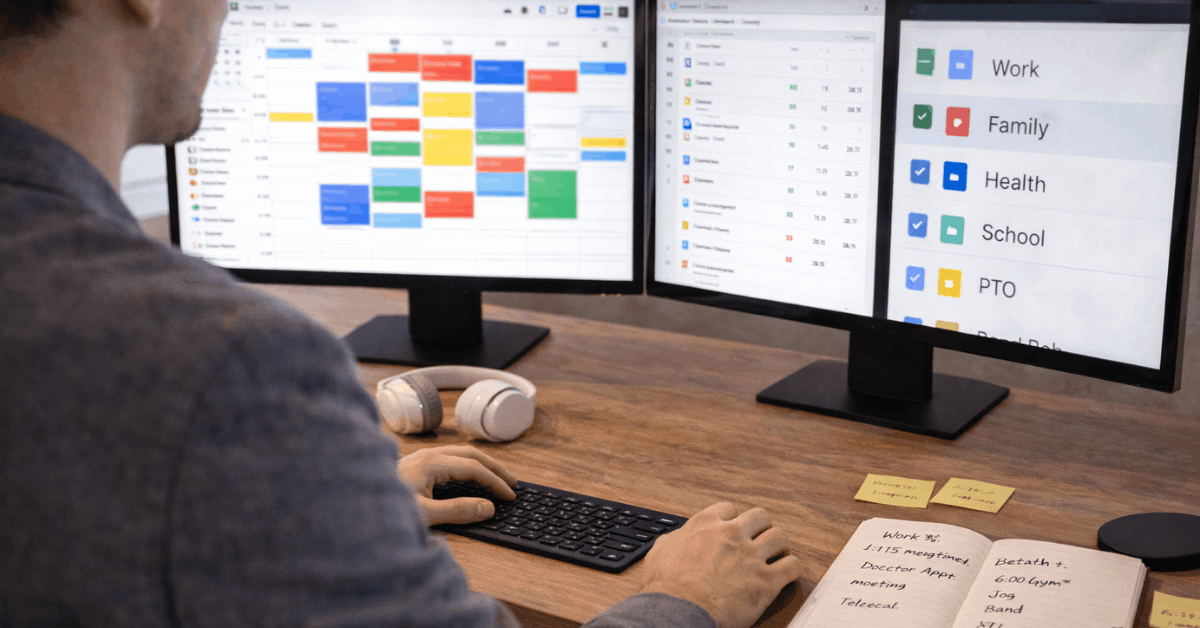
Calendar search makes past and future logistics easier than flipping pages in a notebook. Search titles, guests, or locations to jump to the exact slot in seconds, which underlines the practical edge in the Google Calendar vs paper planner debate.
Switch among Day, Week, Month, and Schedule views based on the planning horizon, then set a custom view length that matches how far ahead you prefer to see.
Working Across Multiple Calendars
Separate calendars keep context cleaner and sharing safer. Create distinct calendars for work, personal, and family while subscribing to client or program calendars as needed.
If duplicate schedules emerged over time, merge Google Calendars carefully by exporting a copy then importing it into the primary account to centralize ownership while preserving color-coded views.
When Teams Need More Than Calendar: Zeeg Overview
Large lead volume, round-robin handoffs, and privacy constraints often stretch basic scheduling.
Zeeg layers routing, team coordination, and analytics on top of your existing Google Calendar data without replacing the core grid. The result is less friction for inbound bookings and better measurement of what meetings produce.
Why Teams Add Zeeg
Smart routing directs prospects to the right team member based on rules, while collective and round-robin scheduling handle multi-participant availability.
A built-in CRM auto-creates contacts and updates interaction history so booking data does not die in a calendar entry. Zeeg positions these capabilities as core strengths for sales and recruiting teams.
Pricing Snapshot
Starter remains free forever for solo needs and includes unlimited events and two scheduling pages.
Professional runs €10 or $10 per user monthly on annual billing, and Business is €16 or $16 per user monthly with team features and analytics. Multiple Zeeg pages and pricing references confirm this structure through late 2025 and early 2026.
Privacy and Compliance
European businesses often favor providers that keep scheduling data inside EU borders for GDPR simplicity. Zeeg states full GDPR compliance, European data hosting, and end-to-end encryption, reinforced by funding announcements highlighting German server hosting.
Teams operating under stricter privacy norms may find this alignment helpful.
Security Hygiene For Calendars
Phishing invites still appear in the wild, so disable automatic event additions if spam lands on your grid and hide declined events to reduce noise.
Treat unknown links in event descriptions like any email threat and verify sender identity before engaging. Independent reporting has tracked Calendar-based scams for years, which makes ongoing vigilance worth the small effort.
Last Thoughts
In the end, Google Calendar becomes a quiet operating system for your week. Treat it as a planboard: map focus blocks, attach materials, and let sensible defaults protect time.
Set recurring reviews, keep working hours honest, and stack reminders that match the horizon. Share selectively, use keyboard shortcuts, and keep archives tidy so clutter never returns.
When inbound booking and routing outgrow basic links, pair Calendar with Zeeg to keep coordination simple without changing tools. Stick to small, repeatable moves and the calendar will stay accurate, calm, and genuinely helpful.








