
Digitally signing and sending documents is one of the most essential online skills for modern paperwork.
You can finish the task from a laptop or phone without printing, scanning, or mailing anything.
You save time because the tool places required fields and helps prevent missing signatures or dates.
The essential task: sign and send a document online
Online signing means you upload a file, place signature fields, and export a finalized PDF.
You can complete a single-signer document fast once your file is clean and readable.
Good platforms also create a record of who signed, when it happened, and what was signed.
Your goal is a repeatable process that works the same way every time.
When an e-signature is usually accepted
Many schools, employers, and businesses accept e-signatures for routine agreements and approvals.
Acceptance often depends on a clear intent to sign and evidence that the document was not changed afterward.
A completion certificate, timestamps, and confirmation emails can strengthen the signing record.
When you should use an ink signature instead
Some documents still require ink, especially notarized forms or strict government submissions.
If the instructions say “original signature” or “wet signature,” follow that requirement exactly.
When the rules are unclear, ask the recipient which signature format they will accept.
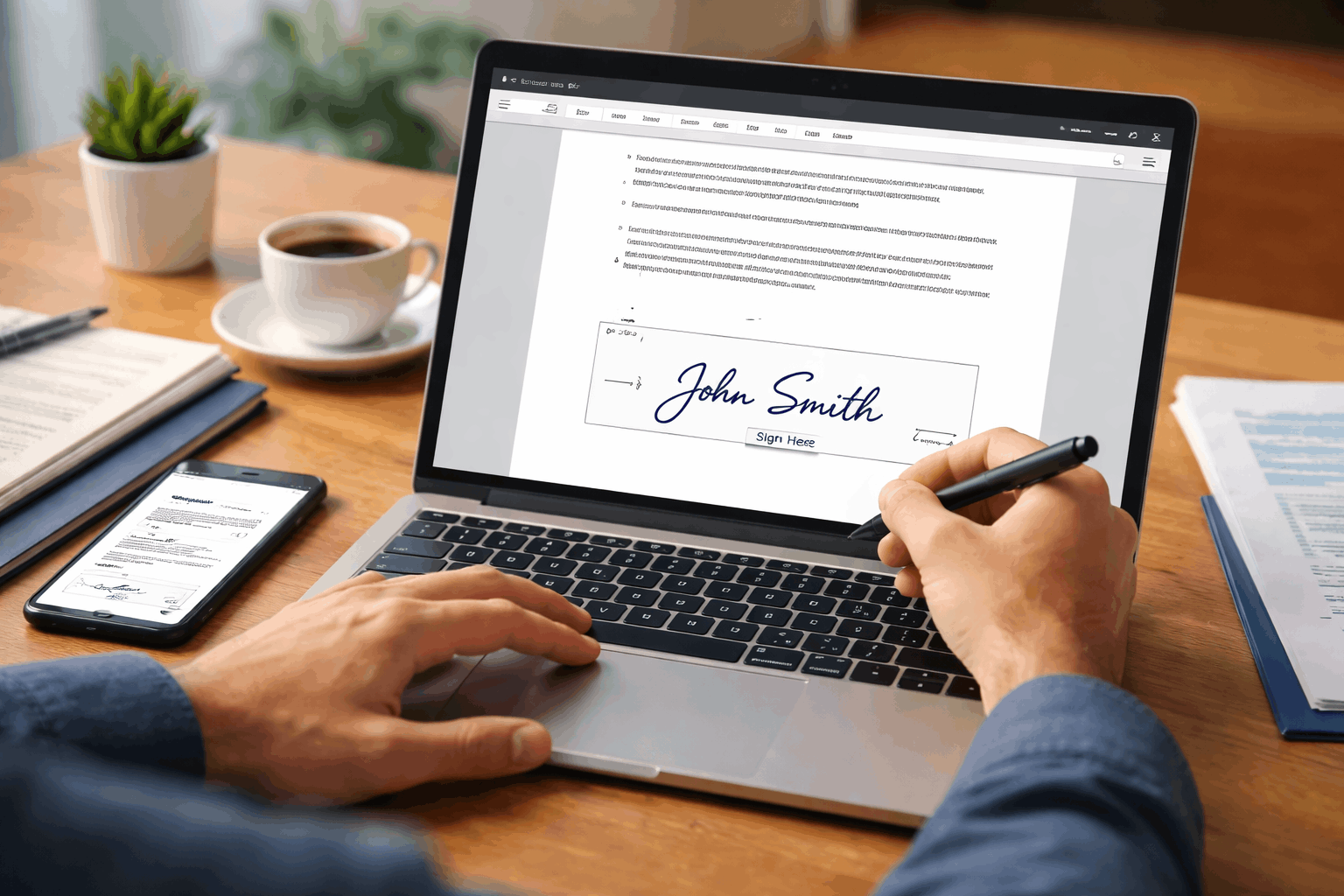
Pick the right signing tool for your situation
Most e-signature tools cover the same basics: upload, add fields, sign, and download.
Your best choice depends on how often you sign and whether you need multiple signers.
Free options can be enough for occasional use, while paid plans help with templates and tracking.
Prioritize ease of use, export quality, and whether the platform provides an audit trail.
Best all-around options to start with
Adobe Acrobat’s online tools are practical if your documents are already in PDF format.
DocuSign is common in workplaces when you need stronger workflow controls and detailed logs.
Dropbox Sign is straightforward for sending requests, especially if you already use Dropbox storage.
Best for occasional, low-cost signing
Smallpdf and similar PDF sites can work when you need to sign quickly without a heavy setup.
Check whether the free tier lets you download a clean PDF without watermarks or page limits.
If the document includes sensitive data, choose a provider with clear security and privacy practices.
Prepare your document before you sign
A clean file prevents most signing problems, especially with scans and phone photos.
Use PDF when possible because fields and signatures stay anchored across devices.
Confirm page order, readability at 100% zoom, and that all pages you need are included.
If you have multiple files, merge them first so you manage one signing flow.
Convert and clean up scans the right way
If you have images, convert them to a single PDF using a converter or scan app export.
Straighten pages and improve contrast so text stays readable after upload and download.
Compress carefully so the file size drops without turning small text into a blur.
Sign a document online in about 10 minutes
The fastest workflow is always the same: upload, place fields, sign, export, and verify.
Use a laptop for precise placement, then use your phone only if the tool asks for confirmation.
Decide whether you will type, draw, or upload a signature image before placing the first field.
Download the signed PDF immediately and store it in a folder you can find later.
Step-by-step on almost any e-signature website
Upload your PDF and open the “Fill and sign” or “Add signature” editing mode.
Click the signature area, create your signature once, and apply it to the correct field.
Export the signed PDF and open it locally to confirm it displays correctly on every page.
Request signatures from other people
Multi-signer documents are common for approvals, rentals, and shared permissions.
A request workflow is smoother when each signer sees only the fields they must complete.
Use accurate names and emails, and label fields clearly so nobody guesses what goes where.
Set reminders and an expiration date so the request does not stall for weeks.
Set signer order and reminders
If the document needs a specific order, set it so the next person cannot sign too early.
Turn on automated reminders so you do not have to chase people manually every day.
Choose a reasonable reminder schedule so it helps without annoying the signer.
Track status and save the audit trail
Platforms usually show “Sent,” “Viewed,” and “Signed,” which helps you time your follow-ups.
Download the completion certificate or audit trail and store it with the final signed PDF.
That record can matter later, because it connects the signature to a specific time and file.
Keep the process secure and professional
Treat signed documents like sensitive data, even when the content seems routine.
Use strong passwords and enable two-factor authentication on your signing account.
Share documents with the minimum number of people required to complete the process.
Avoid public Wi-Fi for signing and exporting unless you use a trusted network or VPN.
Use identity checks for higher-stakes documents
For important agreements, choose tools that support access codes or signer verification.
SMS codes or ID checks can reduce fraud risk, but they can also slow down completion.
Use the lightest verification method that still matches the recipient’s requirements.
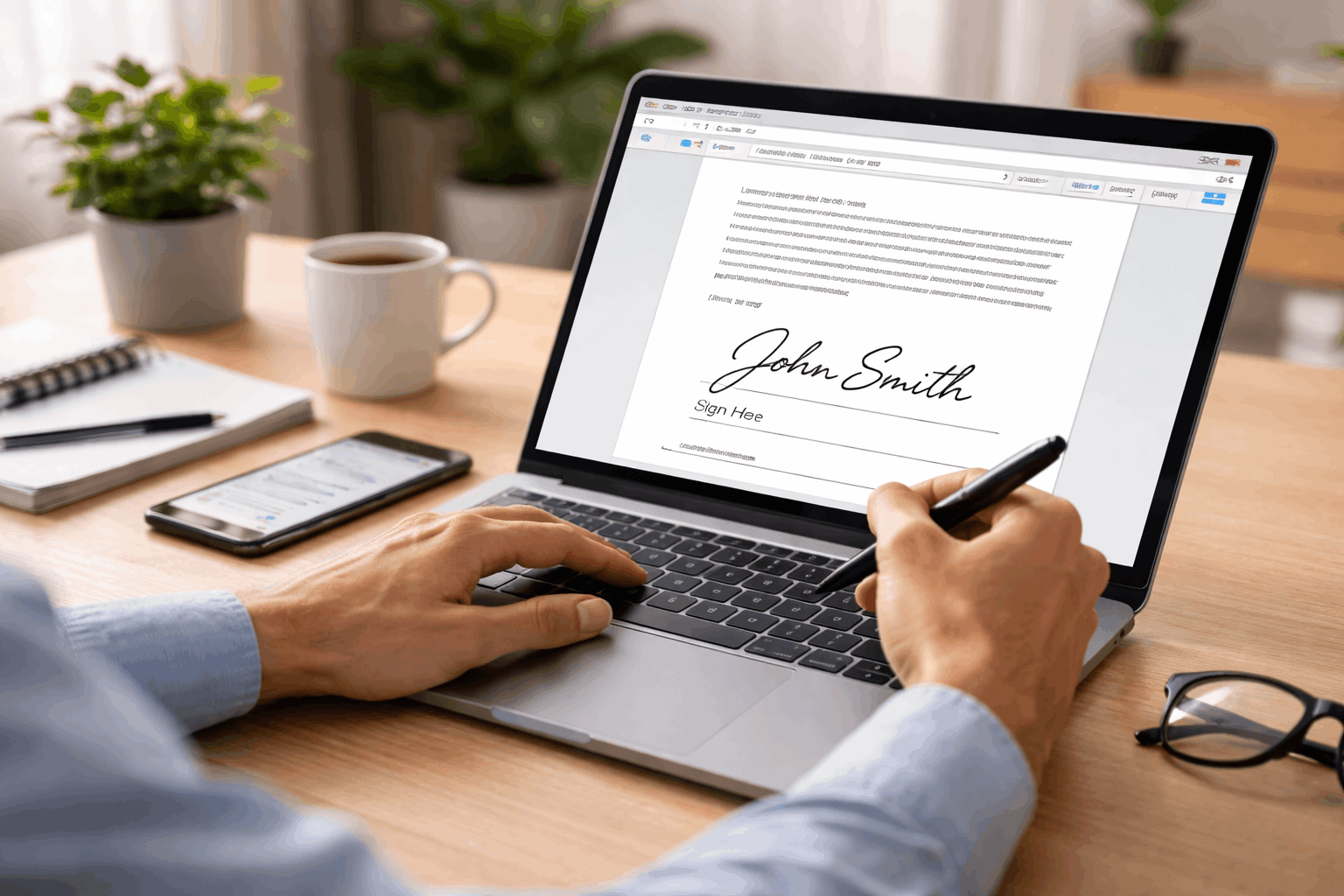
Fix common problems without starting over
Most signing issues come from file quality, browser settings, or mobile scaling.
Try another browser, disable strict ad blockers, and reload before you re-upload the file.
If fields shift, confirm the PDF page size is standard, and the file is not image-only.
Test the exported PDF on a second device so you catch layout issues before sending.
If the file won’t upload or looks blurry
Reduce file size with compression, but avoid settings that destroy small text clarity.
If your scan is fuzzy, rescan with better lighting or use a scan app’s document mode.
If the site rejects the file, export again as a standard PDF or PDF/A and retry.
If fields don’t align on mobile
Place and lock fields on a laptop first, then sign on mobile as the last step.
Rotate your phone to landscape and zoom in so taps land where you intend.
If the platform offers an app, use it, because apps often handle scaling better than browsers.
Finish, store, and reuse the workflow
Rename the final PDF clearly so you can find it later without opening multiple files.
Store the signed copy and audit trail together in cloud storage with a simple folder structure.
If you sign similar documents often, turn your layout into a template to save time next time.








