
In fast-moving projects, clear visibility beats complex tooling when tasks start piling up. Using Trello gives a simple, visual system to map work, limit overload, and move items to done without friction.
Under Kanban principles, seeing work, capping work in progress, and improving flow reduces context switching significantly. In everyday practice, Trello acts like a digital whiteboard that organizes tasks into columns and cards.
Boards represent projects, lists represent stages, and cards capture the next actionable step plus context. A lean setup works best, then gradual additions tailor the system to real habits. Treat this as a Trello tutorial that favors clarity, speed, and repeatable routines.
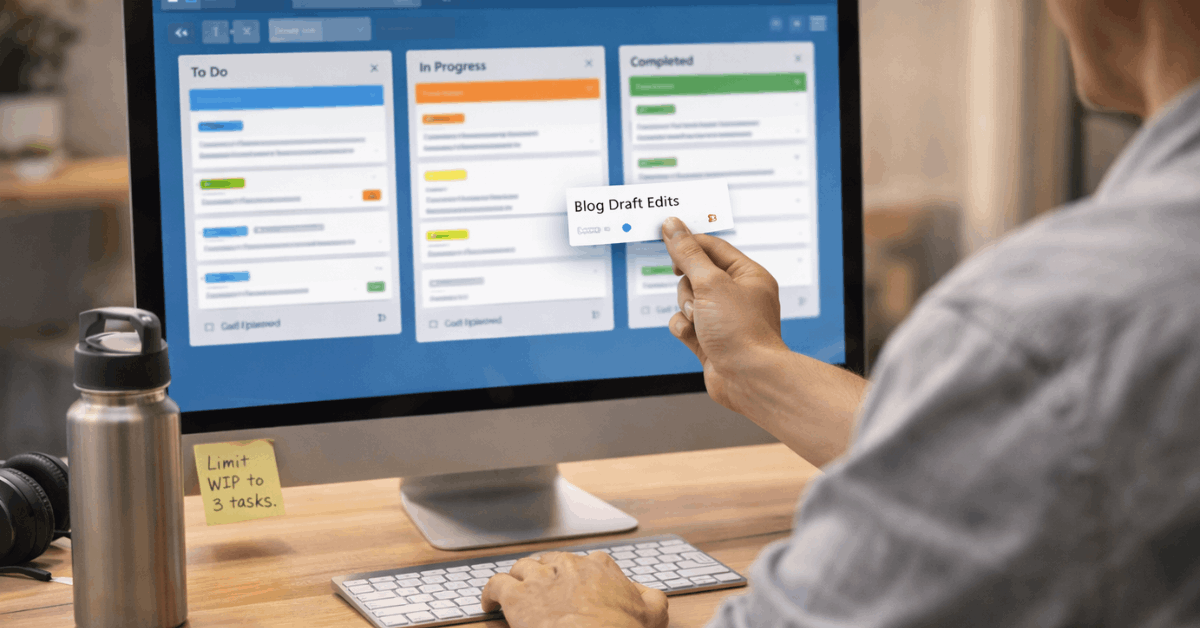
Core Concepts Of Trello
Trello operates through three elements that stay consistent across use cases. Boards hold everything for a project or area, such as Home Renovation or Content Calendar. Lists represent workflow stages like To Do, Doing, and Done, while cards carry the actual tasks or ideas that move across stages.
Kanban in Trello means visualizing work to expose bottlenecks and reduce multitasking.
A small number of active tasks helps maintain focus and makes progress feel tangible. The board menu on the right acts as mission control for members, settings, search, automation rules, and the activity feed.
Create Your First Board
Account creation on Trello takes minutes, and the free tier supports most individual workflows. After signing in, select Create New Board, name it specifically, and choose a background that differentiates personal projects from client work.
Visual cues help with context switching during busy days. Lists should mirror the real stages of your process rather than wishful ones.
A simple task board thrives on To Do, Doing, and Done, while a content board often benefits from Ideas, Outline, Draft, Editing, Scheduled, and Published. Trello board setup works best when the fewest possible lists still describe the full path to completion.
Build Useful Cards
Cards should be short, specific, and action-oriented at the title level. Inside each card, the Description field captures notes, instructions, links, and constraints that explain what success looks like. A checklist breaks complexity into measurable steps while the progress bar keeps momentum visible on the card front.
Due Date anchors time, Members clarify ownership, and Labels enable fast filtering for priority or category.
Attachments place files at hand so research and assets live where the work happens. A card cover helps important items stand out, although restraint keeps the board readable. Treat Trello lists and cards as a single thinking surface that holds context and next steps together.
Move Work Forward
Drag and drop powers daily execution as tasks shift across stages. When work begins, move a card into Doing, then push it into Done once fully complete. The physical movement builds a reliable Trello workflow that stays accurate even on busy weeks.
Because multitasking erodes quality, limit the Doing list to two or three active cards. Kanban literature consistently shows that smaller batches finish faster and reduce rework. If Doing grows beyond a handful of items, pause starting new tasks until several reach Done.
Organize Multiple Boards
Most people benefit from separate boards for personal tasks and primary work. Workspaces group related boards under themes such as Marketing, Product, or Home, and permissions allow selective collaboration.
Visibility across a Workspace helps teams coordinate without turning every detail into a meeting. Proliferation harms adoption when dozens of boards go unmaintained.
Archive completed boards or move inactive ones into a parking Workspace to keep navigation clean. Focus attention on a small set of frequently used boards to strengthen daily habits.
Use Trello Power-Ups
Power-Ups are add-ons that extend a board’s capabilities for scheduling, automation, or collaboration. Calendar surfaces all dated cards in a monthly or weekly view that supports deadline management effectively.
Card Repeater creates recurring tasks for weekly reports, plant watering, or housekeeping chores that often slip. Voting helps teams rank ideas before prioritization conversations, while a Pomodoro timer adds a straightforward focus loop to individual tasks.
On the free plan, enable one Power-Up per board and match it tightly to the board’s purpose. A disciplined approach to Trello Power-Ups keeps boards fast and distraction-free.
Practical Setup Example: Write and Publish A Blog Post
Clarity improves when a real workflow is mapped once and then reused for every article. Treat the steps below as a reusable pattern that turns research into a scheduled post without scattered assets.
Every card should hold enough context that another teammate could pick it up and continue. Keep work-in-progress low to protect time for focused drafting and editing.
- Create Board: Create a board named Blog Post: Topic Name and pick a neutral background for consistent readability across content projects.
- Create Lists: Set these lists: Ideas and Notes, Outline, First Draft, Editing, Graphics, Scheduled, Published, reflecting the full publishing path.
- Create The Main Card: Add a card titled Draft: Working Title, include research notes in Description, attach sources, and add a checklist for structure and SEO elements.
- Add Supporting Cards: Create Keyword Research, Competitor Review, Interview Notes, and Asset List cards that live in Ideas and Notes until they become actionable.
- Work Across Lists: Move the main Draft card across stages as real work completes, leaving supporting cards in place for reference until activation is required.
- Schedule Confidently: Enable Calendar to visualize draft and publish dates, then keep those dates realistic so the pipeline remains smooth.

Common Beginner Mistakes To Avoid
Good habits form quickly when predictable pitfalls get removed early. Keep this short list in view during the first month of adoption to prevent clutter and confusion.
- Creating too many lists that describe the same status leads to indecision and extra clicks.
- Treating cards as bookmarks without descriptions wastes time and hides intent during handoffs.
- Skipping the archive on Done allows completed cards to accumulate and slow scanning.
- Ignoring ownership on shared boards dilutes accountability and slows momentum.
- Overloading Doing with ten tasks invites context switching and delays truly finishing work.
Scale Confidently In 2026
Templates accelerate adoption and reinforce consistent list structures across teams. Trello for beginners often starts with personal task boards, then upgrades to team templates for sprint planning, request intake, or event planning.
Linking related cards across boards can help advanced setups coordinate dependencies without losing clarity. Mobile usage matters because ideas and updates appear outside desk hours.
The Trello mobile app is fast, stable, and reliable for quick adds, due date checks, and moving cards to Done during commutes. Keep the system lightweight, prune labels and lists often, and let consistent daily routines compound into dependable delivery.
Key Takeaways For Using Trello
A simple, named board plus a minimal set of lists unlocks a clear map of work. Cards should carry context, checkpoints, dates, and owners so tasks survive handoffs gracefully. Visual limits on Doing speed completion and reduce churn that otherwise buries teams in half-finished tasks.
Add only the one Power-Up that meaningfully supports the board’s purpose. Keep archives tidy, boards focused, and navigation clean to protect attention. Treat the setup as a living system that learns from each completed cycle, then reuse the pattern for predictable results.








