
Digital tasks get easier when you set up a few tools once and reuse them every day.
This tutorial walks you through common online tasks with simple steps and practical tool picks.
You will see quick comparisons so you can choose tools that fit your device and comfort level.
Set Up Your Digital Workspace
Start with the tools you open daily, because small friction adds up fast.
Pick one “home base” account for your browser, files, and notes to avoid duplication.
Keep your setup simple at first, then add features only when you feel the need. A clean workspace is mostly good defaults, not a huge list of apps.
Choose a Browser Setup
Use Chrome, Edge, or Firefox, and sign in so bookmarks and history sync.
Install only a few extensions, like an ad blocker and a password manager, to reduce clutter.
Turn on “continue where you left off” if you often juggle tabs across sessions.
Create a Folder System
Make three top folders like “Personal,” “School/Work,” and “Projects” to stay organized.
Name folders by topic and date, like “Taxes 2026” or “Math Notes Jan,” to find them fast.
Keep downloads from becoming a mess by moving important files out weekly.
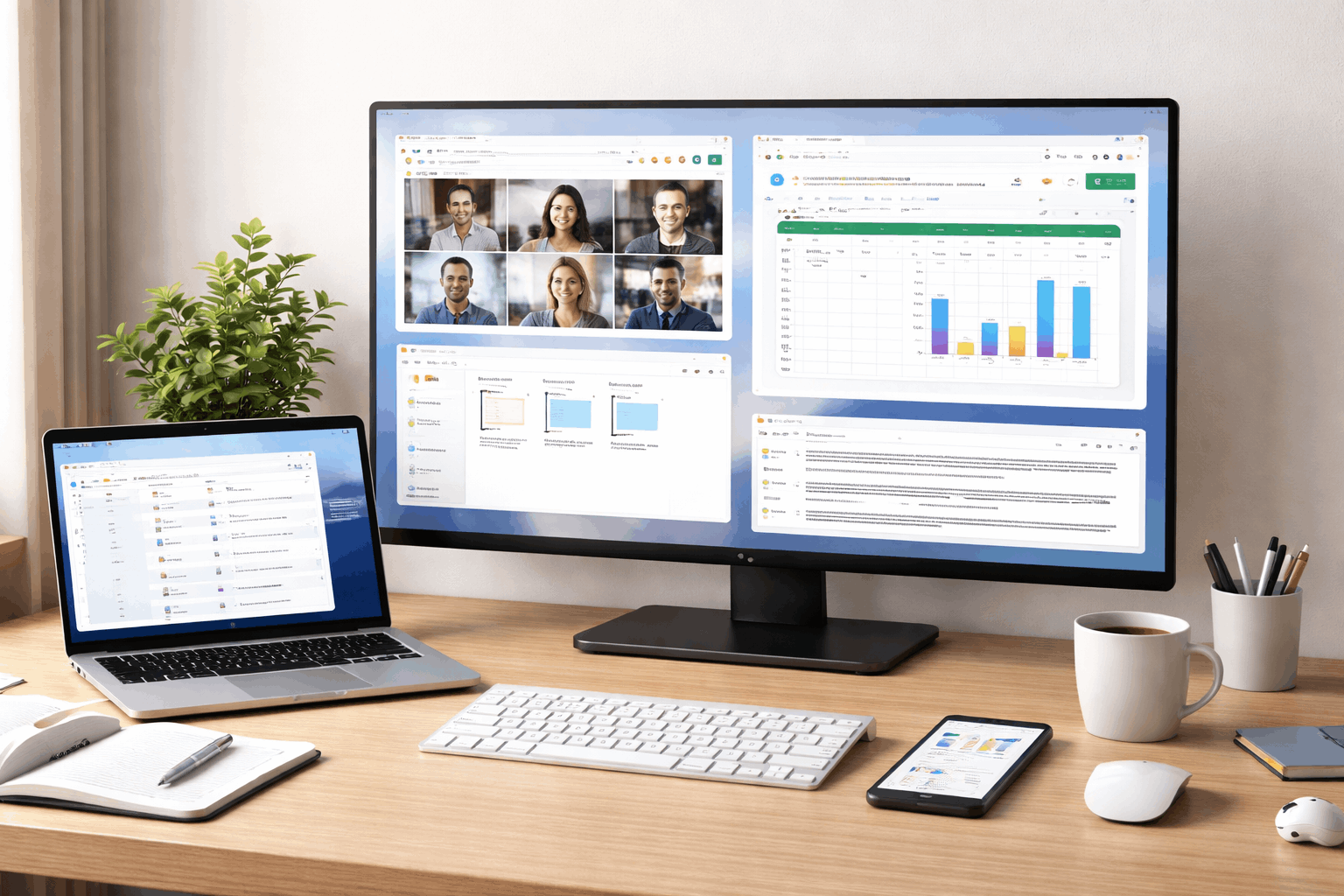
Manage Files and Documents
Most digital stress comes from lost files, duplicate versions, and messy formats.
A good file system needs consistent naming, predictable folders, and reliable syncing.
Use cloud storage when possible so you can switch devices without starting over.
Learn a few document tricks, and you will avoid “can’t open” moments.
Cloud Storage Basics
Pick one main service and commit to it. Turn on automatic sync so your key folders always have a backup copy.
Share links with view or edit access instead of sending attachments back and forth.
Convert and Edit PDFs
Use built-in tools first, like your browser’s PDF viewer, before downloading extra software.
For frequent edits, Adobe Acrobat works well, while PDF-XChange is a strong Windows alternative.
For quick conversions, tools like Smallpdf can help, but avoid uploading sensitive documents.
Scan and Organize Paper
Use Microsoft Lens or Adobe Scan to capture clean scans with automatic edge detection.
Save scans as PDF for multi-page documents, and name them right away to avoid “scan001.”
Store important scans in a “Documents” folder with year-based subfolders for fast retrieval.
Communicate and Collaborate Online
Clear communication saves time when you use the same habits every week.
Most collaboration problems are not technical, but about unclear files and missed updates.
Use shared links, comments, and simple rules so everyone stays on the same version.
You do not need advanced tools, just consistent routines and basic etiquette.
Email Rules That Save Time
Use short subjects that match the action, like “Confirm meeting time” or “Send draft link.”
Create two or three filters, like “Receipts” and “Newsletters,” to protect your inbox focus.
Reply with one clear next step, and include links instead of multiple attachments.
Video Calls Without Chaos
Test your mic and camera once in settings, then stop worrying about every call.
Use headphones when possible, because echo ruins meetings more than video quality.
Share your screen only when needed, and close extra tabs to avoid distractions.
Share and Comment on Documents
Write in Google Docs, Microsoft Word Online, or Notion when real-time edits matter.
Use comments for questions and suggestions, and reserve direct edits for agreed changes.
Name versions clearly, like “Draft v2” or “Final,” so people stop editing the wrong file.
Handle Everyday Data Tasks
You do not need to be “good at math” to use spreadsheets well. Start with small tasks like budgets, lists, schedules, and simple tracking.
Use forms when you want clean input from other people without messy emails. Turn messy information into a clear view with a few basic features.
Spreadsheets for Beginners
Use Google Sheets for easy sharing, or Excel if you already have it and need power features.
Learn the five basics first: freeze header row, sort, filter, sum, and simple formulas.
Keep one concept per column, because mixed columns break sorting and filtering.
Forms and Surveys
Use Google Forms or Microsoft Forms to collect answers in a consistent structure.
Ask only what you will actually use, because long forms reduce completion.
Send results to a spreadsheet so you can filter, summarize, and export later.
Simple Charts and Screenshots
Use a bar chart for comparisons and a line chart for changes over time.
Take screenshots to quickly explain issues, and crop them to show only what matters.
Use built-in tools like Snipping Tool, macOS Screenshot, or browser capture features.
Keep Your Accounts Safe
Security becomes easier when you rely on defaults and automation rather than memory. Small habits, like updates and backups, prevent the most common disasters.
Use an authenticator app like Google Authenticator, Microsoft Authenticator, or Authy for stronger security.
Save backup codes in your password manager so you are not locked out later.
Device Updates and Backups
Enable automatic updates on your phone and computer, because patches close known holes.
Use cloud backup for photos and documents, and add an external backup if you store important work locally.
Check backups once a month to ensure they exist and can be opened.
Spotting Phishing
Treat urgent messages as suspicious, especially when they ask you to log in quickly.
Hover over links on desktop, or long-press on mobile, to preview where they really go.
When unsure, go to the site directly instead of clicking the message link.
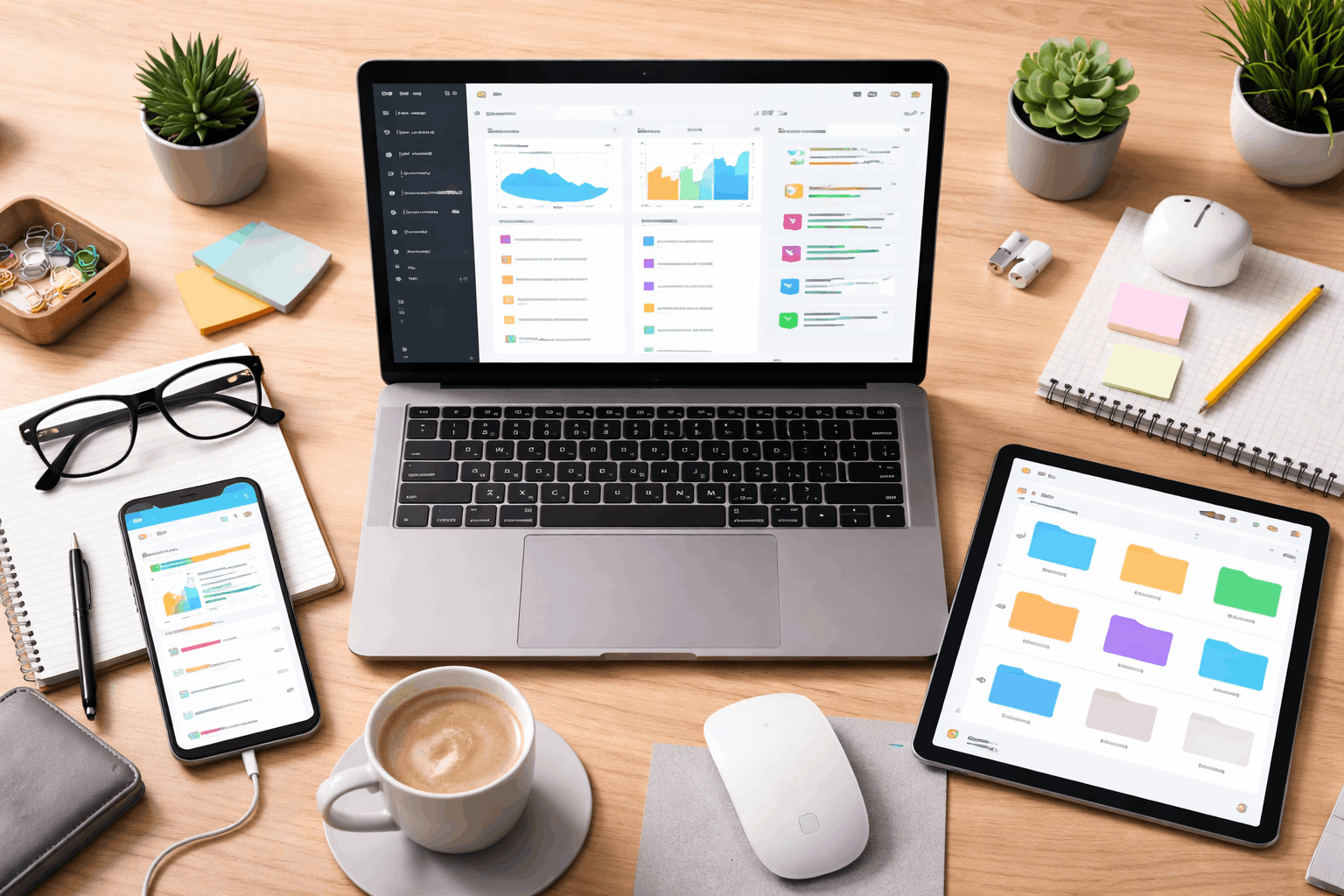
Build a Repeatable Weekly Routine
A routine beats motivation, because you do not need to “feel ready” to stay organized.
Set a weekly time to clean files, update tasks, and close open loops. Use templates so you can start fast and stay consistent across projects.
When your system is predictable, your brain stops treating every task like a new problem.
Weekly Cleanup Checklist
Delete junk downloads, rename loose files, and move important items into the right folders.
Clear your desktop and close old tabs so you begin the week with less noise.
Review your calendar and task list together so deadlines do not surprise you.
Automations and Templates
Use text snippets for common replies, like scheduling, confirmations, and link sharing.
Create a “Project Starter” folder with a notes file, a checklist, and a simple timeline document.
Try light automation like email rules and recurring reminders before using complex workflow tools.
Learning Plan
Pick one skill per week, like “filters in Sheets” or “comments in Docs,” and practice on a real task.
Watch one short tutorial, then repeat it from memory so it sticks.
Keep a “How I do this” note that stores steps you do not want to re-learn.
Conclusion
Choose one password manager and save your next five logins into it. Pick one cloud storage service and create your three top folders with clean names.
Set up one email filter and one weekly cleanup reminder so your system holds.
When you finish those steps, you will feel the daily difference immediately.








