
A new productivity app sits on your phone right now. Three weeks ago, it felt like a fresh start. Today it’s a graveyard of half-finished lists and muted notifications.
That cycle has a name, and it has nothing to do with discipline. Organization app mistakes follow a pattern that repeats across Todoist, Notion, Trello, and every shiny alternative released this year.
The fix isn’t downloading something new. It’s spotting the specific habits that turn a simple tool into a stressful chore.
This one is for the remote worker or busy professional who keeps blaming themselves. The app probably isn’t broken. But the way it got set up might be.
Why Organization Apps Stop Working After Two Weeks
A fresh app installation comes loaded with dopamine. The clean interface. The empty inbox. The sense that everything will finally be different. Then real life kicks back in, and the system starts falling apart.
The pattern plays out so predictably because the failure points are almost always the same. A setup that’s too ambitious. Notifications that become white noise. And a total lack of regular check-ins to keep things current.
The Over-Engineering Trap
The single biggest organization app mistake happens on day one: building a system for a life you don’t have.
Twelve tags. Eight color-coded categories. A nested project structure three levels deep. That kind of setup might look satisfying in a YouTube tutorial, but running it daily takes serious effort.
After a few days, adding a grocery list or a meeting reminder feels like filing a tax return.

I would bet that Todoist’s own usage data shows the majority of abandoned accounts have more than five custom labels created in the first session.
The correlation between first-week complexity and second-week abandonment is something no productivity blog talks about, but anyone who’s cycled through apps recognizes it instantly.
Starting with a single list and one recurring reminder takes about 90 seconds. That boring setup survives Monday morning. The beautiful 12-category dashboard does not.
Notification Fatigue Kills the App Before Anything Else
Every task app ships with notifications turned on by default. Every. Single. One. And the standard advice is to “customize your alerts,” which sounds reasonable until you realize that customizing 40 task reminders still leaves you with 40 interruptions.
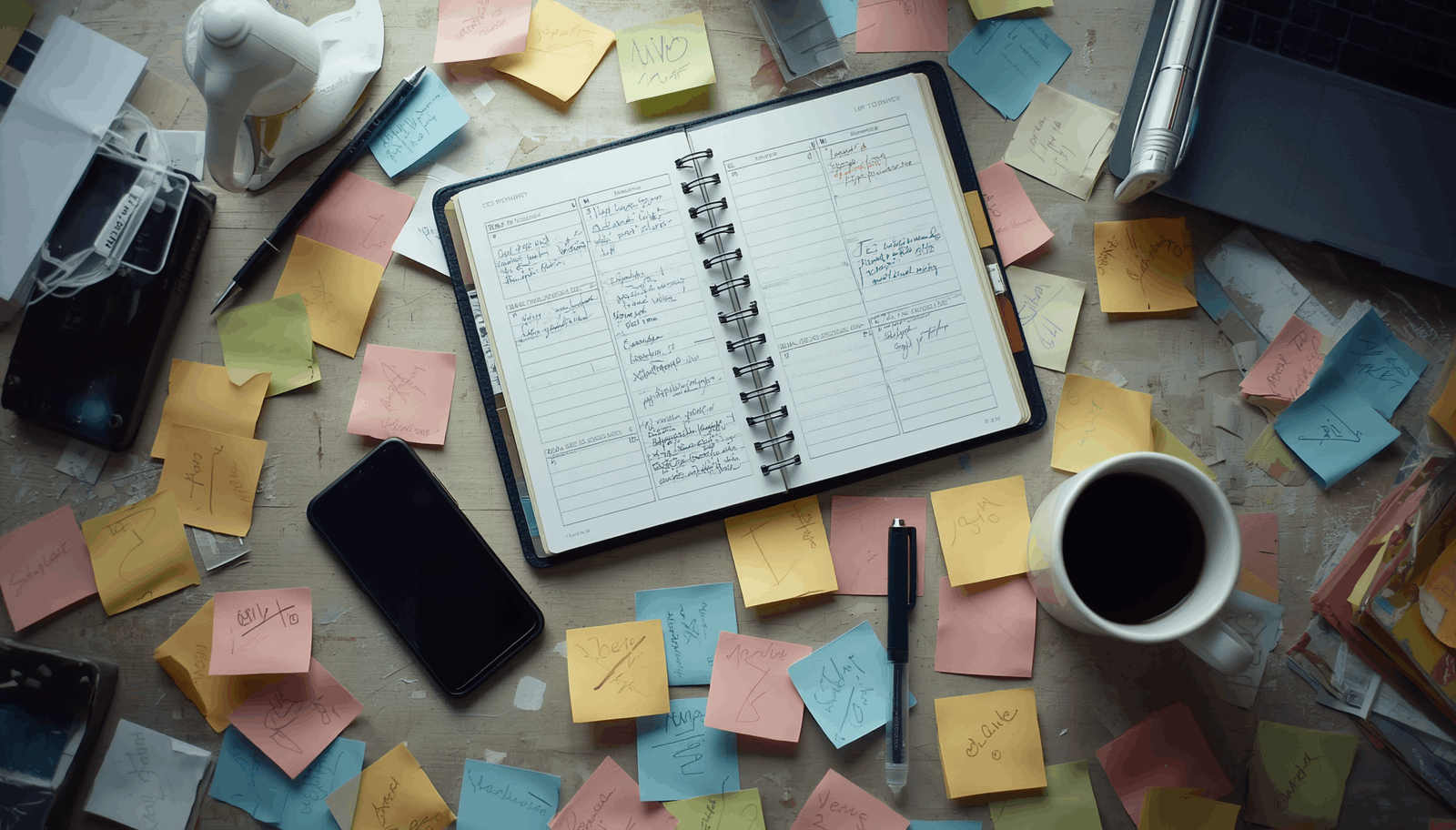
My take on notification settings is direct: turn them all off first, then add back only the ones tied to hard deadlines.
Todoist, Trello, and Asana all allow granular notification control, but the default state assumes you want a ping for everything. That assumption is wrong for the remote worker who already gets 50+ Slack messages a day.
A better filter looks like this:
- Keep alerts on for tasks with calendar deadlines (meetings, submissions, appointments)
- Keep alerts off for reference tasks, someday-maybe lists, and project notes
- Limit badge counts to one app at a time so the home screen stays usable
The difference between a helpful reminder and digital noise comes down to whether the alert requires action within 24 hours. Everything else is clutter.
The “Find the Right App” Advice Is Backwards
This is where I break from the standard productivity advice. Almost every article about organization apps pushes the same message: the problem is that you haven’t found the right tool yet.
Try Notion if Todoist didn’t click. Switch to TickTick if Notion felt too open-ended. Shop around until something fits.
I think that advice is dead wrong, and Todoist’s own blog on productivity methods accidentally proves it.
Their comparison of GTD, Eisenhower Matrix, and time blocking shows that every method works if reviewed regularly. The method matters less than the maintenance.
The Weekly Review Habit Beats Every App Feature
Someone using Apple’s built-in Reminders app with a strict 10-minute weekly review will get more done than someone juggling Todoist Premium, Notion databases, and a Trello board without ever reviewing any of them.
That’s a strong claim, and I stand behind it.
The weekly review does three things no app feature can replicate:
- Catches stale tasks that should be deleted, not just rescheduled
- Surfaces priority shifts that happened during the week but never got reflected in the system
- Resets your trust in the tool, because a system you review is a system you believe
When tasks pile up unreviewed, the app becomes a guilt list. That’s the moment people uninstall and start searching for a new tool. The app didn’t fail them. The missing review did.
Why App-Hopping Wastes More Time Than a Bad Setup
Every switch costs something. Learning the new interface. Migrating tasks that survive the move.
Adjusting to different terminology (Trello calls them “cards,” Asana calls them “tasks,” Notion calls them “pages”). The cognitive tax of each migration resets your momentum to zero.
The time spent evaluating and switching between three apps across six months would fund roughly 26 weekly reviews at 10 minutes each. One of those paths leads to a system that works. The other leads to another app on sale.
Picking a Productivity App That Survives Past January
So the tool matters less than the review. Does that mean the choice is irrelevant? Not exactly. Some apps make the weekly review easier than others, and that’s where the real comparison gets interesting.
The factors worth checking before downloading anything come down to a short list:
- Speed of task entry: can you add something in under 5 seconds, or does the app force you through menus?
- Cross-device sync: does it work on your phone, laptop, and tablet without a paid plan?
- Sharing capability: can you share a list with a partner or teammate without them creating an account?
Everything else (color themes, integrations with 200 other apps, AI task suggestions) is decoration. Nice decoration, maybe. But decoration.
Comparing Todoist, Trello, Asana, and Evernote for Daily Task Management
| Feature | Todoist | Trello | Asana | Evernote |
|---|---|---|---|---|
| Quick task entry | Fast natural language input | Requires board selection first | Medium speed, needs project context | Slow for tasks, built for notes |
| Free plan device sync | Unlimited devices | Unlimited devices | Unlimited devices | 2 devices only |
| Shared lists (free tier) | Up to 5 collaborators | Unlimited board members | Up to 10 teammates | Limited sharing |
| Best suited for | Solo task lists and daily to-dos | Visual project boards for teams | Team project timelines | Storing reference material alongside tasks |
The takeaway: Todoist edges ahead for solo daily task management because of its speed, while Trello works better for people who think visually about workflows.
Mixing Digital and Paper Systems
One pattern that keeps coming up among people who stick with a productivity setup for more than a year: they use both digital and paper tools.
The digital app handles scheduled tasks, recurring reminders, and shared projects. A paper notebook or sticky note handles the daily top-three list.
This split works because paper doesn’t send notifications, and it doesn’t tempt you into reorganizing at 11 PM. The physical list stays focused on today. The app holds everything else.
Privacy and Security Mistakes with Organization Apps
Task lists contain more personal data than people realize. Client names, project deadlines, medical appointments, financial reminders. All of that sits on a cloud server owned by the app company.
Worth checking before you commit to any tool:
- Does the app support two-factor authentication? (Todoist and Asana do. Some smaller apps still don’t.)
- Where is data stored? Apps operating under EU regulations follow GDPR data protection standards, which matters if your tasks include client information.
- Does the free tier sell anonymized usage data to advertisers? The privacy policy usually answers this in the first two paragraphs, but few people read it.
A free app with weak privacy protections may cost more in the long run than a $4/month subscription to one with encrypted storage and transparent data practices.
Questions People Ask About Organization App Mistakes
Q: Do I need a paid productivity app to stay organized?
No. A free app with a weekly review habit beats an expensive app without one. Todoist’s free tier and Apple Reminders both handle daily task management for a single user without limitations that matter for personal use.
Q: How many organization apps should I use at once?
One primary app for tasks and one analog method (paper, whiteboard, sticky notes) is the sweet spot. Running two digital task apps creates duplicate entries and split attention that defeats the purpose of organizing in the first place.
Q: What’s the best way to set up a new productivity app?
Start with one list and zero tags. Add a single recurring weekly task labeled “review my list.” That’s it for the first two weeks. Complexity can come later, once the basic habit is locked in and the app feels natural to open daily.
Q: Should I migrate all my old tasks when switching apps?
Skip the full migration. Copy only tasks that are still active and due within the next 30 days. Old tasks that survived two app switches without getting done are tasks that should be deleted, not moved again.
Q: Are organization apps safe for storing sensitive information?
Check for two-factor authentication and read the privacy policy’s data storage section. Apps storing data on EU servers follow stricter data handling rules. Avoid entering passwords, financial details, or medical records into any task app that lacks encrypted note support.
Conclusion
The best organization app is the one you open every week to review, not the one with the longest feature list. Productivity tools break when complexity outruns the habit of checking them consistently.
A 10-minute weekly review session protects any setup from the slow decay that kills abandoned apps. Stop searching for the perfect tool and start scheduling the review that makes any tool work.









