In daily workflows that revolve around writing, Microsoft Word in 2026 still anchors reports, proposals, manuals, and academic drafts. Fast results come from combining AI, reusable formatting, precise pasting, and disciplined navigation rather than clicking through ribbon tabs repeatedly.
Strong habits turn common actions into muscle memory, then cloud sync and collaboration features keep teams aligned without version sprawl.
Across modern builds, the biggest gains arrive when AI handles first drafts, Styles control consistency, the Quick Access Toolbar exposes hidden gems, and shortcuts reduce friction. Practical routines below keep the interface familiar while removing delays that quietly add up over long weeks.
Core Mindset For Faster Work
Efficient Word sessions start with three ideas that guide every click. First, treat AI as a drafting partner that accelerates starts and summarizes long inputs while you set constraints and edit with intent.
Second, format through Styles instead of manual tweaks, since global updates then become instant and consistent. Third, expose frequent commands on the Quick Access Toolbar so repetitive actions sit one tap away instead of three menus deep.
Because repetition defines office writing, build small automations for anything you do more than twice per week. Since large documents often stall during heavy layout work, switch to Draft view early, keep images compressed, and postpone ornamentation until text stabilizes.
Accelerate Drafting With AI and Automation
Strong foundations combine intelligent drafting tools and repeatable actions that run the same way every time. The approach below pairs built-in AI with reliable automation for predictable gains across busy weeks.
Microsoft Word Copilot
In supported Microsoft 365 tenants, Copilot generates outlines, turns bullet notes into full paragraphs, and writes alternatives that match tone instructions.
Prompts work best when they include structural cues, audience, and length guidance, since generic requests produce generic text. Because compliance and accuracy still matter, run Copilot for first passes and quick summaries, then review citations or data points against internal guidelines before publishing.
Word Macros Automation
Routine steps such as inserting standard sections, cleaning pasted text, or applying a report style can be automated with simple recorded macros.
Recording captures the exact sequence, then a button or keybinding replays it consistently without missed steps. Time savings appear fastest on weekly documents and recurring templates where formatting rules rarely change.
Format Once, Reuse Everywhere
Clear formatting separates strong documents from messy ones, and Word’s reusable systems remove the hunt for consistency later. Treat everything as a named rule, not a one-off tweak, so updates cascade across the draft when styles evolve mid-project.
Word Styles and Themes
Named Styles control headings, body text, captions, callouts, and code samples, then keep hierarchy intact for navigation and exports.
After defining a set, updates to spacing, fonts, or color propagate instantly wherever that style appears. Themes provide coordinated fonts and colors across the document, which reduces ad-hoc adjustments that often break consistency and accessibility.
Templates That Start Smart
Project briefs, SOPs, and proposal shells work best as templates that already contain sections, placeholders, and Style sets.
Saving a .dotx file preserves structure while preventing accidental overwrites of the original. Teams gain speed because every new file opens with the same bones, metadata, and headers rather than blank-page drift.
Master Documents For Big Projects
Complex reports divide cleanly into subdocuments that compile into a master file, making large edits safer and navigation easier. Section owners then update their parts independently without locking the entire book. Final assembly pulls the parts into one file for numbering, cross-references, and export.
Command Access and Navigation
Fast access and precise movement eliminate the micro-delays that stack across a day. The items below combine a minimal setup with shortcuts that keep hands on the keyboard.
- Quick Access Toolbar setup: Pin Paste Special, Styles pane, Toggle Case, and Calculate, then add macro buttons used every week.
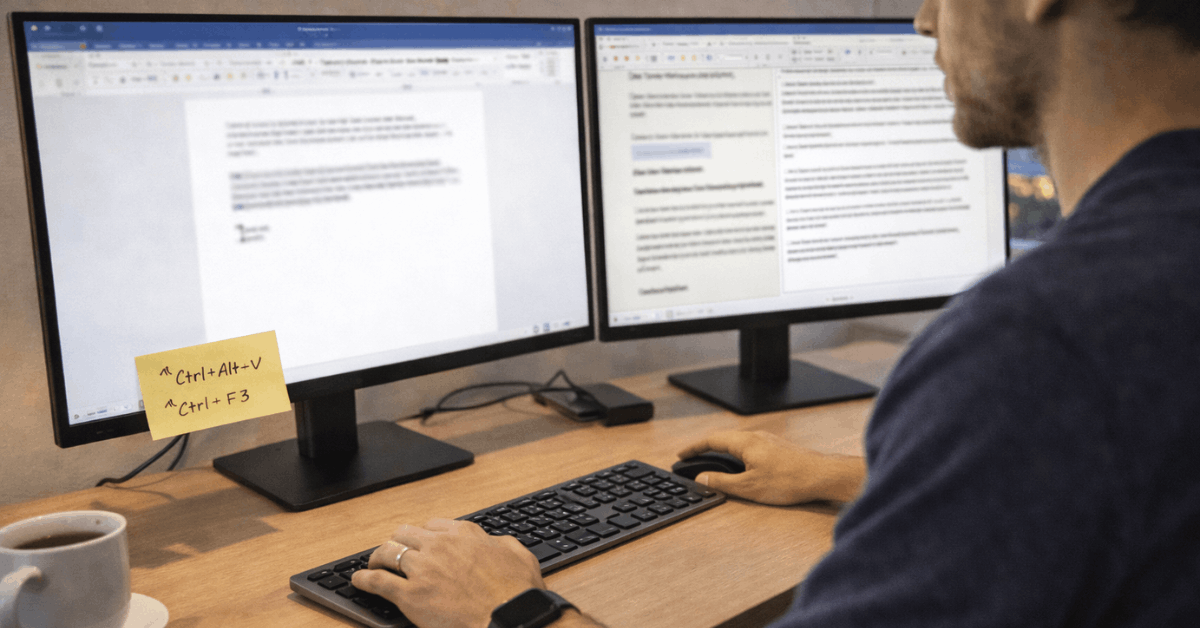
- Spike clipboard Word: Collect multiple selections with Ctrl+F3, then paste the entire set in order using Ctrl+Shift+F3.
- Paste Special in Word: Press Ctrl+Alt+V to paste as unformatted text or match destination formatting to avoid cleanup.
- Jump To Last Edits: Press Shift+F5 to cycle through recent edit locations or return to the last position after reopening.
- Rectangle Selection: Hold Alt and drag to select columns of text, which speeds block edits in tables or code snippets.
Smart Content Handling and Paste Control
Because mixed formatting often slips into documents during research, normalize inputs immediately to reduce cleanup later. Pasting as plain text avoids font and color contamination, then applying Styles restores structure in seconds.
Text prediction shows inline suggestions during typing that you can accept with Tab, which removes repetitive phrasing work while keeping the flow natural.
For canned language such as disclaimers or signatures, AutoText stores approved blocks under short names rather than searching old files.
Precise Replacement Also Saves Time
Running Find and Replace fixes recurring product names, units, or spellings in one pass, while wildcards target patterns such as doubled spaces, stray nonbreaking spaces, or errant punctuation near quotes.
Since long documents benefit from perspective, the Navigation pane shows a live table of contents driven by heading Styles, letting you jump between sections without scrolling.
Cloud Collaboration and Performance
Reliable collaboration depends on shared storage, permission control, and version safety. OneDrive SharePoint sync keeps working copies available across devices, preserves version history for safe rollbacks, and powers real-time coauthoring when policies allow.
Track Changes and Comments maintain an edit trail, then Review options accept or reject changes one at a time or en masse during finalization. Performance improves when edits happen in Draft view during heavy text phases, since Word skips layout rendering that slows large files.
Image compression trims bloated documents, and linking heavy media reduces local file size while preserving fidelity. Clearing temporary files and keeping the build current helps stability across long sessions where multiple add-ins operate.
Visual Comfort, Export, and Whiteboard Tricks
Sustained editing benefits from comfortable contrast and calm visuals. Office Theme settings control light, dark, or system mode so long sessions remain readable without strain. Consistent heading levels also support screen readers and produce accurate PDFs through the standard export path.
PDF export handles page ranges, document properties, and tagging that preserves accessibility structures for distribution. When brainstorming, double-clicking anywhere places the cursor at that point, letting you scatter notes quickly on a page like a canvas before consolidating them under headings.
Since meetings and reviews often require handouts, save a sanitized copy that removes comments and personal information using the Document Inspector prior to final share.
Practical Setup Checklist For The Next Session
Strong sessions grow from a stable base configuration that surfaces the right tools and reduces avoidable frustration. Small adjustments today will pay off across everything drafted this quarter.
- Pin core commands on the Quick Access Toolbar, then assign shortcuts to frequently used macros.
- Create a project template that stores Styles, cover page, headers, and boilerplate sections for repeatable work.
- Enable Track Changes and set markup preferences so reviews stay readable during multi-author edits.
- Turn on text prediction, then accept suggestions selectively to speed routine phrasing without losing voice.
- Store working files in OneDrive or SharePoint to preserve version history and enable safe coauthoring.
Example Daily Flow That Keeps Momentum
Morning drafting starts from a template that loads the correct Styles and sections. Copilot converts bullet outlines into paragraphs that match audience and tone guidance, then you trim and annotate with tracked edits so reviewers see decisions clearly.
Research snippets land as plain text through Paste Special, and Spike collects scattered quotes for a consolidated background section. During the afternoon, a macro inserts a preapproved table and formats it according to house rules, which keeps spacing and captions consistent without manual nudging.
Shift+F5 jumps back to earlier edits when new feedback arrives, then the Navigation pane guides quick reorganizations as headings move. Final export produces a tagged PDF for distribution, and the cloud version history captures a safe snapshot should revisions misfire tomorrow.
Key Shortcuts and Less-Obvious Tools Worth Keeping
Daily speed depends on a small set of reliable keystrokes that eliminate mouse hunts. Ctrl+F3 and Ctrl+Shift+F3 control Spike, Ctrl+Alt+V opens Paste Special, and Alt+drag performs rectangular selections in lists or code.
Shift+F5 cycles edit locations across sessions, while Ctrl+Space clears direct formatting that slipped in during copy-paste. The Quick Access Toolbar calculates simple math typed in the document, then displays the result in the status bar without leaving Word.
Since many teams handle multilingual names and terms, AutoCorrect entries store standardized spellings and symbols that appear on cue. Because structure drives navigation and accessibility, apply Heading 1 through Heading 3 for major sections rather than manual bolding and size adjustments.
Final Takeaway
Strong results in Microsoft Word in 2026 come from mixing AI-assisted drafting, Style-first formatting, minimalist command access, disciplined pasting, and cloud-safe collaboration.
Small daily upgrades add up quickly, and the habits above remove the slow friction that sabotages momentum.