Learning new digital skills can feel intimidating, but it becomes manageable with clear steps. This step-by-step tutorial for everyday tasks guides you through essential digital routines using simple-to-understand tools.
Each section focuses on tasks you do daily—like browsing, managing files, handling documents, and sharing content.
By following these instructions, you can improve your productivity and keep your digital life organized. With consistency, these habits build confidence and save valuable time every day.

Start With A Browser Setup That Works For You
A browser is your main gateway to the digital world. Choosing and configuring it properly sets the tone for how efficiently you complete your daily tasks.
Optimizing your browser environment helps you stay organized and reduces distractions.

This section shows how to set up a default browser, manage bookmarks, and handle downloads efficiently. A few minutes of setup can make your entire workflow feel smoother and faster.
Set Your Default Browser And Turn On Sync
Choosing a primary browser helps avoid confusion between tabs and settings. Vivaldi, known for its built-in customization, is excellent for beginners who want a balanced browsing experience.
Go to settings, select “Default Browser,” and enable sync to keep bookmarks and passwords consistent across devices.
Syncing ensures seamless transitions between your laptop and phone, preventing lost data. Always use the same browser on all your devices to build a predictable and easy-to-use routine.
Create A “Top Five” Bookmark Bar That You Actually Use
Instead of saving countless links, choose your five most-visited sites and pin them to your bookmark bar. This keeps your workspace clean and minimizes decision fatigue.
Effective bookmarking improves accessibility and ensures that important resources are always within reach.
Include essential pages like your email, cloud storage, and an online document editor. Keeping them visible on the top bar also helps you navigate faster without typing repetitive URLs.
Control Downloads So You Always Know Where Files Go
Unorganized downloads create confusion and waste time. Open your browser’s settings and choose a folder dedicated to downloads—preferably “Active Files” or “Work In Progress.”
Always rename files as soon as you download them. Consistent download management reduces clutter and helps when you need to locate files quickly.
Consider setting your browser to ask where to save files each time, ensuring nothing important gets misplaced.
Create A File System That Keeps Things Findable
Once you manage downloads, the next step is organizing your storage. Many people struggle to locate files because they lack a clear structure.

Establishing a simple and reliable folder layout makes it easier to find, move, and back up files.
By using clear categories, consistent naming, and regular cleanup, you can maintain order with minimal effort. This routine should take only a few minutes weekly.
Create A Four-Folder Structure For Daily Life
Start with four main folders: Work, Personal, Archive, and Temporary. Each folder serves a clear purpose and reduces overlap.
For example, “Work” holds professional files, while “Personal” stores documents and media. Categorizing your digital space improves efficiency and prevents duplication.
Move inactive files into “Archive” once a project ends, and use “Temporary” for short-term downloads. Stick with this system so it becomes second nature over time.
Rename Files With A Date-First Pattern For Fast Sorting
A predictable naming structure helps your computer automatically organize files. Use the format “YYYY-MM-DD_FileName” to ensure everything sorts chronologically.
For instance, “2026-01-15_Report.docx” will always appear in order. Date-based naming accelerates retrieval and minimizes the need for manual sorting.
Keep names short but descriptive enough to recognize content at a glance. This method works well for documents, photos, and even saved emails.
Do A Weekly Five-Minute Cleanup That Prevents Piles
Set aside five minutes weekly to delete, move, or rename stray files. Regular cleanup avoids future frustration and helps your storage system stay manageable.
Short, consistent maintenance routines prevent overload far better than occasional large reorganizations.
Use that time to check your “Downloads” or “Temporary” folder and move files to their proper locations. This small habit keeps your computer clean and performance steady.
Handle PDFs And Everyday Documents Without Stress
Documents are part of daily life—receipts, forms, reports, and contracts. Managing them properly ensures everything stays accessible and professional.
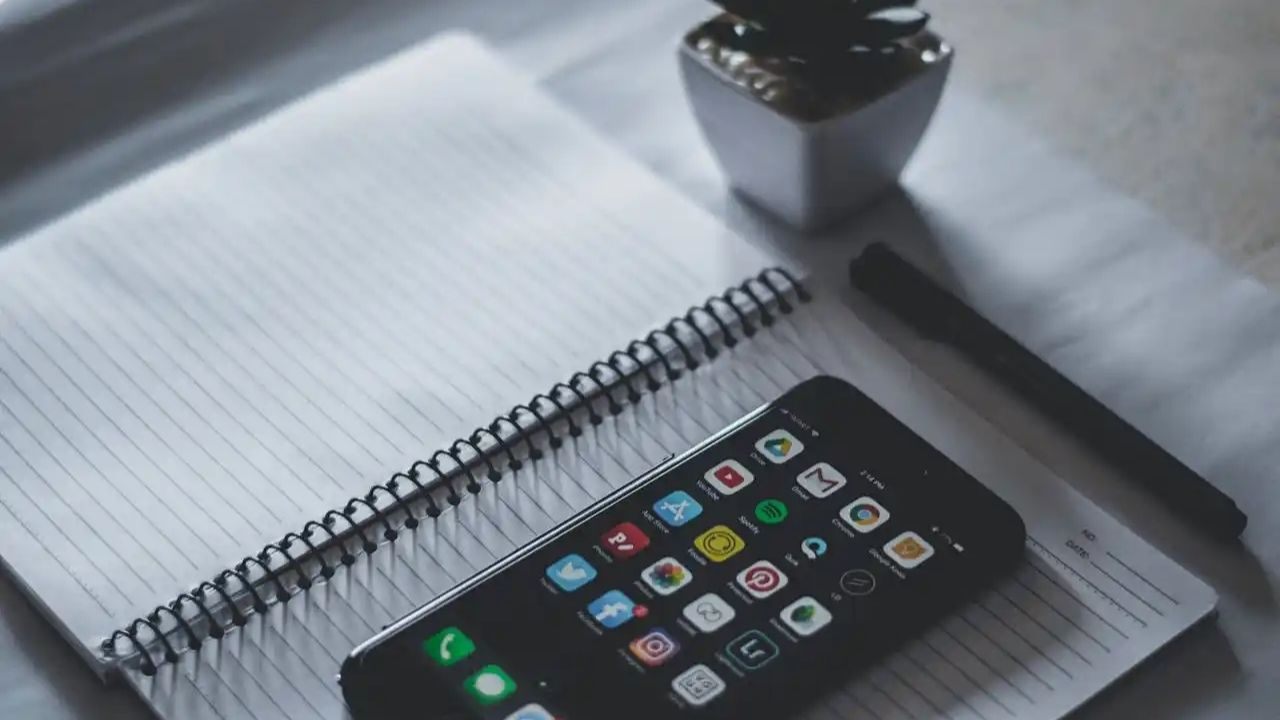
Following a structured approach to document handling helps you scan, convert, and sign files without errors. With a few free tools, you can master this skill easily and never lose track of important paperwork again.
Turn Images Into Clean PDFs With One Tool
PDFgear is an easy-to-use program that converts photos and text files into clean, shareable PDFs. Open the app, upload your image or document, and select “Convert to PDF.” Within seconds, you get a neatly formatted file.
PDF conversion ensures universal readability, so your file looks the same on every device. Always double-check your document’s alignment before finalizing it to avoid uneven margins or missing text.
Compress And Combine Files Without Breaking Layout
Large documents can cause upload issues or delays in sharing. PDFgear allows you to merge multiple files or compress them to smaller sizes without losing quality.
Efficient file compression saves storage space and makes email attachments easier to send. Keep both the original and compressed versions for flexibility.
This step is especially useful for academic submissions and job applications where file size limits apply.
Save Final Versions So You Stop Creating Confusing Copies
Instead of saving endless versions like “Final1” or “Final2,” adopt a naming convention that includes a version number or date. Example: “ProjectProposal_2026-01-15_v3.”
Consistent file labeling avoids duplication and ensures you always open the correct version.
Once approved, move the document into your “Archive” folder to prevent accidental edits. This method creates a clear timeline of progress that you can trace anytime.
Share Files And Links So People Understand What To Do
Sharing is a vital digital skill. Whether you send work documents or personal photos, doing it properly ensures clarity and safety.

A clean file-sharing process saves time and avoids misunderstandings. This section covers how to control permissions, send large files, and confirm delivery. When done correctly, sharing files becomes smooth and professional every time.
Share A Folder With Clear Permissions
Using a secure platform like Tresorit lets you share folders without compromising privacy. You can select “View Only” or “Edit Access” depending on the situation. Proper sharing permissions prevent data leaks and maintain professionalism.
Before sending, verify that the correct people have access. Add a short note explaining what the folder contains so recipients understand its purpose immediately.
Send Large Files With A Link, Not An Attachment
Email attachments often fail when files exceed size limits. Filemail provides a simple solution by generating a downloadable link instead. Upload your file, choose an expiration time, and share the link through email or chat.
Link-based transfers ensure reliability and save time for both sender and recipient. Always mention when the link will expire so the recipient downloads it before the deadline.
Follow Up With A One-Line Confirmation Checklist
After sending files, send a brief message confirming delivery and next steps. For instance: “I’ve shared the report via Filemail; please confirm receipt and share feedback by tomorrow.”
Clear communication eliminates delays and builds accountability. Keep a small record of what you sent and when, especially for work-related files. This simple practice creates a smoother feedback loop and professional consistency.
Conclusion
The digital world rewards consistency more than complexity. By following this step-by-step tutorial for everyday tasks, you can handle common digital routines effortlessly.
Over time, these digital foundations will save you hours and make every task simpler, faster, and more reliable.