In day-to-day calls, small defaults decide call quality, security, and workload. Strong Zoom Settings prevent intrusions, lift audio and video clarity, and automate housekeeping that usually steals attention.
Set the right guardrails once, then reuse them across recurring meetings so every session starts calm and controlled. Strong host habits paired with account-level controls keep distractions low and outcomes consistent.
Security and Privacy: Lock Down Meetings The Right Way
Proactive controls stop most issues long before they appear on screen. This section focuses on practical protections that balance access and control for teams, classrooms, and public events.
Enable A Waiting Room
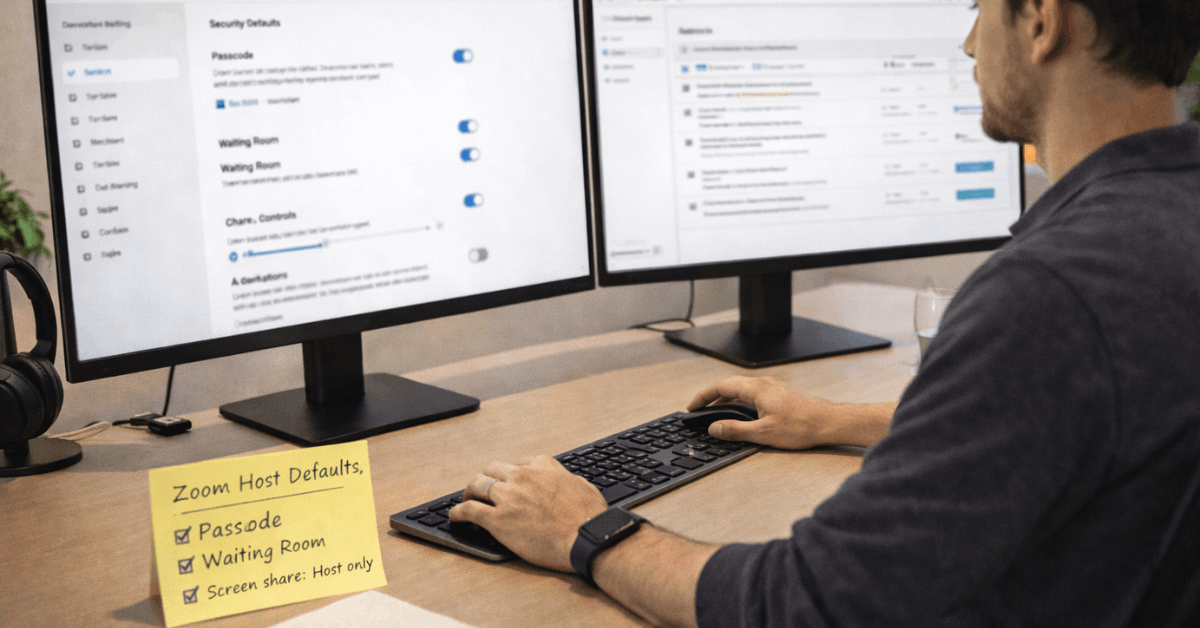
Enable a waiting room to screen entrants before they join the live room. Hosts and co-hosts can admit attendees one-by-one or in batches, which blocks uninvited guests without slowing down expected participants.
Clear labels in the lobby help identify external addresses and unfamiliar names. For recurring internal meetings, enable automatic admission for authenticated users to cut manual work while keeping random visitors out. This is the foundation of modern Zoom security settings.
Require A Passcode For Every Meeting
Strong passcodes reduce drive-by intrusions and keep Personal Meeting ID sessions private. Set organization-wide passcode rules if possible, including minimum length and character requirements.
Avoid reusing old codes across public webinars or posted events. For large sessions, pair Zoom passcode controls with the waiting room so a leaked code alone never grants entry.
Control Screen Sharing
Restrict screen sharing to Host Only as the default to prevent surprise presentations. Flip to “All Participants” when it is time to collaborate and switch back when finished.
Advanced sharing options let the host cap simultaneous shares, which is helpful in training sessions where only one feed should be visible. Treat Zoom screen sharing as a controlled resource rather than a free-for-all.
Mute Participants On Entry
Auto-muting upon entry preserves focus in large rooms and avoids microphone feedback. Combine mute-on-entry with a brief ground rule in chat that explains when to unmute. For town halls, keep the floor closed and use reactions or Q&A so speakers stay audible.
Disable File Transfer and Private Chat
Disable in-meeting file transfer to reduce the risk of malicious attachments during open events.
Private chat can be limited or disabled so attention stays on the speaker and shared content. For team calls, allow chat but keep file sharing inside your approved storage, where antivirus and retention policies already apply.
Lock The Meeting After Everyone Arrives
Once all expected attendees are present, lock the meeting to freeze entry. Locked rooms ignore late joiners even if they possess the meeting ID and passcode. This habit eliminates most last-minute interruptions during executive briefings or exams.
Turn On Two-Factor Authentication
Protect the host account with two-factor authentication through an authenticator app or phone verification.
Compromised host credentials put recordings, settings, and contact details at risk. Enforcing 2FA for admins and frequent schedulers closes an easy attack path and reinforces broader Zoom security settings.
Audio And Video: Look And Sound Clear
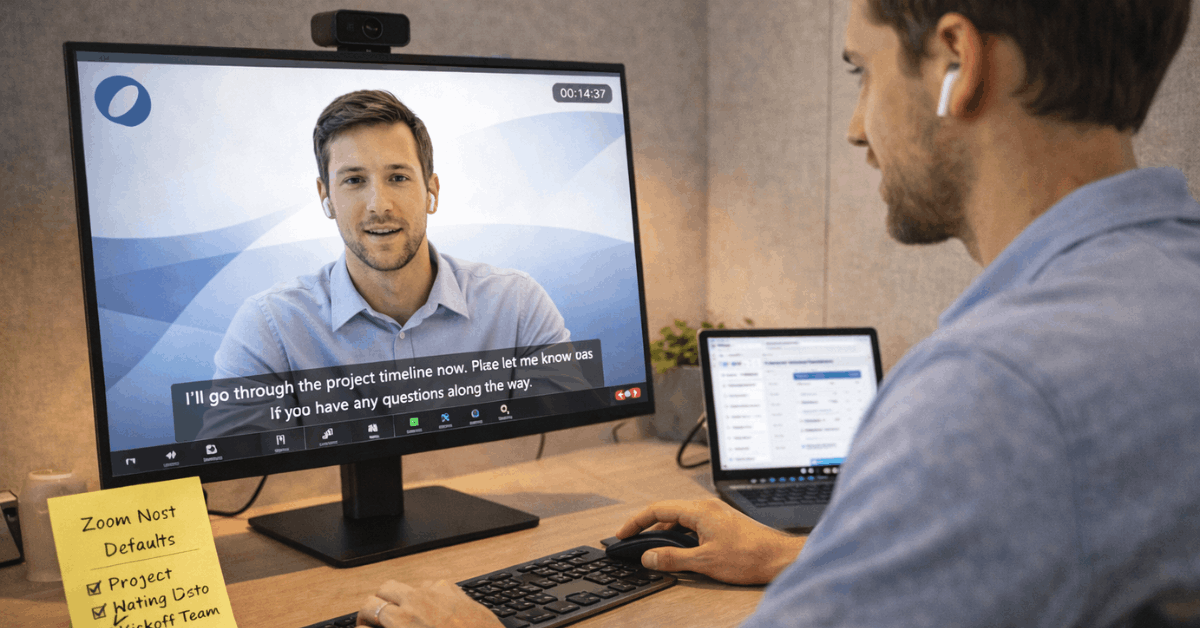
Well-chosen audio and video options make voices cleaner and faces easier to read. These settings handle most lighting, bandwidth, and background issues without specialist gear.
Enable HD Video
Enable HD in video settings to unlock 720p, then request 1080p where your plan and account allow it. Stable bandwidth and adequate lighting still matter because HD boosts detail while amplifying noise in dim rooms. Treat Zoom HD video as a quality ceiling, not a cure-all, and test it on the connection you plan to use.
Adjust For Low Light
Use Auto low-light adjustment to lift exposure in dim spaces. Manual controls help when backlighting or mixed color temperatures confuse the camera. A simple desk lamp placed at eye level often does more than any software toggle.
Touch Up My Appearance
Light skin smoothing can reduce minor distractions on camera. Keep the effect modest so edges remain sharp and text on physical props stays readable. Over-processing tends to blur glasses and fine details.
Manage Background Noise
Set noise suppression to Auto for most calls to remove keyboard clicks, fans, and light chatter. For music lessons or podcast-style audio, enable Original Sound so the mic captures full dynamics without aggressive filtering. Reserve heavy suppression for chaotic environments, since it can clip quiet syllables.
Test Audio and Video
Run a quick mic, speaker, and camera test before important sessions. Real checks beat assumptions after driver updates, new USB hubs, or room changes. Short confirmations prevent the awkward first minute where nobody hears anything.
Productivity Boosters That Save Time
Reliability improves when calendar, updates, and meeting hygiene work in the background. This set of options trims friction before and after live calls.
Mute On Entry and Start With Video Off
Default to joining muted, and optionally start with your camera off. A two-second glance at surroundings and framing avoids surprises. Calendar reminders can include a quick note about expected camera use, which sets norms for participants.
Use Virtual Backgrounds The Right Way
Pick a clean Zoom virtual background to hide clutter or display branding. Images with a 16:9 aspect ratio and at least 1280×720 resolution look sharper and flicker less. A neutral wall, even lighting, and a bit of distance from the background improve edges dramatically, especially without a green screen.
Connect Your Calendar
Integrate Google Calendar or Outlook so scheduled meetings sync in both directions. Bi-directional sync keeps join links accurate after time changes, reschedules, or room swaps. For appointment links, Zoom Scheduler can expose availability and auto-create meetings after selection.
Enable Auto Updates
Turn on automatic updates to receive security patches and new capabilities without manual checks. Many meeting headaches trace back to version mismatches, especially around features like captions, reactions, and breakout room improvements.
Use Transcripts and Summaries
Enable cloud recording transcription to create searchable notes after sessions. Automated captions aid accessibility during the call, and the transcript supports follow-ups and action reviews. Keep retention policies aligned with legal and privacy requirements for your organization.
Smart Sharing and Recording Defaults
Sharing and recording create the most common privacy and clarity issues. Intentional defaults help you show the right content and capture only what is necessary.
Choose Window Sharing Over Entire Screen
Select a single window to keep notifications, personal messages, and desktops out of view. Window-level sharing also reduces visual clutter for participants and makes it easier to track what the audience is seeing. When switching apps frequently, pause share while lining up the next window.
Optimize For Video When Needed
Toggle “Share sound” and optimize for video when playing clips to the room. This routes the system audio directly and improves synchronization. Turn it off afterward to return to normal voice priority and avoid echo when others speak.
Set Clear Recording Rules
Confirm the default save location, layout, and whether shared screens are captured. Team accounts can restrict local recording and centralize cloud recording for compliance. For public events, add an on-screen notice that indicates recording is active and where replays will live.
Control Who Can Record
Assign recording privileges to hosts and designated co-hosts only. If a participant needs a copy, provide the official file or enable recording temporarily, then revoke access. Consistent Zoom recording settings prevent shadow archives and keep sensitive content in the right system.
Accessibility And Personalization
Inclusive meetings help participants stay engaged and reduce fatigue. Personal tweaks also make the app feel comfortable during long days.
Turn On Captions and Adjust Readability
Enable automated captions for meetings and webinars, then adjust caption font size and color in Accessibility settings. Participants can pop out the transcript panel when needed or keep captions pinned at the bottom. These options improve comprehension for non-native speakers and noisy environments.
Use Dark Mode and Tidy The Gallery
Switch to dark mode to reduce eye strain and extend battery life on OLED laptops. Hide non-video participants to keep attention on speakers and critical visuals. Gallery settings can cap tiles per screen so faces stay large enough to read.
Set Reaction Skin Tone
Pick a reaction skin tone in General settings so emoji feedback represents you accurately. Consistent reactions reduce ambiguity when quick, lightweight acknowledgments carry decisions or consensus.
Try Apps Only Where They Add Value
Install apps that reduce manual work, such as note-taking, timers, or whiteboards. The Zoom App Marketplace lists several thousand integrations across storage, productivity, and creative tasks. Start small, measure real gains, and prune anything that adds noise.
Final Takeaway
Clear, consistent Zoom Settings cut risk, raise clarity, and save time on every call.
Treat security as the baseline, audio and video as the craft, and productivity options as quiet force multipliers. Set them once, review quarterly, and keep meetings focused on the work rather than the tool.