
A stolen password gets an attacker to your front door. Without 2FA, that door is already open. With a bad 2FA setup, it is just a slightly heavier door.
Most guides walk you through enabling 2FA as if it were a checkbox. Turn it on, done, safe. That framing skips the part where half the people who enable it still lose their accounts because the setup itself is fragile.
I think SMS-based 2FA gives people a false sense of security that is more dangerous than having no second factor at all. A false sense of security changes how you behave. And that behavior shift is exactly what attackers count on.
This is what a correctly built 2FA setup actually looks like.
What Two-Factor Authentication Actually Does to Your Account Security
Two-factor authentication adds a second proof step after your password. Usually a time-based code, a push approval, or a physical key tap. The point is that a leaked or guessed password alone cannot open your account.
That protection matters most on accounts that control everything else. Email sits at the top of that list because it can reset passwords for nearly every other service you use.
Cloud storage, password managers, social accounts, and anything tied to payments follow closely behind.
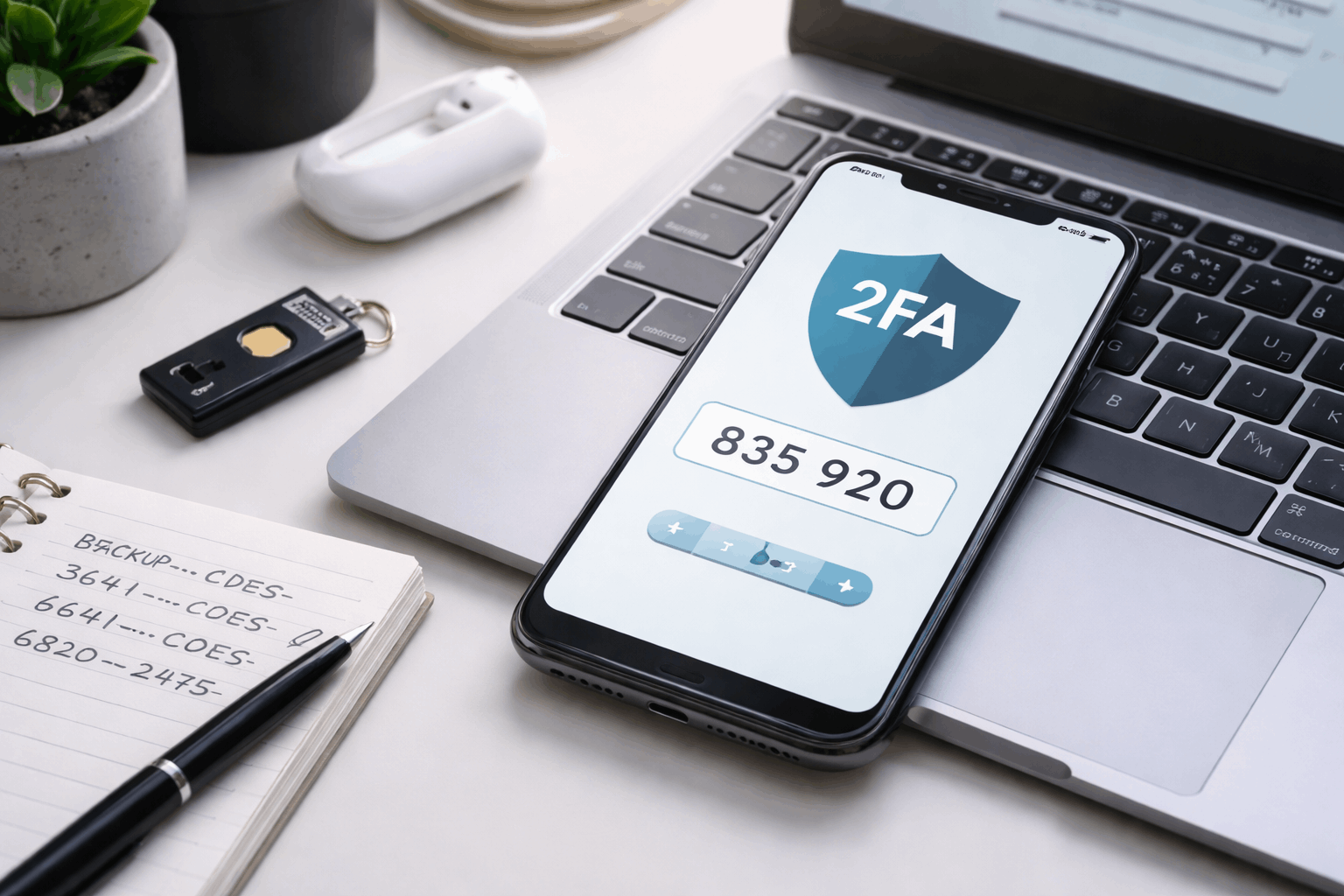
The method you pick changes everything
Not all 2FA is equal, and this is where most guides fail you.
- SMS codes are the most common starting point and the weakest option. They can be intercepted through number takeovers or weak phone carrier security. They also disappear when your number changes, which creates lockout problems at the worst moments.
- Authenticator apps generate time-based codes directly on your device. No signal required, no carrier involved. This is where most people should start.
- Security keys are small physical devices you plug in or tap. They offer the strongest phishing resistance available to regular users. If you handle payments, manage work access, or deal with sensitive client data, a security key is worth considering seriously.
| Method | Phishing Resistance | Lockout Risk | Best For |
|---|---|---|---|
| SMS codes | Low | Medium-High | Last resort only |
| Authenticator app | Medium-High | Medium | Most everyday accounts |
| Security key | Very High | Low (with backup) | High-value or work accounts |
The right choice depends on what you are protecting and how likely you are to lose access to your phone.
Also read: 2026 Guide to Learning a New Digital Tool Without Losing Your Mind
How to Set Up 2FA So It Does Not Fail You Later
Most 2FA problems do not happen at login. They happen weeks later during a phone upgrade, a number change, or a device reset. Setting it up correctly from the start prevents most of those situations.
Do these things before you enable anything
Update your password to something unique and strong before touching 2FA settings. Ideally, use a password manager. Enabling a second factor on a weak or reused password does not fix the underlying problem.
Then enable 2FA in your account’s security settings, follow the prompts, and immediately sign out and sign back in to confirm it works. That test takes thirty seconds and tells you whether the setup actually took.
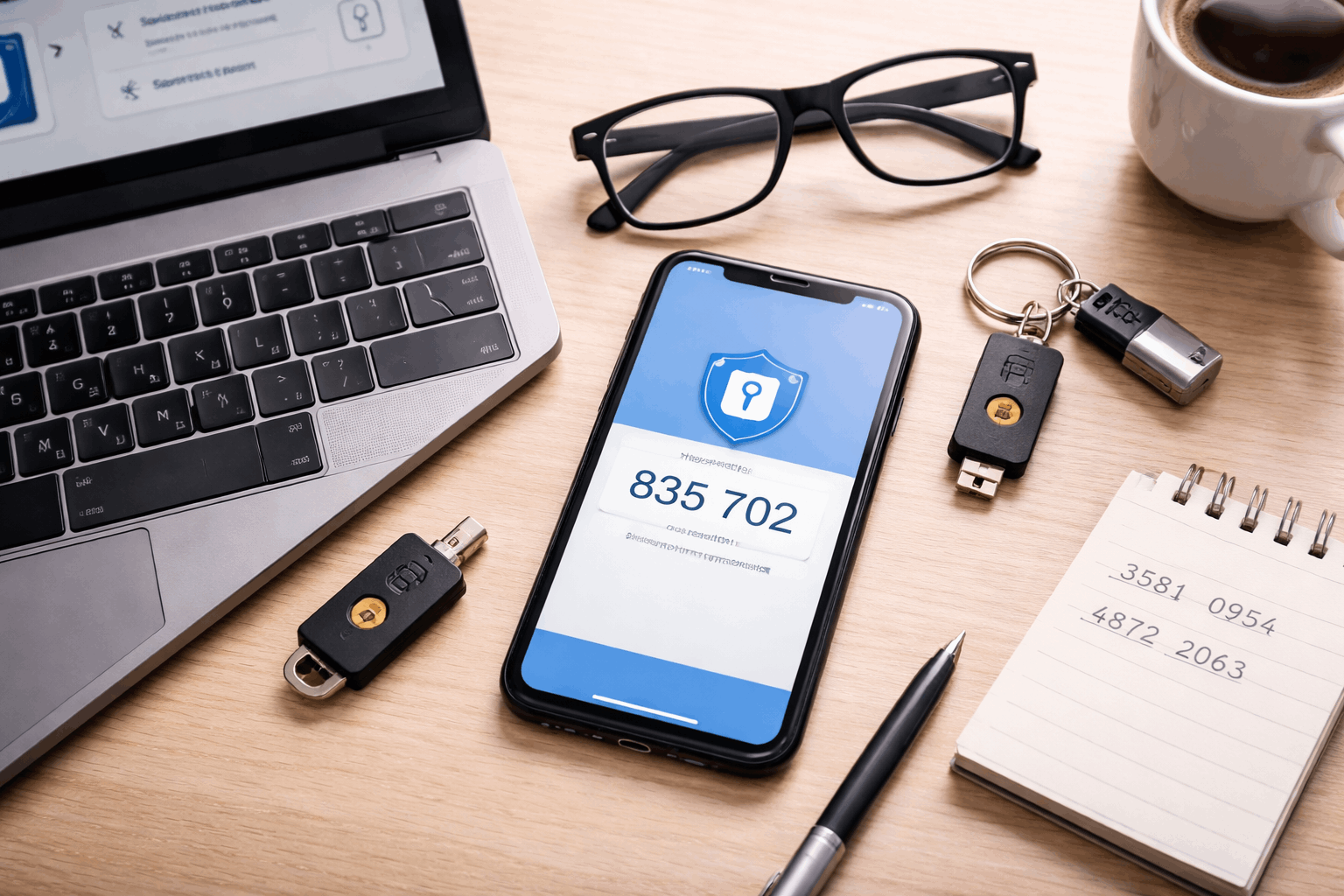
Backup codes are not optional
Backup codes are one-time codes that let you regain access when your phone is unavailable, stolen, or wiped. Most platforms generate them during setup. Most people screenshot them and drop them in an unprotected photo album.
Store backup codes in a password manager or an encrypted note. Not in your photos. Not in a plain text file. Not in a folder shared with anyone else. If you think someone saw your codes, regenerate them immediately and delete the old set.
The NIST Digital Identity Guidelines treat backup recovery as a core component of any authentication setup, not an afterthought. Most consumer advice treats it as optional. That gap is where account lockouts happen.
The Push Notification Problem Nobody Talks About
Push-based 2FA is convenient. It is also the method attackers abuse most aggressively right now.
The attack works like this: an attacker has your password. They trigger a login attempt. Your phone buzzes with an approval prompt. If you tap Approve out of habit, confusion, or annoyance from repeated prompts, the attacker is in.
Never approve a push prompt you did not initiate. This sounds obvious. It is less obvious at 11 pm when your phone has buzzed three times, and you want it to stop.
What to do when an unexpected prompt appears
An unexpected login prompt means someone has your password. Treat it that way.
- Do not approve the prompt
- Change your password immediately
- Check recent sign-in activity in your account settings
- Remove any devices you do not recognize
If your authenticator app or platform offers number-matching prompts, enable it. This feature requires you to match a number shown on the login screen to your phone, which eliminates accidental or manipulated approvals.
The Trick Attackers Use to Get Your Code in Real Time
This one deserves its own section because it catches people who already use 2FA correctly.
Attackers sometimes impersonate support staff or send fake verification pages designed to capture your code the moment you enter it. You log into what looks like your account. You enter your 2FA code. The attacker, watching in real time, uses that code before it expires.
A real service will never ask you to read your 2FA code to someone over chat, phone, or email. Full stop. No support agent needs your code. No verification process requires you to say it out loud or type it into a third-party form.
I was skeptical about how common this attack is until I looked at the Anti-Phishing Working Group’s 2023 phishing activity report, which documented phishing sites specifically designed to relay 2FA codes in real time. The volume was significant.
If you entered a code on a site you are not certain about, assume the password is already compromised and update it immediately.
What to Do When You Get a New Phone
Most people lose account access during phone upgrades, not during attacks. The authenticator app on the old phone stops working. The backup codes are nowhere. The recovery email is outdated. The lockout is complete.
Before switching phones, open your authenticator app and use its built-in transfer or export feature.
Some apps let you scan a QR code from the old device to the new one. Others require you to re-scan original QR codes from each service. Know which method your app uses before the old phone is factory reset.
After transferring, sign into each account to confirm the new codes work. Then remove the old device from your trusted devices list in each account’s security settings.
A few checks worth running after any phone change:
- Recovery email address: Still current and accessible
- Recovery phone number: Still your number
- Trusted devices list: No old or unrecognized entries
- Backup codes: Still stored somewhere you can access without that phone
Questions People Ask About Two-Factor Authentication
Q: Is SMS 2FA better than no 2FA at all? Yes, but not by as much as most people assume. SMS adds friction that stops automated attacks. It does not stop targeted attacks where someone has your phone number and can redirect your texts. If an authenticator app is available, use it instead.
Q: Can I use 2FA on accounts I share with someone else? Shared accounts and 2FA create real problems because only one device gets the codes. Some platforms handle this with multiple trusted devices or team-level access management. For personal accounts, avoid sharing credentials and 2FA access at the same time.
Q: What happens if I lose both my phone and my backup codes? Account recovery becomes significantly harder and sometimes impossible without them. Most platforms offer an identity verification process, but it can take days and is not guaranteed. This is why a second method plus stored backup codes is non-negotiable.
Q: How often should I review my 2FA setup? After any major life change: new phone, new number, new email, new job, new country. Otherwise, a quick audit every six months catches expired recovery info and outdated trusted devices before they cause problems.
Q: Is a security key worth buying if I only have a few accounts? For most people, no. An authenticator app handles the majority of accounts well. A security key earns its place if you manage payments, handle client data under NDA, or have been targeted before. Start with an app and upgrade if your situation changes.
Conclusion
A correctly built 2FA setup is one you can explain out loud in under sixty seconds, including your backup plan.
If you cannot do that, the setup has gaps worth closing today. Enable an authenticator app on your most critical accounts first, store backup codes somewhere only you can access, and treat every unexpected login prompt as a signal to act.
Security habits built on that foundation hold up when things go wrong.









