
Two-factor authentication (2FA), also called multi-factor authentication (MFA), is the single most important feature to learn to use correctly.
It adds a second check when you sign in, so a stolen password alone is not enough to break into your account.
When you set it up well, you reduce the risk of lockouts and make account recovery much easier.
Understand What 2FA Really Does
2FA adds an extra “proof” step after your password, usually a code, approval prompt, or security key tap.
It protects you when passwords are reused, leaked in breaches, guessed, or stolen through phishing.
It matters most on accounts that control money, private messages, files, saved passwords, or work access.
It only works as intended when you pick a strong method and keep your recovery options up to date.
Common 2FA Methods You’ll See
SMS codes are easy, but they can be intercepted through number takeovers or weak phone account security.
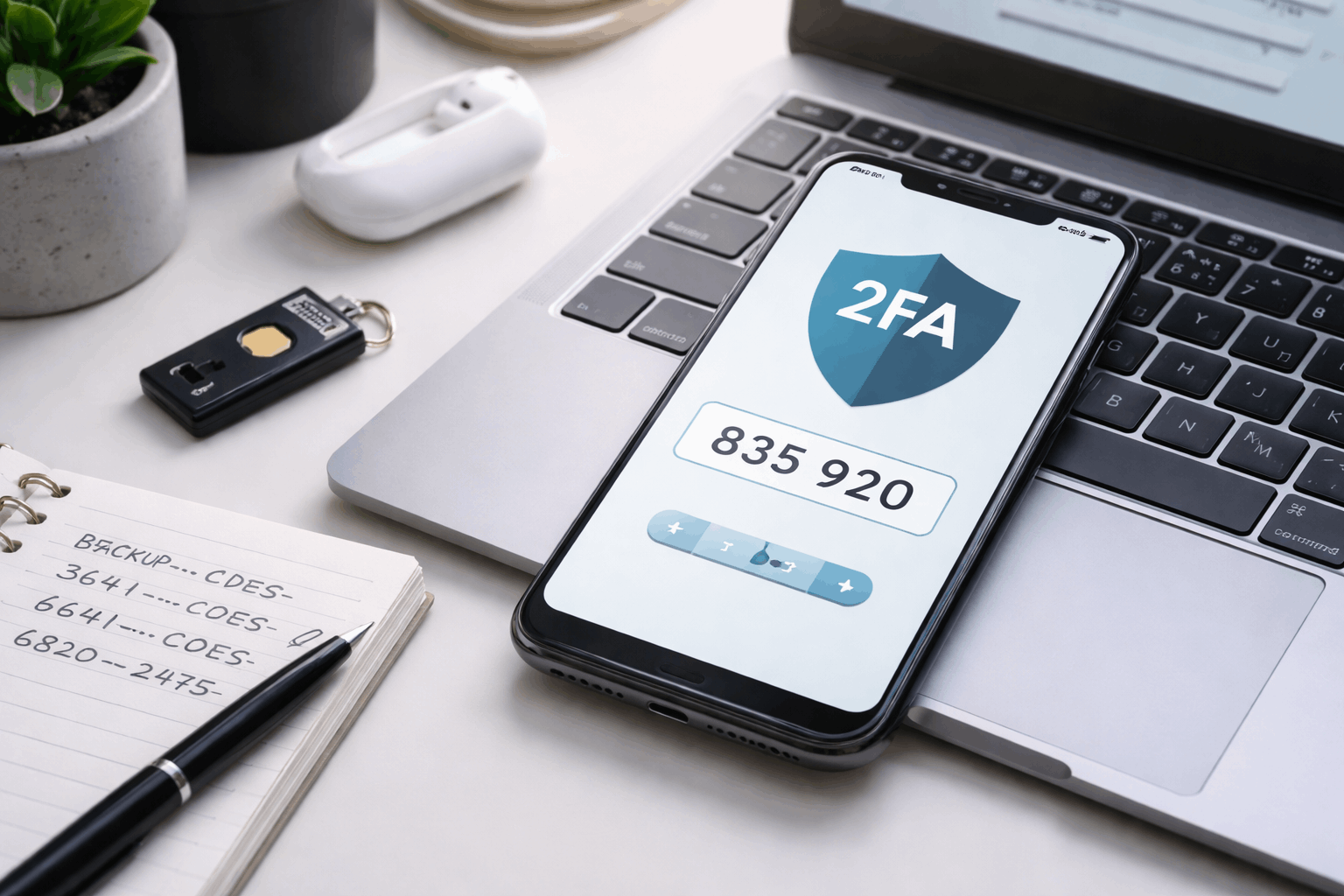
Authenticator apps generate time-based codes on your device and usually provide stronger protection than SMS.
Security keys are small physical devices that you plug in or tap, and they offer strong phishing resistance.
When 2FA Helps Most
Email accounts should always use 2FA because they can reset passwords for almost everything else you use.
Cloud storage and note apps should use 2FA because they often hold personal documents, photos, and backups.
Social accounts should use 2FA because hijacks can lead to scams against your friends or followers.
Choose the Best 2FA Option for Your Situation
Start by deciding how much security you need and how likely you are to lose access to your phone.
For most people, an authenticator app is the best mix of strong protection and everyday convenience.
If you handle sensitive work, manage payments, or want maximum phishing protection, use a security key.
Use SMS only when there is no other option, and treat it as “better than nothing,” not the final setup.
Set Up 2FA the Right Way the First Time
Before you turn anything on, update your password to something unique and strong, ideally with a password manager.
Then enable 2FA in the tool’s security settings and follow the prompts to add your chosen method.
Immediately confirm the setup by signing out and signing back in, so you know it works on your devices.
Finish by adding safe backups, because most 2FA problems happen during phone changes, resets, or lost devices.
Use Backup Codes Like a Safety Net
Backup codes are one-time codes you store safely to regain access if you lose your phone or authenticator app.
Save them in a password manager, an encrypted note, or a secure offline place, and avoid leaving them in plain text.
If you suspect someone saw your backup codes, regenerate them right away and delete the old ones.
Add a Second Trusted Method
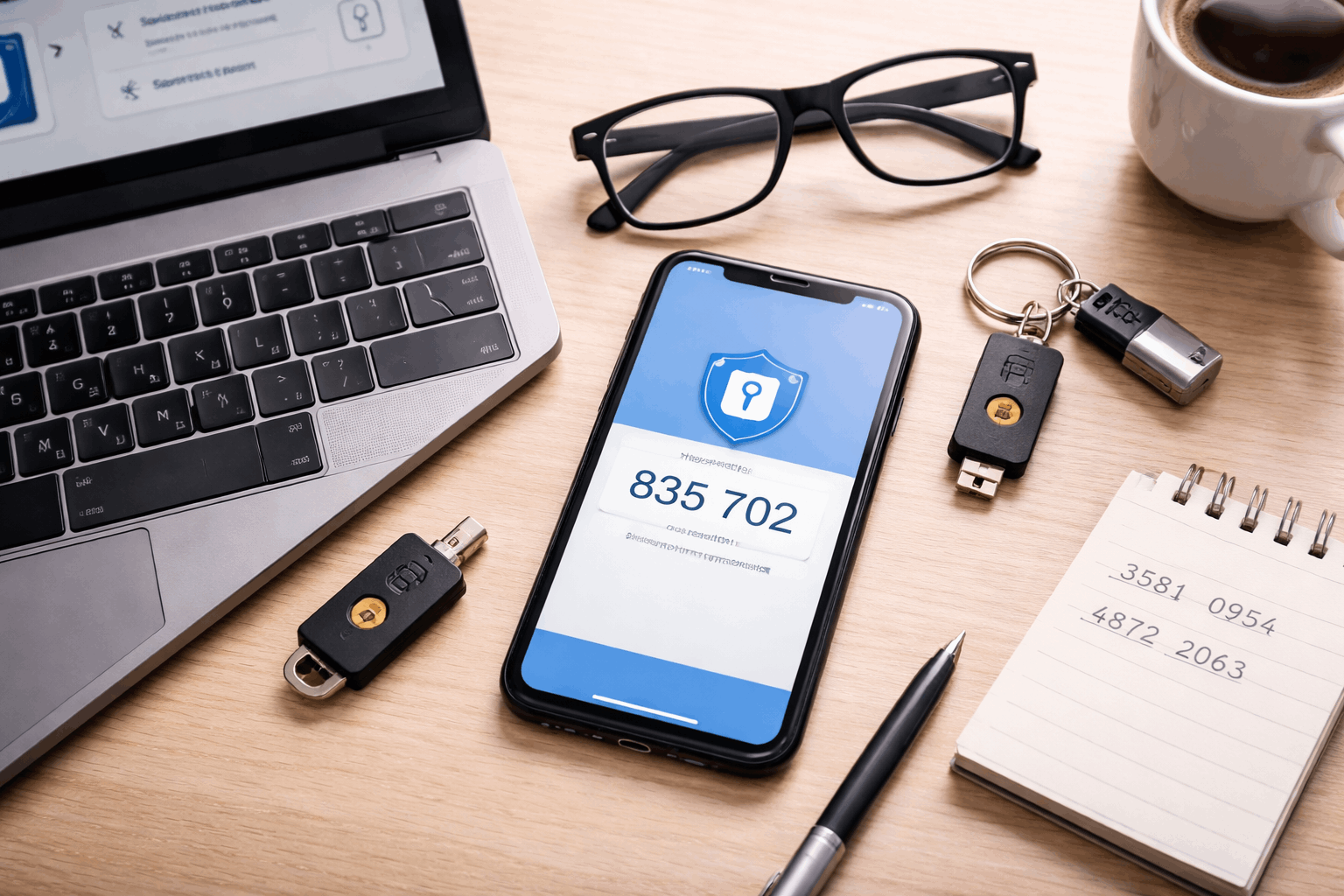
Add at least two methods when possible, like an authenticator app plus a security key, or an app plus backup codes.
This reduces the chance of lockout when you replace your phone, uninstall apps, or lose access while traveling.
If the tool lets you name devices, label them clearly so you can remove old phones and keep your list accurate.
Use 2FA Daily Without Getting Tricked
Treat unexpected login prompts as a warning sign, because they can mean someone has your password.
Never approve a push notification you did not initiate, even if it looks normal or arrives repeatedly.
When signing in, double-check the website address or app source, because phishing often imitates real login screens.
If something feels off, stop the login, open the service directly from a trusted bookmark or app, and try again.
Handle Push Prompts Safely
Push prompts are convenient, but they can be abused if you approve them out of habit or annoyance.
If a tool offers “number matching” prompts, enable it because it reduces accidental approvals.
When you get a surprise prompt, change your password immediately and review recent sign-in activity.
Avoid “2FA Bypass” Traps
Attackers often ask for your code in real time by pretending to be support or sending a fake verification page.
A real service will not ask you to read your 2FA code to someone over chat, phone, or email.
If you entered a code on the wrong site, assume the password is compromised and update it right away.
Plan for Phone Changes, Loss, and Recovery
Most people lose access because they switch phones without transferring authenticator codes or saving backups.
Before a phone upgrade, move your authenticator accounts using the app’s transfer option or re-scan QR codes safely.
If you lose your phone, use backup codes or a second method to sign in, then remove the lost device from settings.
Review recovery email, recovery phone, and trusted devices so your account can be restored without risky shortcuts.
Quick Checklist and Common Mistakes to Avoid
A correct 2FA setup is secure, recoverable, and easy enough that you will keep it enabled permanently.
The goal is to reduce risk without locking yourself out when life changes, like travel, new phones, or new numbers.
You should be able to explain your own setup in one minute, including your backup plan, because confusion causes mistakes.
Use the checklist below to audit your accounts and fix weak spots in under an hour.
Mistakes That Cause Lockouts or Hacks
Relying only on SMS codes and ignoring backups can leave you stuck when your number changes or service fails.
Approving unexpected push prompts can grant access to an attacker even when your password is strong.
Keeping backup codes in plain screenshots, unprotected notes, or shared folders can turn your safety net into a vulnerability.
Conclusion
2FA is the most important feature to learn because it protects your accounts even when passwords fail.
Use an authenticator app or a security key, save backup codes safely, and add a second method so you avoid lockouts.
Review your security settings after device changes and treat unexpected prompts as a red flag to use it more accurately and professionally.








