
Bitwarden is one of the most essential tools to learn because it protects your accounts while saving you time every day.
It replaces “reuse the same password” habits with a safer system you can actually stick with.
It also makes logging in faster on your phone and computer because it can autofill securely.
What Bitwarden Is and Why It Matters
Bitwarden is a password manager that stores your logins in an encrypted vault you unlock with one strong master password.
It helps you use unique passwords everywhere, which reduces damage if one website gets hacked.
It can generate strong passwords for you, so you do not have to invent them under pressure.
It also syncs across devices, so your passwords follow you without messy notes or screenshots.
Set Up Bitwarden in 10 Minutes
Start by deciding where you will use it most, like a browser on your laptop and your phone.
Plan to use a strong master password and a second factor, because this is your key to everything.
Keep your first setup simple, because you can improve folders and naming after you are running.
Once the basics work, you can import old passwords and clean them up gradually instead of all at once.
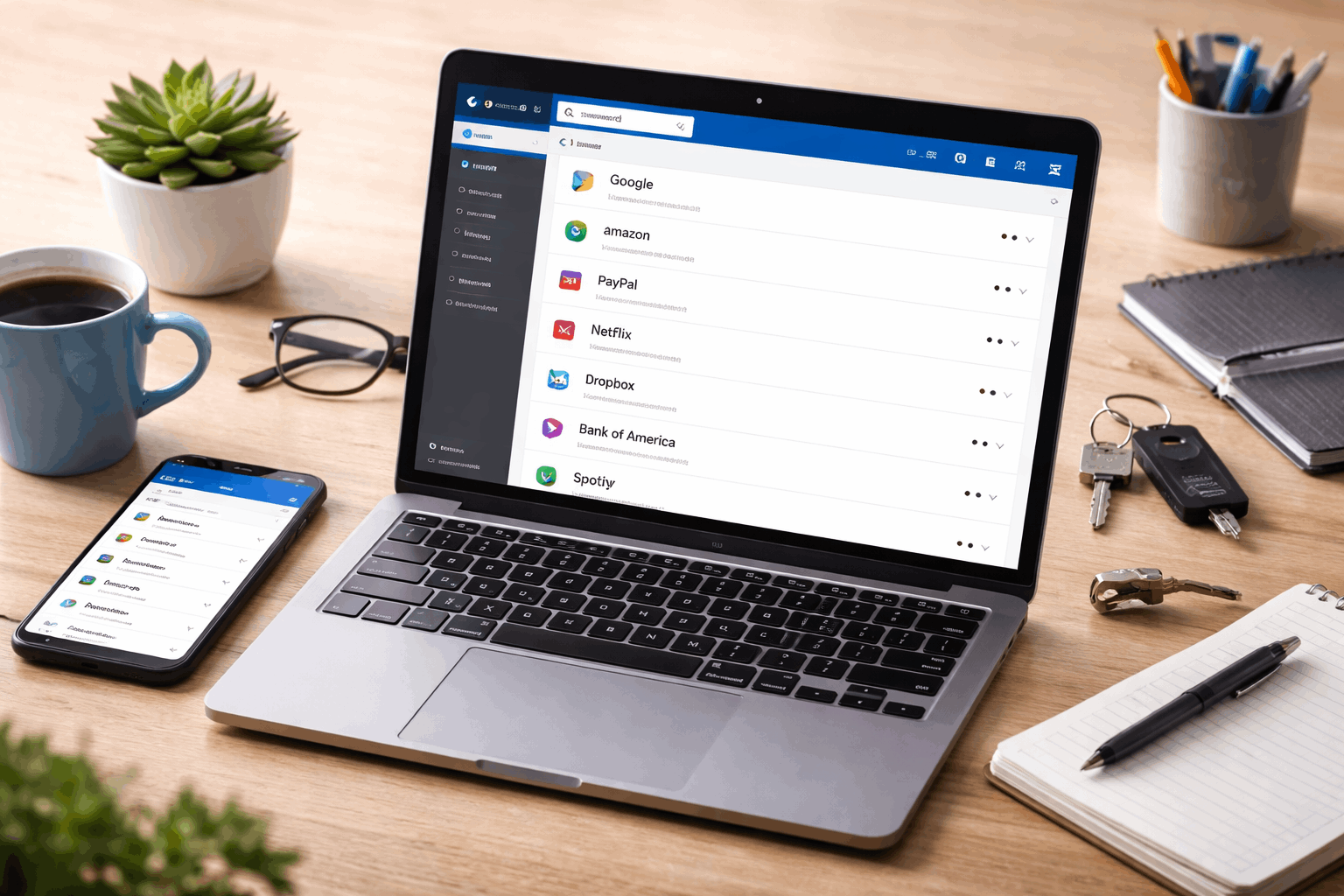
Create your account and secure it
Create your Bitwarden account and choose a master password that is long, memorable, and not reused anywhere.
Write your master password in a safe offline place at first, because losing it can lock you out.
Enable two-step login, which adds an extra layer of protection even if someone guesses your master password.
Install the apps and browser extension
Install the Bitwarden browser extension, because that is what makes autofill and saving logins feel effortless.
Install the mobile app too, because many logins happen inside apps, not only on websites.
Log in on both devices and confirm they show the same vault, because syncing should feel instant.
Do a quick vault check and sync test
Add one test login manually, then open it on your other device to confirm it appears there.
Try searching for that login using the vault search bar, because search is faster than folders.
Check that autofill prompts appear on a login page, because that is your “everything is working” signal.
Save, Generate, and Autofill Passwords
The easiest way to use Bitwarden daily is to let it save new logins as you create accounts.
It is also smarter to generate passwords inside Bitwarden, because you will never need to remember them.
Autofill should be your default habit, because copying and pasting passwords increases mistakes and risk.
If autofill feels confusing at first, focus on one device first, then add the next device later.
Save new logins the right way
When you sign in to a site, accept the “save login” prompt so the vault captures the correct username and URL.
Rename the entry clearly, like “Banking” or “School Portal,” so search results are obvious later.
If a site has multiple logins, add notes like “personal” or “family,” so you can choose the right one quickly.
Generate strong passwords without stress
Use the password generator and choose a longer length, because length is usually more important than complexity tricks.
Save the generated password directly into the new vault entry, because storing it anywhere else creates clutter.
If a website rejects certain characters, adjust the generator options and regenerate until it accepts them.
Make autofill smooth on the browser and phone
On a computer, click the extension icon and select the right login when you are on the correct site.
On a phone, enable autofill in system settings, then pick Bitwarden as your autofill provider.
Practice once on a common login, because that first successful autofill makes the whole tool feel easy.
Share Safely With Family or Teams
Sharing passwords via text message is risky, even when you trust the recipient.
Bitwarden can share access in a controlled way, which is better than sending a password you cannot “unsend.”
This is useful for streaming services, school accounts, club tools, and household subscriptions.
It also reduces confusion, because everyone uses the same updated login instead of outdated copies.
Use shared collections for group logins
Create a shared space for group accounts, so personal logins stay separate from household or team logins.
Put only the entries that truly need sharing in that space, because fewer shared items means fewer mistakes.
If someone leaves the group, remove their access, because access control is the whole point of sharing.
Share access without oversharing
Share the login entry instead of the raw password, because that keeps sharing inside the vault system.
Use permissions that fit the situation, like view-only access for people who should not change passwords.
Agree on one person to update shared passwords, because too many editors can create lockouts.
Quick Troubleshooting and Best Practices
Most problems come from small setup misses, like autofill permissions or saving the wrong website URL.
Fixes are usually quick if you know where to look, like extension settings, vault entry URLs, and device autofill options.
A few habits keep your vault clean, which makes the tool feel easy instead of messy.
If you do one maintenance session per month, your password security improves without feeling like homework.
If autofill does not show up
Confirm the browser extension is enabled, because a disabled extension cannot detect login fields.
Check the vault entry URL, because autofill matches the site address and wrong URLs break matching.
On mobile, reselect Bitwarden as the autofill provider, because system updates sometimes reset permissions.
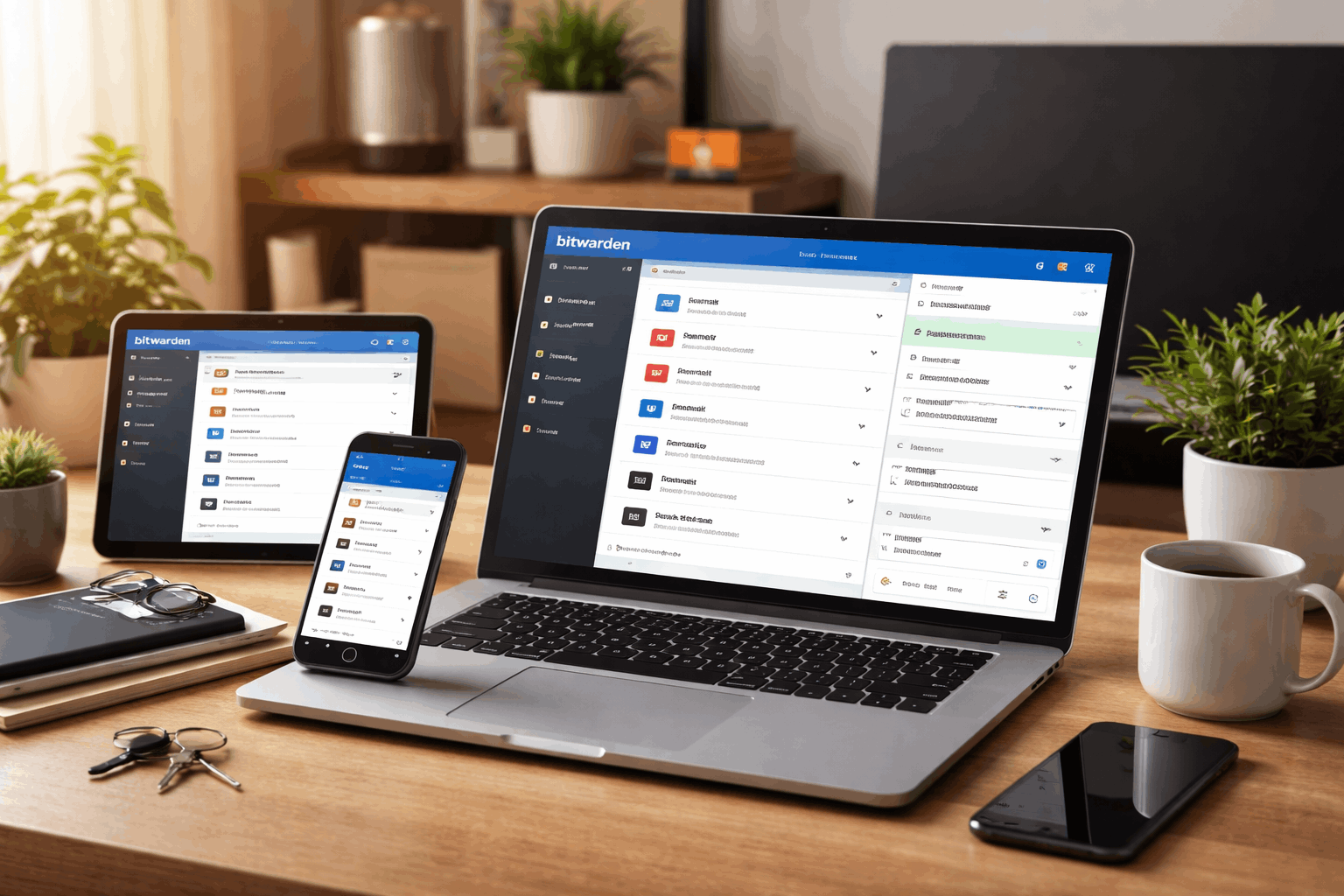
If you imported passwords and everything looks messy
Deduplicate entries by searching for the same site name, then keep the newest one and delete the rest.
Standardize names, like “Amazon” instead of “amazon.com login,” because clean names make searching faster.
Move key logins into a few folders, but rely on search first, because too many folders slow you down.
If you worry about losing access
Keep your master password safe and private, because it is the one thing you must never forget.
Use two-step login and save recovery options carefully, because that prevents lockouts and account takeovers.
Treat your vault like your digital keys, because a calm system beats panic resets every time.
A Simple Next Step to Make This Stick
Pick three accounts you use daily and move them into Bitwarden first, so you feel immediate payoff.
Set up two-step login on those accounts next, because that is where security upgrades matter most.
Then replace reused passwords gradually, because steady progress is easier than a stressful one-day overhaul.








