In day-to-day browsing, small tweaks add real comfort and speed. Customizing Google Chrome Settings lets you match visuals to taste, surface faster shortcuts, and tune readability for long sessions.
Across platforms, Chrome places most personalization under Appearance and a convenient “Customize Chrome” sidebar on the New Tab page.
According to StatCounter’s recent global data, Chrome holds roughly seventy percent market share worldwide, so these upgrades benefit a very large slice of users.
Quick Start: Where Chrome Puts Personalization Controls
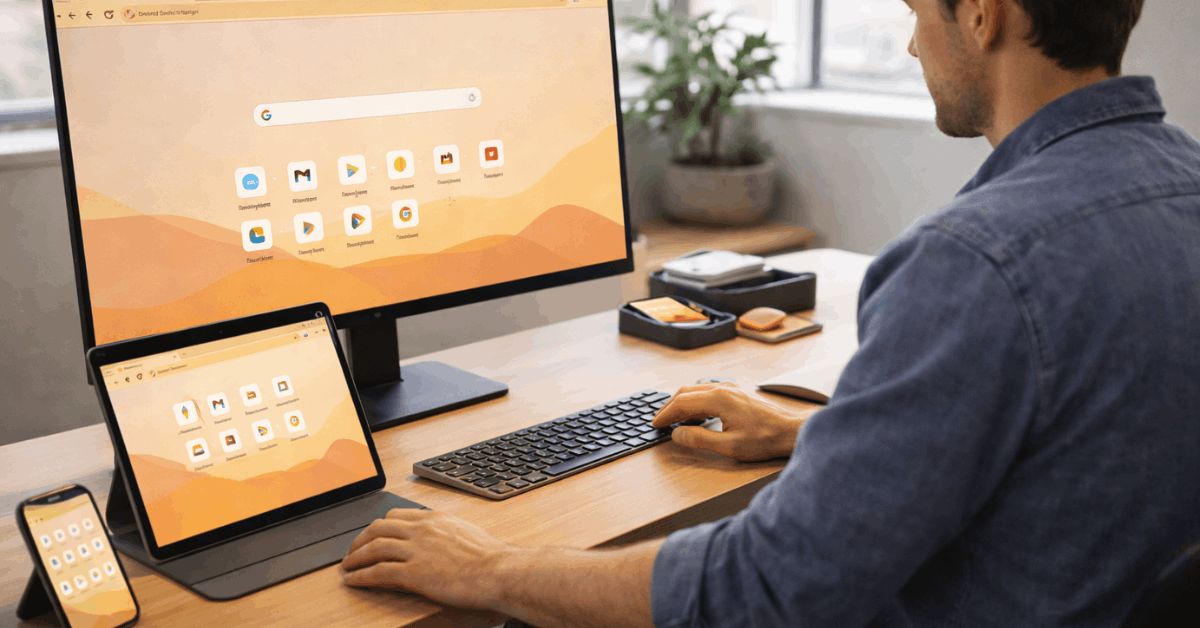
Open a New Tab and select Customize Chrome in the bottom right to adjust colors, themes, backgrounds, cards, and shortcuts. Head to Settings → Appearance for deeper options, including Mode, fonts, Chrome page zoom, bookmarks bar visibility, and Chrome toolbar settings.
The side panel location can also be changed under Settings → Appearance → Side panel, which helps keep tools where they feel natural. Treat Chrome appearance settings as the central hub, then return to the New Tab for fast visual previews.
Change Theme Colors and Backgrounds
A cohesive color palette and backdrop sharpen focus while visually anchoring your workspace. Chrome provides quick theme palettes, daily-refresh images, and category galleries for a clean look without hunting across the web. Reset to default anytime if experimentation goes sideways, which keeps trials low risk.
Pick Theme Colors
Open a New Tab, click Customize Chrome, then choose Color and theme to apply a preset pairing or use the color dropper for a custom shade.
Subtle mid-contrast colors usually keep tabs and toolbar legible across bright offices and dim rooms. Pair an accent that complements your desktop wallpaper or laptop finish for visual cohesion.
Set A Background Image Or Collection
Select Change theme, pick a category such as Landscapes or Art, then choose a single image or toggle Refresh daily for rotating backdrops. Daily rotation helps reduce visual fatigue during long workweeks. After selecting an image, adjust the browser color in Color and theme if Chrome’s auto-match looks off.
Reset To Default
Revert anytime from Customize Chrome → Reset to default Chrome. This restores the standard background and colors, which is helpful when sharing screens for client work or recorded tutorials.
Create A Chrome Theme With AI
Generative themes are built directly in Chrome through Create with AI under Customize Chrome → Change theme. Choose a subject, style, mood, and primary color, then generate several options and apply the best one.
Availability currently varies and may require signing in and meeting regional or age requirements, so treat this as an optional perk rather than a guaranteed feature. Chrome theme customization via AI is ideal for quick seasonal refreshes without installing extensions.
Switch Among Light, Dark, Or Device Modes
Mode settings live in two places: the Customize Chrome sidebar on the New Tab and Settings → Appearance → Mode. Choose Light for maximum contrast on print-heavy pages, Dark for reduced glare in low light, or Device to mirror the operating system.
Many users prefer Device to keep day-night shifts automatic across browsers and apps, while creators who edit color-critical content often stick to Light for color fidelity. The phrase Chrome dark mode remains a common search because it helps reduce eye strain after sunset.
Customize The New Tab Page For Workflows
New Tab can show shortcuts, productivity cards, and an aesthetic that fits your workspace. Treat this page like a launchpad: faster access to sites and files means fewer clicks and less context switching. A light setup keeps memory usage in check while still surfacing must-have links.
Show Or Curate Shortcuts
Toggle Show shortcuts in the sidebar, then pick Most visited or My shortcuts. For a curated set, select Add shortcut, give it a clear name, and keep the grid to high-frequency destinations only.
Hover any tile, open the three dots to Edit or Remove, and drag tiles to reorder. This streamlined Chrome New Tab customization saves time across hundreds of opens per week.
Turn Cards On Or Off
Enable Cards to surface recent Google Drive files or next Google Calendar events below shortcuts. Cards may require being signed in and can vary on managed or enterprise devices. Disable individual card types in Customize Chrome → Cards → Customize cards if the page starts feeling crowded.
Tips For Power Users
Keep one background category, a single accent color, and a focused set of eight or fewer shortcuts. Disable rarely used cards to minimize visual noise. If sharing a computer, store work links in a separate profile to prevent clutter bleed.
Tidy The Toolbar and Bookmarks Bar
A clear toolbar reduces hunting for controls and keeps space for long page titles. Settings allow per-button control, while the bookmarks bar can be shown only on New Tab or hidden completely. Minimal setups pair well with smaller laptop screens and compact ultrabooks.
Choose Toolbar Buttons
Open Settings → Appearance → Customize your toolbar to enable or disable items such as Home, Password Manager, History, or Reading List.
Drag buttons directly on the toolbar to reorder them until muscle memory feels right. Keeping only high-frequency actions reduces accidental clicks and improves scan speed.
Show Or Hide The Bookmarks Bar
Toggle the bookmarks bar in Settings → Appearance or use the keyboard shortcut Ctrl+Shift+B on Windows and Command+Shift+B on macOS.
Hiding the bar during writing or design work creates more vertical room and removes peripheral distractions. Show it again for research sessions that benefit from dense bookmark access.
Reorder Items
Rename folders with concise labels and place the most used folder at the far left. Avoid deep nesting that slows navigation under pressure. Sharing screenshots or recordings for support is easier when the bar stays consistent and uncluttered.

Tune Text: Fonts, Sizes, and Zoom
Comfortable reading supports longer focus without squinting or scrolling fatigue. Chrome provides both default font controls and global zoom, plus per-site zoom memory for fine-grained adjustments. Keep changes moderate to avoid unexpected layout shifts on responsive pages.
Change Font Size Or Family
Navigate to Settings → Appearance → Font size and pick a size between Very small and Very large. Select Customize fonts for standard, serif, sans serif, and fixed-width choices, along with a minimum font size for accessibility.
Clear typefaces at medium size often balance density and readability across content-heavy sites. These controls fall under Chrome font settings and affect pages that allow browser-controlled fonts.
Set Default Page Zoom
Open Settings → Appearance → Page zoom and choose a global level, typically between 90 percent and 125 percent for everyday use.
Chrome supports a range of up to 500 percent, which assists low-vision scenarios and classroom demos. Keep in mind that extreme zoom may trigger horizontal scrolling on fixed-width layouts.
Per-Site Zoom Memory
Adjust zoom on any page via the three dots menu or keyboard shortcuts, and Chrome remembers that percentage for the domain.
This is particularly helpful for documentation portals, learning platforms, and dashboards that ship dense UI. If a site feels off after adjustments, reset to 100 percent and retest.
Manage Profiles For Separation and Focus
Profiles keep work, personal, client, or classroom sessions distinct without juggling multiple browsers. Click the profile avatar, choose Customize profile, then set a name, window color, and avatar for quick recognition.
Separate profiles also isolate history, extensions, passwords, and payment methods, reducing the chance of cross-account mix-ups. Clear Chrome profile customization helps teams that share devices or contractors that rotate across client environments.
Extra Polishing: Side Panel, Shortcuts, and Safety Nets
Chrome’s side panel can live on the left or right under Settings → Appearance → Side panel, which is useful for Reading List or Bookmarks.
Keep shortcut knowledge sharp: Ctrl or Command plus plus or minus controls zoom, while Ctrl or Command plus zero resets it instantly. When personalization starts causing lag or visual glitches, disable suspicious extensions, revert the theme, and check for browser updates.
If problems persist, use Reset to default under Settings → Reset settings to return Chrome to a clean baseline without removing bookmarks or passwords synced to an account.
Light Maintenance To Keep Things Fast
A quarterly pass keeps Chrome snappy after heavy experimentation. Remove unused themes, trim extensions to those actively used, and clear cached images if storage runs tight on older machines.
Switch to Device mode if the operating system already handles dark and light transitions elegantly across apps. Short, regular checkups beat one big overhaul when deadlines pile up.
Last Thoughts
In the end, personalization works best when it stays simple and reversible. Set a theme, streamline shortcuts, tune fonts and zoom, then check performance after each change.
When glitches creep in, disable suspect extensions, update Chrome, or reset settings to restore a clean baseline. Regular light maintenance keeps Chrome fast without sacrificing the look and workflow you prefer.