
Forty minutes. That is the exact cutoff Zoom puts on free-plan meetings, and if you have ever watched a class session collapse at the 39-minute mark, you know how fast chaos follows.
Most Zoom tutorials treat every reader the same. This is for teachers, school coordinators, and remote team leads who are running recurring sessions, managing other people’s audio problems, and trying to keep 30 participants focused on something other than their own video tiles.
The gap is what happens between “everyone join the link” and “okay, that actually went well.”
So let me walk you through the setup, features, and habits that consistently separate smooth sessions from the ones where someone is still asking “can you hear me?” eight minutes in.
Getting the Right App on the Right Device
Skipping this step causes half the problems in the first five minutes.
Install the desktop client for Windows or macOS, not the browser version. The browser version limits features, and those limits show up at the worst moments. Sign in or join as a guest with a meeting ID depending on your institution’s policy.
On mobile, the iOS and Android apps handle quick joins well, especially when someone needs to jump in from a calendar notification. They are solid backups, not primary tools for facilitators.
Chromebooks and Low-Spec Devices Need a Specific Path
Chromebook users should install the Zoom PWA rather than the Chrome extension. The PWA gets better performance, more consistent feature updates, and cleaner admin control for schools managing multiple devices.
Older laptops with weak CPUs struggle with Gallery View. Switch to Speaker View and close every unnecessary browser tab before the session starts. For shaky networks, phone dial-in combined with in-meeting chat keeps a participant connected when video completely fails.
Updating the client regularly matters more than most people think. Feature availability shifts between versions, and a student on an outdated app may not see the same controls as the host.
How Students Actually Join School Systems
Students in K-12 rarely create personal Zoom accounts. Most join through external authentication using school credentials, which moves them directly into the waiting area without requiring a separate login.
Learning management systems handle the routing automatically.
- Canvas lists upcoming meetings under the Zoom tab inside each course
- Blackboard exposes Zoom under the Tools menu
- Schoology places a class link directly on the course page
- Moodle typically adds a “Zoom Meetings” item in the course navigation
Email and calendar invites work as reliable backups, especially for parents helping younger students find the right link.
Also read: Canva for Complete Beginners Who Need Real Results Fast
Co-hosts Change Everything for Large Groups
Hosts who try to manage admits, answer chat questions, monitor hands, and present at the same time are splitting attention in four directions.
Assign a co-host before the session starts. The co-host handles the participant panel while the presenter stays focused on content.
This is the single structural habit that most tutorials mention as an afterthought. It belongs at the top of every facilitator checklist.
The Features That Actually Move the Needle
Zoom has a lot of buttons. Most of them do not matter much. A handful of them change how a session actually feels.
Waiting Rooms Are a Policy Tool, Not Just a Security Feature
Most people treat waiting rooms as a spam filter. I think that framing undersells them by about 90% of their actual value. Guest accounts can be held in the waiting area while authenticated users bypass the queue automatically.
That distinction matches how most schools and companies structure access. Short text in the waiting area sets timing and behavior expectations before anyone enters the room.
Breakout Rooms Work Better With Timers and Broadcasts
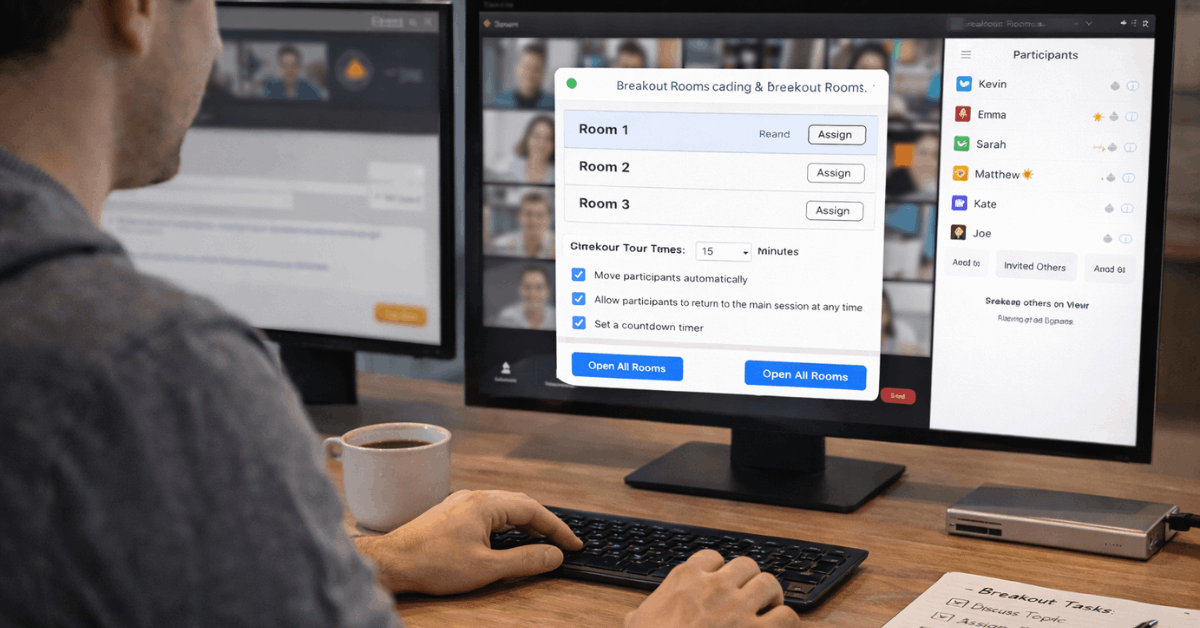
Split the main call into smaller working groups for discussions or lab activities. Hosts assign rooms automatically or manually and set timers so groups know how long they have.
Sending a broadcast announcement inside the breakout session pulls everyone’s attention without ending the activity early.
Rejoining the main room is seamless. Transitions feel clean when you preset the rooms before the session starts rather than configuring them mid-meeting.

Screen Sharing With Multi-Share Enabled
Standard screen sharing covers an entire desktop or a single window, including a whiteboard. Annotation tools let participants draw, stamp, or type on shared content when the host allows it.
Multi-share takes this further: more than one participant can present simultaneously. For peer review sessions or side-by-side comparisons, that capability removes a full round of “okay, stop sharing, now you share.”
Reactions and Nonverbal Feedback Keep Pacing Honest
Raise Hand, Yes, No, Slow Down, Speed Up. These icons sit on the video tile and in the participant list until the host clears them. That persistence is the useful part.
A Slow Down signal visible to the presenter mid-explanation is direct, low-friction feedback. No one has to interrupt. The presenter sees it, adjusts, and moves on. For large classes, especially, that nonverbal layer handles crowd control without derailing the flow.
Accessibility Settings That Often Get Left Off
Automated captions provide live transcription for spoken content and a full side-panel transcript when enabled. Cloud recordings include those transcripts automatically when live captions were active during the session.
Multi-pin and multi-spotlight let a participant keep a sign language interpreter and the instructor visible simultaneously. That is not a minor accessibility checkbox. For students who rely on it, it is the difference between following a session and guessing.
Screen reader support, keyboard navigation, and adjustable caption font sizes cover additional needs. Schools operating under COPPA and FERPA frameworks can align these settings to documented accommodation policies.
Pricing Reality Check for 2026
As of January 2026, the Basic plan supports up to 100 participants with a 40-minute cap on meetings hosted by free users. That limit hits during class exactly when you do not want it to.
| Plan Type | Participant Limit | Meeting Duration |
|---|---|---|
| Basic (Free) | Up to 100 | 40-minute cap |
| Licensed Plans | Varies by tier | Unlimited |
| Large Meeting Add-on | 500 or 1,000 | Unlimited |
Licensed plans unlock admin controls, cloud recording, reporting, and larger default capacities. Large Meeting add-ons push capacity to 500 or 1,000 attendees for standard meetings, with higher limits available at enterprise tiers.
Home Setup Guidance for Parents and Guardians
Place the student’s device near the router when possible, or run an Ethernet cable if the router is close enough. Disabling self-view or incoming video reduces processing load when bandwidth drops.
A quiet, well-lit spot handles more distraction problems than any Zoom setting will. Enable suppression of background noise when the environment cannot be fully controlled.
Zoom provides a Children’s Educational Privacy Statement specifically for school-delivered services. Schools in the United States operate within the COPPA and FERPA frameworks, which govern how student data is handled during sessions.
Desktop Shortcuts Worth Memorizing
Fast access to common controls removes friction during live sessions.
- Alt+R: toggle local recording
- Alt+C: cloud recording
- Alt+P: pause or resume recording
- Alt+H: show or hide chat
- Alt+U: open participants panel
- Alt+Y: raise or lower hand
- Alt+F: full screen
Questions People Ask About Zoom for Classes and Teams
Q: Can a free Zoom account host a class with more than 40 minutes? The 40-minute limit applies to meetings hosted by free-plan users with multiple participants. Upgrading to a licensed plan removes the cap. Some educational institutions provide licensed accounts to teachers directly through district or school agreements.
Q: How do I stop random people from joining a meeting link? Use a waiting room combined with authentication requirements. Restricting entry to users from a specific domain prevents outside accounts from joining without approval. Avoid posting passcodes publicly anywhere the link is shared.
Q: Can students annotate on a shared screen during class? Yes, if the host enables annotation permissions. Participants can draw, stamp, or type on shared content. Hosts can turn this off mid-session if it becomes a distraction.
Q: Does Zoom automatically transcribe meetings? Automated captions produce a live transcription during the session. Cloud recordings include a separate transcript file when captions were active. The Zoom accessibility support page covers setup steps for different account types.
Q: What is the best way to manage large breakout room sessions? Preset the rooms before the meeting starts rather than assigning them live. Set a timer so groups have a visible countdown, and use the broadcast feature to send reminders without ending the activity. Assign a co-host specifically to monitor the breakout panel.
Conclusion
Solid meeting hygiene outperforms any clever feature combination every single time. Install the right client, standardize how people join, keep the waiting room active, and give one person the co-host role before the session ever starts.
Once those four habits are in place, the Zoom feature documentation becomes something you check occasionally instead of desperately. The sessions that feel effortless are never improvised. They are just well-prepared.









