
In classrooms and remote teams, a clear Zoom Tutorial beats guesswork and saves time. Fast setup, predictable controls, and a few guardrails keep classes on track and meetings productive.
Early steps focus on getting the right app, joining securely, and confirming audio and video basics. Smart use of features like Zoom waiting room, Zoom breakout rooms, and Zoom live transcription then lifts participation without adding friction.
What Zoom Is and How Meetings Work
Zoom meetings are real-time video or audio sessions that run on desktop, mobile, and the web app. Hosts create instant or scheduled meetings, control entry, and manage options like screen share, chat, and recording.
Gallery View can display up to 49 tiles per screen on supported devices, which helps in large classes and briefings. Capacity depends on the plan and add-ons, and administrative controls govern who can present, record, or chat.
Quick Setup and Downloads
A short setup sequence removes most headaches later. Keep it simple and standard across devices.
- Install the desktop client for Windows or macOS, then sign in or join as a guest using a meeting ID.
- Add the mobile app on iOS or Android for on-the-go sessions and quick joining from calendar notifications.
- Use Zoom PWA on Chromebooks for better performance, updated features, and admin manageability.
- Test audio and video once, then store working settings to avoid last-minute scrambling.
Joining and Hosting Essentials
Students in K-12 often join through external authentication using school credentials. That flow admits the student to the waiting area or meeting without creating a personal Zoom account.
Learning management systems like Canvas, Blackboard, Schoology, Moodle, and Clever usually expose a Join button inside the course, which launches the meeting directly. Meeting links also arrive via email invites or calendar entries.
Joining works through the app, the web portal, or a phone dial-in number when bandwidth is limited. Hosts start instant meetings with the client or schedule in advance and send invitations. Co-hosts help manage chat, mute controls, and admits, which keeps the presenter focused on content.
Zoom’s Key Features For Classrooms and Teams
A small set of features handles most classroom and collaboration needs. Treat them as building blocks that reduce interruptions and keep attention on the task.
Waiting Rooms and Holds
Waiting Rooms gate entry so the host can admit individuals or groups at the right moment. Guest accounts can be held while authenticated users bypass the queue, which matches many school and company policies. Short text notices in the waiting area set expectations on timing and etiquette.
Breakout Rooms
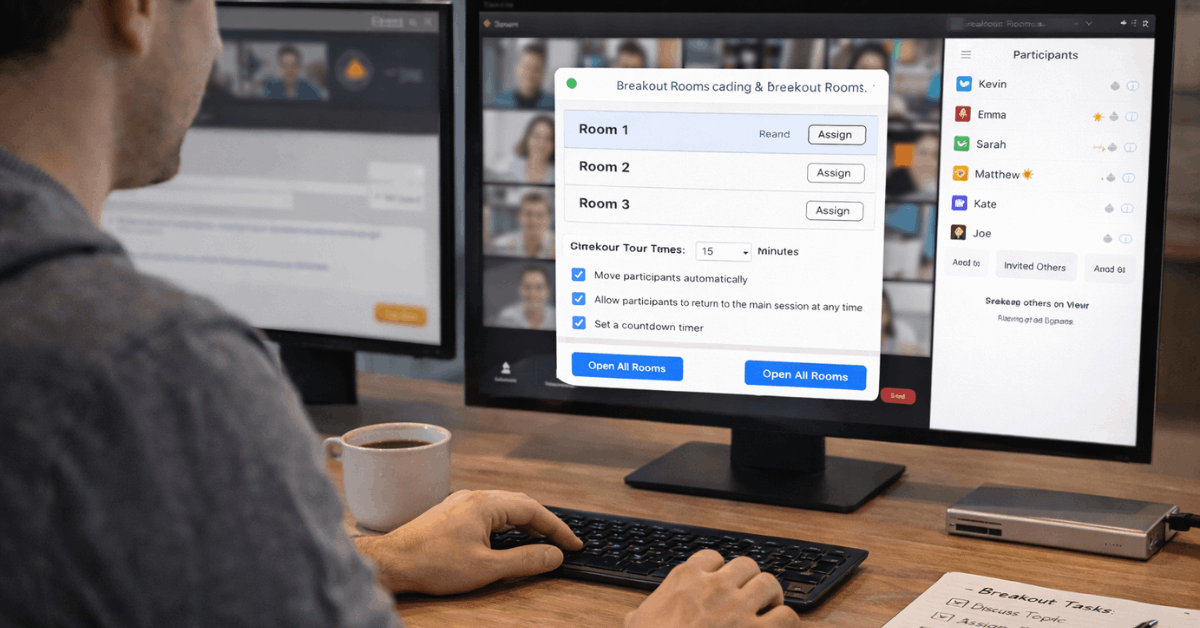
Breakout rooms split a large call into smaller working groups for discussions or labs. Hosts can assign rooms automatically or manually, set timers, and broadcast announcements. Rejoining the main room feels seamless, which keeps momentum during rotating activities.
Screen Sharing and Annotation
Zoom screen sharing supports entire desktops or single windows, including a whiteboard. Annotation tools let participants draw, stamp, or type on shared content when allowed.
Turning on multi-share lets more than one participant present simultaneously for side-by-side demos, which accelerates peer review and group problem solving. These patterns qualify as Zoom screen sharing best practices because they keep presenters focused while others contribute visibly.
Reactions and Nonverbal Feedback
Meeting Reactions display quick emojis for applause or agreement, while nonverbal feedback shows persistent signals like Raise Hand, Yes, No, Slow Down, or Speed Up.
Those icons sit on the video tile and in the participant list until cleared, which gives instructors and hosts lightweight crowd control without interrupting the speaker.
Recording and Playback
Zoom meeting recording can save to a local drive or, on licensed plans, to the cloud. Hosts can enable automatic recording, pause during breaks, and share files later with access controls.
Cloud recordings can include transcripts when live captions were active, which speeds up review and note-taking.
Accessibility Options That Matter
Effective sessions respect different needs without adding complex workflows. Automated captions provide Zoom live transcription for spoken content, and a full transcript can appear in a side panel when enabled.
Multi-pin and multi-spotlight allow a participant to keep a sign language interpreter and instructor visible at the same time.
Screen reader support and keyboard navigation cover common controls, while adjustable chat and caption font sizes help low-vision users. Schools and districts can align these features to policies for accommodations and inclusive instruction.
Pricing Snapshot and Limits In 2026
As of January 2026, the Basic plan supports up to 100 participants and enforces a 40-minute limit on meetings hosted by free users. Licensed plans extend durations and unlock admin controls, reporting, cloud recording, and larger default capacities.
Large-Meeting add-ons raise the ceiling to 500 or 1,000 attendees for standard meetings, and some enterprise tiers support higher capacities for specialized events. Feature availability can vary by platform and version, so updating clients remains a simple, high-impact habit.
Parent Guidance For K-12 Learners
Home setups benefit from stable connections and simple routines. Place the student’s device near the router when possible, or use Ethernet for reliability. When bandwidth dips, disabling self-view or incoming video reduces freezes and audio stutter.
A quiet, well-lit nook reduces distractions; enabling “suppress background noise” helps when the environment cannot be fully controlled.
Privacy commitments matter for minors: Zoom provides a Children’s Educational Privacy Statement for services delivered through schools, and schools in the United States operate within COPPA and FERPA frameworks.

LMS and Email Join Paths, Simplified
Most students reach class through a consistent route surfaced inside the LMS course.
Canvas typically lists Upcoming Meetings under the Zoom tab; Blackboard exposes Zoom under Tools; Schoology places a class Zoom link on the course page; Moodle often adds a “Zoom Meetings” item in the course.
Email and calendar invites remain reliable backups, especially for guardians helping younger students join on time.
Practical Tips To Run Smoother Meetings
A handful of habits eliminate recurring friction and keep attention on content.
- Schedule recurring meetings for classes or standups, and lock predictable settings into the template.
- Assign a co-host to manage admits, chat, and reactions while the presenter teaches or briefs.
- Use breakout room presets and timers so transitions feel natural and time-boxed.
- Enable automated captions, then record to the cloud when policy allows for easy review later.
Helpful Controls and Shortcuts
Fast access to core actions speeds up facilitation.
Typical desktop shortcuts include Alt+R to toggle local recording, Alt+C for cloud recording, Alt+P to pause or resume, Alt+H to show or hide chat, Alt+U to open the participants panel, Alt+Y to raise or lower a hand, and Alt+F for full screen.
Hosts can also allow participants to multi-pin, which supports interpreter visibility during discussions.
Security and Privacy Basics
Simple defaults handle most risks. Use waiting rooms for public links, or restrict entry to authenticated domains for school or company calls. Keep the meeting ID private outside intended audiences, and avoid posting passcodes publicly.
Limit screen sharing to hosts or co-hosts unless collaboration requires wider access, then turn it off again when the activity ends. Audit recordings periodically and remove files that no longer serve a training or compliance purpose.
Chromebook and Low-Spec Device Advice
Chromebooks and older laptops run meetings reliably when the Zoom PWA or current client is installed, and unnecessary browser tabs stay closed.
Gallery View can be reduced when CPUs struggle, while Speaker View keeps processing light. For shaky networks, phone dial-in plus in-meeting chat often sustains participation when video fails.
Final Takeaway
Solid meeting hygiene beats feature sprawl. Install the right client, standardize join paths, keep waiting rooms on, and use breakouts, reactions, and captions to structure participation. A short checklist and one co-host turn Zoom into a predictable classroom or team hub.








