
Remote help can feel like the fastest way to fix a problem, especially when someone says they can “just take a quick look.”
Remote access is also the easiest way to lose control of your device if you treat it like a normal link or a normal download.
This guide focuses on completing a remote-support session safely, using simple tools, clear guardrails, and a clean shutdown routine.
Treat Remote Access Support as the Most Dangerous “Everyday” Digital Process
Remote access is the most dangerous common process because it can hand someone else real-time control of your screen, files, and accounts.
Downloads, password resets, and form submissions can be risky too, but remote control can turn a small mistake into a full takeover in minutes.
A safe session is one that is short, attended, permission-limited, and easy to end the moment anything feels off.
A smart default is to avoid remote control unless you personally trust the helper and you can stay present for the entire session.
Why this is riskier than “normal” online tasks
Remote access can expose everything currently open, including messages, saved logins, and tabs you forgot were there.
It often involves permission prompts, and one wrong click can allow deeper changes than you intended.
Frequently used in scams because it looks like “tech support” while quietly pushing you toward unsafe actions.
Choose a Tool That Supports Short Sessions and Clear Consent
A safer tool makes it obvious when a session starts, what the helper can do, and how you can stop it immediately.
Windows Quick Assist uses a security code and lets you leave or stop control, which is a helpful feature for supported sessions.
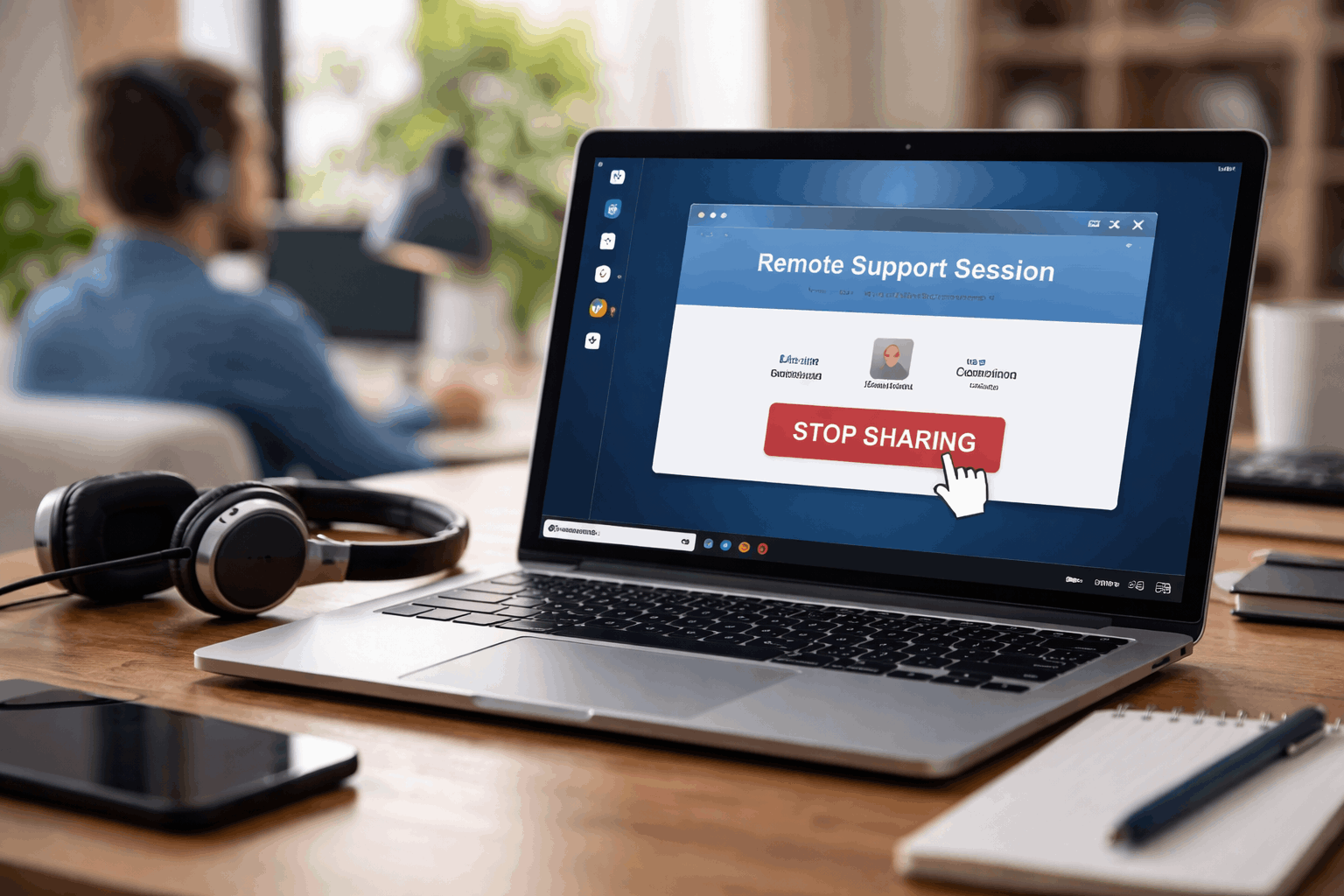
Chrome Remote Desktop offers a “Get Support” flow with a one-time code and an explicit “Stop Sharing” option to end the session.
Tools like TeamViewer QuickSupport can work well for attended support when you must accept the connection request.
Built-in tools vs third-party tools
Built-in options like Quick Assist reduce the chance you accidentally install a fake app, because the tool is already part of the operating system experience.
Third-party tools can be fine when you use the official site and understand the settings, but they require more attention to set up and permissions.
If you feel pressured to install something quickly, pause and switch to a built-in option or a one-time-code support option instead.
Prefer one-time codes over “always-on” access
One-time codes reduce risk because the helper needs a fresh code each time and cannot quietly reconnect later.
Chrome Remote Desktop’s support codes are designed to be temporary, and the session can be ended by stopping sharing.
If a helper insists you must enable unattended access “for convenience,” treat that as a red flag unless it is an organization you already trust.
Prepare Your Device Before You Share Your Screen
Close anything you would not want a stranger to see, including email, password managers, banking tabs, private chats, and cloud drives.
Turn off notifications for the session window so pop-ups do not leak verification codes, personal messages, or account alerts.
Move any important files you do not need for troubleshooting into a folder you will not open during the call, and keep the desktop clean.
Plan a single goal for the session, like “remove a printer error” or “fix an app crash,” so the helper does not wander into unrelated settings.
Create a “safe session” environment
Restarting right before the session can clear random pop-ups and reduce surprise prompts that distract you.
Using a standard user account instead of an admin account can limit what changes a helper can make if you accidentally grant too much access.
If you are on shared Wi-Fi, avoid opening sensitive accounts during the session and focus only on the troubleshooting task.
Run the Session With Simple Guardrails
Start in view-only mode when possible, and only approve control if you can clearly explain why the control is needed for the fix.
Read every permission prompt slowly, because many tools will ask whether you want to allow full control, and that choice matters.
Stay on the call and watch what happens, because “I’ll just run a quick command” is not a reason to stop paying attention.
End the session immediately if the helper asks you to install extra software, log into banking, buy gift cards, or disable security settings.
Watch for the “permission creep” moment
Scams often begin with harmless steps and then requests for deeper access, new installs, or account actions that do not match the original problem.
A legitimate helper can explain each step in plain language and will not get angry when you ask them to pause.
If anything feels confusing, stop sharing first and then decide what to do next while you are back in full control.
Keep control of authentication and payments
Never read out one-time login codes, password reset codes, or two-factor prompts during a remote session, even if the helper says it is required.
If you must sign in to something to test a fix, do it yourself while the helper is in view-only mode and keep passwords off-screen.
A safe helper will never need your password, and a safe session never includes payments, purchases, or “verification charges.”
Close the Session Cleanly and Remove Future Access
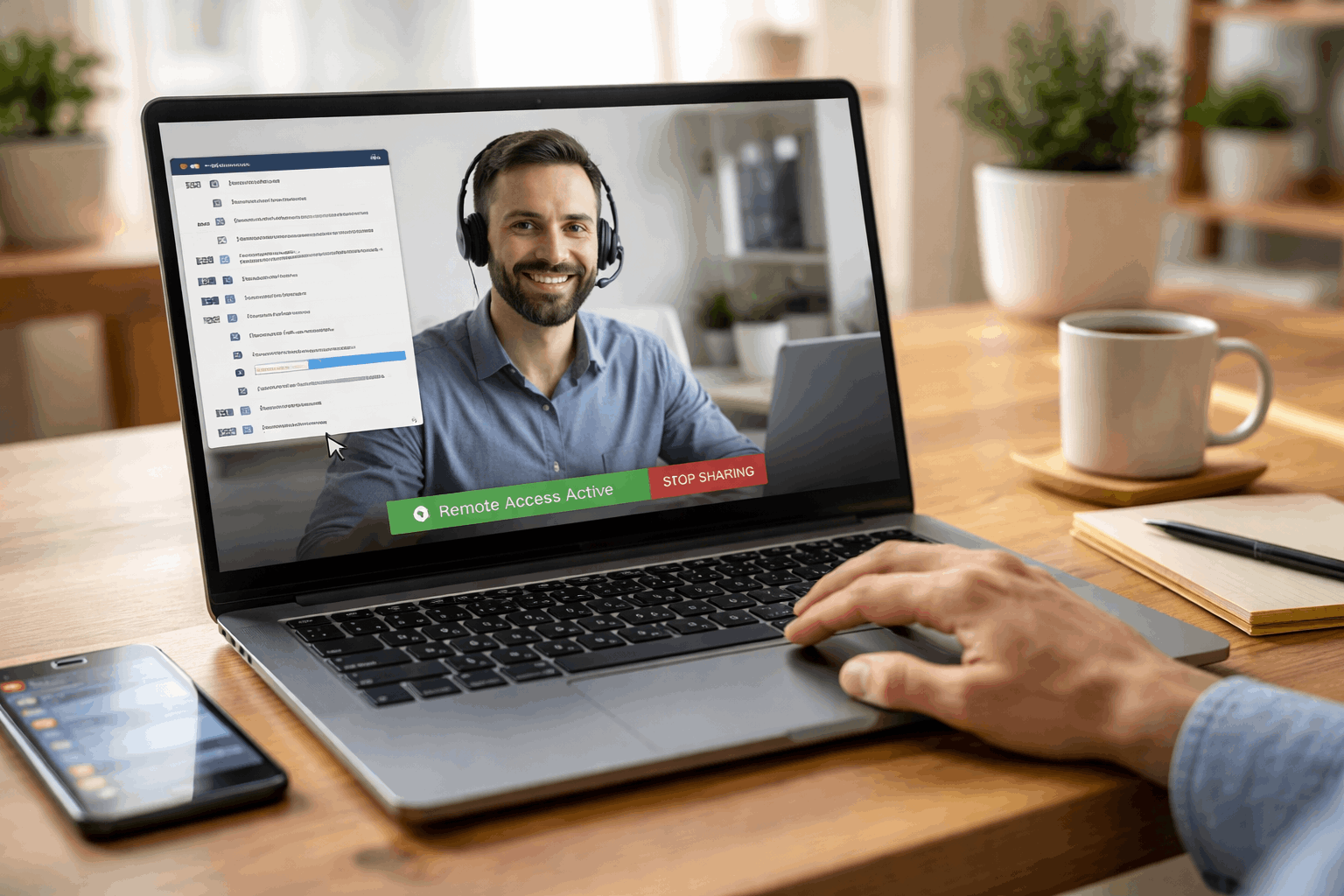
End the session using the tool’s built-in “leave,” “disconnect,” or “stop sharing” button rather than just closing the laptop lid.
Restart after the session so any temporary remote-control services fully stop and you return to a normal, private device state.
Change passwords only if you suspect something went wrong, and start with the email account that controls your password resets.
Run a quick security check by reviewing recent logins, installed apps, and browser extensions for anything you do not recognize.
Undo unattended access and saved credentials
If you enabled unattended access in AnyDesk or a similar tool, turn it off right away so no one can reconnect later using saved login information.
If you created a persistent remote access setup, remove the device from the tool’s “approved computers” list once the help is finished.
If the tool supports permission profiles, tighten them for future use so file transfer and deeper controls are not available by default.
A Safe Finish Line You Can Repeat Every Time,
Remote access support is convenient, but the safest version is temporary, attended, and limited to one clear goal.
You complete this process safely when you use one-time codes, carefully approve permissions, and end sharing the moment anything feels off.
Use the shutdown routine every time, disconnect, restart, and remove any saved or unattended access so the session cannot quietly return.








