
A reliable digital setup does not need dozens of apps. This online tools guide explains how to organize daily work with a browser, cloud drive, document editor, password manager, backup habit, and a few media tools.
It is useful for students, freelancers, remote workers, small teams, and anyone who handles files, forms, passwords, screenshots, and online payments regularly. The goal is to build a routine that feels simple on a busy day, not impressive only during setup.

Start With a Small Core Toolkit
Most people can cover daily digital tasks with four dependable tools.
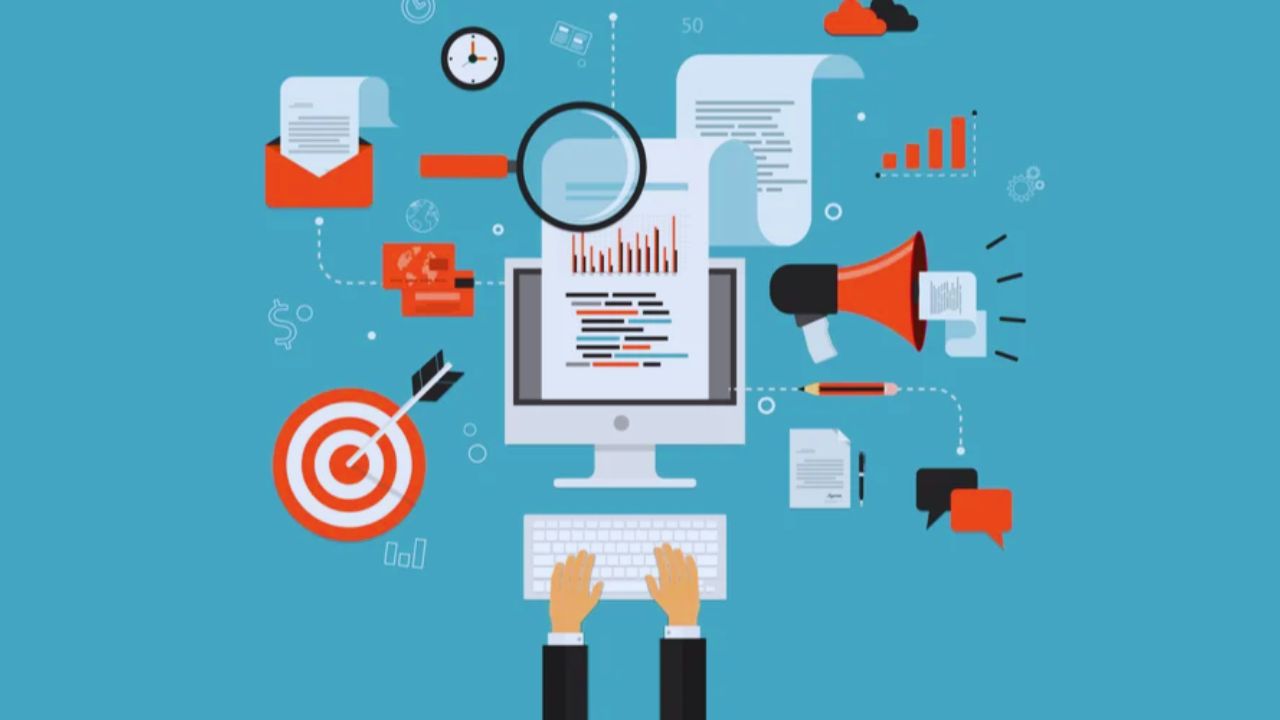
A main browser, one cloud drive, one document editor, and one password manager can handle browsing, writing, saving, sharing, and logging in. A focused core toolkit keeps your work from spreading across too many accounts.
Add specialized tools only when a real task demands them, such as editing a PDF, compressing images, or recording a screen. The fewer places you use, the easier it becomes to find what you need.
Test Tools Across Phone and Computer
A tool is only useful if it works where you actually work. Before committing, save one file on your computer, open it on your phone, edit it, and share it with a second account. This device test reveals whether syncing, search, and permissions feel reliable.
Also check offline access if you travel, study outside home, or work with unstable internet. If a tool fails during a small test, it may become frustrating during real deadlines.
Build a Workspace You Can Reopen Quickly
A clean workspace helps you return to work without hunting through tabs and folders. Pin only the sites you use every day, such as email, calendar, cloud storage, school portal, project board, and banking.
A simple digital workspace should make your next action obvious. Remove unused bookmarks from the visible bar and keep longer references inside labeled folders. Your browser should feel like a dashboard, not a junk drawer.
Use One Start Here Note
A “Start Here” note can save more time than another app. Keep links to your main folders, current projects, important templates, and frequently used accounts in one plain document.
This quick access note works well for students managing subjects, freelancers handling clients, or families organizing bills and records.
Avoid storing passwords there. Link to the password manager or official login pages instead so the note stays useful without becoming risky.
Protect Accounts Before Problems Start
Account recovery often takes longer than setting up protection properly. Use unique passwords, turn on two-step verification for important accounts, and avoid saving login details in screenshots or chat messages.
A strong account security routine should start with email, banking, cloud storage, school, work, and social accounts because those can unlock other services.
Password managers reduce the temptation to reuse simple passwords. Treat each login as something you may need to recover later.
Make Recovery Part of the Setup
Two-step verification is helpful only when you can still access your backup method. Save recovery codes in a secure note inside your password manager or in a private offline place.
A careful recovery plan means checking that your phone number, backup email, authenticator app, or device prompt still works. Do this before you lose a phone or switch devices. “Enabled” does not always mean “recoverable” when stress hits.
Keep Files Findable and Backed Up
File organization should help you find something in ten seconds, not just look neat. Choose one main cloud drive and create broad folders for work or school, personal records, receipts, and active projects.
A practical file system uses clear names with dates, topics, and versions when needed. For example, a receipt or form can start with the date so it sorts naturally. Keep local copies only when privacy, speed, or file size makes cloud sync inconvenient.
Treat Downloads Like Temporary Storage
Downloads become messy when every file stays there forever. Use the folder as an inbox, then sort important files once a week.
A simple download cleanup habit prevents duplicate forms, old screenshots, and mystery documents from piling up. Keep one “Incoming” folder if you need time to sort files later. Delete failed exports and rename useful files before sending them to someone else.
Handle Documents, PDFs, and Scans Cleanly
Documents, PDFs, and scans each need slightly different habits. A document editor is best for writing and collaboration, while a PDF tool is better for fixed forms, signatures, and final copies.
A clear document workflow helps you avoid editing the wrong version or sending an unreadable file.
Keep clean copies of resumes, invoices, cover letters, budgets, and forms so you do not overwrite your originals. Phone scanner apps can help, but rename the file immediately.
Share One Master Copy
Sending several attachments can create version confusion fast. When possible, keep one master file and share a view, comment, or edit link based on what the other person needs. This sharing control keeps feedback in one place and reduces duplicate drafts.
Use view-only access by default, then allow comments or edits only when collaboration is required. For final files, save a locked or exported copy so accidental changes do not happen.
Prepare Images and Videos for Easy Sharing
Everyday media work usually comes down to resizing, compressing, annotating, or trimming. Large images and long screen recordings can be annoying for the person receiving them, especially on mobile data or slow connections.
A useful media workflow starts with the original file, then creates one clean sharing version. Use JPG for photos, PNG for screenshots, and short recordings for explanations. Avoid re-saving the same file repeatedly because quality can drop.
Record Only the Steps People Need
Screen recordings are helpful for class instructions, bug reports, tutorials, and quick explanations. Plan the clicks first, enlarge the important area, and keep the recording short. A focused screen recording saves the viewer from guessing what matters.
Trim the beginning and end before sharing so the file feels intentional. If the video explains a problem, include a short message with what the viewer should notice.
Slow Down Around Messages and Payments
Communication and online payments need calm decisions. Filter newsletters, save important contacts, confirm calendar invites, and treat urgent messages about money, passwords, parcels, or account problems with suspicion.
A careful online routine means checking the sender, opening official sites directly, and avoiding rushed clicks. Keep a small set of reliable tools, protect accounts, organize files weekly, and review backups before something goes wrong.
A setup like this stays useful because it supports everyday tasks without adding more digital noise across work, school, and home life.









