Basic digital tasks are easier when you rely on one tool that feels familiar every day.
For most people, the best “do-it-all” choice is Google Drive because it covers writing, lists, tables, sharing, and simple projects in one place.
You can follow the steps on a phone, tablet, or computer, and the workflow stays almost the same.
Why Google Drive Is the Best Tool for Basic Tasks
It combines documents, spreadsheets, and presentations under one account.
It works in a browser, so you do not need to install anything to start.
It makes sharing simple with links and permissions instead of file attachments.
It also autosaves your work, so you do not lose progress during basic tasks.
What “basic tasks” usually include
Basic tasks often mean writing something shor,t like a note, plan, or assignment. They also include simple tables like budgets, checklists, and schedules.
They include sharing files for school, family, or small team projects.
When it is not the best option
It may not be ideal if you must work fully offline all the time or fit strict privacy rules that require local-only storage.
It is also not made for advanced design work like professional layout and print files.
Getting Started in Minutes
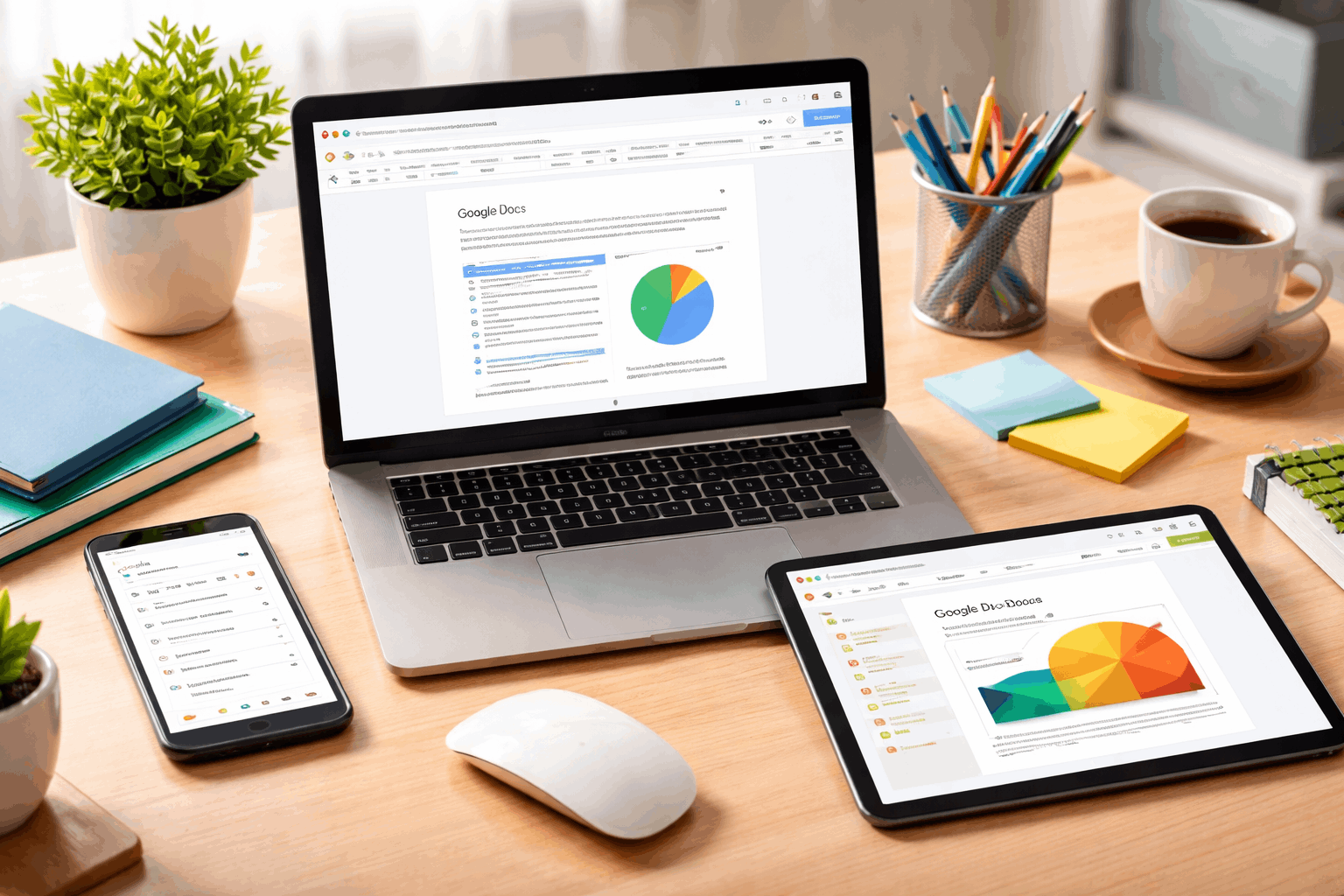
You can begin by signing in with a Google account on any browser and open Drive and use the “New” button to create Docs, Sheets, or Slides.
You can organize your files by making a folder for each project or topic. Star important items so they stay easy to find later.
Create a clean folder setup
Use one main folder for your current month or current project. Create subfolders like “Docs,” “Sheets,” and “Slides” if you prefer separation.
Keep names short and consistent, so search works better later.
Learn the three core file types
Use Docs for writing, outlines, and simple, formatted pages.
Use Sheets for lists, tables, budgets, and calculations.
Use Slides for simple visuals, summaries, and quick presentations.
Task 1: Write and Format a Simple Document in Docs
You can start with a blank document or pick a template if you want structure. Give it a clear title and rename it right away in the top-left.
Use headings to keep sections readable and easy to scan, and share it as a link instead of sending multiple versions as attachments.
Build a clean page structure
Use Heading 1 for the main title and Heading 2 for sections. Keep paragraphs short so the document stays readable on a phone screen.
Use bullet points when you are listing steps, items, or quick notes.
Export and share the right way
Use “Share” when you want others to comment or edit in real time.
Use “Download” when someone needs a file format like PDF or DOCX.
Use “Copy link” when you want the fastest way to send access.
Task 2: Make Checklists, Tables, and Budgets in Sheets
You can create a simple table in minutes by naming columns clearly at the top. Freeze the header row so labels stay visible while you scroll.
You can use basic formulas to add totals without manual math, and filter a list to find items fast without re-sorting everything.
Use simple formulas that cover most needs
Use SUM to total a column like expenses or hours.
Use AVERAGE to track typical values like weekly spending.
Use IF to label items like “Paid” or “Not paid” based on a simple rule.
Keep lists easy to manage
Use data validation to create a dropdown like “To do, Doing, Done.”
Use conditional formatting to highlight overdue or high-priority items, and filters to quickly show only what matters in the moment.
Task 3: Store, Find, and Organize Files in Drive
You can upload any file type, so everything stays in one place. Then use search to find items by name, type, or even keywords in documents.
You can move files into folders without changing their sharing links, so you can access the same files on different devices without copying them around.
Use search like a power feature
Type filetype: pdf to show only PDFs when you are hunting for downloads.
Type owner:me to filter to the files you created and control.
Use the “Advanced search” panel when you remember details but not the exact name.
Task 4: Share and Collaborate Without Confusion
You can choose whether someone can view, comment, or edit before sending a link.
Add comments tied to specific text or cells to avoid long message threads. Version history is able to roll back changes if something goes wrong.
You can assign action items by tagging a person in a comment when needed.
Set permissions the safe way
Use “Viewer” when you only want someone to read.
Use “Commenter” when you want feedback without direct edits.
Use “Editor” only when you trust the person to change content.
Avoid the “final-final” file problem
Use one shared link as the single source of truth and version history instead of saving separate copies.
Clear file names like “Project Plan v1” only when you truly need milestones.
Task 5: Create a Simple One-Page Presentation in Slides
You can use Slides to summarize a plan, report, or idea in a clean format.
Start from a simple theme and keep designs minimal and readable. You can reuse layouts so your slides look consistent without extra effort.
Present from the browser or export a PDF for easy sharing.
Make slides readable fast
Use one main idea per slide and keep text short, large font sizes so it works on small screens, and simple shapes and icons instead of crowded images.
Share or export for any audience
Share a view-only link when you want control and easy access.
Download as PDF when you need a stable handout format, and as PPTX if someone must edit in PowerPoint later.
Quick Troubleshooting for Common Issues
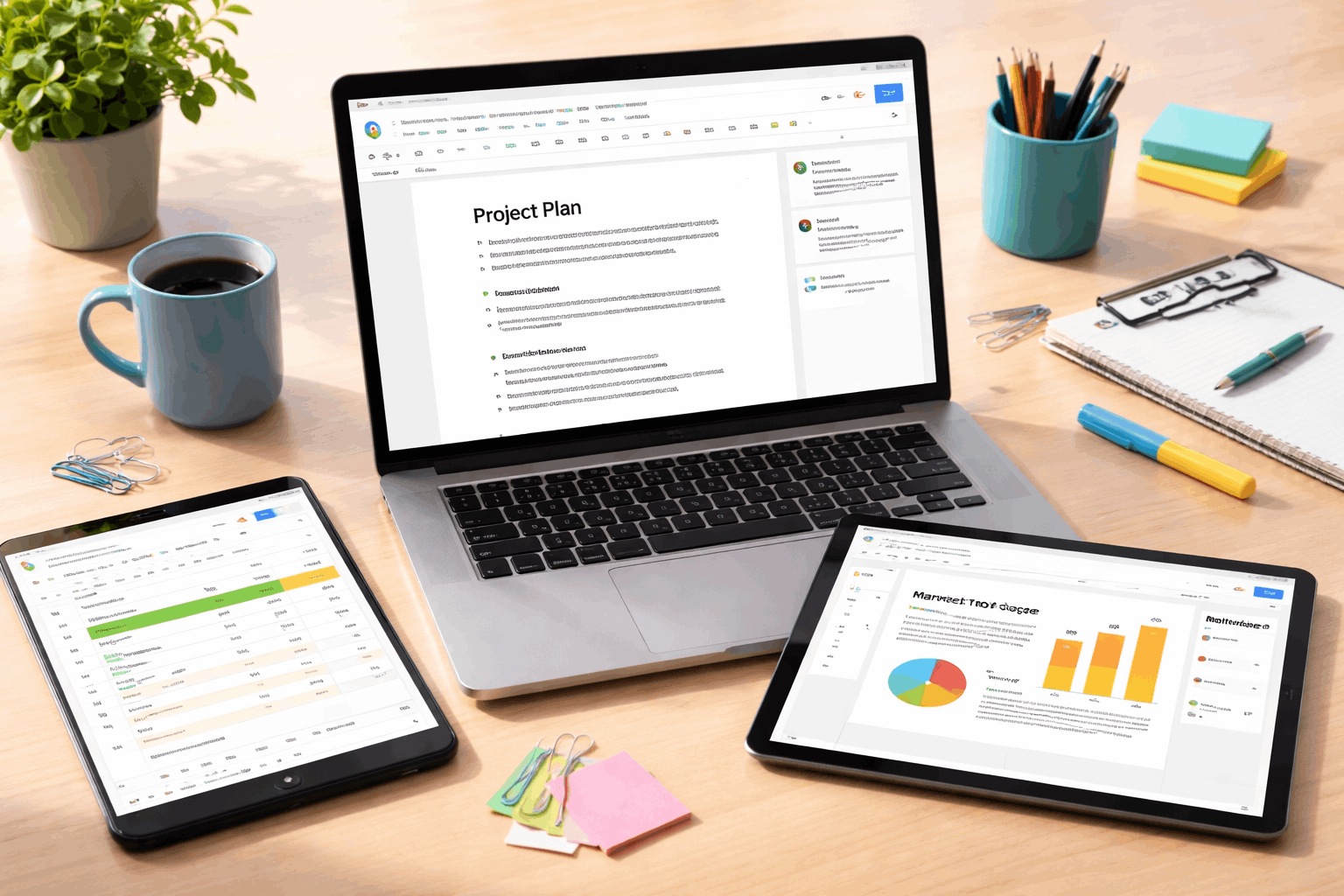
If you cannot find a file, search by type and recent activity first.
If sharing fails, check link settings and whether the other person is signed in.
If formatting looks different, export to PDF for a consistent view.
If changes look wrong, open version history and restore the last good state.
Fix syncing and access problems
Refresh the page and confirm you are on the correct Google account. Check storage and internet connection if uploads are stuck.
Ask the other person to open the link in a browser, not inside an app preview.
Recover deleted or overwritten work
Check the Drive trash if a file seems to disappear. Use version history in Docs, Sheets, or Slides if edits went too far.
Make a copy of the fixed file to preserve a clean backup.
A Simple Workflow You Can Reuse Every Day
You can handle most basic tasks with Google Drive (Docs, Sheets, and Slides) in one consistent workspace.
You can start with folders, pick the right file type, and share a single link to keep everything organized.
If you want smoother daily work, set up one “Today” folder and practice this workflow on your next small task.