In homes worldwide, boxes of prints sit vulnerable to humidity, fading, and accidental loss. Maximizing Google Photos starts with protecting those memories, then builds toward private sharing, smart search, and practical publishing.
Under a single account, images become searchable by faces, places, and objects, while backups keep copies safe across devices. After setup, maintenance becomes light work that fits normal routines rather than creating a new chore.
Digitize Old Prints Without Glare
In many households, older non-glossy photos digitize cleanly using a camera in bright, indirect light. Place prints on a flat surface outdoors or near a window, avoid direct reflections, and hold the camera parallel to eliminate keystone distortion.
After capture, upload the files to a computer, then add them to Google Photos, where dates, albums, and people labels can be adjusted. Since glossy prints reflect hotspots, plan a different approach that eliminates glare completely.
PhotoScan App
Because glare ruins shiny surfaces, the PhotoScan app solves reflections through multi-frame capture and stitching. Launch PhotoScan, place the print inside the frame, tap the shutter once, then move the phone to each on-screen dot until it fills.
The app blends the angles into a single image, levels exposure, and removes edge bleed for a flat, high-resolution result. After finishing a batch, send the files to Google Photos so they live alongside recent mobile shots in a single searchable library.
Organize and Upload Like A Pro
In most cases, an organization succeeds when capture, upload, and naming habits remain simple and repeatable. Create one intake folder on a computer called “To Import,” then move finished digitizations there before running an upload.
After import, group related events into albums, add concise titles, and write one-line descriptions that include a year and a location. Because search improves when data is consistent, spend a minute correcting incorrect dates on scans so timelines read properly.
Automatic Backup
In large libraries, Google Photos backup automatically handles new files once the desktop app or mobile settings are configured. Set the upload size to Original if long-term print projects or large edits are expected later.
In mixed libraries, consider periodic reviews of people’s labels to merge duplicates and correct mistaken suggestions. When families share duties, combine standardized album names, such as “1998 Family Reunion Sydney,” for quick recall during future projects.
Set Up Partner Sharing For Automatic Collaboration
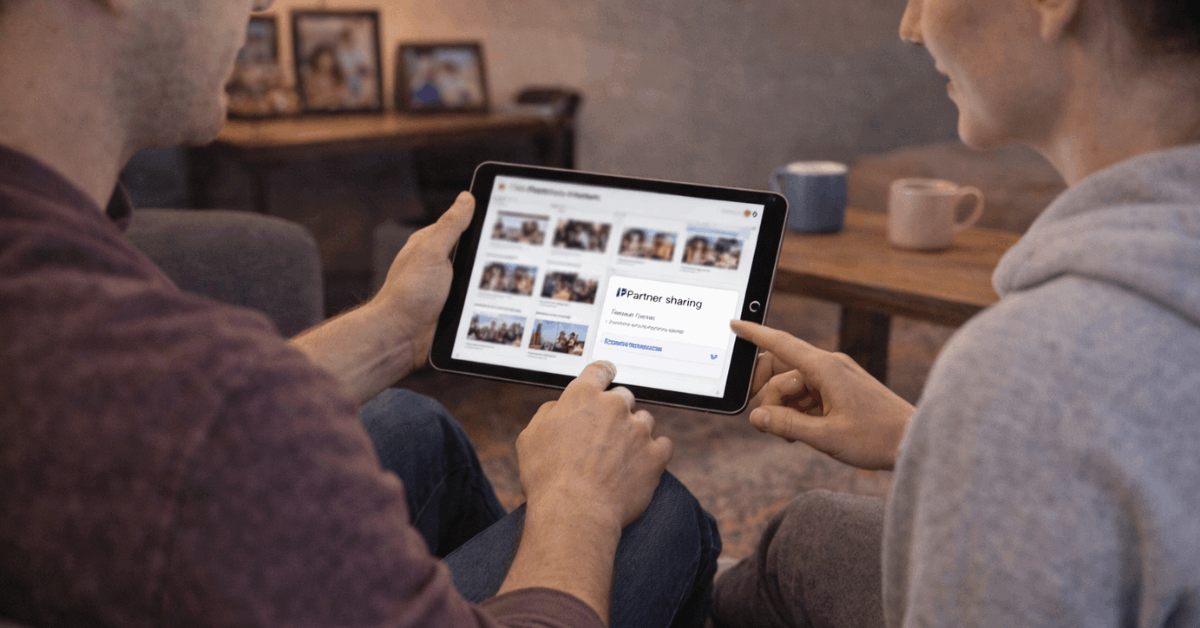
Clear collaboration prevents duplicate uploads and forgotten moments. Partner sharing in Google Photos sends selected items to a trusted account automatically, which keeps a shared library synced without manual sending. Filters restrict what flows across, including face matches and start dates for privacy.
- Open account settings, select Photos settings, then choose Partner Sharing and tap Get started.
- Enter the partner’s Google account email and choose sharing rules, such as photos of a specific person or items after a chosen date.
- Confirm the invitation and review the preview of items that will be shared going forward.
- Revisit the same menu to pause sharing, change filters, or revoke access whenever circumstances change.
Strengthen Privacy and Account Security
Families worry about visibility and account access, which makes a short privacy checklist worth the time. Items in Google Photos are private to the account by default, and shared albums can be kept invitation-only rather than link-based.
Because link sharing can be forwarded, prefer named access for sensitive content that includes children, medical records, or travel documents. Since physical loss of a phone also carries risk, device locks and account alerts add layered protection alongside online controls.
Review Album Sharing Settings
In any shared album, open the options menu and confirm who can view and add media. Disable link sharing when a group no longer needs open access, then keep named invitations restricted to people who still participate.
When albums contain minors or private locations, set commenting and collaboration to off, then export a local archive periodically for safekeeping.
Hide Geolocation On Shared Items
Location data reveals patterns about home, school, and workplace routines that should remain private. In account settings, enable hide photo location data so shared links exclude embedded coordinates even when originals contain metadata.
Consider disabling location tagging in the phone camera for sensitive contexts, then add approximate place names manually inside album descriptions when context matters, without revealing exact addresses.
Enable Two-Step Verification For Sign-In
Attackers target email first since it unlocks many connected services across a digital life. Enabling two-step verification requires an additional code or prompt after the password, reducing the risk of unauthorized access.
This setting applies to the entire Google Account and therefore blocks photo access along with mail, documents, and other data. Treat recovery methods carefully, replacing outdated phone numbers and adding backup codes stored offline in a safe location.
Embed Google Photos In Websites: The Practical Way
Bloggers and educators frequently want to show images or clips without moving everything to a separate hosting platform. Since Google Photos does not provide native embed codes, a practical solution uses Google Drive for single items, then a third-party generator for albums.
Set clear visibility and view-only permissions so public pages cannot be vandalized, and avoid exposing private location details in descriptions. Because school and enterprise domains often restrict external access, test embeds in an incognito window before publishing.
Embed A Single Photo Or Video
- Place the chosen file in Google Drive, then open its sharing menu and switch visibility to Anyone with the link or Public on the web if a public page is required.
- Open the file in a new window, expand the menu, and select Embed item to generate HTML.
- Copy the code into the site’s embed block or HTML editor, then preview the page to confirm dimensions and playback.
- Keep file names neutral and remove personal metadata in descriptions that might reveal sensitive information inadvertently.
Embed A Google Photos Album
- Open Google Photos on a computer, visit the album, then create a share link.
- Paste that link into a trusted album-to-embed tool to produce responsive code for a slideshow or grid.
- Adjust layout options, such as columns, captions, and spacing, then copy the final embed code into the website’s editor.
- Recheck the album’s sharing model periodically, since public links stay active until explicitly turned off in Google Photos.
Print and Preserve Offline Memories
Digital convenience does not erase the value of curated printed keepsakes that live on a shelf. Select a handful of scans each year, fix dust and color casts, then produce a small book that tells a coherent story.
Services connected to Google Photos printing services can pull images directly from albums, which trims project setup and design time. Since paper lasts in ways screens do not, families appreciate a physical timeline that bridges generations and survives account changes.
Check Resolution Warnings
Across countries where integrated partners operate, select vendors offer prints, framed enlargements, and gifts that read images directly from the cloud library. Calibrate expectations before ordering by checking resolution warnings inside the editor, then prefer Original uploads for large formats.
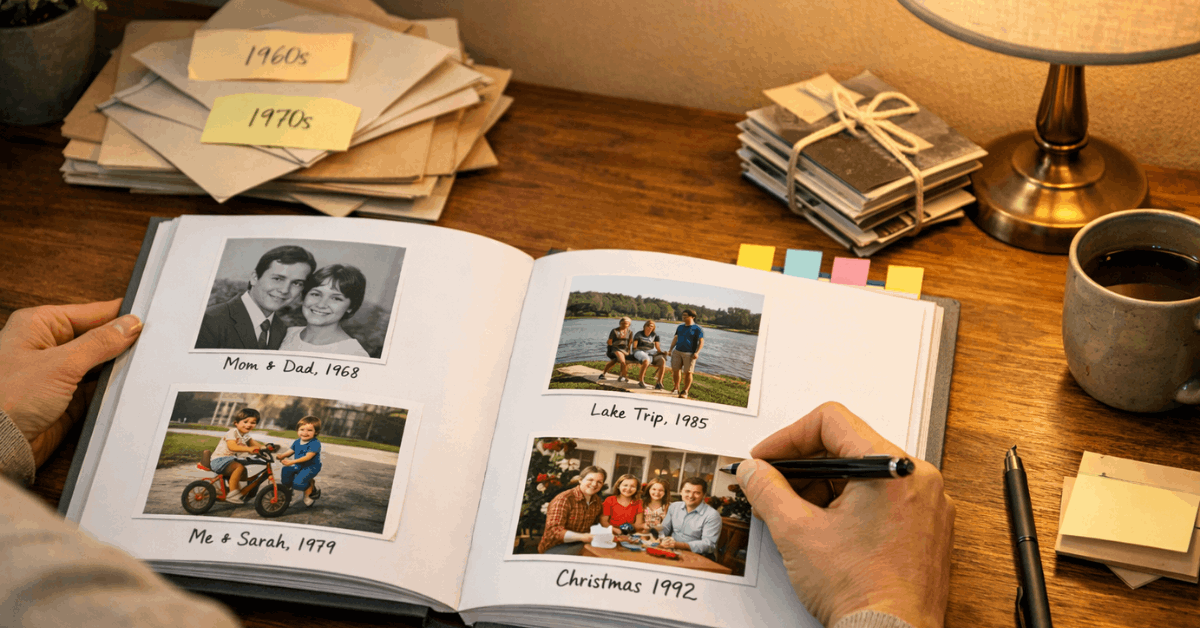
After delivery, annotate book endpapers with dates and names so future readers can identify relatives without guessing. Store books upright and away from direct sunlight to prevent warping and fading over time.
Smart Habits That Keep Libraries Searchable
In growing libraries, small routines preserve order and make search results useful months or years later.
- Add one sentence to album descriptions that mentions the year, the city, and a family name, which creates reliable keywords for quick recall.
- Run a monthly pass through recently added items to merge duplicate faces, delete accidental duplicates, and fix incorrect dates on old scans.
- When kids appear in sports or school events regularly, apply consistent album naming so partner sharing in Google Photos sends the right set automatically.
- Keep hide photo location data switched on for all outbound links unless a venue needs credit.
- When posting images to public pages, avoid filenames that reveal addresses or phone numbers that might have been scanned along with paperwork.
In collaborative households, set a simple rule that albums get closed after thirty days to freeze the set for printing or archiving. After closure, export a copy to a local drive so at least one offline version exists for disaster recovery.
Troubleshooting Common Upload Or Sync Issues
Occasional stalls happen during large imports, especially on older laptops or slower networks. Pause and resume backup to refresh connections, then confirm the account has sufficient cloud storage to finish the job.
When mobile uploads fall behind, verify battery saver settings, background app permissions, and roaming restrictions that can block sync.
After long scanning sessions, organize locally first, then upload in batches to prevent out-of-order timelines and to keep bandwidth spikes under control.
Using the Adjust Date and Time Option
Because scanned prints sometimes inherit the current date rather than the original event date, correct timestamps immediately after upload. Use the adjust date and time option to set accurate years so sort order and Memories selections improve.
When face detection mislabels a person, open the image, select the face, and “remove mistaken name,” then add the correct label so future matches improve.
Keep a small checklist near the scanner that reminds the family to clean lenses, wipe prints gently, and photograph on a parallel plane to avoid distortion.
Last Thoughts
In the end, Google Photos works best when simple routines protect, organize, and share what matters. Digitize prints without glare, import in batches, and standardize your albums and dates so search stays reliable.
Set partner sharing thoughtfully, prefer invitation-only access, and keep location data off links that leave the household.
When publishing or printing, check resolution, add context, and archive a local copy so your memories survive account changes. Treat maintenance as light ongoing care, and your library will quietly stay safe, searchable, and useful.